Use the whiteboard
A canvas board is an endless whiteboard for a session, a map or a workshop: sticky notes, text, shapes, pictures, action lists and timelines. Everyone on the board sees changes as they happen, and the board stays in the journey's Files afterwards.
Content - the board of your journey - 6 min. You need: a journey
Reading this page changes nothing. A board is only made when you press OK.
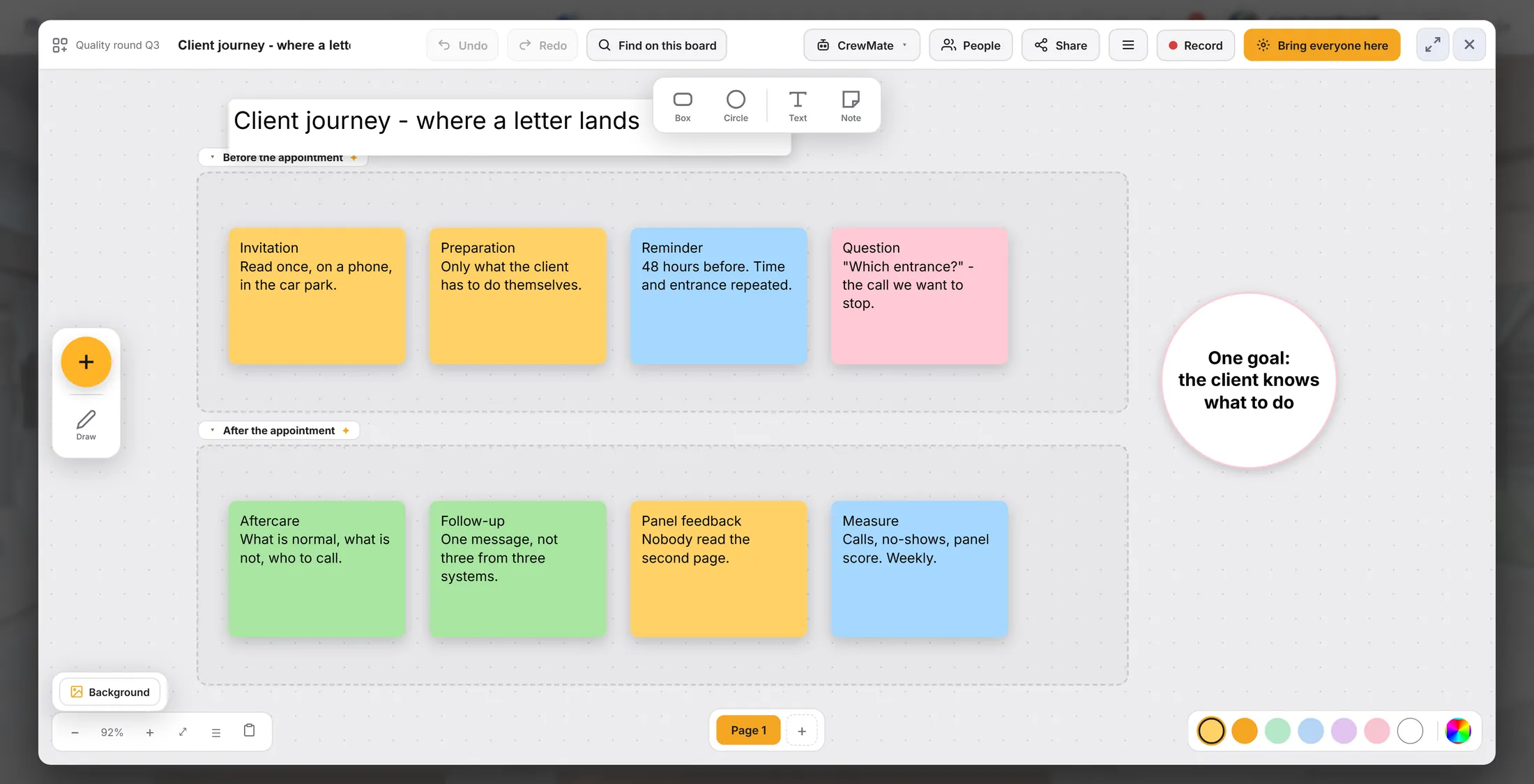
What you will be able to do
- Make a board In the journey's files, with a name.
- Start with a ready board A meeting, a brainstorm or a plan, set out for you.
- Put things on it Notes, text, shapes, pictures, lists.
- Work on it together Everyone sees the same board, at the same time.
Get this ready first
- A journey A board always belongs to a journey.
- What the board is for One question is enough, like "How do we make week 1 feel welcoming?"
Do it together, one step at a time
Seven steps. Two make the board. Five show what you can do on it.
Files, then New canvas
Open your journey's files. Press Create with AI. Press New canvas.
- In the left column (Journeys), click your journey.
- In the right column, click the word Files.
- Press Create with AI. A list opens.
- Press New canvas - "Add an infinite canvas board".
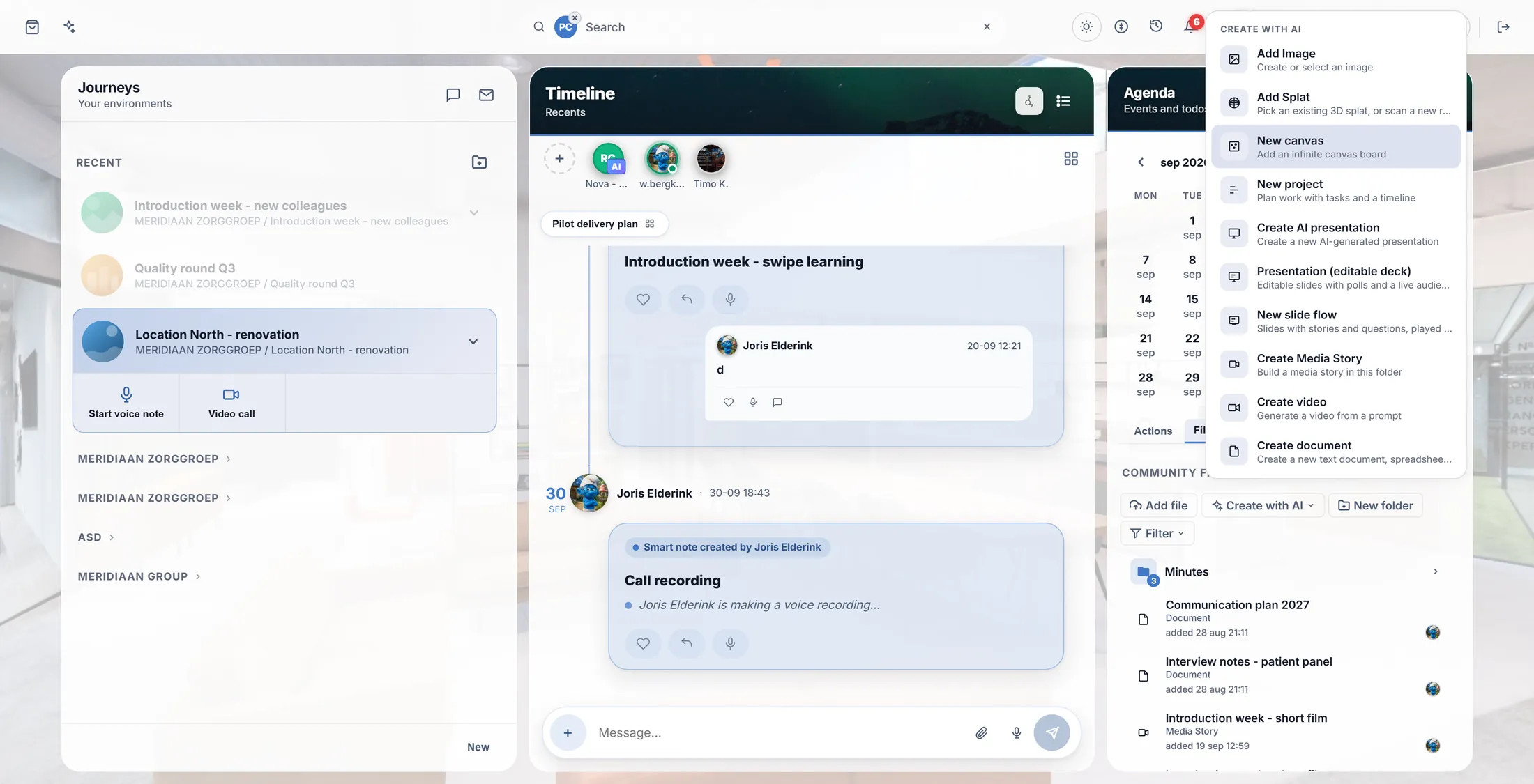
New canvas is the second line. Give it a name
Type a name. Press OK. The board opens, big.
- A small window New canvas asks for a name.
- Type one, for example Welcome ideas .
- Press OK. The board is made in the journey's Files and opens over the whole screen.
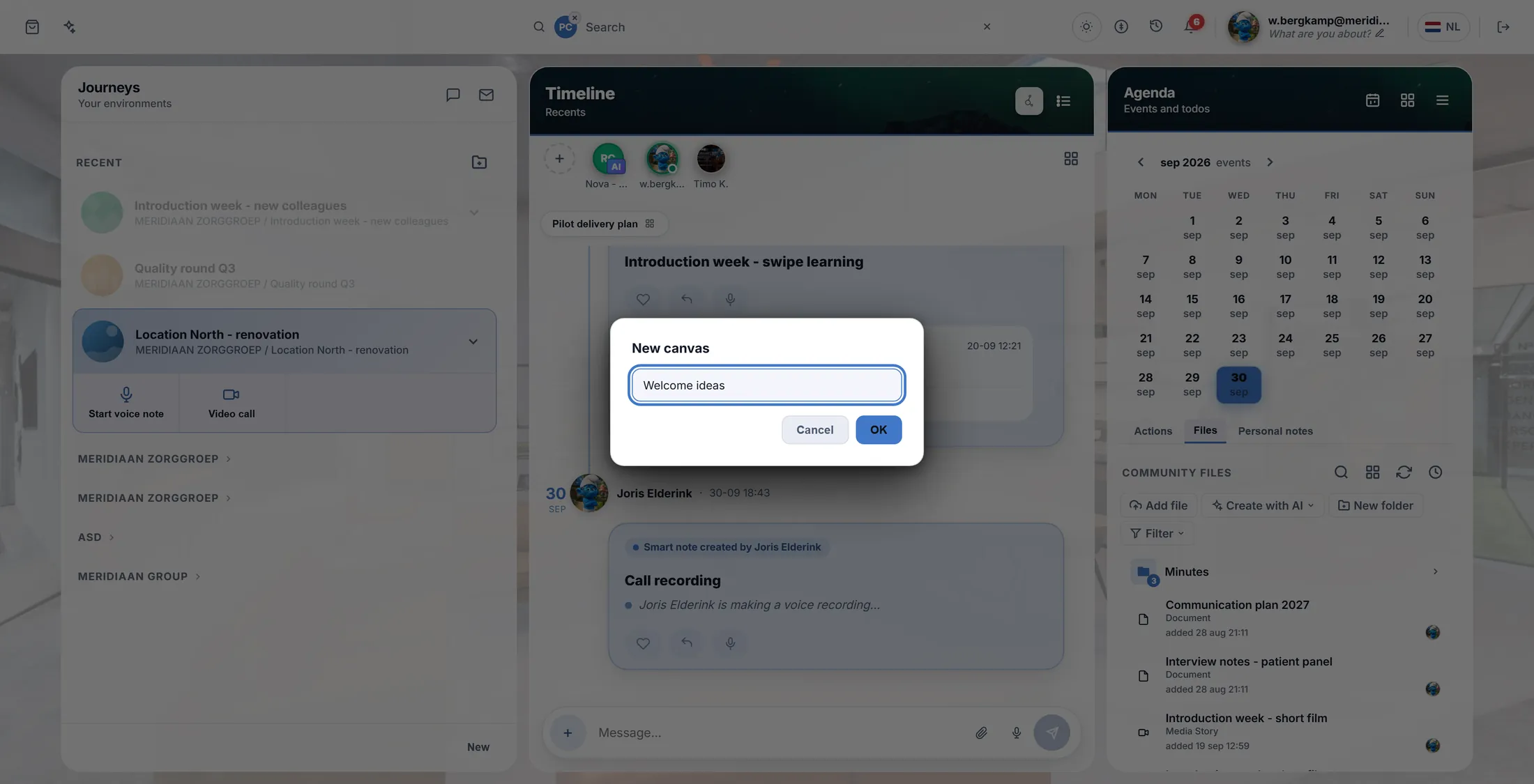
Type a name, press OK. Pick how to start
A new board asks how you want to start. Pick one.
- The board shows Start this board with...
- Record the meeting → automatic action list: it listens while you talk and writes the agreements down.
- Meeting board: agenda, decisions and an action list. Brainstorm board: a question with sticky notes around it. Plan board: a timeline with the first tasks.
- One of our templates: a board saved earlier. An empty board: nothing, you use the + yourself.
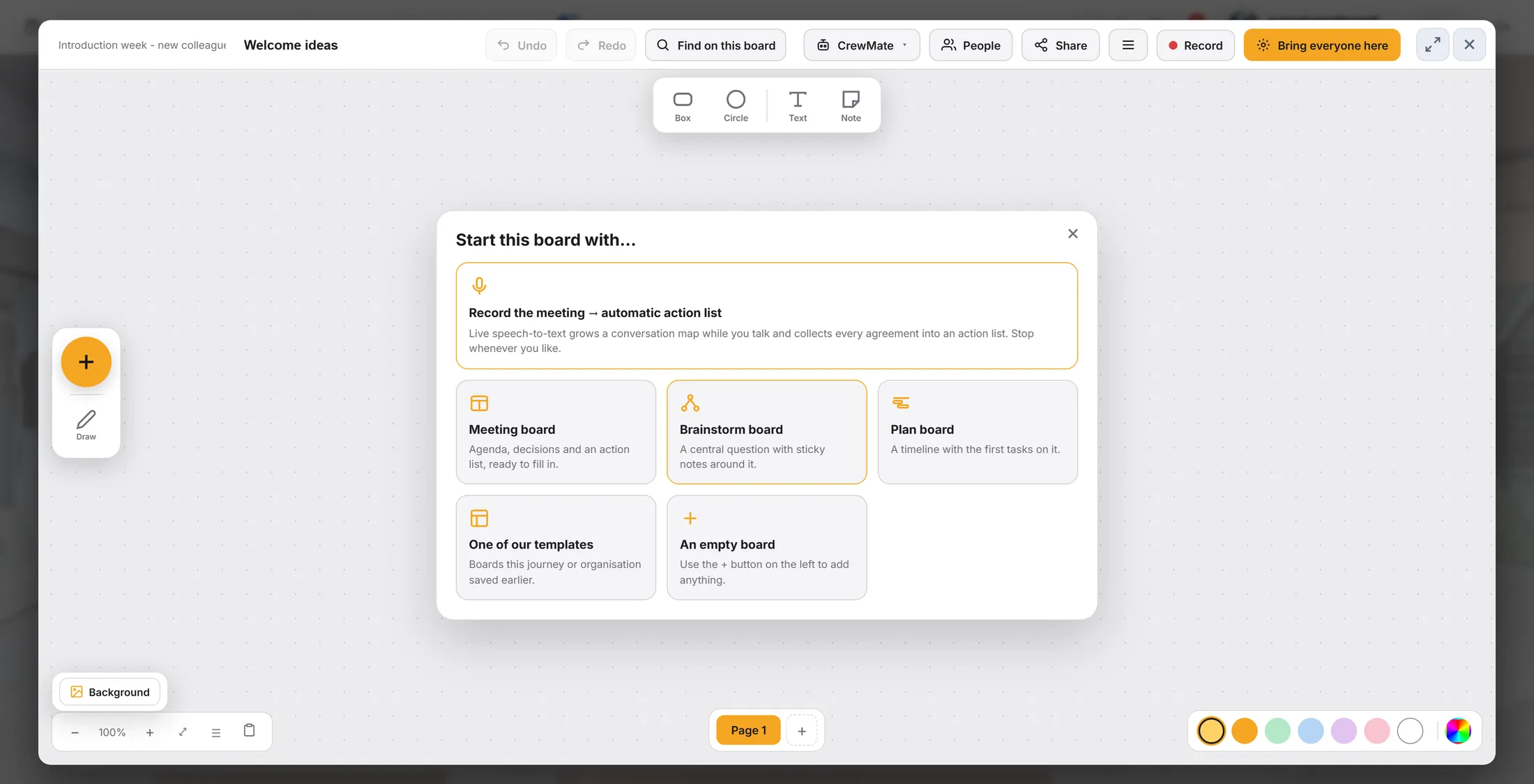
Six ways to start. Write on the notes
Click twice on a note and type.
- Double-click the round note in the middle and type your question, for example How do we make week 1 feel welcoming?
- Double-click each yellow note and type an idea.
- Click on the empty board when you are done.
- There is no Save button: the board saves by itself. Undo (or Ctrl+Z) takes back the last change.
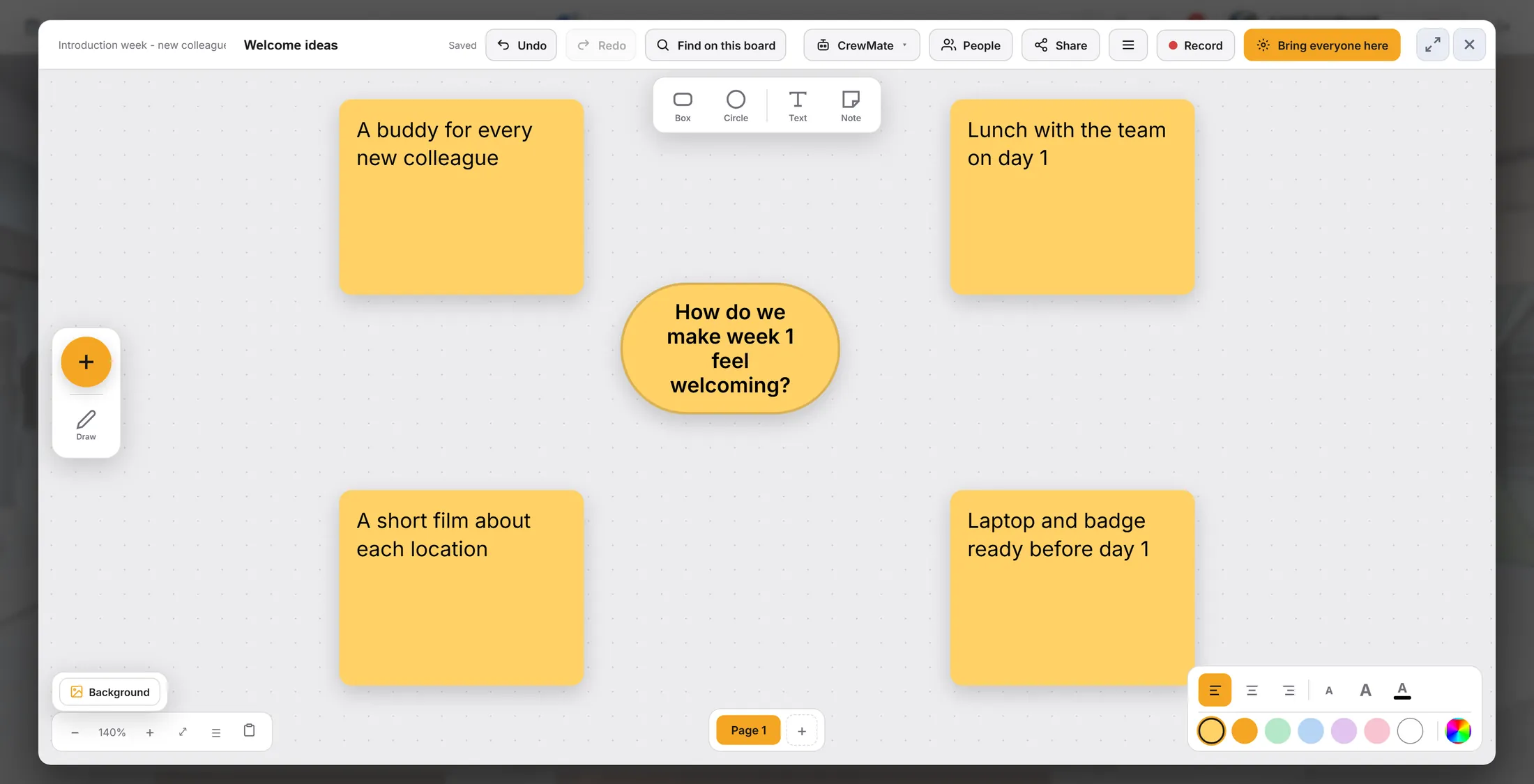
A question in the middle, ideas around it. Add more: the + button
The big + on the left has everything you can put on the board.
- Press the orange + on the left.
- Pick what you want: Note, Text, Frame, Mindmap, Poll, Image, Video, Table, Date poll, Action list, Timeline (Gantt), Countdown, Web page and more.
- Click on the board where it should go.
- Want to draw? Press Draw under the +. Draw over everything; switch back to move things again.
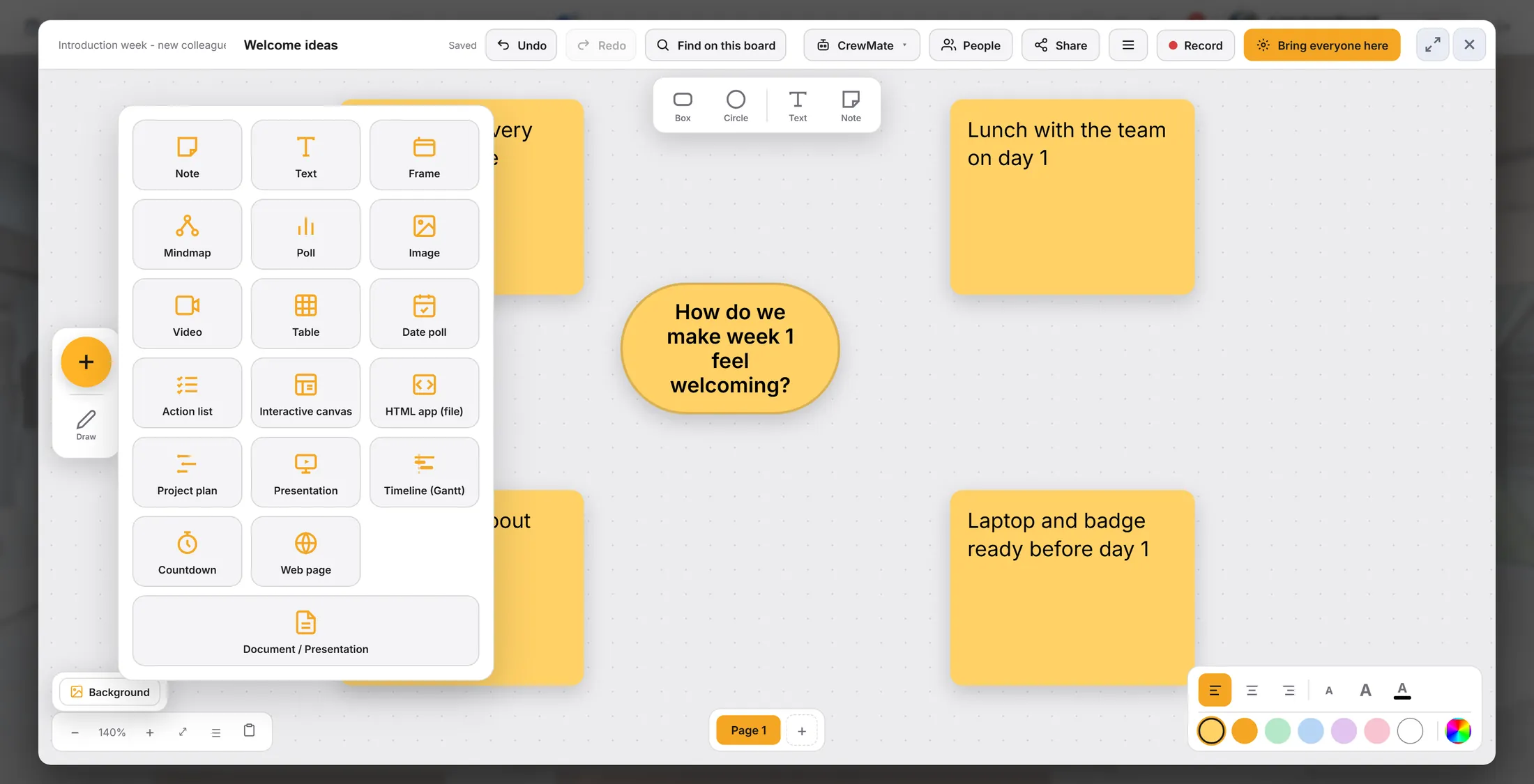
Everything you can add. Move around and zoom
The board has no edges. Drag it to move. Zoom in and out.
- Drag the empty background to move around.
- Scroll the mouse wheel, or pinch on a tablet, to zoom. The − and + bottom left do the same; the number shows how far.
- Lost? Find on this board at the top finds a note by its words and jumps to it.
- Need more room? Page 1 at the bottom has a + for another page. The colours bottom right colour a note; Background changes the board behind it.
A full board. The tools are on the edges. Work on it together
Everyone in the journey can open the board. They see changes at once.
- People opens the list of people. Drag someone onto a note or an action to make it theirs.
- Bring everyone here pulls everyone on the board to what you are looking at.
- Share sends the board to someone. CrewMate asks a helper that reads the whole board.
- Close with the cross top right. The board stays in the journey's Files; open it again from there, or in a video call.
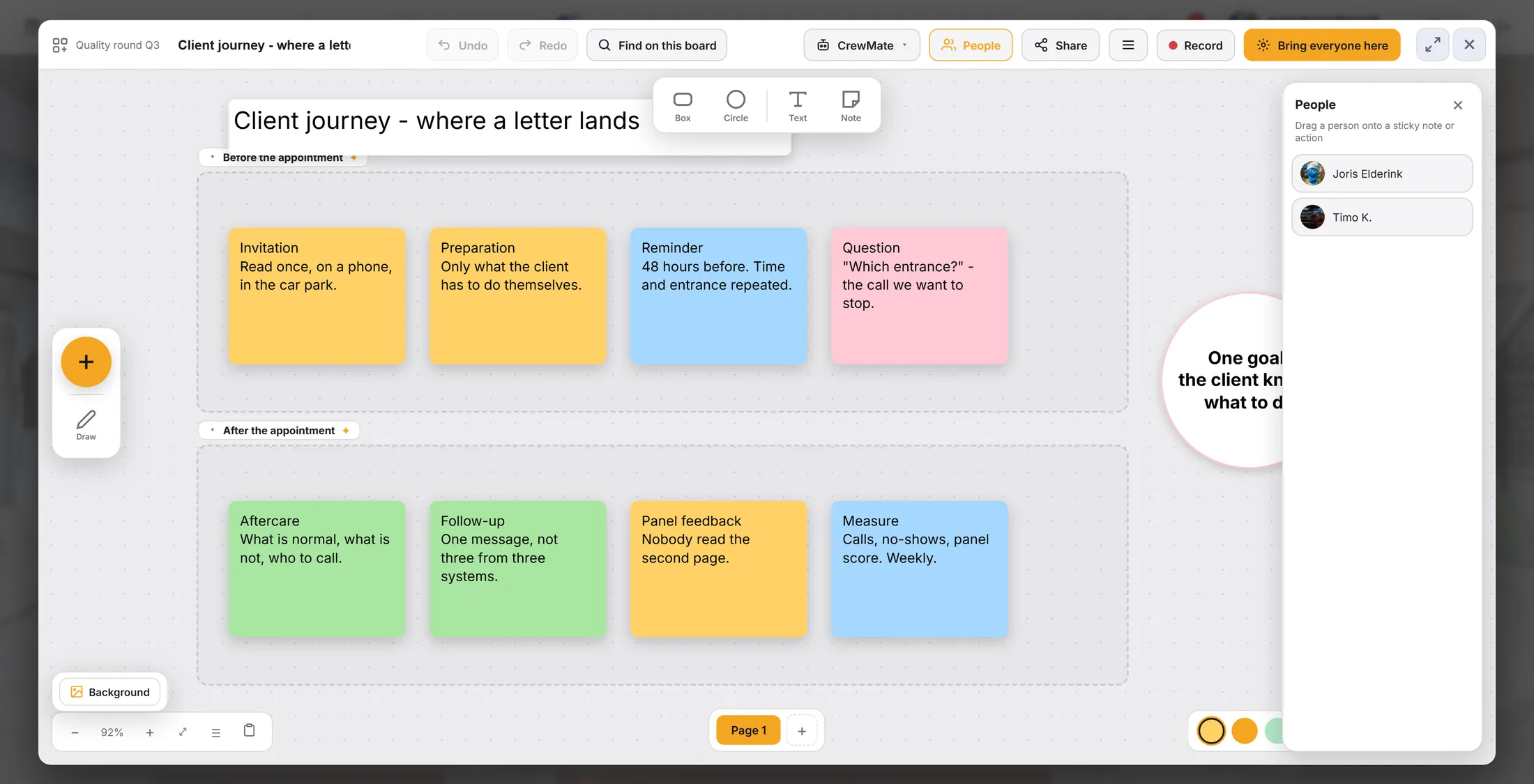
People on the right. Drag one onto a note.
If something is not right
I do not see the "Start this board with..." window.
It only shows on a new, empty board. Use the + instead.
Where is my board now?
In the journey, under Files.
I moved something by mistake.
Press Undo at the top, or Ctrl+Z.
I cannot find a note any more.
Use Find on this board, or zoom out.
The words, in plain language
- canvas
- The whiteboard in CoVince: a board with no edges for notes, pictures and plans.
- sticky note
- A small coloured square on the board with a few words on it.
- frame
- A box on the board that keeps some notes together.
Where to go next
- All explainers The other things you can learn here.