Add a game to your learning
A Minigame slide turns your own questions into one of thirteen short games - a quiz against the clock, a swipe, a sort, a memory game. You set the length and the look, type or generate the items, test-play it on the spot, and add a Leaderboard slide to rank the players.
Competence - learn by playing - 7 min. You need: a learning, and six questions
Playing it yourself changes nothing. Only Save stores the game.
What you will be able to do
- Add a game Pick one of thirteen games, or let it choose.
- Fill it with questions Six questions with a right and three wrong answers.
- Play it yourself Try it before anyone else does.
- Make it a contest Play against a colleague, see who is on top.
Get this ready first
- A learning No learning yet? Make one first.
- Six questions Each with one right answer and three wrong ones.
Do it together, one step at a time
Seven steps. Every picture is the real screen, with made-up names.
Add a game slide
The game is a kind of slide.
- Open your learning in the editor and click the group where the game should go - here Day 3 - Safety first .
- Press Add Slide at the top right. The window Select Slide Type opens.
- Type game in the search box. One card stays: Minigame - A playable game from your content .
- Click it. The slide is added and its panel opens on the right.
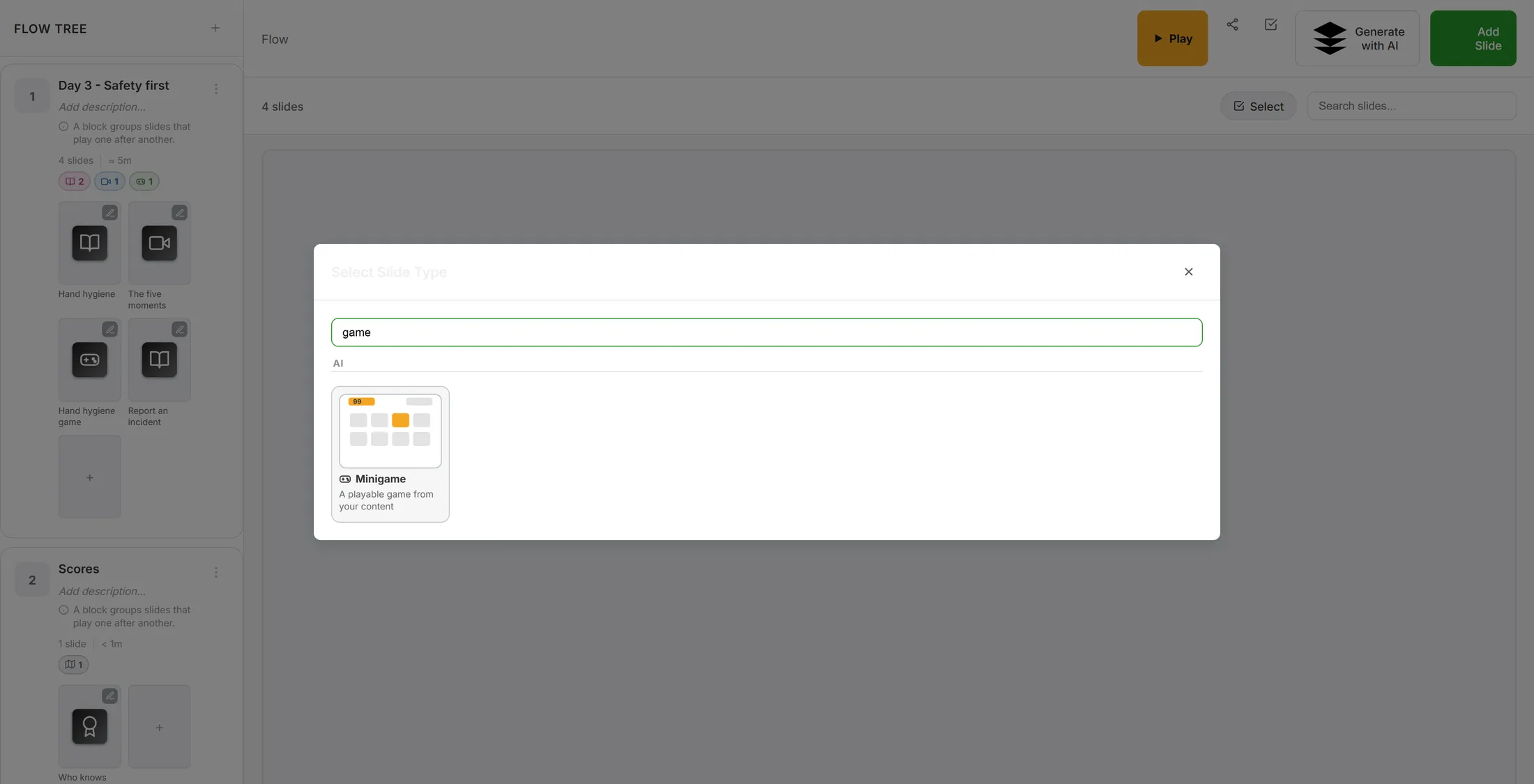
Type "game" and the card is right there. Open the game
Give it a name, then open the game window.
- The panel says Minigame at the top.
- TITLE - the name of the slide: Hand hygiene game .
- QUESTION CODE - a short code for reports. You can leave it empty.
- Press Edit minigame. The line under it says what is inside: pick a game, set time, difficulty and score, edit the items, test-play it.
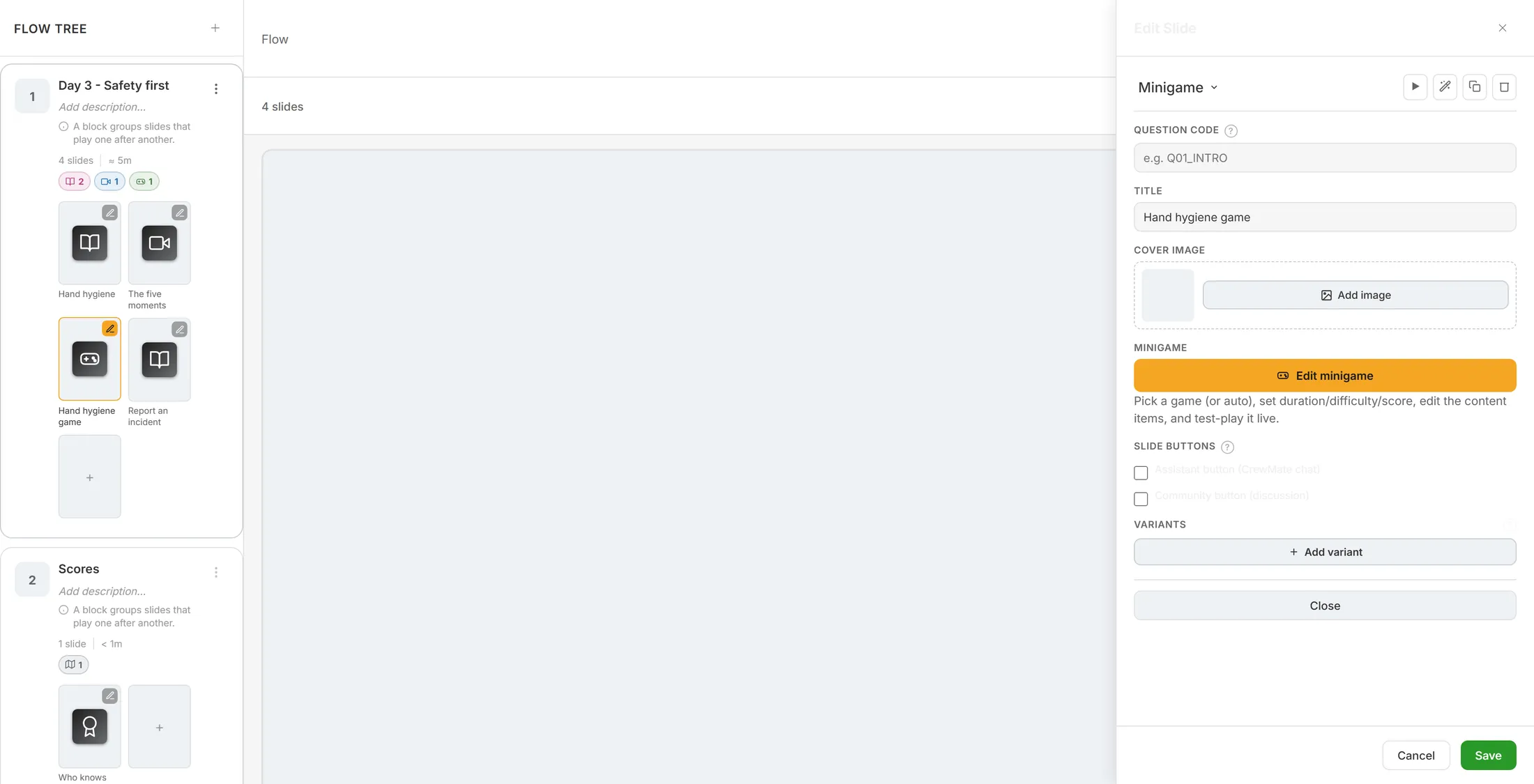
The orange button opens the game. Pick a game
Thirteen games. Or let it choose.
- GAME shows a card per game, each with one line that says how it plays.
- Auto (best fit) is on at the start: Pick a fitting game from the content automatically .
- Click a game to choose it - here Quiz Rush: Rapid-fire questions against the clock .
- A red label needs ≥6 items means the game has not got enough questions yet. It goes away once they are there (step 5).
- All thirteen games are listed under "The games" further down this page.
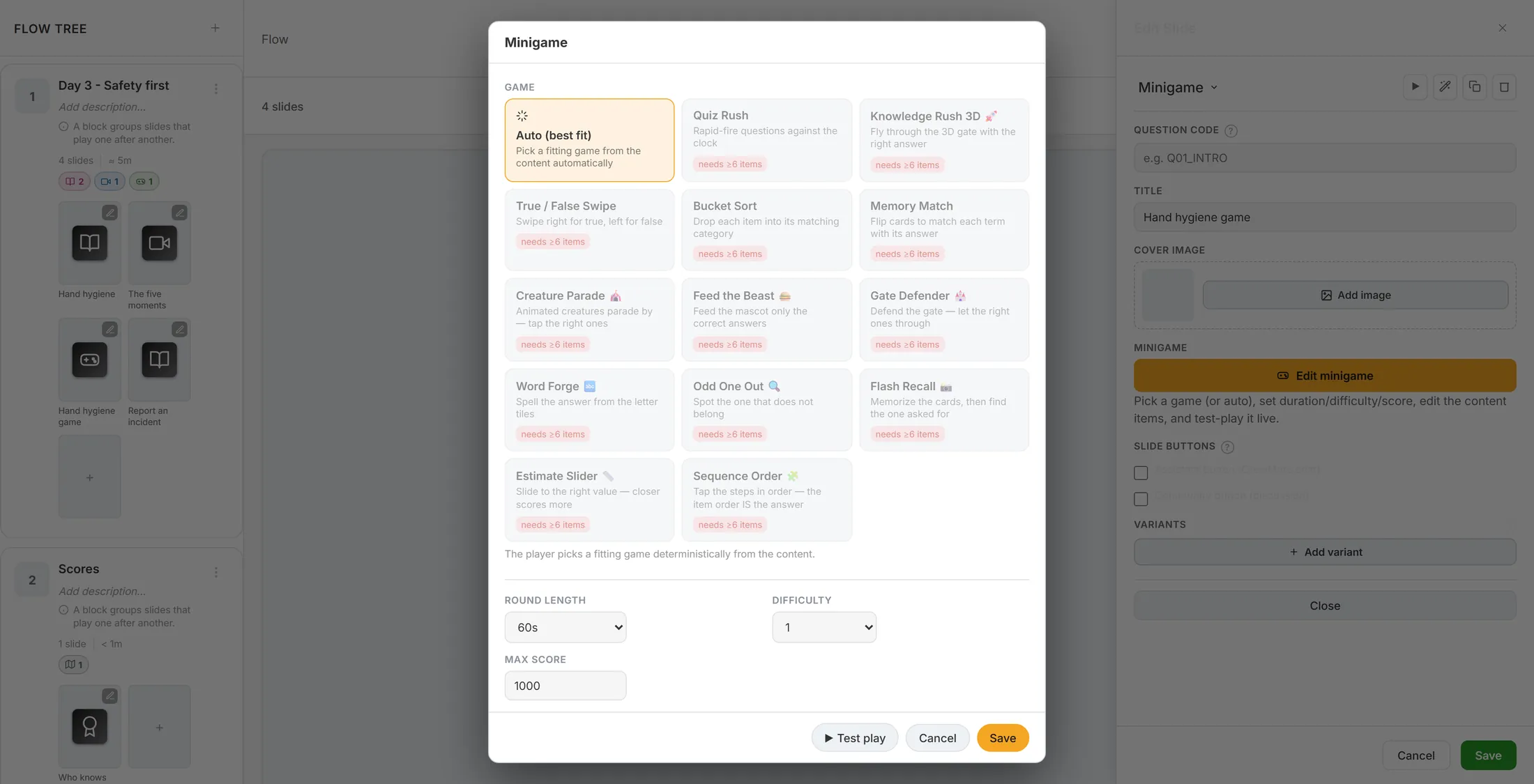
All the games, each with one line. Time, difficulty and look
How long, how hard, and what it looks like.
- ROUND LENGTH - 30, 45, 60 or 90 seconds.
- DIFFICULTY - 1, 2 or 3.
- MAX SCORE - the most points a round can give. 1000 at the start; empty means no limit.
- ITEM VISUALS - Text (free), Emoji, AI images or Animated. The last two make pictures and use credits.
- ART DIRECTION - one style for every picture in the game. UI STYLE - how the panels look: Standard, Glass, Neon, Glow in the dark, Fantasy.
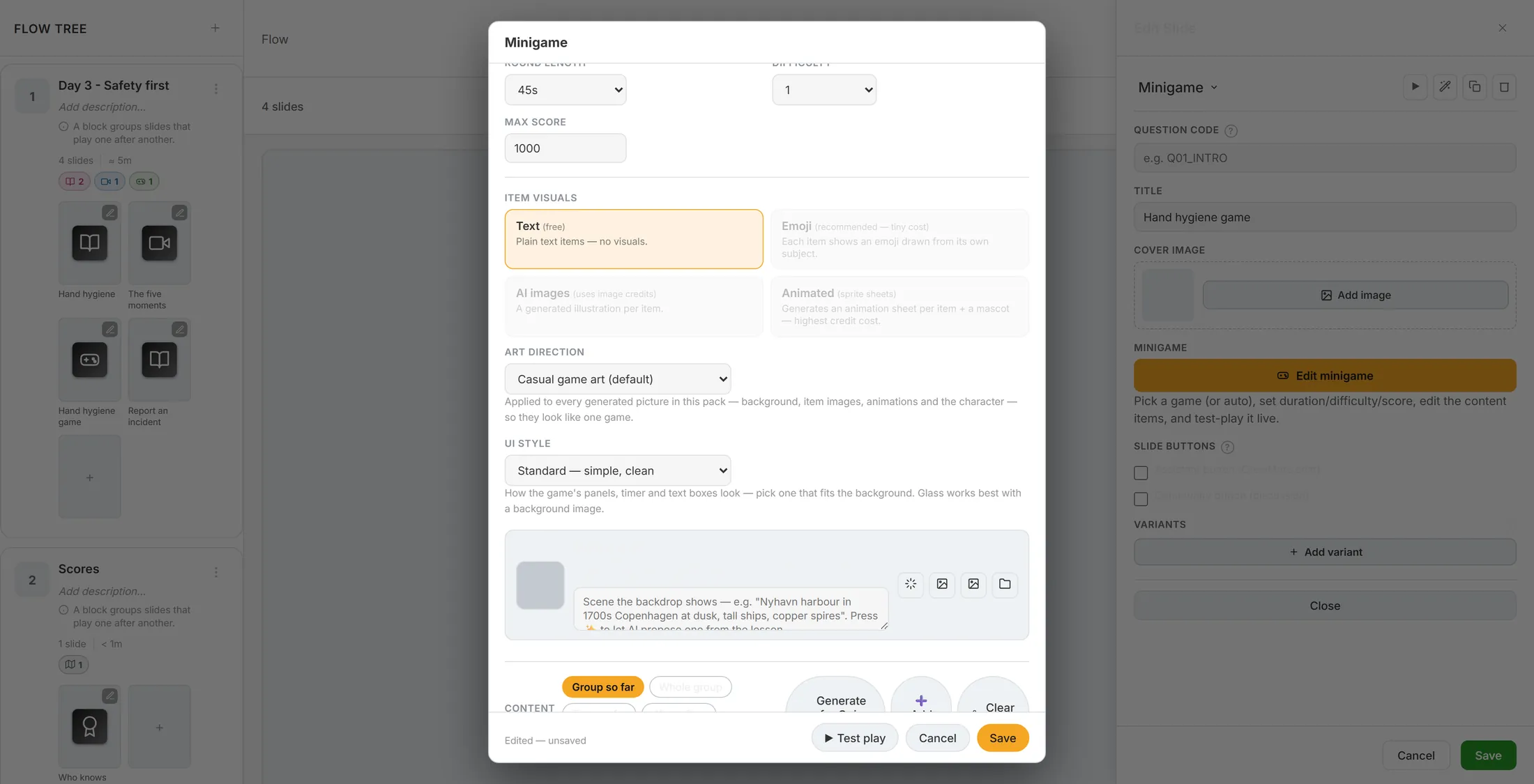
The settings. Text is free. Type the questions
Six questions, each with the right answer and three wrong ones.
- Press Add item. A new item opens.
- PROMPT - the question: Who do you call when in doubt about infection?
- CORRECT ANSWER - The hygiene nurse . WRONG ANSWERS - three that sound possible: Reception , Nobody , The cleaning team .
- CATEGORY is for the games that sort (Bucket Sort, Odd One Out); leave it empty for a quiz.
- Do this six times. The line above the items then says 6 items ... ready .
- Short on time? Generate for Quiz Rush writes items from the slides of the learning. That is AI and uses credits; check every item after.
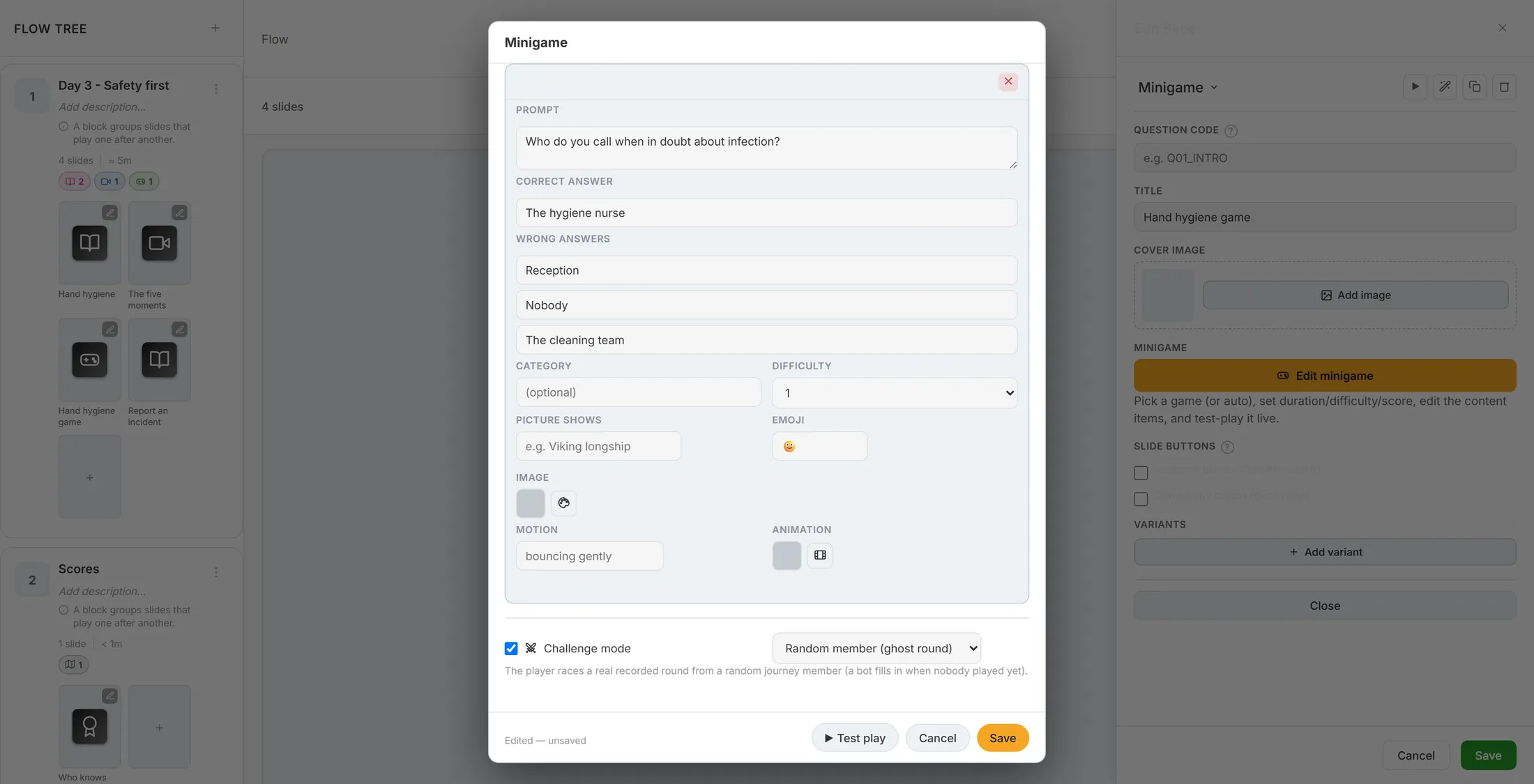
One question, filled in. Play it yourself
Play one round before anyone else does.
- Press ▶ Test play at the bottom of the window.
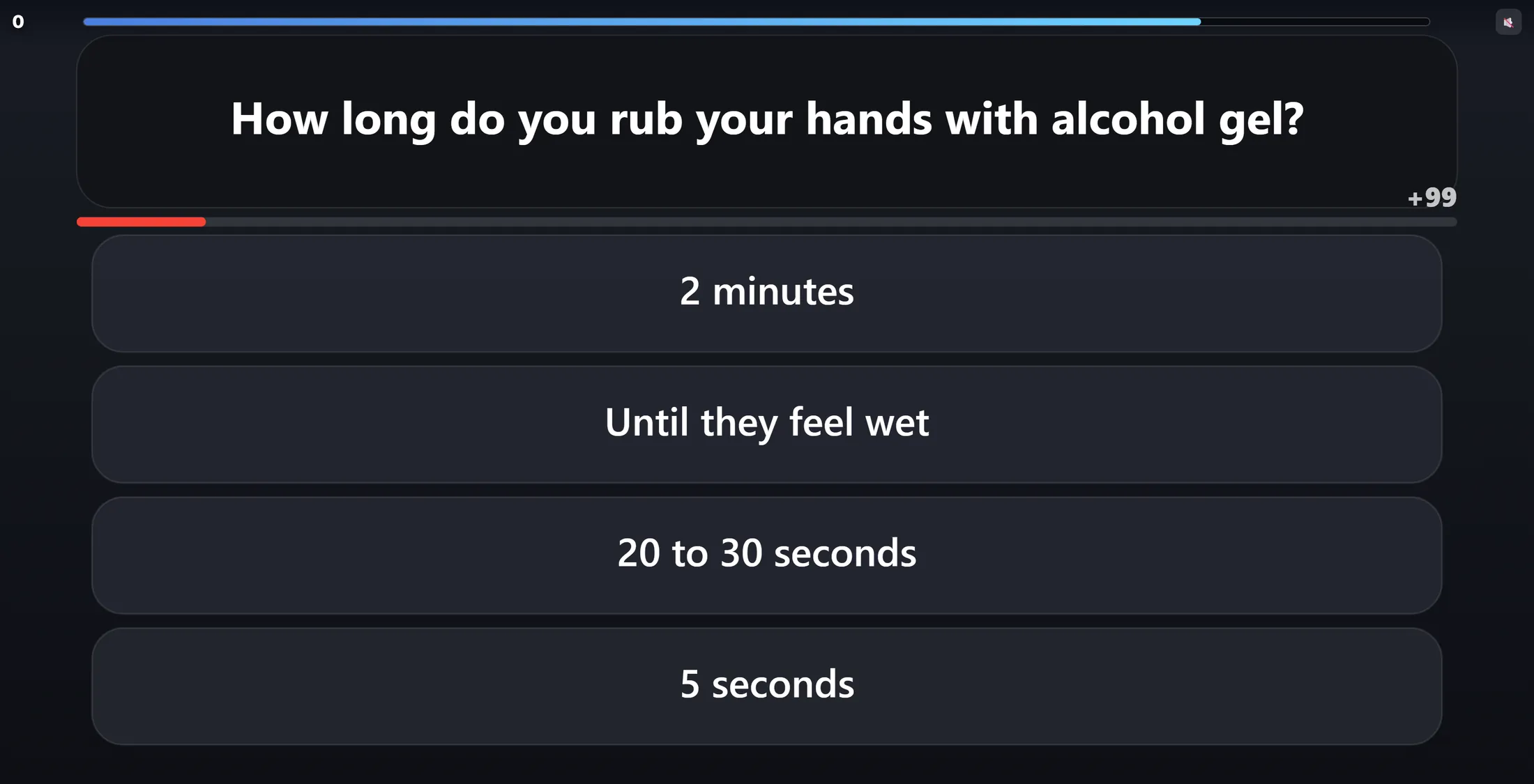
- The game starts with your own questions. The bar at the top is the time left, the number top left is your score.
- Tap an answer. Right is green and gives points; fast gives more.
- Close the test with the cross. Nothing you played is saved.
- Happy? Press Save. Save and Test play both need six complete items.
Your question, in the game. Make it a contest
Play against someone, and show who is on top.
- In the game window, tick Challenge mode (under the items) and choose who the player races:
- Player challenges someone - the player picks a colleague; both see the result once both have played.
- Random member (ghost round) - a recorded round of a random member of the journey (a bot fills in when nobody played yet).
- Bot opponent - an adaptive bot.
- For a ranking, press Add Slide and pick Leaderboard. Its panel has SCORE DATA POINT (which score; empty = the main score of the learning), BOARD SCOPE ( This journey or Whole organisation ) and LIST LENGTH (top 10 at the start - the player always sees their own place under it).
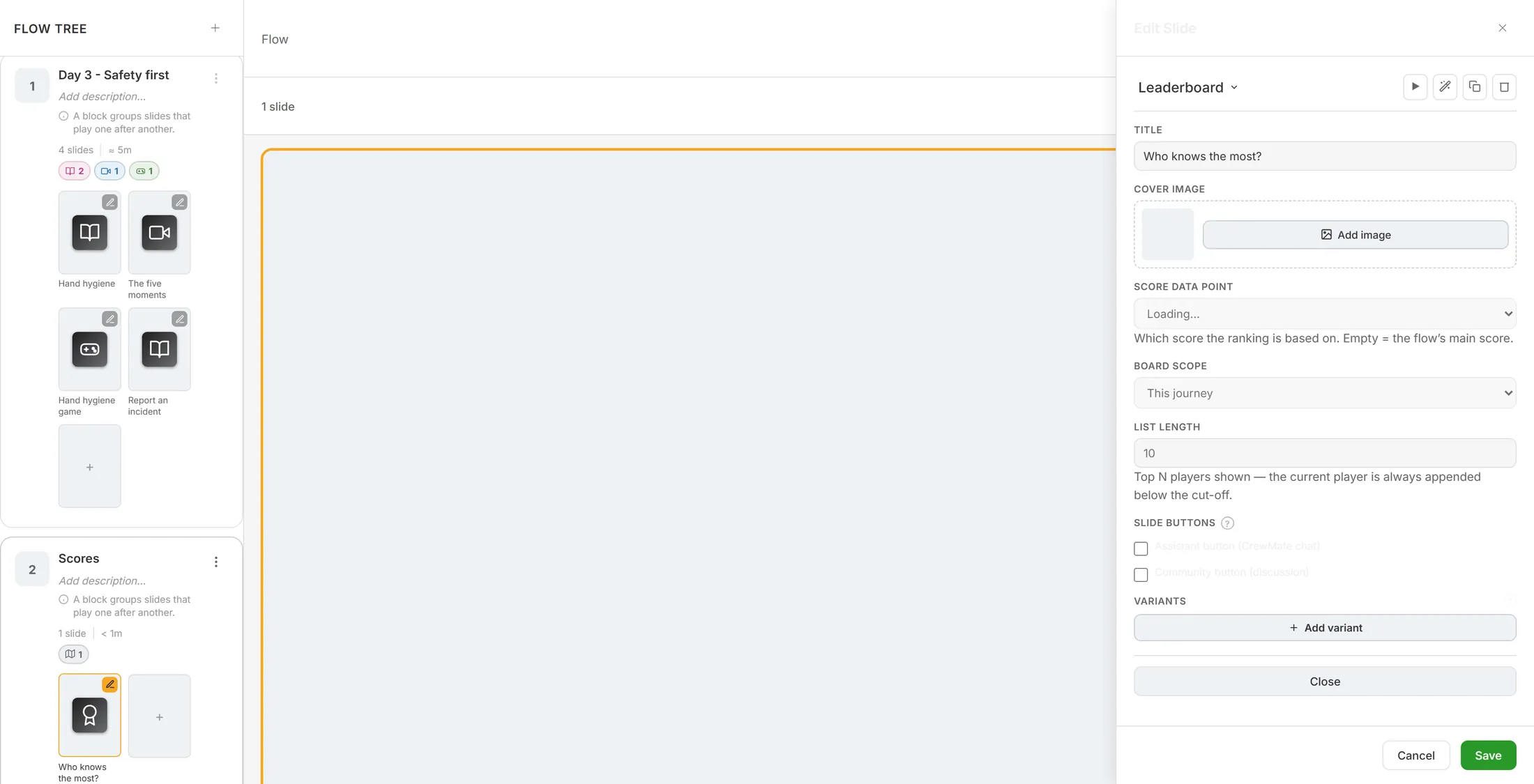
The leaderboard: which score, for whom, how many.
If something is not right
Save does nothing.
You need six questions, each with a right answer.
My game says it is not ready.
That game wants something extra, like a category. Pick another game, or add it.
Does it cost anything?
Typed questions and Text cost nothing. Generating questions or pictures does.
Is my test round counted?
No. Test play is only for you.
The words on this page
- content item
- One question of the game, with its answers.
- ghost round
- Playing against a round a colleague played before.
- credits
- What AI work is paid with in CoVince.
What to do next
- Make a learning first No learning yet? Start here.
- Add a menu slide Cards for every part, with progress rings.
- All explainers The other things you can learn here.