Make a learning
A learning is a short lesson made of slides you swipe through - five minutes on a phone instead of an hour in a room. This page walks the whole way: where it belongs, the first slide, the seventeen kinds of slide, what a Story slide holds, how questions work, and how to play it back.
Learnings - swipe through it on a phone - 9 min. You need: your CoVince login
Nothing here can go wrong. It saves by itself, and only the people in your space can see it.
What you will be able to do
- Start a learning in one click One link opens CoVince and starts a new one.
- Make the slides Pick a kind, write on it, add a picture.
- Ask the reader something Multiple choice, open question, a scale, even a drawing.
- See it as your reader does Press Play and swipe through it yourself.
Get this ready first
- Know what it should teach One subject. "How the introduction week works" is enough.
- Know where it belongs You pick the space in step 2.
- Pictures, if you have them A slide can hold a picture. Not needed to start.
Do it together, one step at a time
Ten steps, from where to click to a learning you can play. Every picture is the real screen.
Where to click to start
Two ways in: the green link on this page, or the box at the top of CoVince.
- Open CoVince. At the top of the screen sits the box What would you like to do?
- Click it. The window What are you about? opens with everything you can make.
- The cards are in three groups: Content (what you make), Community (people), Coordination (what has to happen).
- Under Content , press Make a learning - "A short learning you swipe through - on a phone, in five minutes."
- Or type what you want in your own words - "I want to make a short learning about the introduction week" - and press Find it.
- The green link under this step does exactly the same thing in one click.
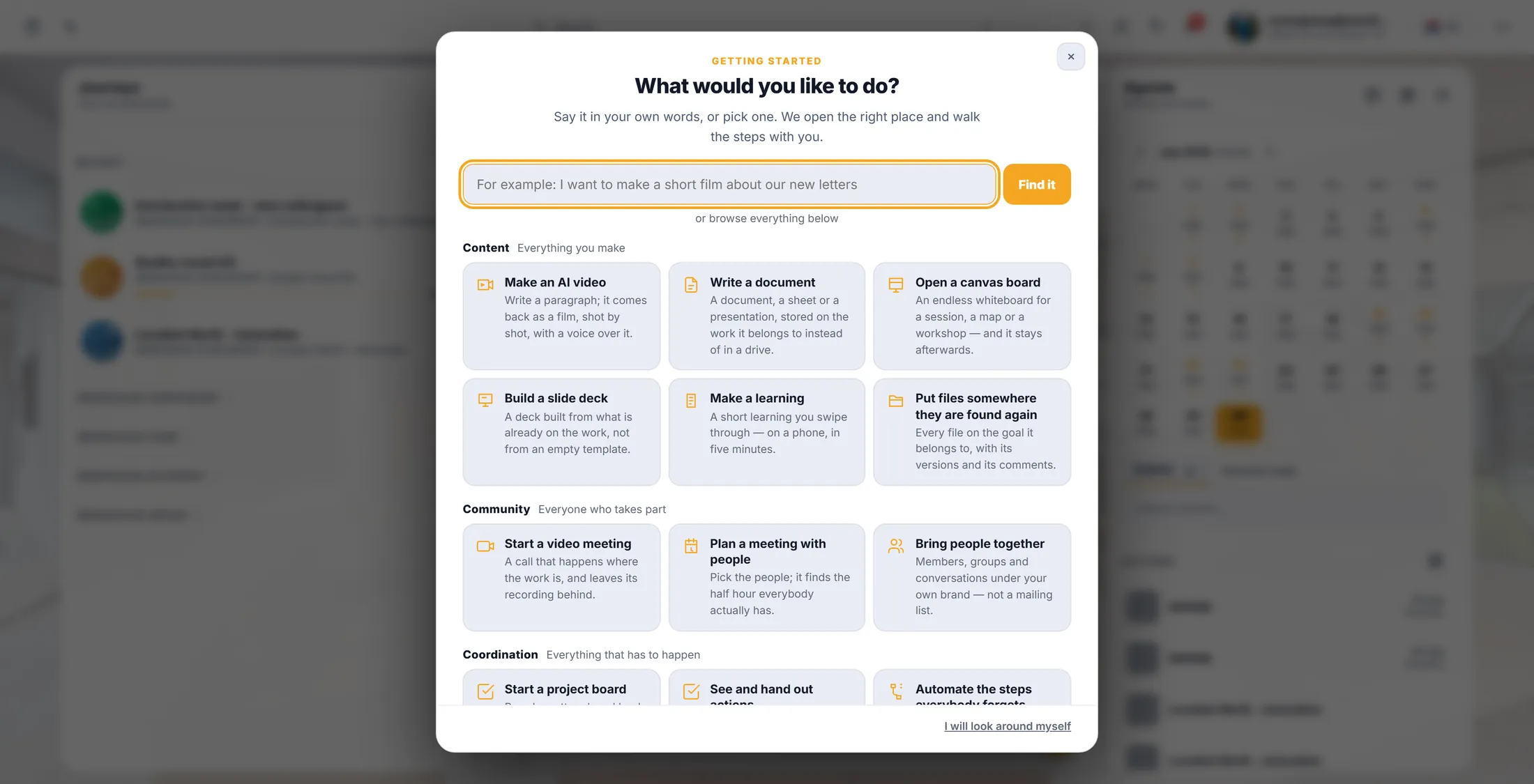
The card you need is "Make a learning", under Content. Start a new learning
One link starts it. It asks two questions first.
- Press the green link under this step. CoVince opens, and signs you in if you are not.
- The first question is Which organisation? - the community the space belongs to.
- Pick yours. Most people only have one.
- Rather not use the link? In CoVince press What would you like to do? at the top and pick Make a learning .
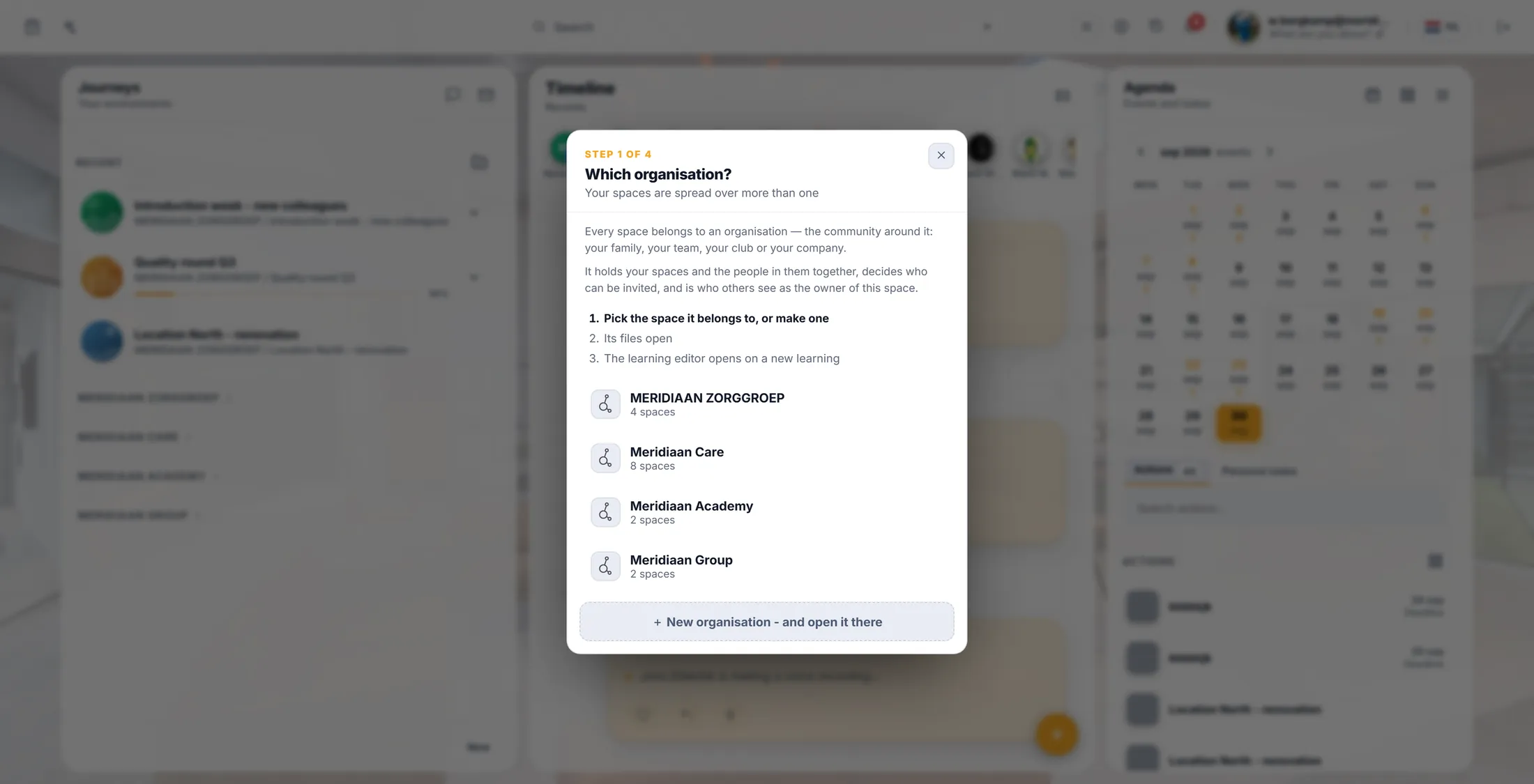
Step 1 of 4: which organisation. Say where it belongs
The learning lands in a space, with the rest of that work.
- The list now shows the spaces in that organisation.
- Pick the one it belongs to - for example Introduction week .
- No space yet? The window offers to make one and open the learning in it.
- The files of that space open behind the window. That is where the learning will be stored.
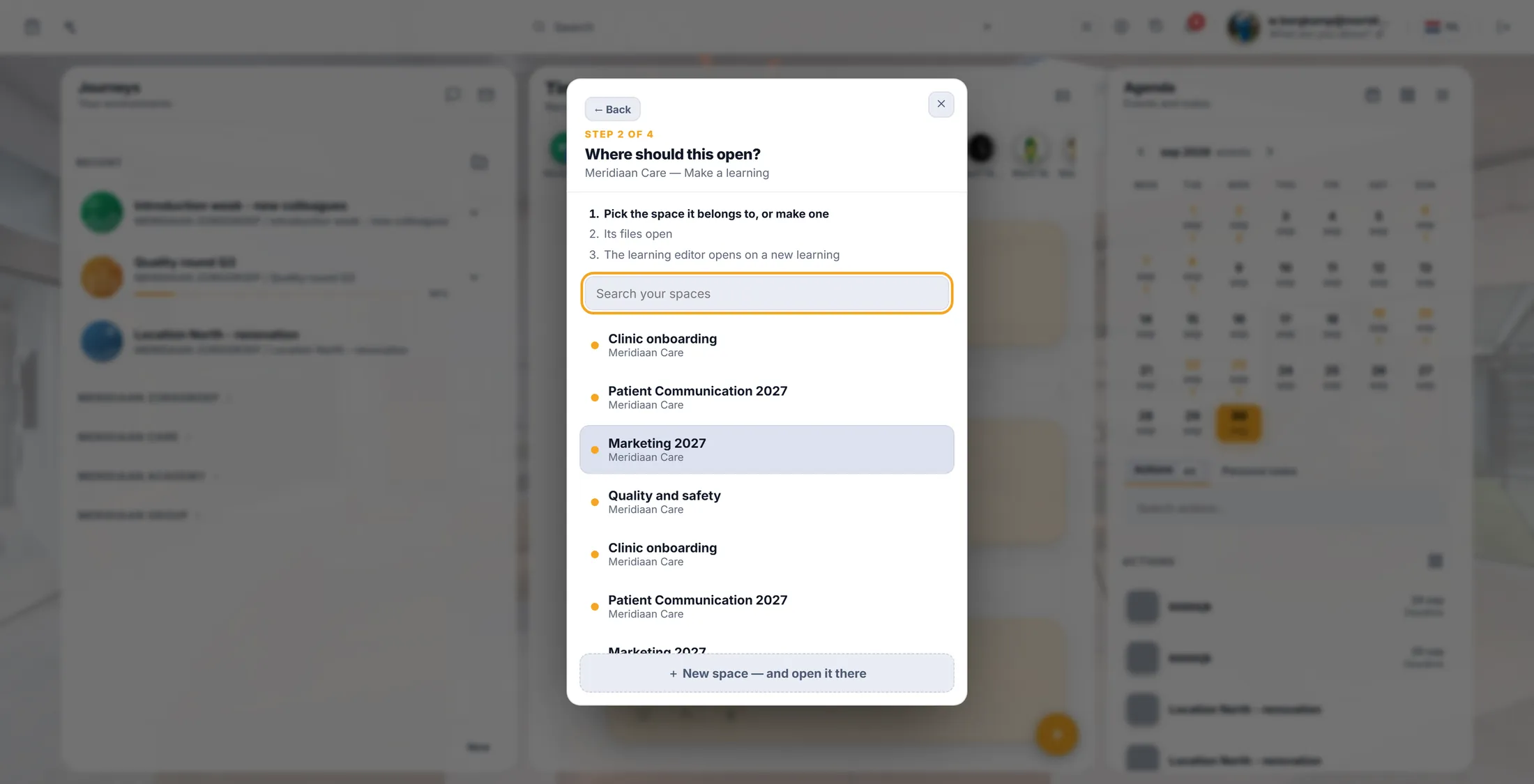
Pick the space. That is where the learning lives. Empty, or let it write a first version
Two ways to begin. Both can be changed after.
- The window asks How do you want to start?
- Start empty - An empty flow, you add every slide yourself.
- Generate with AI - Say what it is about, the generate wizard opens on the new flow.
- Pick one and press Next. Neither is final: a generated set is yours to rewrite, and an empty flow can still be filled by AI later.
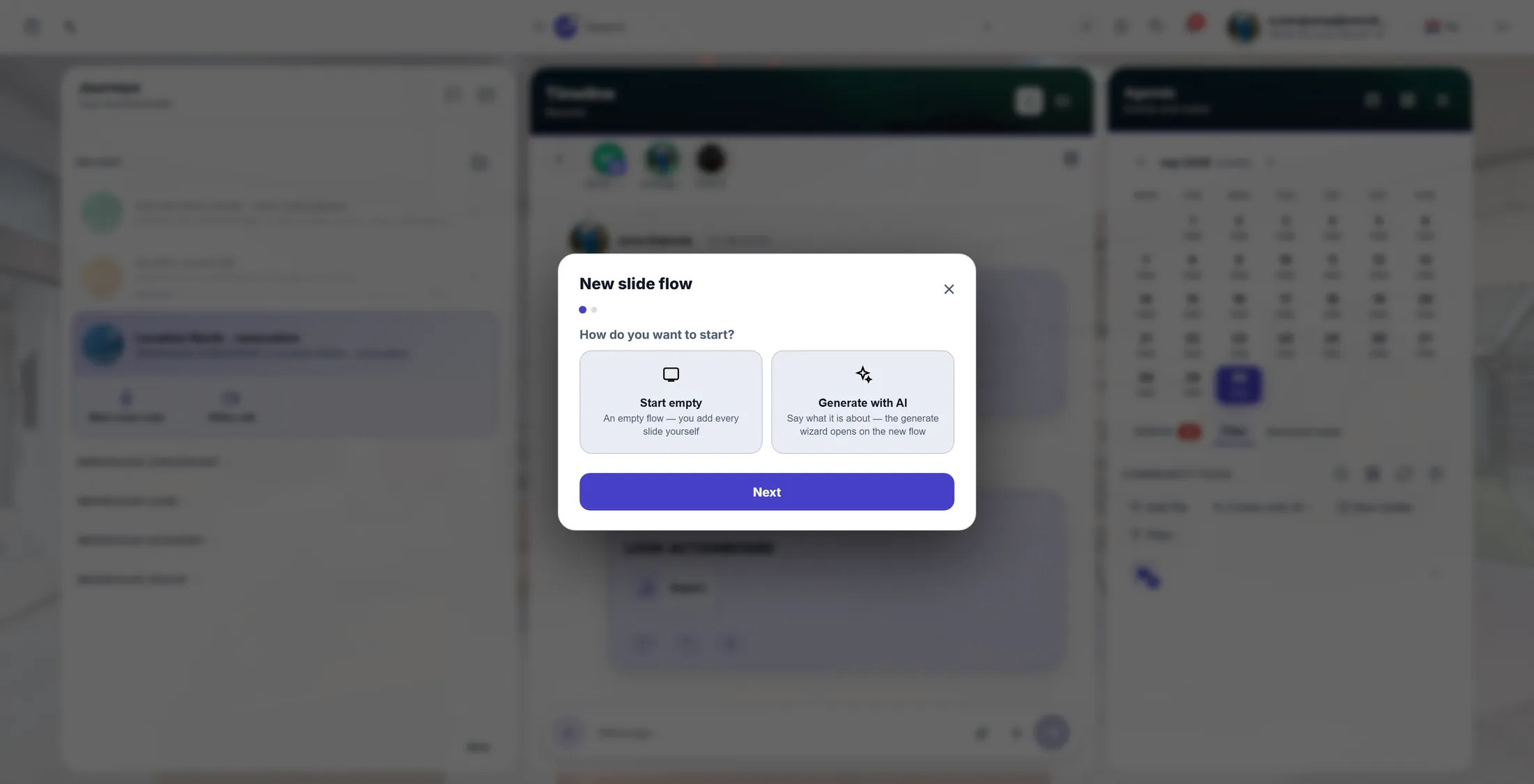
Two ways to start. Both end in the same editor. Give it a name
The name is what people see in the list.
- The window asks What is it called?
- Type a name people will recognise: "Introduction week - swipe learning" .
- Press Save.
- The editor opens on your new learning. It is stored already - closing the screen loses nothing.
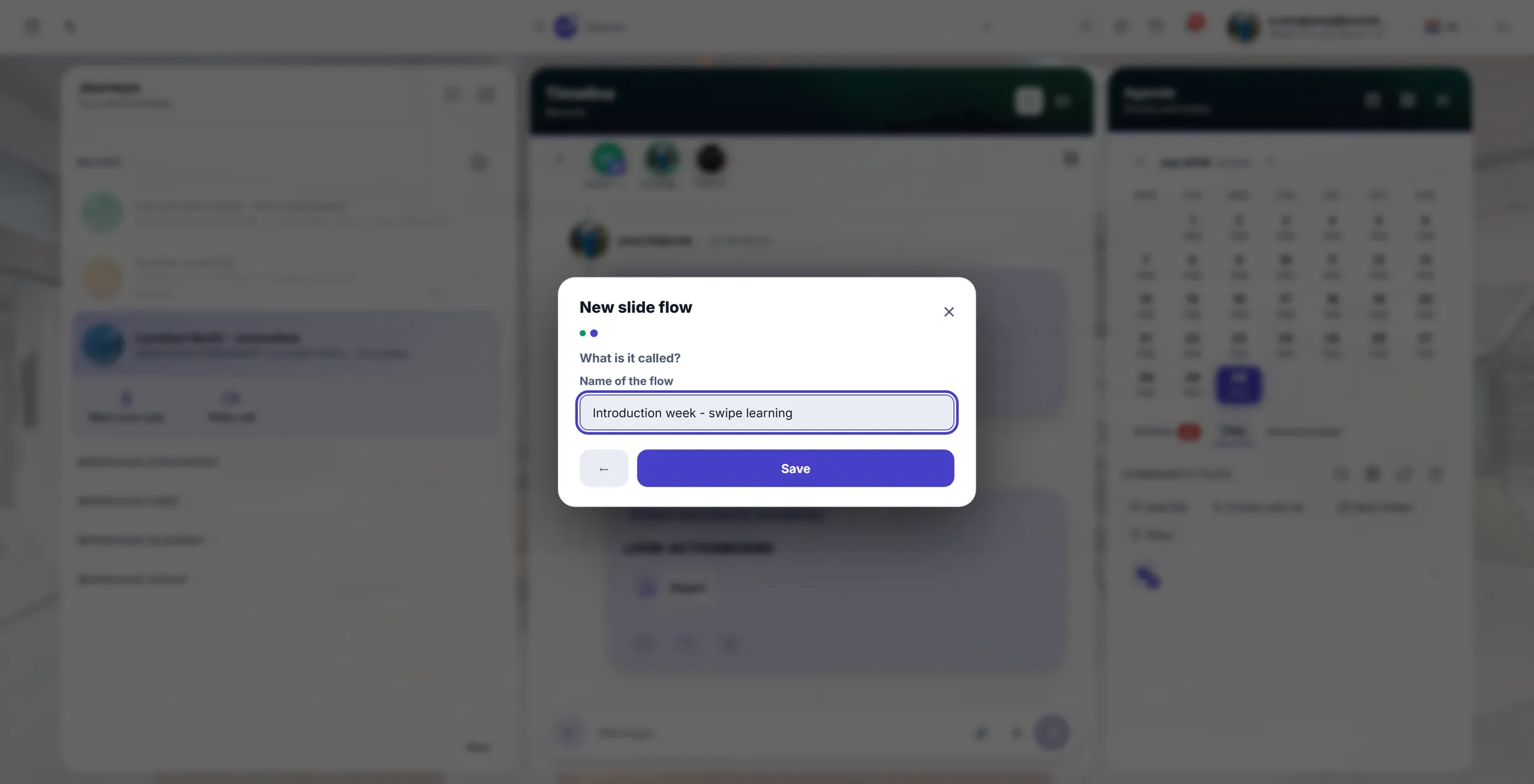
The name, then Save. Look at the editor
Five things on this screen. That is all there is.
- Top left is the count: 0 slides . It goes up as you add them.
- + Add a slide - you pick the kind of slide and fill it in. This is the next step.
- Generate into this group - AI writes a set of slides into this group, which you then edit.
- Search slides... finds a slide by its words once the learning gets long.
- Select turns on picking several slides at once, to move or delete them together.
- Play at the top right runs the learning the way a reader meets it.
- There is no save button. It saves as you go.
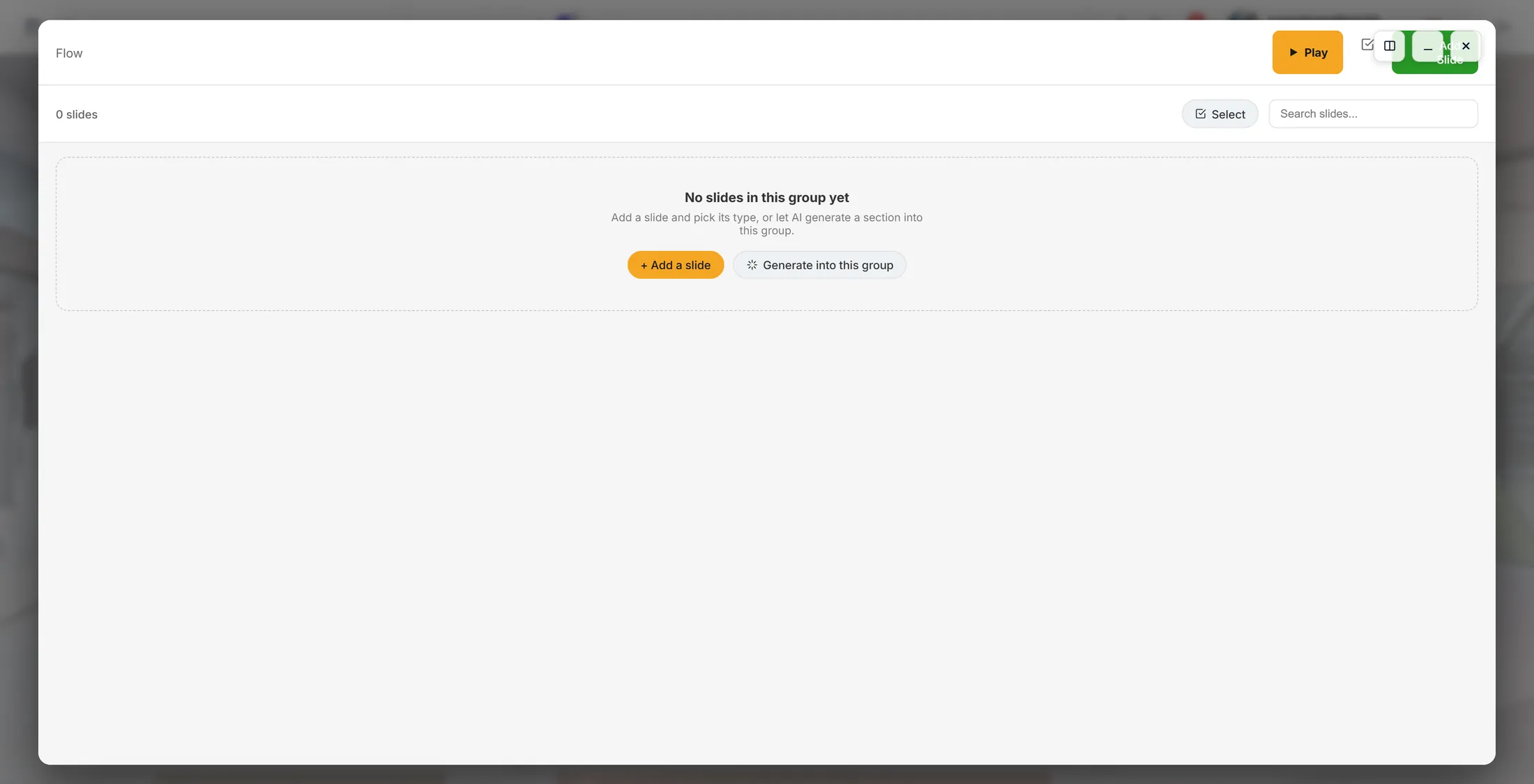
The editor on a new learning. Add a slide: pick the kind
The kind decides what the slide does. Seventeen to choose from.
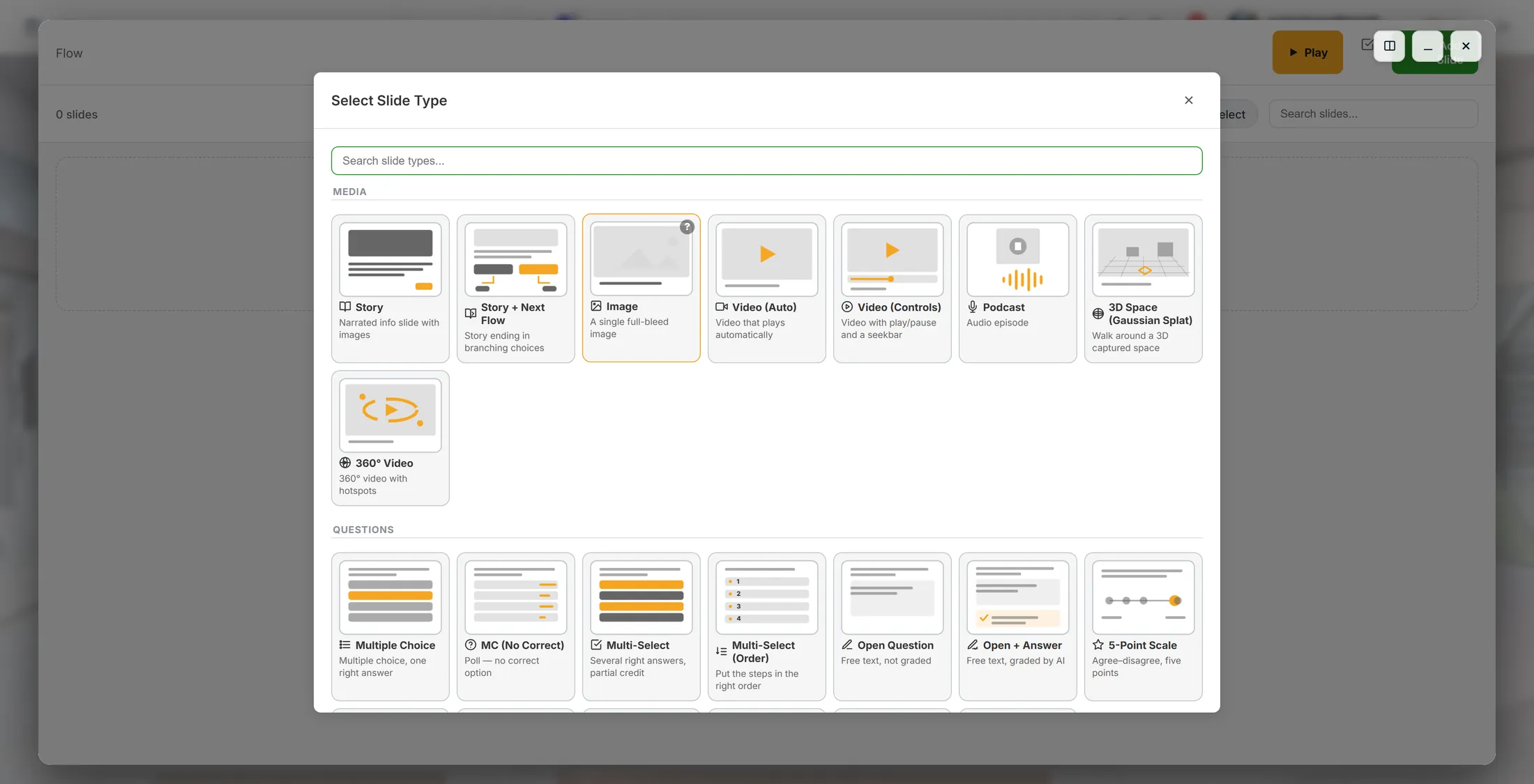
- Press + Add a slide. The window Select Slide Type opens.
- The top half is MEDIA - slides that tell something: Story, Story + Next Flow, Image, Video (Auto), Video (Controls), Podcast, 3D Space (Gaussian Splat), 360° Video.
- The bottom half is QUESTIONS - slides that ask something: Multiple Choice, MC (No Correct), Multi-Select, Multi-Select (Order), Open Question, Open + Answer, 5-Point Scale, 3-Point Scale, Drawing, Community Question.
- Every card says in one line what it does - "A single full-bleed image", "Poll - no correct option", "Free text, graded by AI".
- Not sure? Use Search slide types... at the top, or take Story - it is the plain one.
- Click a card and that slide is added, with its own panel open.
Every kind, with a line saying what it does. Fill the slide in
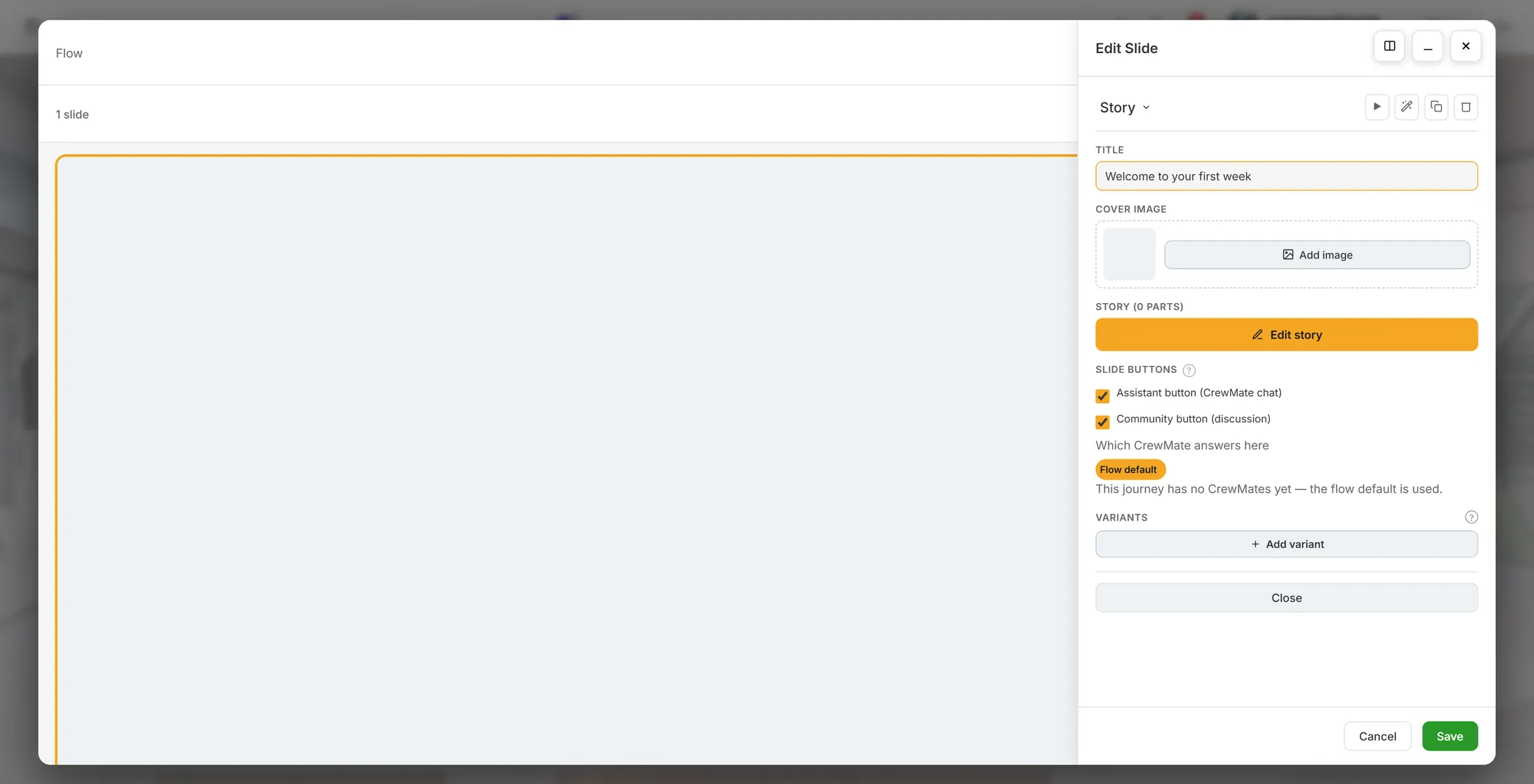
The panel on the right is everything this slide holds.
- TITLE - the words at the top of the slide. Start with something plain: Welcome to your first week .
- COVER IMAGE - press Add image to put a picture behind it. A slide without one still works.
- STORY (0 PARTS) - press Edit story to write the slide itself, part by part.
- SLIDE BUTTONS - two tick boxes: Assistant button (CrewMate chat) lets the reader ask your helper about this slide, Community button (discussion) lets them talk about it with the others.
- Which CrewMate answers here - which helper answers; it says Flow default unless you pick one.
- VARIANTS - + Add variant makes a second version of the same slide, for another group of readers.
- Press Save when the slide says what you want. Cancel throws this edit away, Close puts the panel aside.
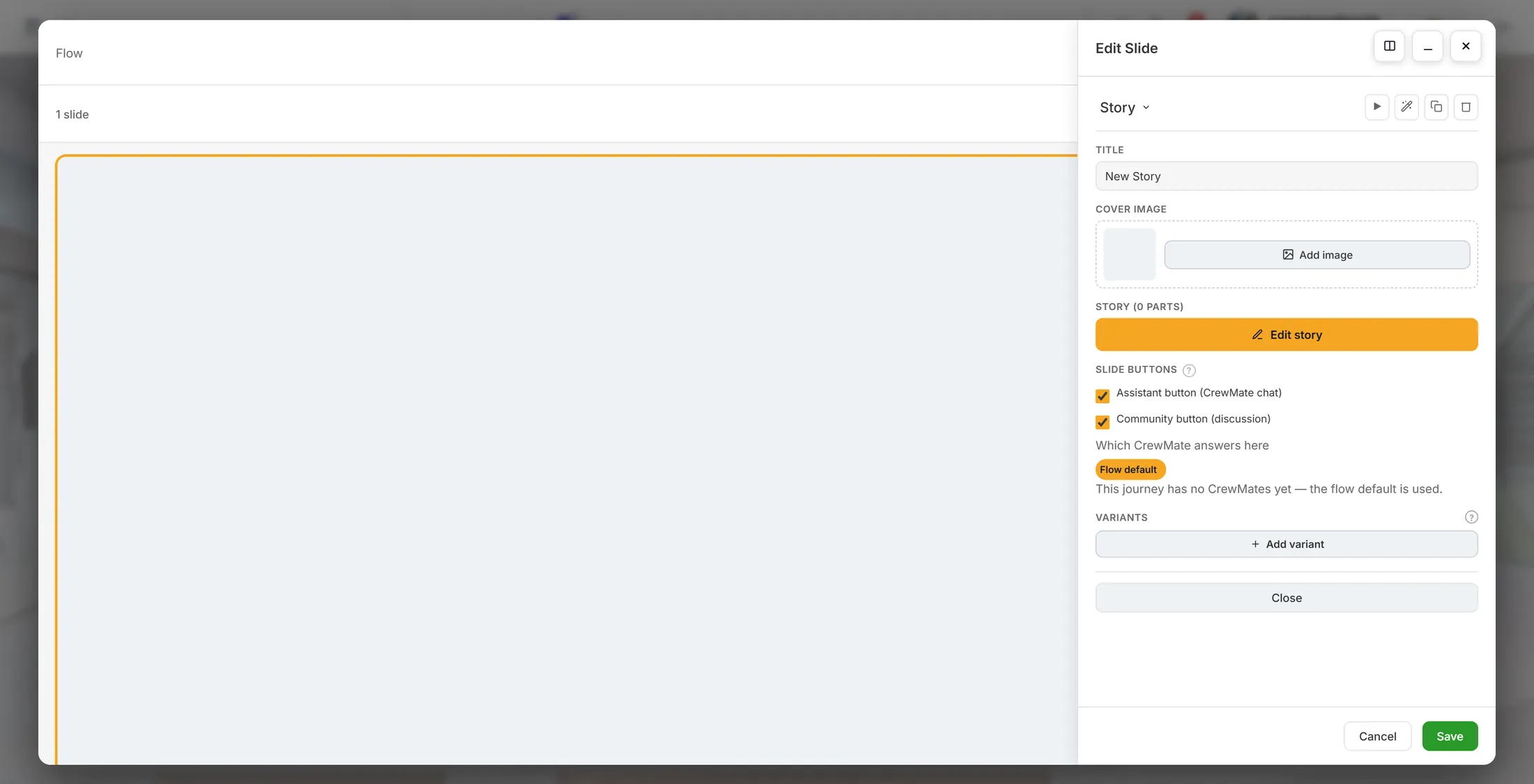
Everything this slide holds, in one panel. Write the words
Short lines. One idea per slide.
- Type the title straight into the TITLE box - it changes on the slide as you type.
- Keep a slide to one idea. If it needs two, make two slides.
- Write the way you would say it out loud. This is read on a phone, not in a meeting.
- The wand on the slide panel fills the slide with AI content if you are stuck - and you edit whatever it makes.
- Use Duplicate for a slide that is nearly the same as the last one; Delete for one that is not needed.
- Press Save. The count top left goes up: 1 slide .
Typing the title. The slide changes with it. Add a question, then play it
A question wakes people up - and tells you what landed.
- Press + Add a slide again and scroll to QUESTIONS .
- Multiple Choice - one right answer. MC (No Correct) - a poll, nothing is wrong.
- Multi-Select - several right answers, partial credit. Multi-Select (Order) - put the steps in the right order.
- Open Question - free text, not graded. Open + Answer - free text, graded by AI.
- 5-Point Scale and 3-Point Scale - agree to disagree. Drawing - the reader draws. Community Question - the answers go to the group.
- Fill the question and its answers in the panel, then Save.
- Drag the cards in the editor to put the slides in the order you want.
- Press Play at the top right and swipe through it yourself. That is exactly what your reader gets.
The question slides, in the same list, under QUESTIONS.
If something is not right
The link asks me to log in.
That is normal. Log in and it carries on to the same place.
I have no space to put it in.
The window offers to make one. Give it a name and the learning opens inside it.
Which kind of slide should I take?
Story for telling something, Multiple Choice for asking something. Those two carry most learnings.
Does the AI version cost credits?
Generating uses credits from your account - the counter is at the top right of CoVince. Writing slides yourself costs nothing.
Can I change the order?
Yes - drag a card to another place in the list.
Do I have to save?
The slide panel has Save, and the learning itself saves as you go.
The words on this page
- learning
- A short lesson you swipe through, slide by slide.
- slide
- One screen of the learning. One idea.
- story parts
- The pieces a Story slide is written in.
- variant
- A second version of the same slide, for another group.
- space
- The place where one piece of work lives, with its files and people.
- group
- A set of slides inside one learning.
What to do next
- Make one now One click. It opens on your own account.
- Make a short film instead A story with pictures and a spoken voice.
- All explainers The other things you can learn here.