Post and chat in a journey
Under the timeline of every journey is a message bar. What you write there lands in the timeline for everybody in the journey: with @ names, files, voice notes, reactions and replies. For one person only, open a chat from their face.
Community - talk with the people of your journey - 4 min. You need: a journey you are in
Nothing is sent until you press Enter or the arrow. Reading this page changes nothing.
What you will be able to do
- Write a message Everybody in the journey reads it.
- Call someone by name Type @ and pick a name.
- React and answer A heart, or an answer to one message.
- Talk to one person Press their face, then Open Chat.
Get this ready first
- A journey The chat belongs to a journey. You see the journeys you are in.
- People in it The faces at the top are who reads along.
Do it together, one step at a time
Seven steps. The first five are in the journey chat, the last two are for one person.
Pick your journey
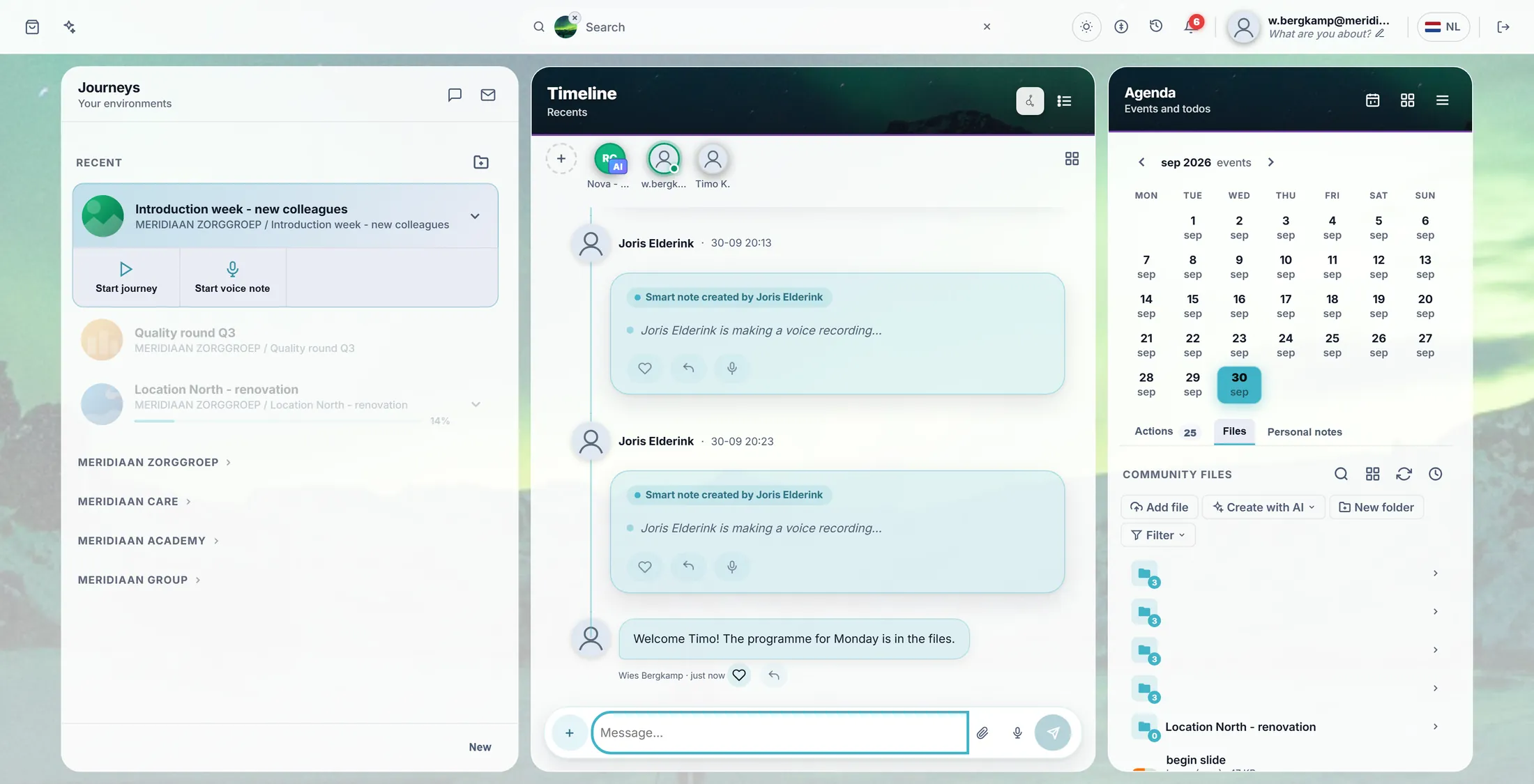
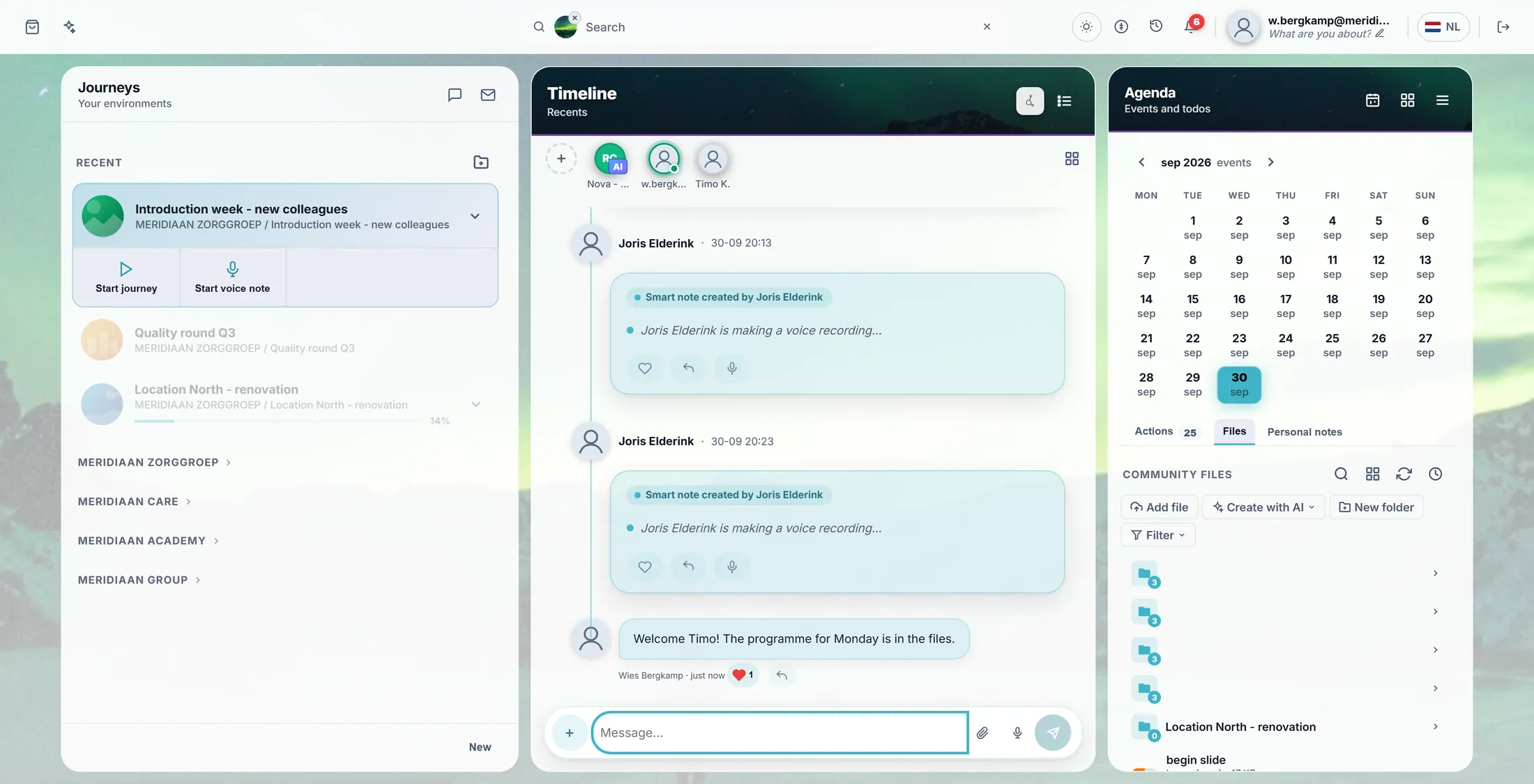
Click the journey. Its chat is at the bottom of the middle.
- Open CoVince. The left column is called Journeys: those are your journeys.
- Click the journey, for example Introduction week - new colleagues .
- The middle column is the Timeline of that journey. At the top: the faces of the people in it.
- At the very bottom is a long box: Message... . That is where you write.
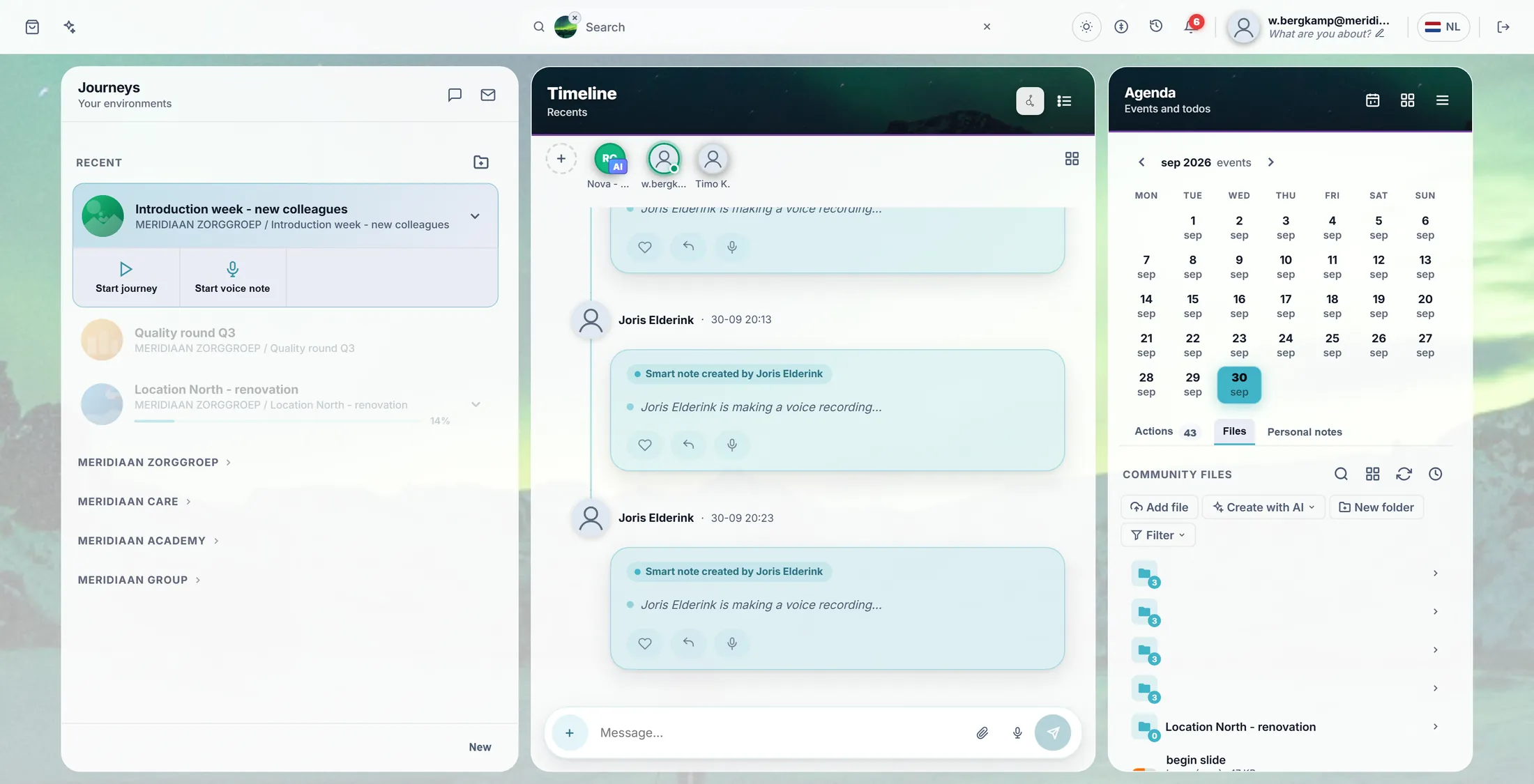
Your journey, its timeline, and the box to write in. Write and send
Type your message. Press Enter. Done.
- Click in Message... and type, for example: Welcome Timo! The programme for Monday is in the files.
- The arrow on the right turns blue. Press Enter or the Send arrow.
- Your message now stands in the timeline, on the right, with your name and just now under it.
- Want a new line instead of sending? Press Shift + Enter.
- The paperclip adds a file or a photo; the microphone records a voice note.
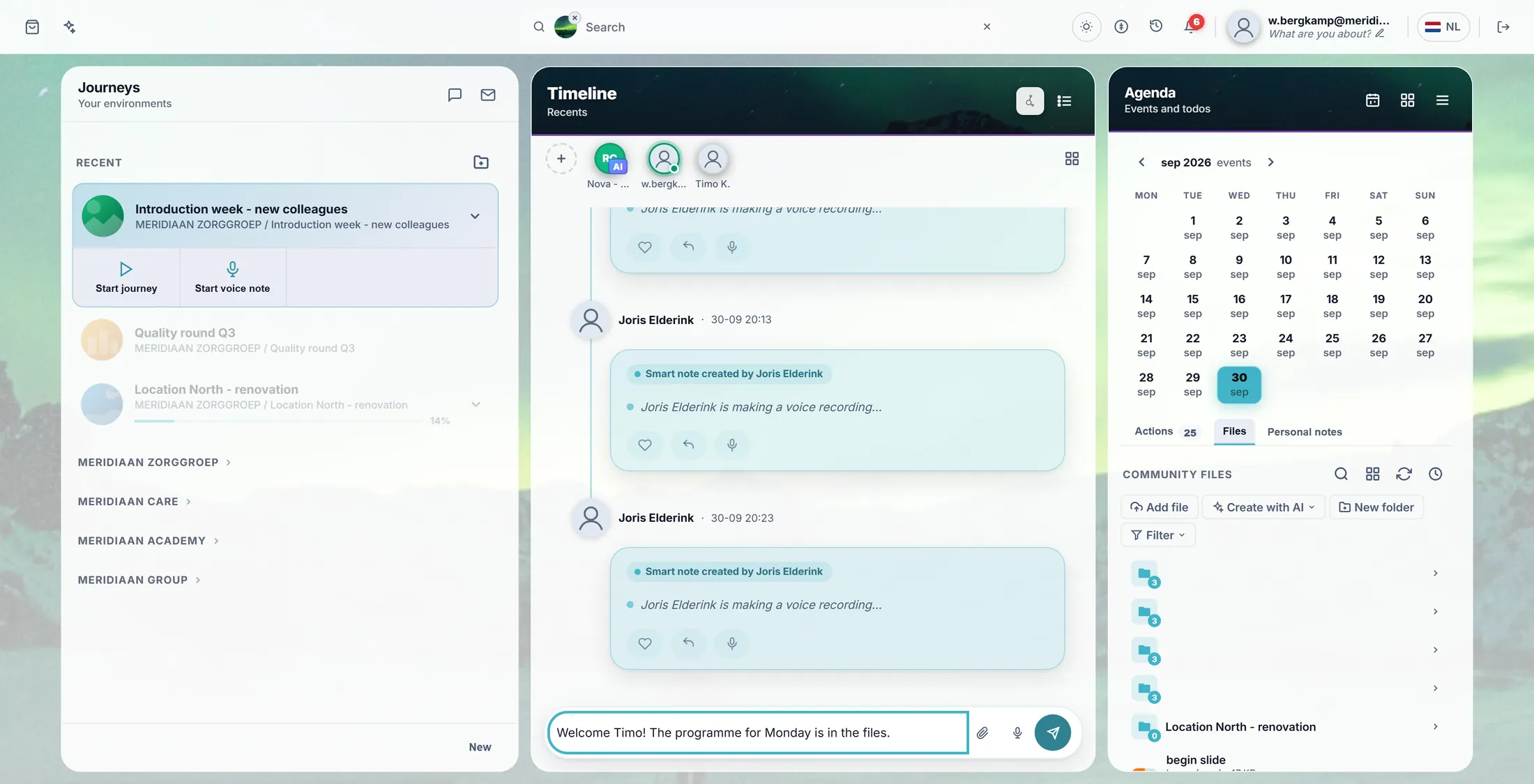
Typed. Enter sends it. Call someone with @
Type @. A list of names opens. Pick one.
- In your message, type @ .
- A list opens above the box with the people of this journey.
- Type the first letters to make the list shorter, and click the name - or press Tab.
- The name is now in your message, for example @Joris Elderink .
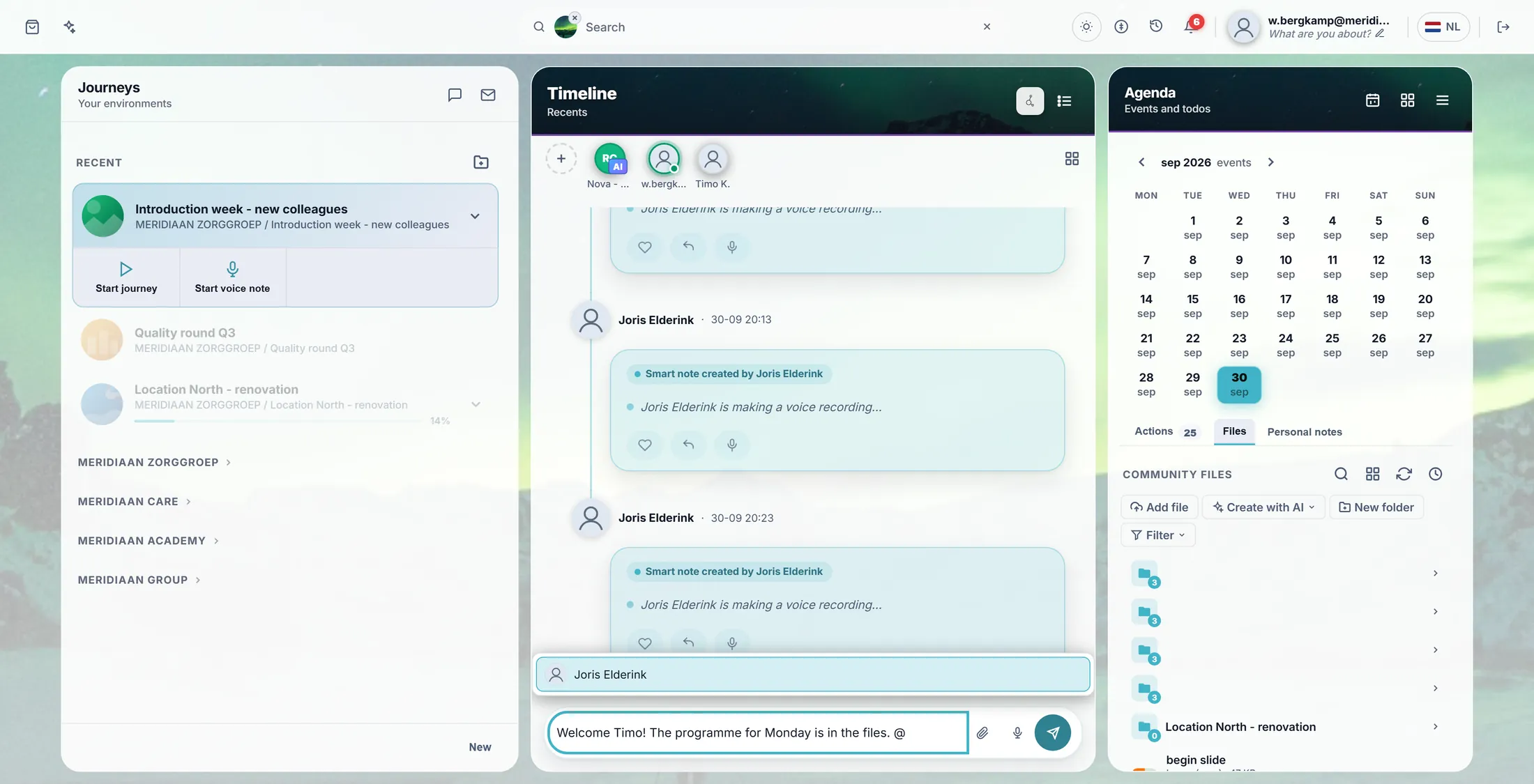
Type @ and the names come. Send a heart or a smiley
You do not always need words. A heart says: seen, nice.
- Every message has a small heart under it, next to its time. Press it: the heart turns red and counts.
- Next to the heart is the small Reply arrow. That is the next step.
- Press the heart again to take it back.
The heart, pressed. Answer one message
Answer this message, not the whole chat. Your answer shows what it is about.
- Press the small arrow (Reply) next to the heart under the message.
- A small bar opens right under that message.
- Type your answer and press Enter. In the timeline the answer stays with that message.
- Changed your mind? The cross on the right closes the bar.
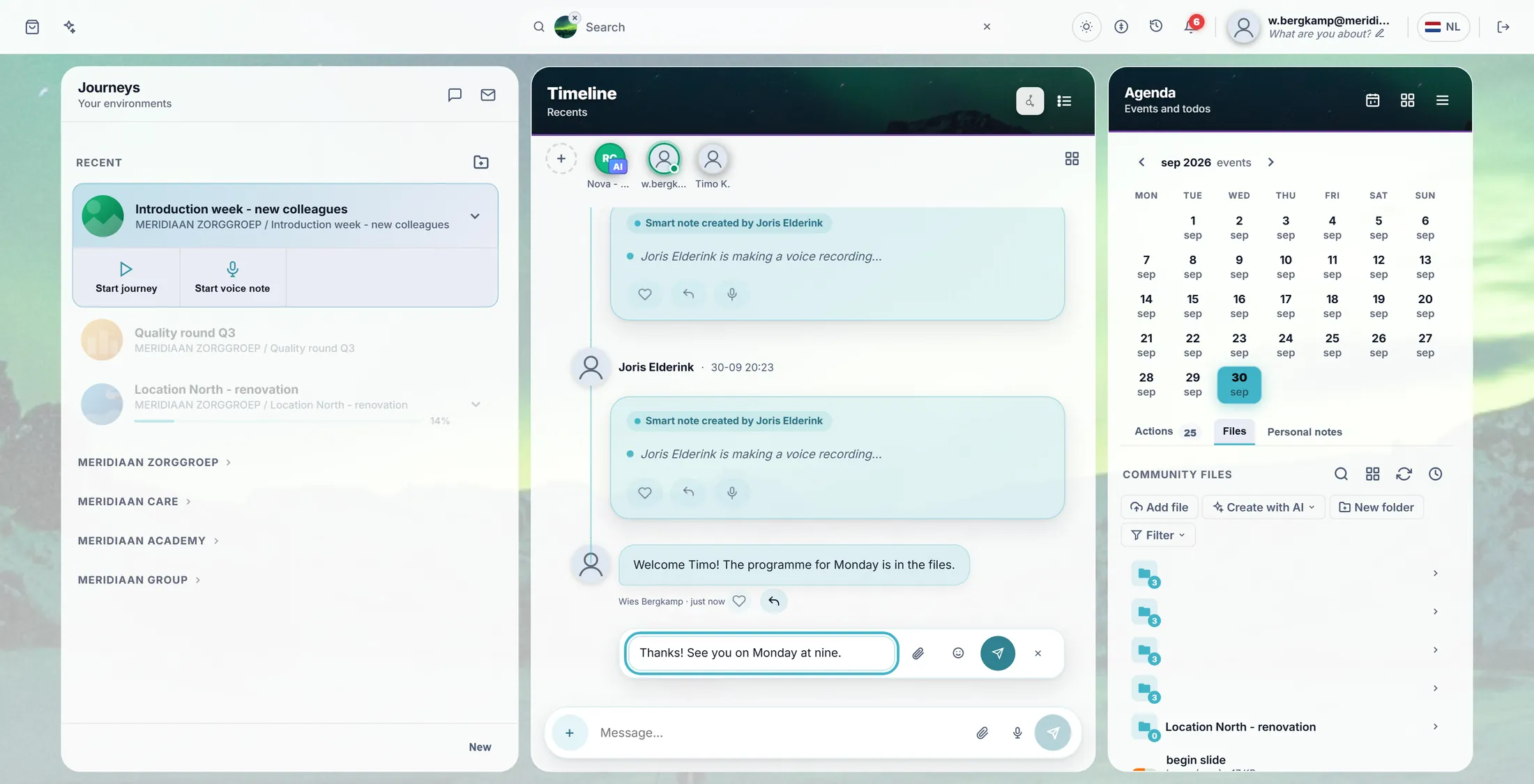
The reply bar under the message. Just one person? Press their face
Something only for one person? Press their face at the top.
- Look at the row of faces at the top of the timeline. Scroll it sideways if the person is not in view.
- Press the face of the person, for example Timo Kraaijvanger .
- A menu opens: User details, Open Chat, Start Video Call and Plan Meeting.
- Press Open Chat.
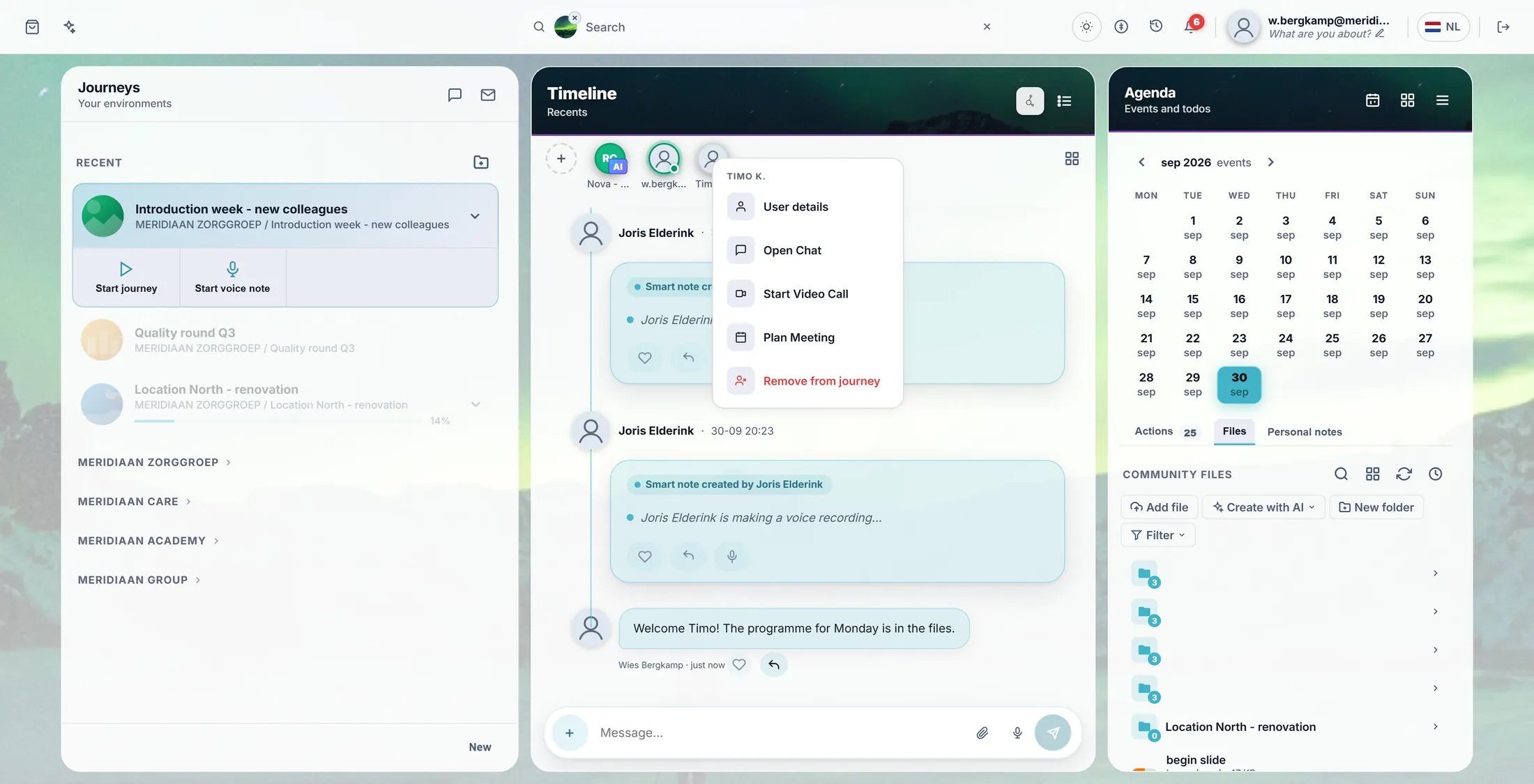
Their menu. Open Chat is for just the two of you. Chat with one person
A small window opens. Only you two read it.
- A window opens on the right with the name on top and your earlier messages.
- Type at the bottom and press Enter.
- The buttons on top make it taller, smaller or close it. Nothing is lost when you close it.
- All your one-to-one chats: the speech bubble at the top of the Journeys column.
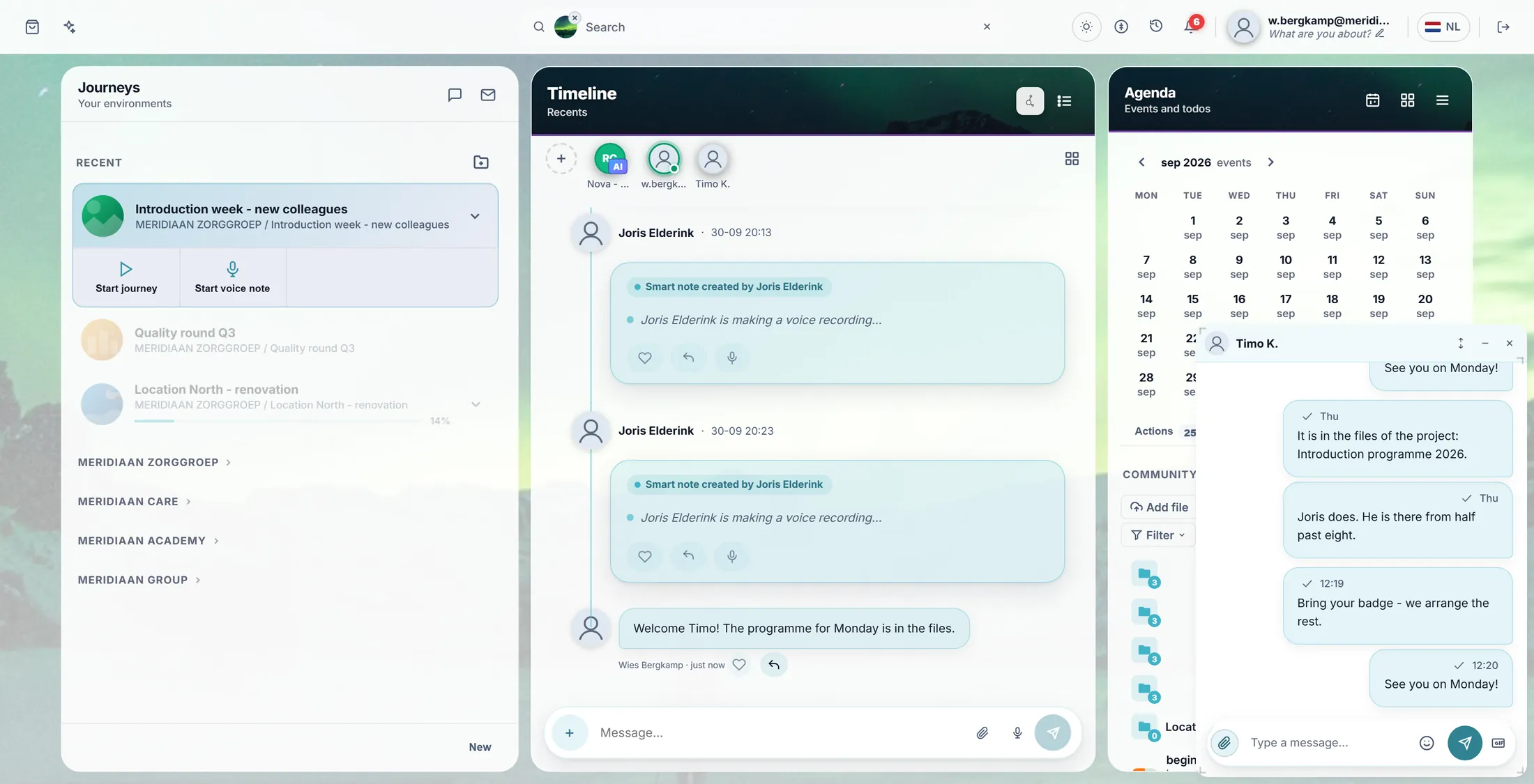
Just the two of you.
If something is not right
I do not see the Message box.
Click one journey first. The box is only there for one journey.
Who reads my message?
Everybody in the journey: the faces at the top.
I made a typo.
Mouse on your message, press the pencil, fix it.
Can I comment on a post with a title?
Yes. Under a post is a speech bubble. Press it and type.
The words, in plain language
- voice note
- A short spoken message: press the microphone, speak, send.
- mention
- An @ name in a message, so that person knows it is meant for them.
- reaction
- A heart or smiley on a message instead of a new message.
Where to go next
- Add people Invite the people who should read along.
- All explainers The other things you can learn here.