A video meeting with people outside
Plan an open video meeting: guests get a link, join without an account from a computer or a phone, wait in a waiting room until you let them in, and see only the call and its shared board.
Community - everyone who takes part - 6 min. You need: a CoVince account. Your guest needs nothing.
Nobody gets in without you. Nothing is sent until you press Create.
What you will be able to do
- Make one link Anyone you send it to can join.
- Guests join from a phone A name and a mail address. That is all.
- You let people in Nobody walks in by accident.
- Switch the link off One button and the link stops working.
Get this ready first
- Your guest's mail address You can also send the link yourself.
- A camera and microphone The browser asks permission once.
Do it together, one step at a time
Nine steps. First you, then your guest. Tick each one off.
Open the meeting planner
Click a day in your calendar.
- Click your journey first, so the meeting belongs to it.
- Then click a day in the calendar on the right.
- In the small menu, press Plan a meeting.
- Or use the green link under this step.
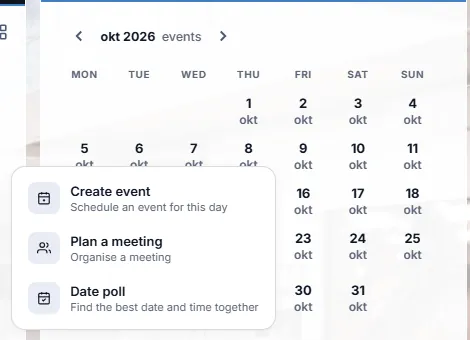
Click a day, then Plan a meeting. Choose Open video meeting
This is the kind that guests can join.
- Press the card Open video meeting. The text says anyone with the link can join, without logging in.
- Press Next →.
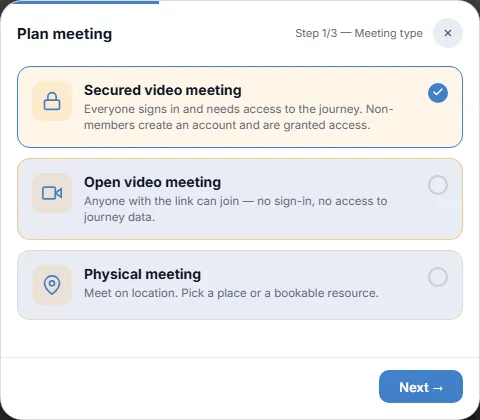
The middle card is for guests. Title, day and time
The link is made for you.
- Type a title, for example Quality round Q3 - advice .
- Choose the day and the start and end time.
- Look at Location: the guest link is already there. You do not have to type anything.
- Press Next →.
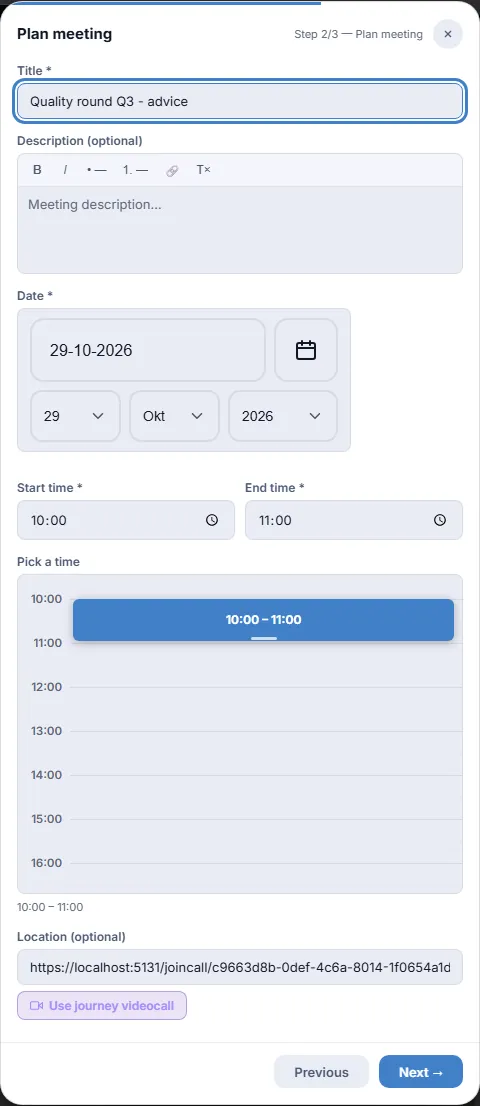
The link is in Location. Add your guest by e-mail
CoVince mails the invitation with the link.
- Under Someone outside CoVince (e-mail), type the address of your guest. This box is there when you plan from inside a journey: click the journey first, then a day.
- Press the button next to the box. The address shows in a list under it. Add more if you like.
- Press Create. The meeting is saved.
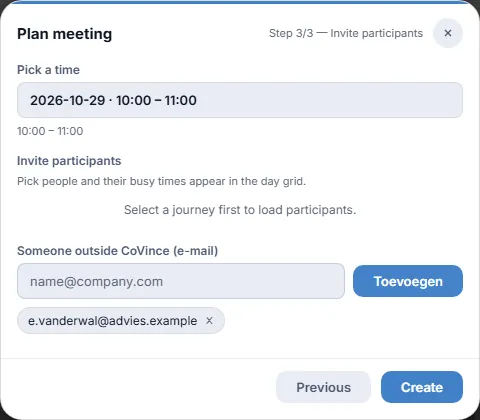
Type the address, press Add. Your guest opens the link
A name, a mail address, and one button.
- Your guest presses the link in the mail. It opens in the browser.
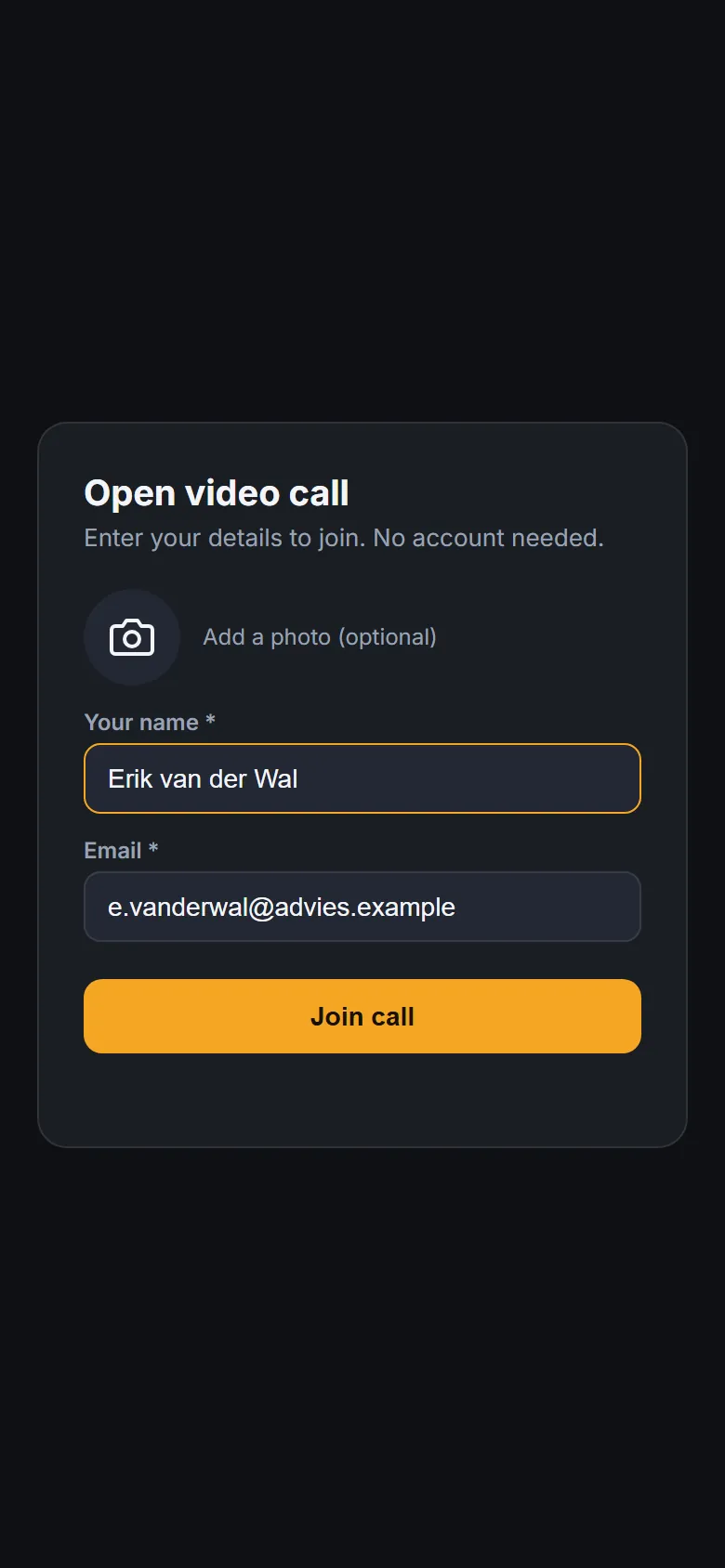
- They see Open video call and the line Enter your details to join. No account needed.
- They type Your name and Email . A photo is optional.
- They press Join call.
The guest page on a phone. Your guest waits to be let in
The guest sees that you were asked.
- The guest sees Waiting to be let in .
- They keep the page open. It checks by itself, every few seconds.
- Until you say yes, they cannot hear or see anything.
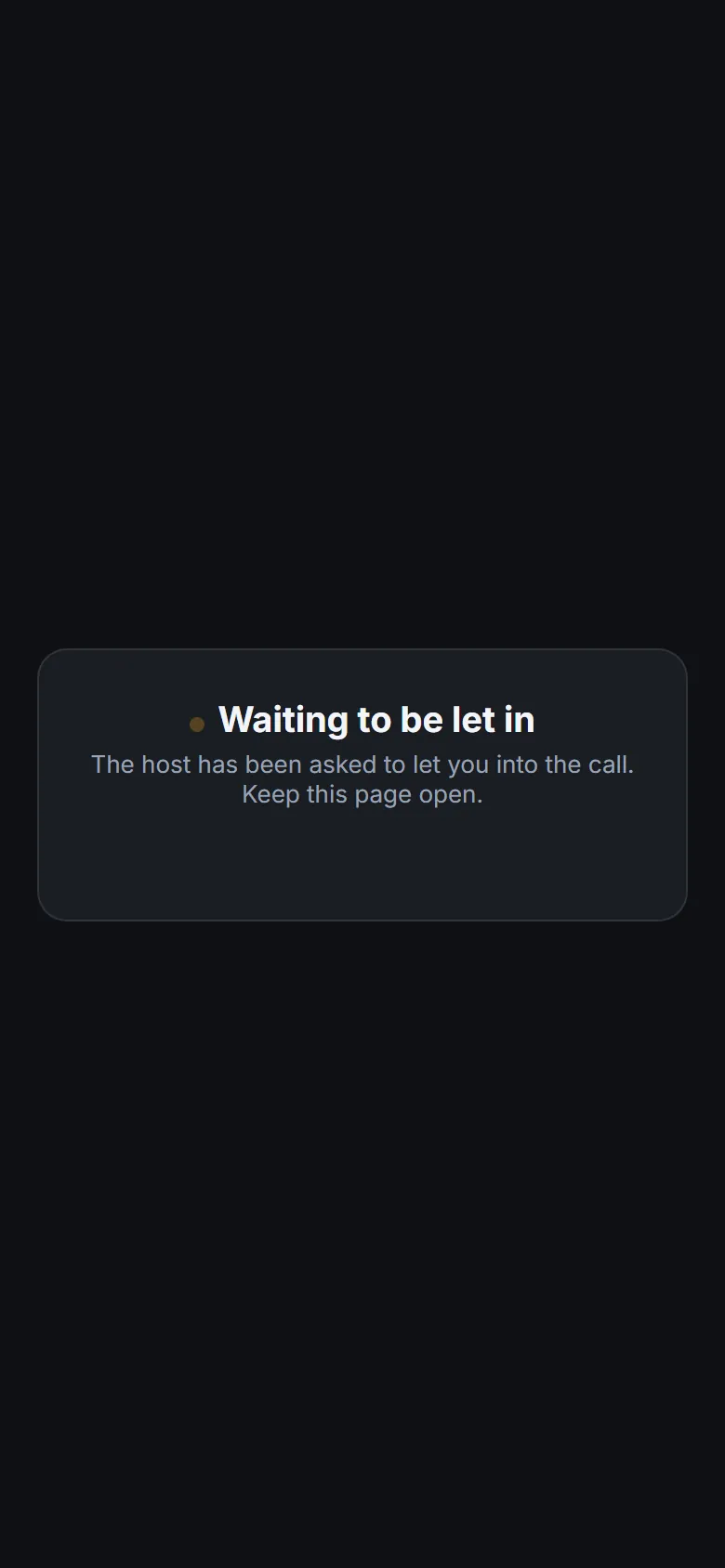
Waiting to be let in. You let your guest in
Open the link yourself, signed in, and press the door.
- At meeting time, open the link yourself, signed in to CoVince: you find it under Location in the meeting. You get the same form: type your name and e-mail and press Join call.
- In the bar at the bottom you see a door with a red number: that is how many people wait. Only you, the host, see the door.
- Press the door. The Waiting room opens with the name and e-mail address of your guest.
- Press Let in. The guest is in the call a moment later. No keeps them out.
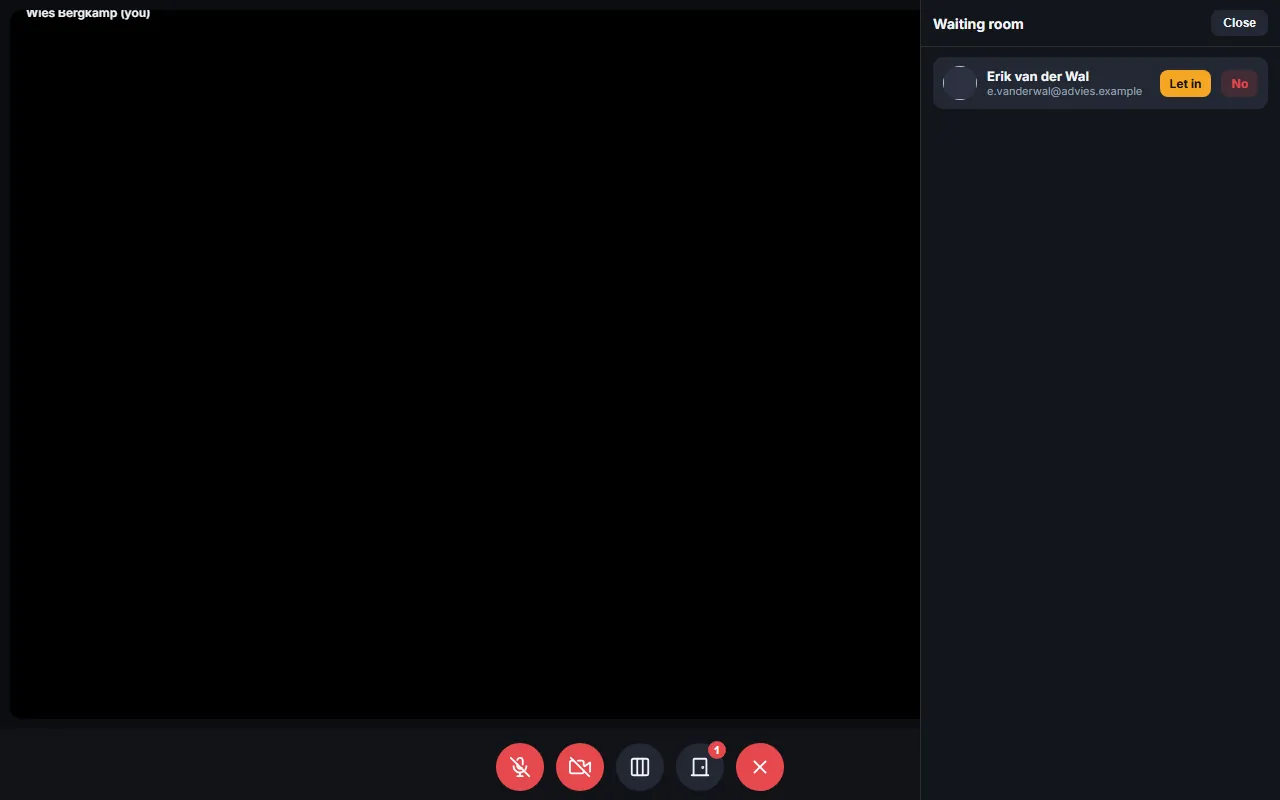
The door shows who is waiting. In the call
Switch them on when you are ready.
- The microphone and camera are off when you come in. Press the microphone and the camera to switch them on. The browser asks permission once.
- The third button opens the Shared board : guests and members put notes on the same board. On a phone the board covers the screen; press Close to go back to the call.
- The last button (the cross) leaves the call.
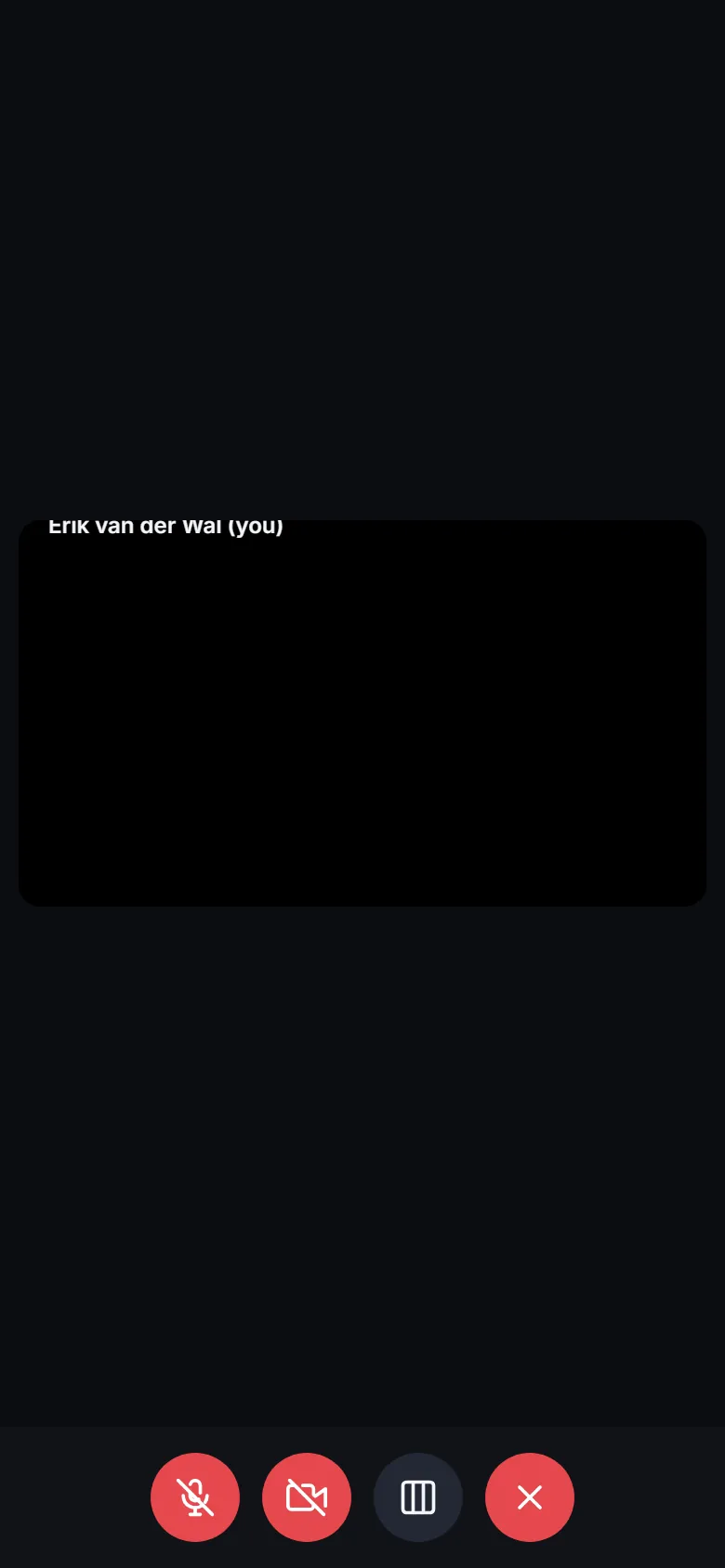
The bar at the bottom of the call. Switch the link off
When it is over, nobody new can join.
- Open Week agenda and press the icon named Open call links in the top bar (hold the pointer on it to read the name).
- You see your links, each with Copy and Revoke.
- Press Revoke and confirm. The link now says This call link is invalid, expired or has been revoked.
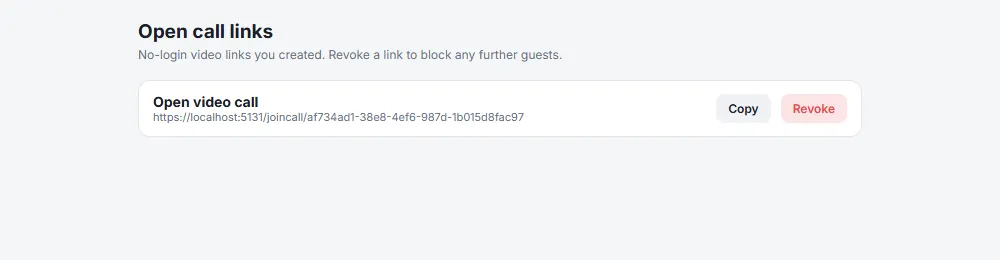
Your links, with Copy and Revoke.
If something is not right
My guest says the link is not valid.
It was switched off or it is too old. Plan the meeting again for a new link.
My guest waits and nothing happens.
You have to let them in. Open the meeting and press the door.
The call is full.
An open meeting holds 50 guests.
The words, in plain language
- open video meeting
- A call anyone with the link can join, without an account.
- waiting room
- The place a guest waits until the host lets them in.
- revoke
- Switch a link off so nobody can use it any more.
Where to go next
- Have a video call Calls with the people of your journey.
- Plan a meeting The whole planner, including rooms.