Make a training conversation with an avatar
An Avatar Chat slide lets your learner practise a real conversation with a talking avatar: an intake, a difficult talk, a customer who pushes back. This page walks the whole way: add the slide, set the scenario and the persona, choose the face and the voice, decide when it ends and play it yourself on a phone. At the end: the gallery of all avatars, with the new ones marked.
Learnings - a training conversation with an avatar - 9 min. You need: a learning you may change
Nothing happens to your learners until you save. You can try everything and press Cancel.
What you will be able to do
- Add a talking avatar One slide, and your learner has someone to talk to.
- Set the scene Who the avatar is, what it says first, what your learner must reach.
- Pick the right face A doctor, a nurse, a builder, a client. Or your own photo or 3D model.
- Try it like a learner Press Test conversation and talk to it.
Get this ready first
- A learning to put it in No learning yet? Make one first.
- Know what your learner must practise For example: "welcome a new client and ask what she needs".
- A microphone, to try it Your learner can talk or type. You can try both.
Do it together, one step at a time
Nine steps, from the first click to playing it yourself. Every picture is the real screen.
Add the Avatar Chat slide
Put a talking avatar in your learning.
- Open your learning and click the block where the conversation goes.
- Press the green Add Slide button, top right. The window Select Slide Type opens.
- Type avatar in the search box. One card remains: Avatar Chat , "Role-play with a talking avatar".
- Click the card. The new slide appears at the end of the block, and its panel opens on the right.
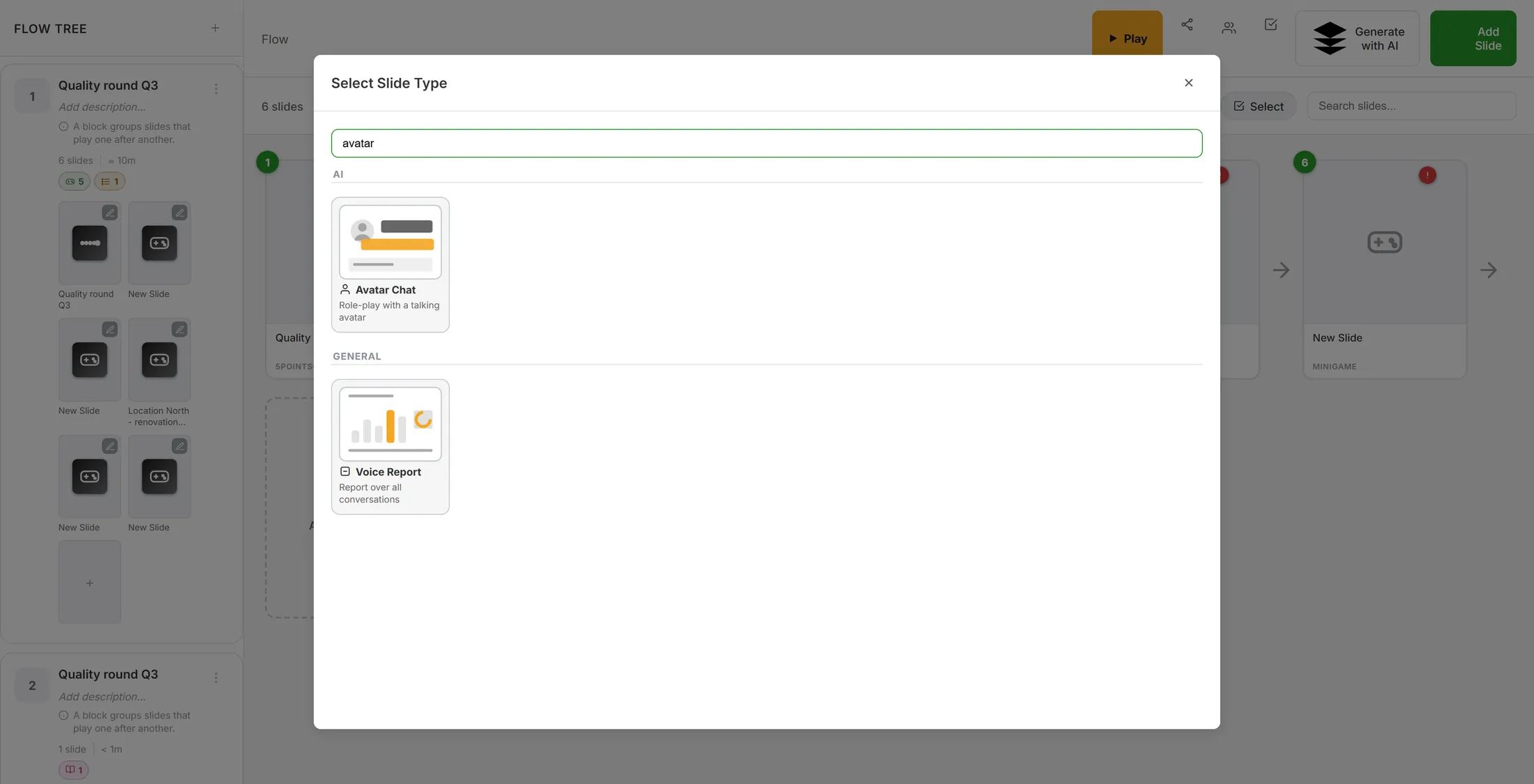
Search for "avatar" and click the card. Open the conversation window
Find the place where everything is set.
- In the panel on the right, find the orange box Avatar conversation .
- It shows the avatar you chose, or No avatar chosen yet .
- Press Edit avatar conversation. A window opens with four tabs: Avatar & voice , Conversation , Knowledge & flow and Learner screen .
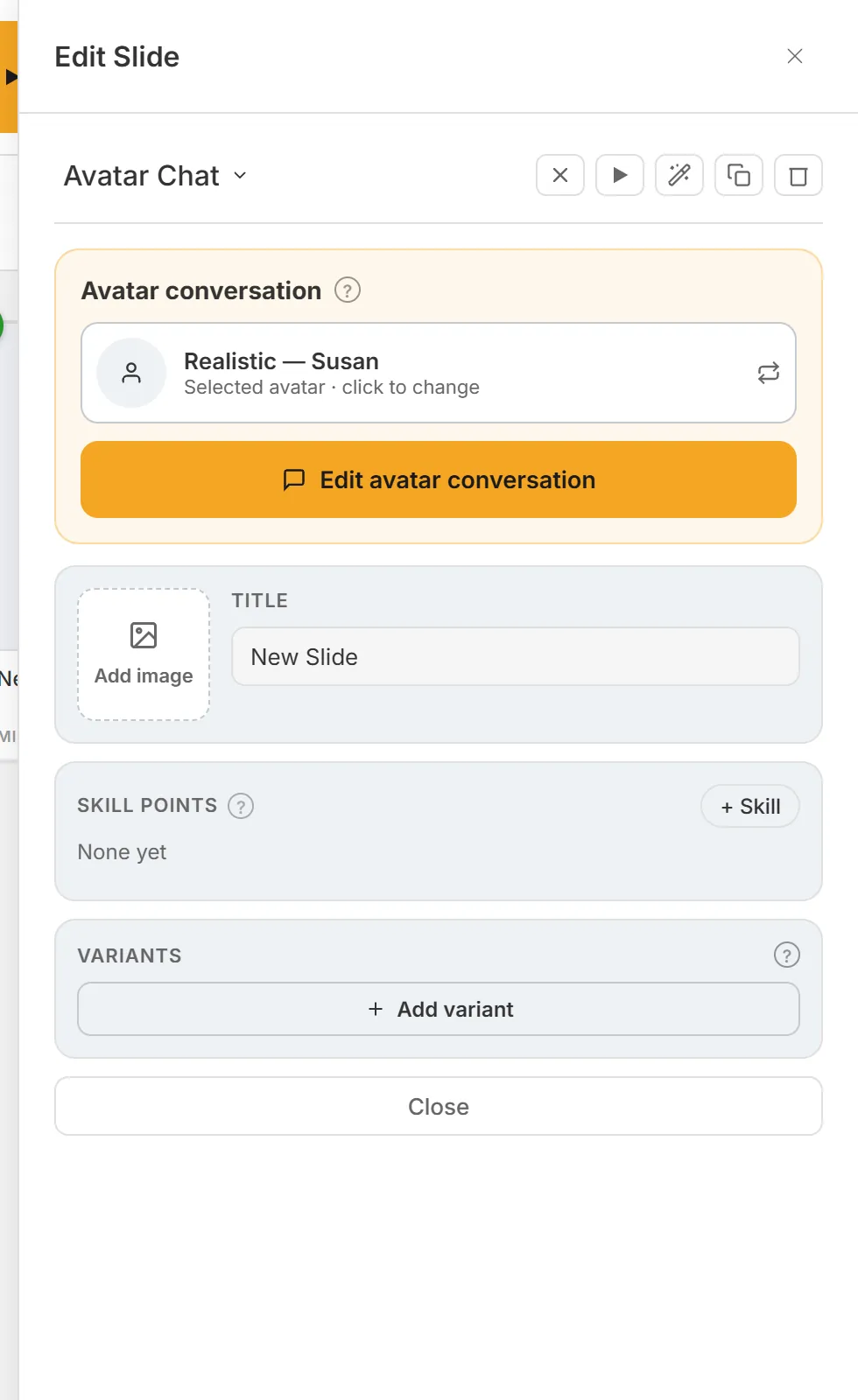
The orange button opens the window. Say what the talk is about
Tell the avatar what situation it is in, and what your learner must reach.
- Click the tab Conversation .
- At the top, Start from a template : Job interview, Patient intake, Sales objection or Socratic tutor. A template fills in sensible settings for you to change.
- Under Goal / success criteria , write what your learner must reach, for example: "The learner welcomes the client, asks what she needs and explains what happens next."
- Tick Give the learner feedback when the conversation ends to let the learner see how it went against that goal.
- Under Opening , leave Avatar starts the conversation ticked and write the Opening line : "Hello... they told me to come here today. I am a bit nervous, to be honest."
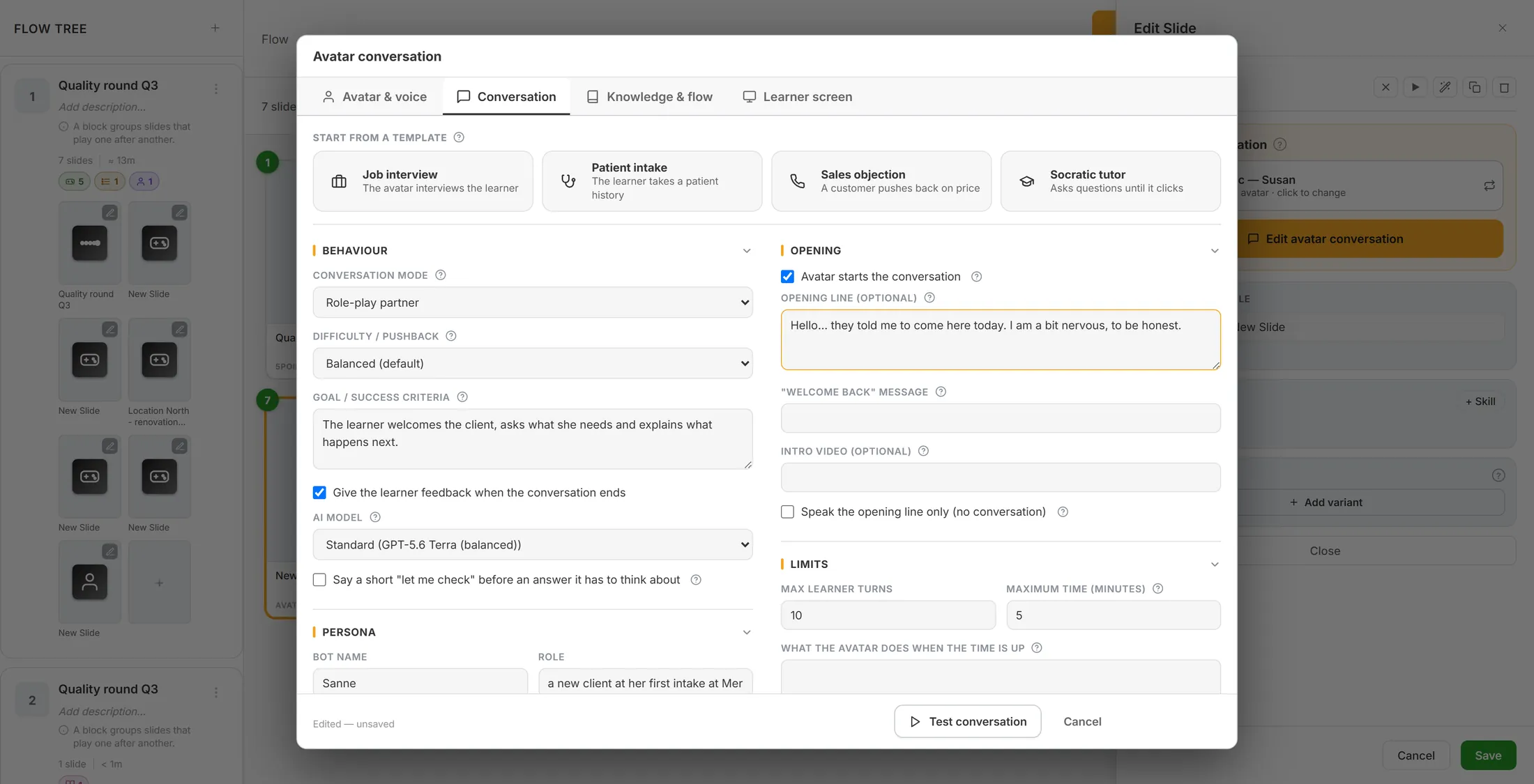
Template, goal and the first words of the avatar. Give the avatar a name and a mood
Decide who the avatar pretends to be.
- Scroll down to Persona .
- Write a Bot name , for example Sanne .
- Under Role , say who she is: "a new client at her first intake at Meridiaan, a little worried".
- Under Communication style , say how she talks: "natural, short answers".
- Choose the Emotion : Neutral , Warm & encouraging or Stern & serious .
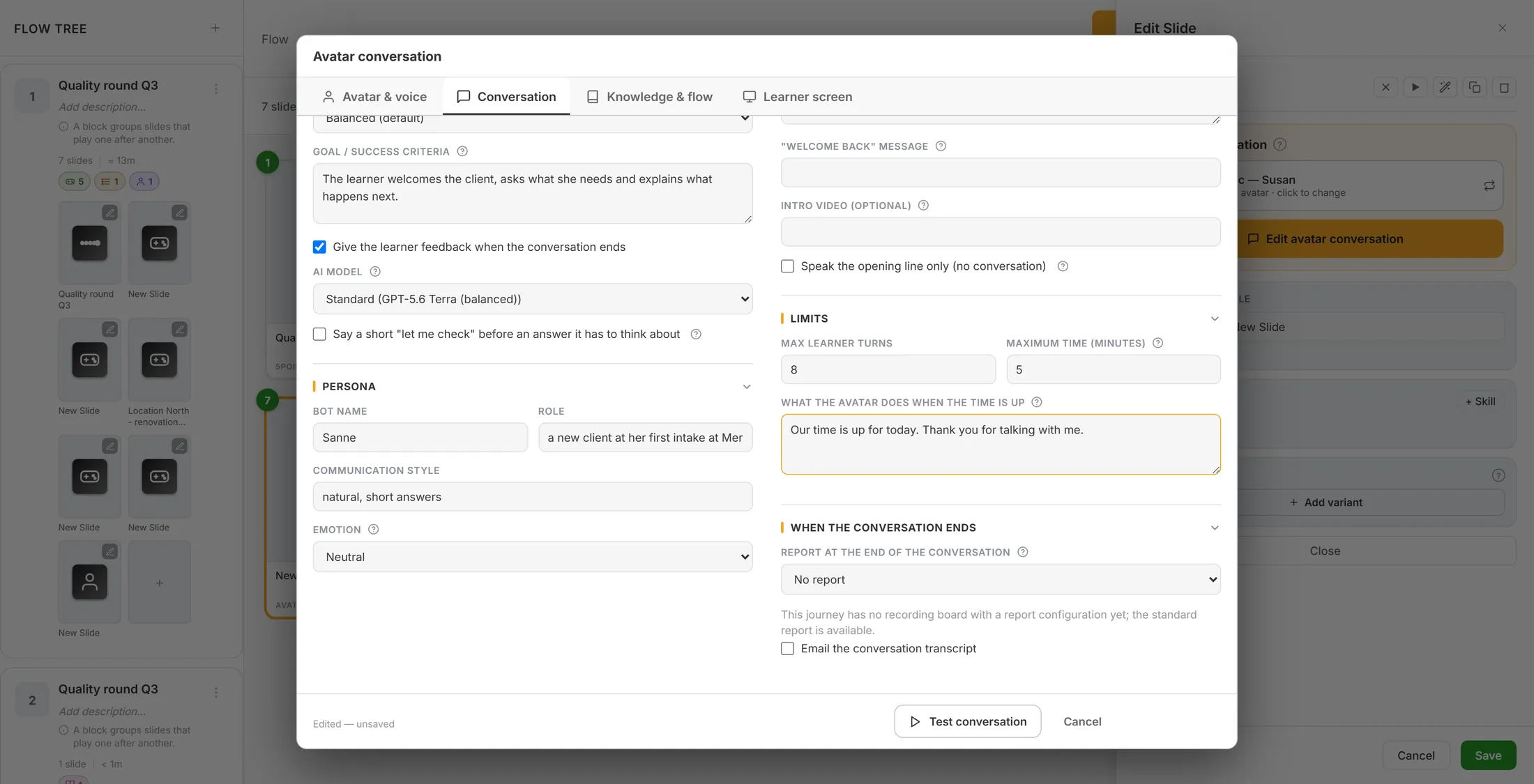
The persona is on the left, lower down. Choose your avatar
Pick the face that fits the talk.
- Click the tab Avatar & voice .
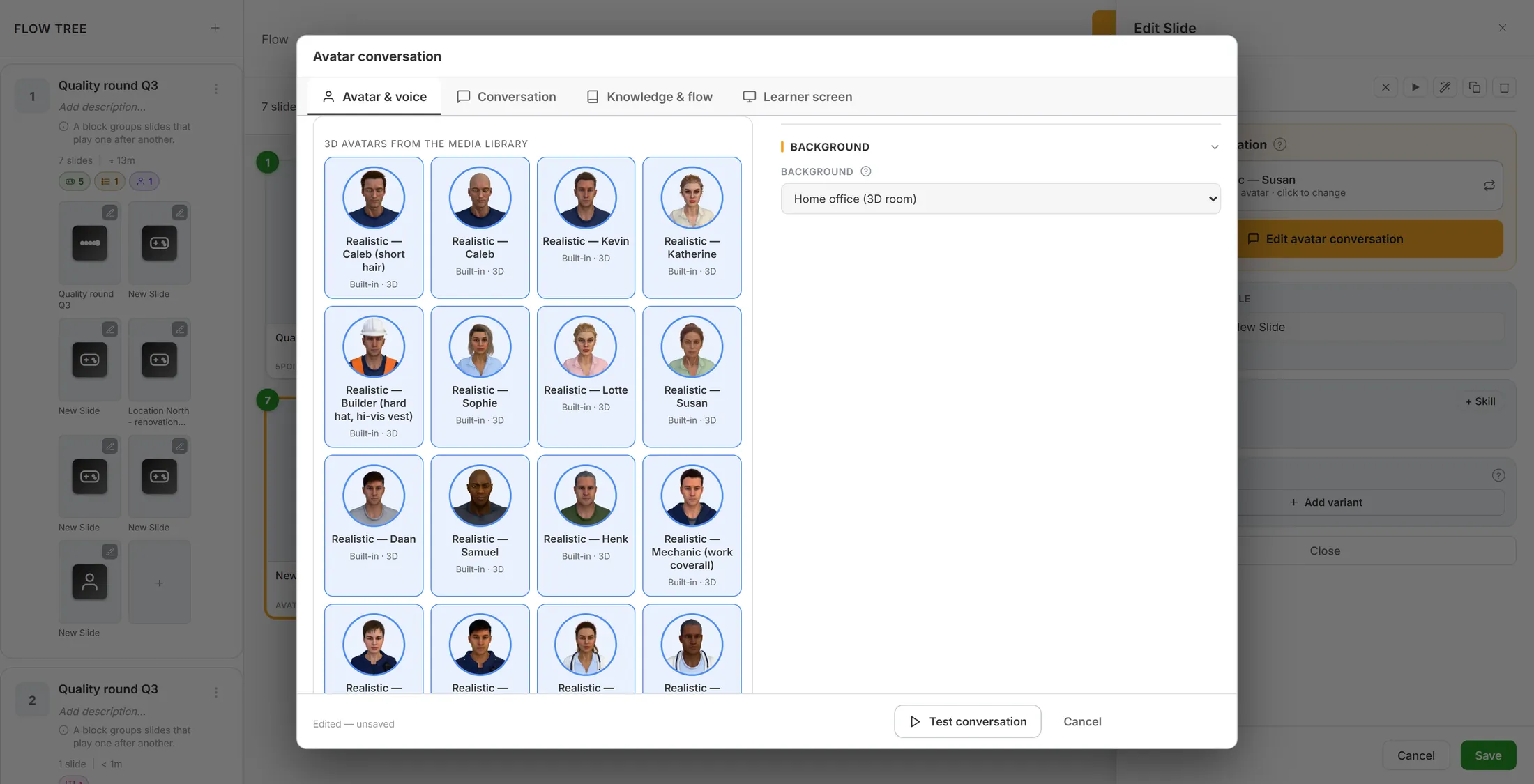
- Press Choose avatar. A list opens: 3D avatars from the media library .
- Look at the portraits. The nurse, doctors, police officers, mechanic and soldier are at work; the others are everyday people.
- Click the avatar you want. It is added to your learning and chosen at once.
- Scroll down on this page for the full gallery, with the new avatars marked.
Click a portrait to choose that avatar. Or bring your own avatar
Use your own photo or 3D model, and check what you chose.
- After you click a face, the card at the top of the tab shows it with its name and voice.
- Want your own face? Press Upload / create new and add a photo, or a .vrm or .glb 3D model.
- Want the same avatar and voice in many places? Press Save as character. It is then kept for your whole organisation.
- Not happy with the choice? Press Change avatar and pick another.
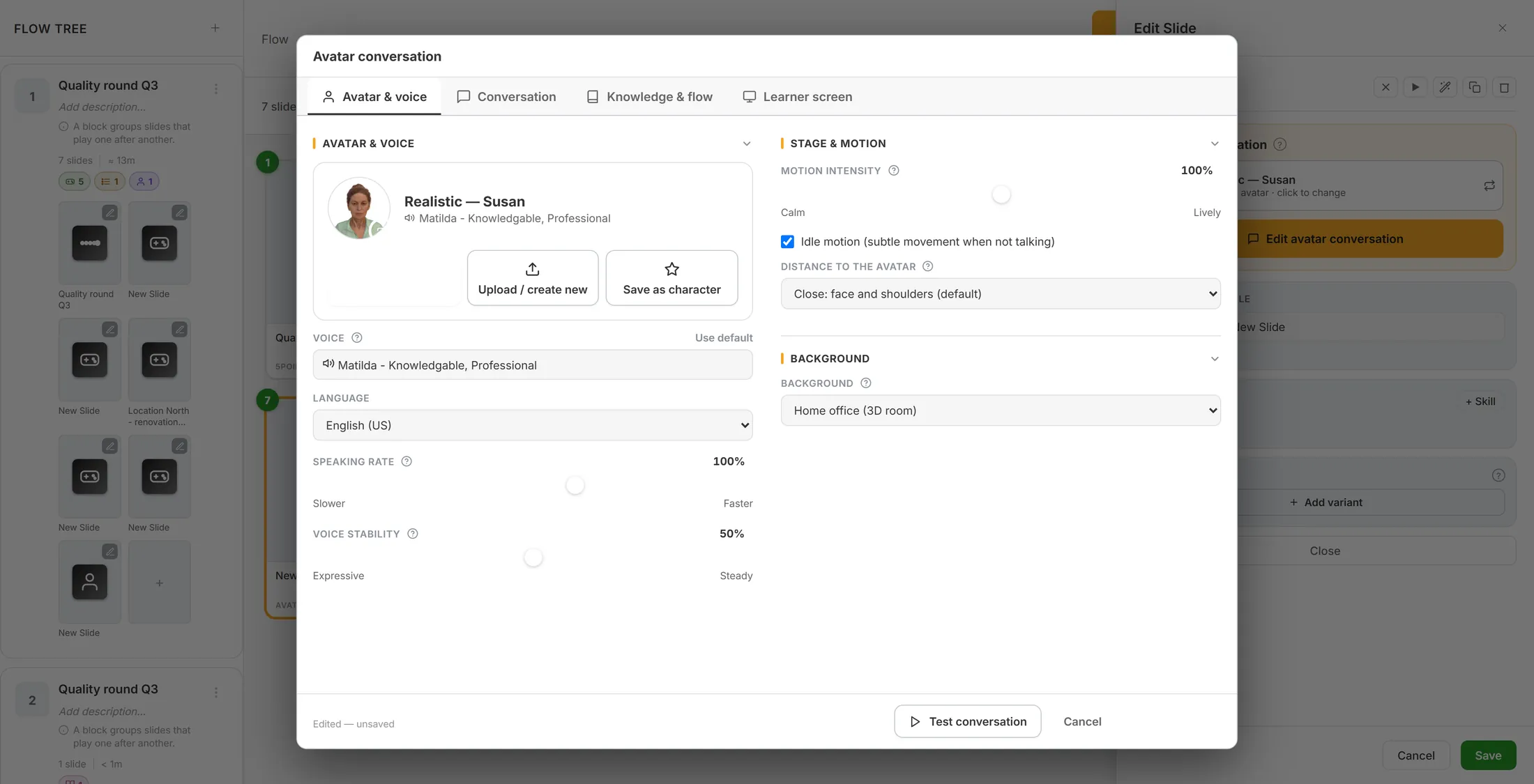
Your avatar, in the card at the top. Choose the voice
Make the avatar sound right.
- Under Voice you see the voice that comes with the avatar. Press it to choose another, or press Use default .
- Under Language , choose the language the avatar speaks, or leave Use the learner's language .
- Use Speaking rate to go slower or faster, and Voice stability for a more expressive or steadier voice.
- On the right, Stage & motion sets how lively the avatar moves and how close the camera is, and Background sets the room behind her.
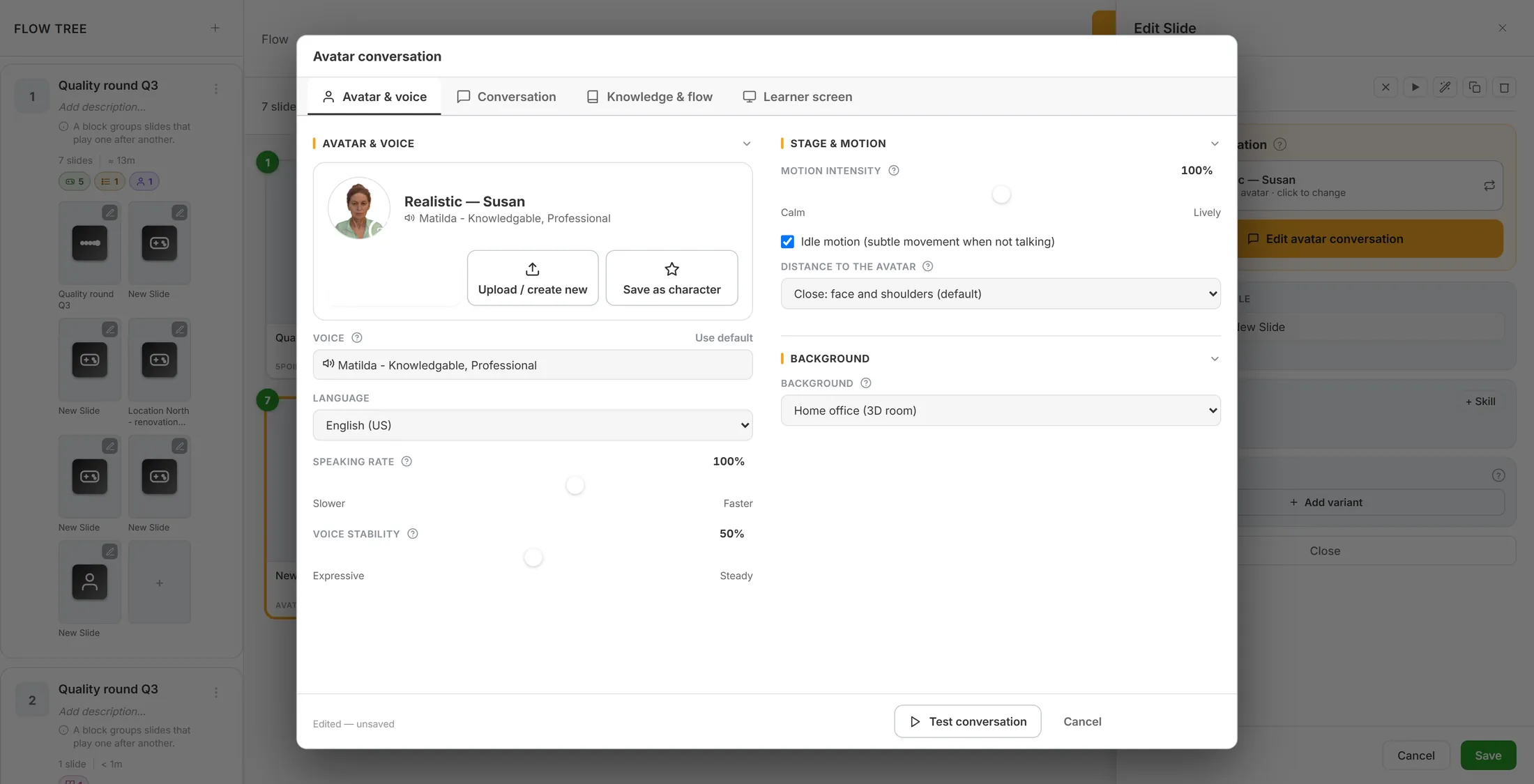
Voice and language on the left. Decide when the talk ends
Your learner can go on when the talk is over. You decide when that is.
- On the right, under Limits , set Max learner turns , for example 8 , and Maximum time (minutes) , for example 5 .
- Under What the avatar does when the time is up , write the closing words: "Our time is up for today. Thank you for talking with me."
- Under When the conversation ends , choose a Report at the end of the conversation : no report, the standard report, or your own.
- Tick Email the conversation transcript if you want a copy sent.
- The Next arrow stays hidden for your learner until the talk has ended by turns, by time or by a step you marked as the end.
Turns, time and closing words, on the right. Try it like a learner
Talk to your own avatar before your learners do.
- Press Save to keep your settings, or press Test conversation: it saves first and then opens the player in a new tab.
- On a phone you see the avatar full screen, looking at you. The microphone at the bottom is green when she listens.
- Talk. The avatar answers out loud, in character. Under Learner screen you decide if your learner can also type, and which buttons show.
- When the talk ends, the Next arrow appears and your learner goes on with the learning.
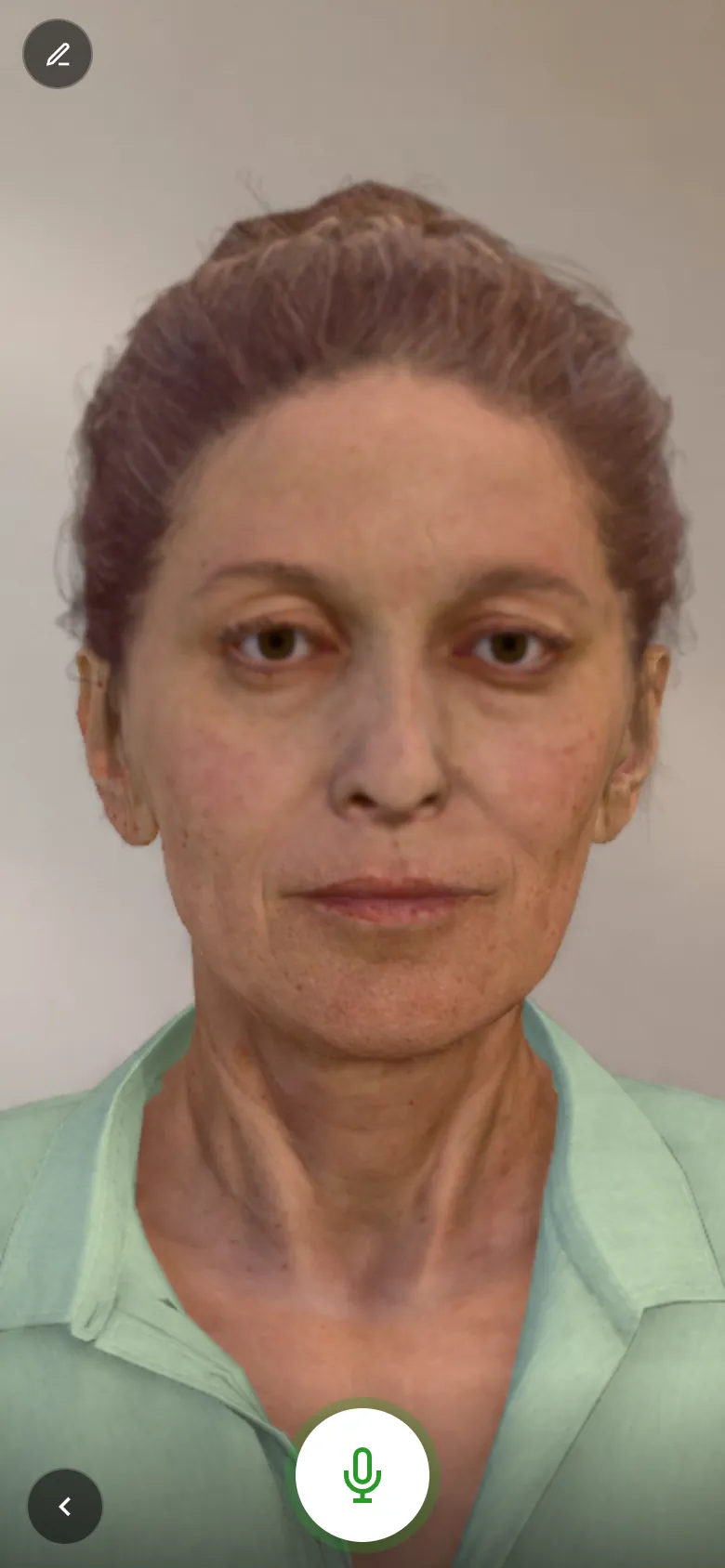
What your learner sees on a phone.
If something is not right
The list shows only a few faces.
Wait a moment: the portraits load one by one. Still short? Press the list again.
I want an avatar that is not in the list.
Press Upload / create new and add a photo or a 3D model.
My learner cannot go on.
The arrow comes when the talk ends. Set the turns or the minutes.
My changes are gone.
Press Save before you close the window.
The words, in plain language
- avatar
- A face on the screen that talks and listens.
- persona
- Who the avatar pretends to be.
- character
- An avatar with its voice, kept for your whole organisation.
Where to go next
- Practise a conversation with an avatar The same slide, in the older walkthrough.
- Make a learning Start here if you have no learning yet.
- All explainers The other things you can learn here.