Let people book a time with you
A booking page shows the hours you are free, in your own agenda. You share one link; the other person picks a subject and a free time, and the meeting - with its video call - lands in both agendas. No more eight mails about half an hour.
Coordination - time with you - 6 min. You need: a login
Nothing is shared until you tick Published and send the link. Reading this page changes nothing.
What you will be able to do
- Say when you are free Pick the days and hours people may book.
- Share one link Send it in a mail or put it on a website.
- People book themselves They pick a time. You both get it in your agenda.
Get this ready first
- Your free hours For example: weekdays, 9 to 5.
- Your calendar (not needed) Connected? Then busy times are left out by themselves.
Do it together, one step at a time
Seven steps. Five to make the page, two to see it work.
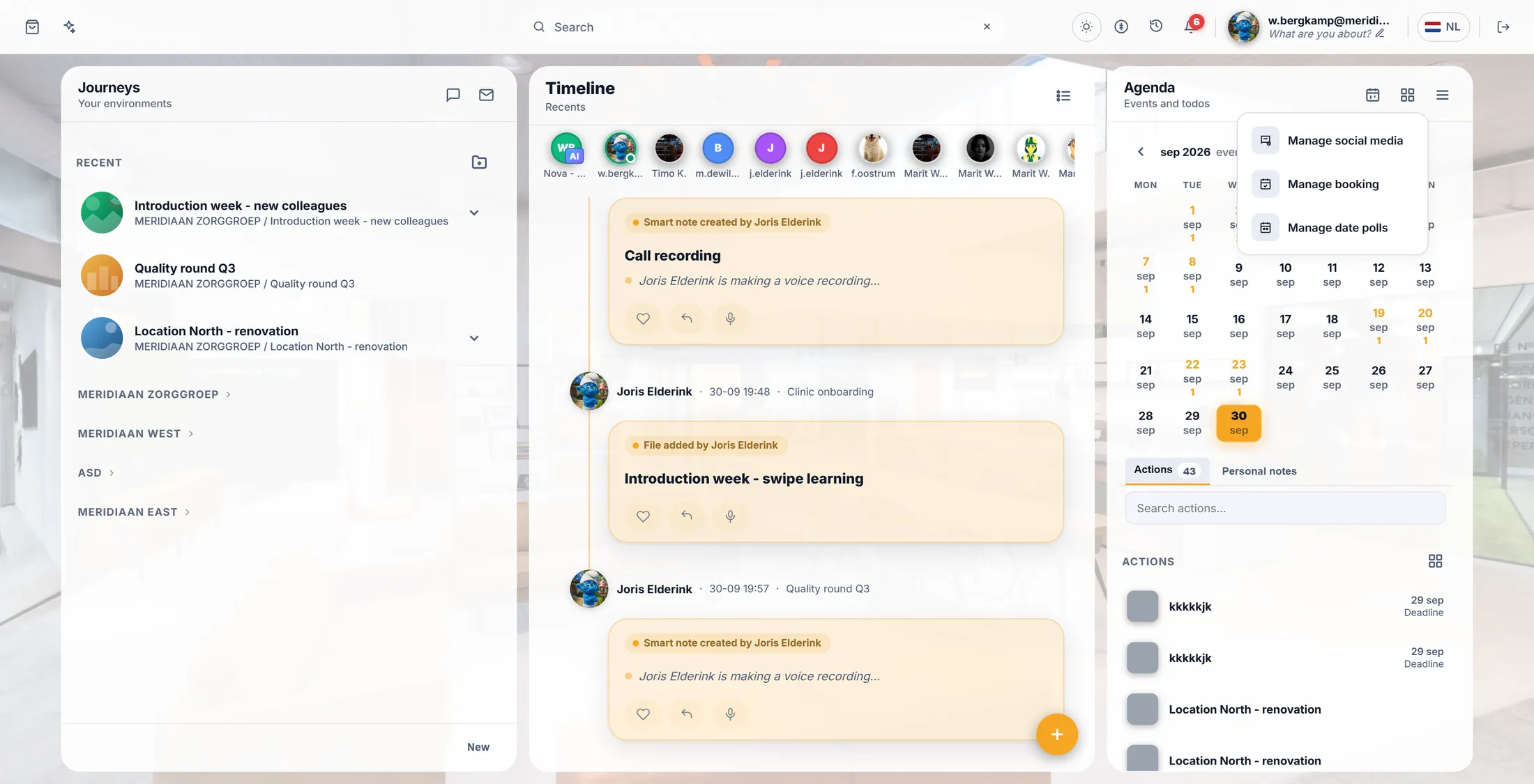
Open Manage booking
Booking lives in the Agenda column, behind the button with three lines.
- Open CoVince. On the right is the column Agenda .
- At the top of that column, press the button with three lines. Its name is My overviews .
- A small menu opens. Press Manage booking.
The menu behind the three lines. Start a new booking page
Your booking pages have their own window. Start a new one there.
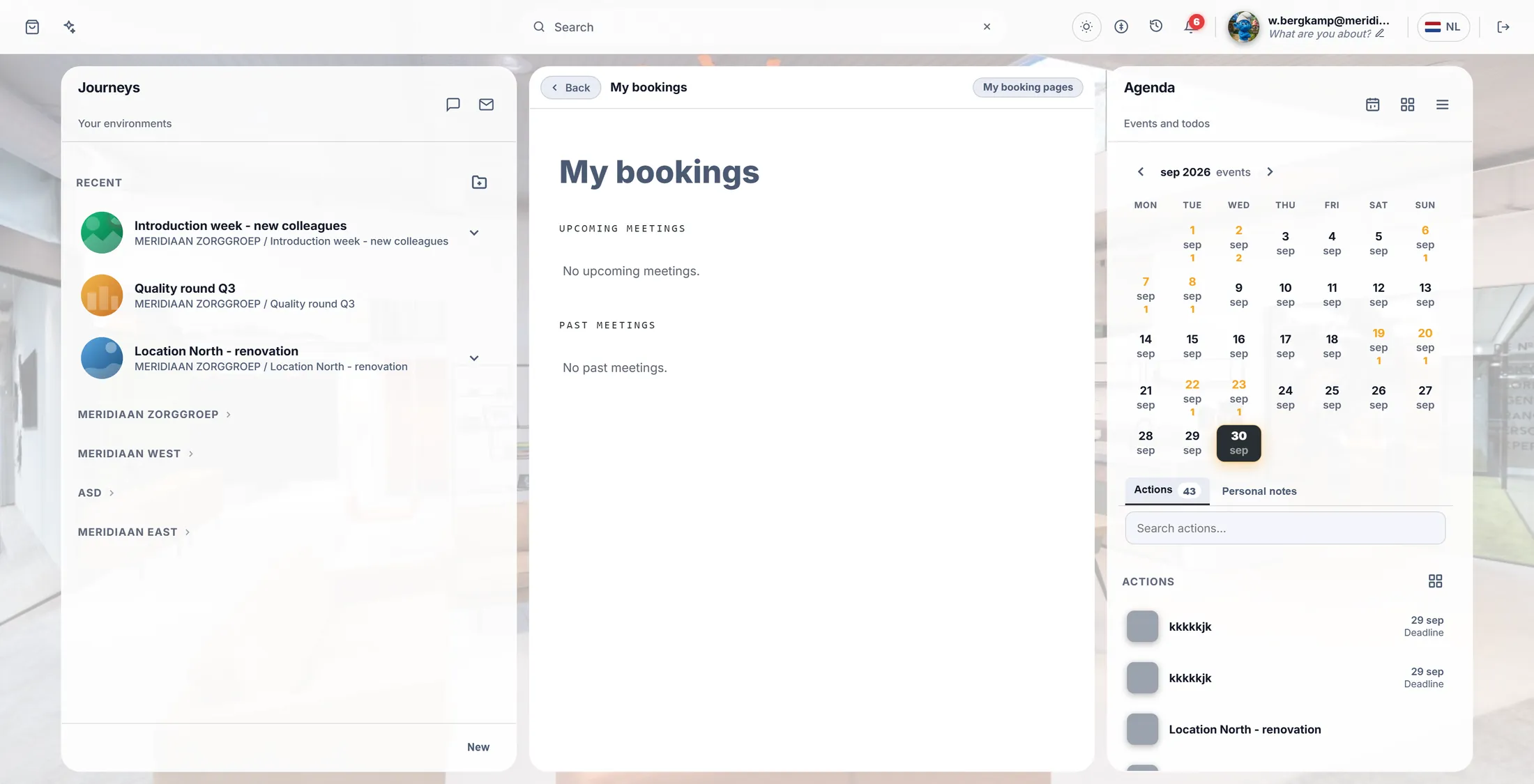
- In the middle you now see My bookings : the meetings you booked with other people.
- Press My booking pages at its top right. A big window opens: My booking pages . The first time it says No booking pages yet .
- Press + New booking page. A second window opens: New booking page .
Press My booking pages, top right. Give it a name
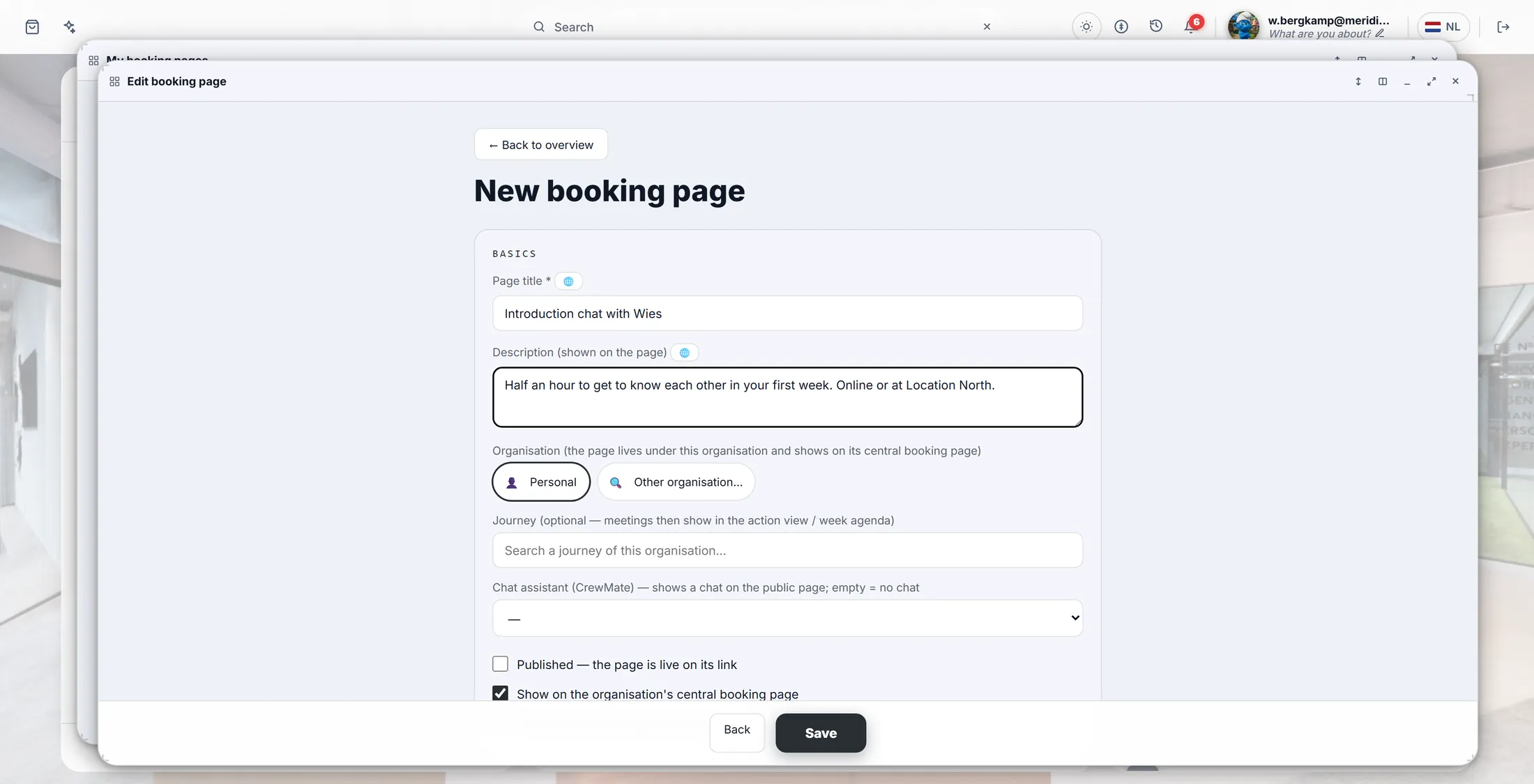
Write what the meeting is about. People read this first.
- Page title : for example Introduction chat with Wies .
- Description : one or two lines about what the meeting is for.
- Organisation : Personal is fine. Pick your organisation if the page should show on its central booking page.
- Journey (not needed): pick a journey, and the meetings also show in that journey's agenda.
- Tick Published - the page is live on its link . Without the tick, only you can see the page.
A title and one line are enough. Say when you are free
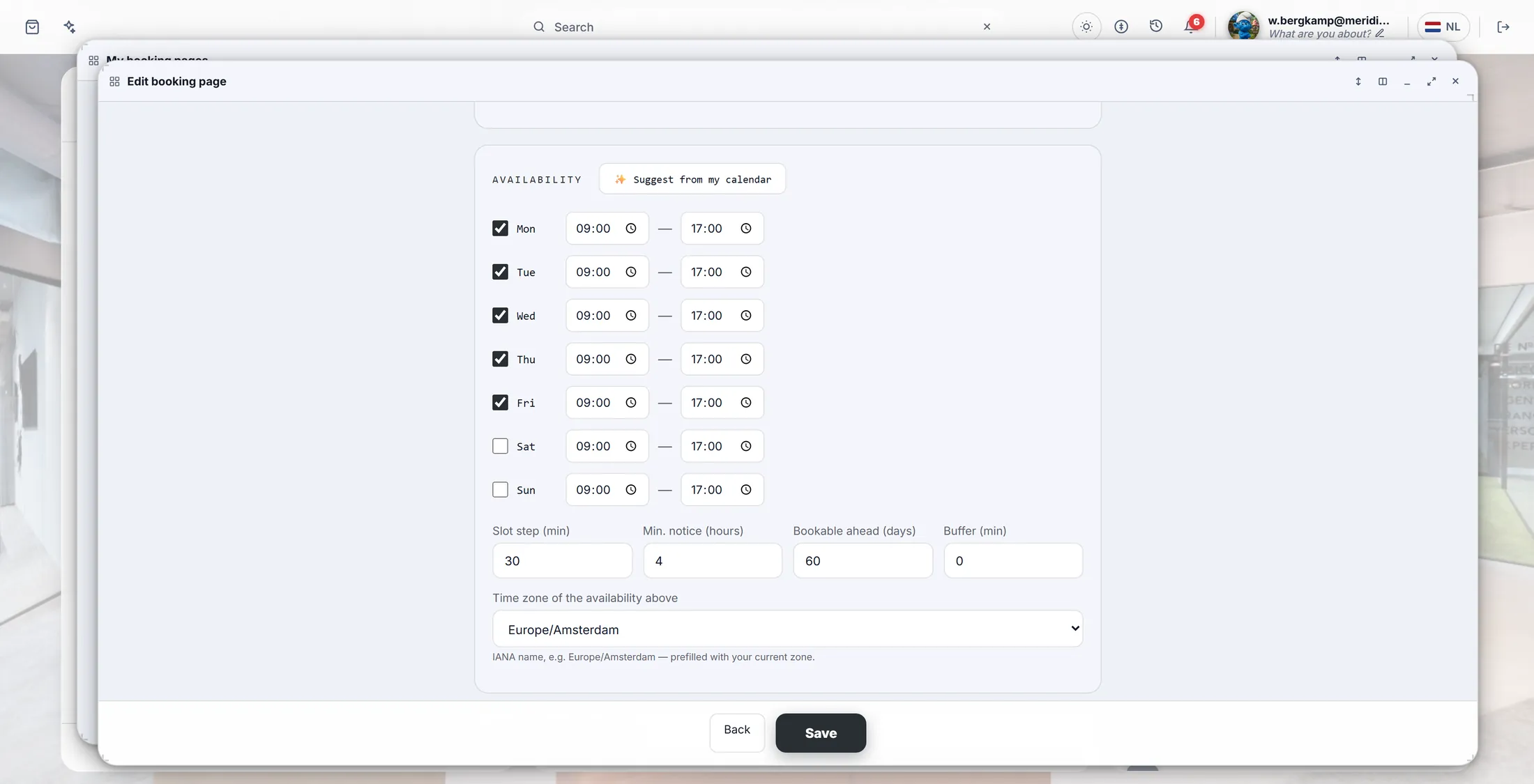
Tick the days. Set the hours. People can only pick inside them.
- Scroll down to Availability . Monday to Friday, 09:00 to 17:00 is already filled in.
- Untick a day you do not want, or change the hours next to it.
- Slot step (min) : every how many minutes a meeting may start. Min. notice (hours) : how soon before, at the latest. Bookable ahead (days) : how far ahead. Buffer (min) : a break between two meetings.
- Or press Suggest from my calendar: CoVince fills in the hours from your own calendar.
Weekdays, nine to five. Change what you like. What they can book, then Save
Name the meeting and how long it is. Then press Save.
- Scroll down to Subjects (meeting types) .
- Title : for example Introduction chat . Duration (min) : 30.
- Online video meeting possible is ticked: the booking gets a video call. Tick Physical meeting possible too if people may come by, and fill in the location.
- More kinds of meeting? Press + Add subject.
- Press Save at the bottom. You are back in My booking pages , and your page is in the list.
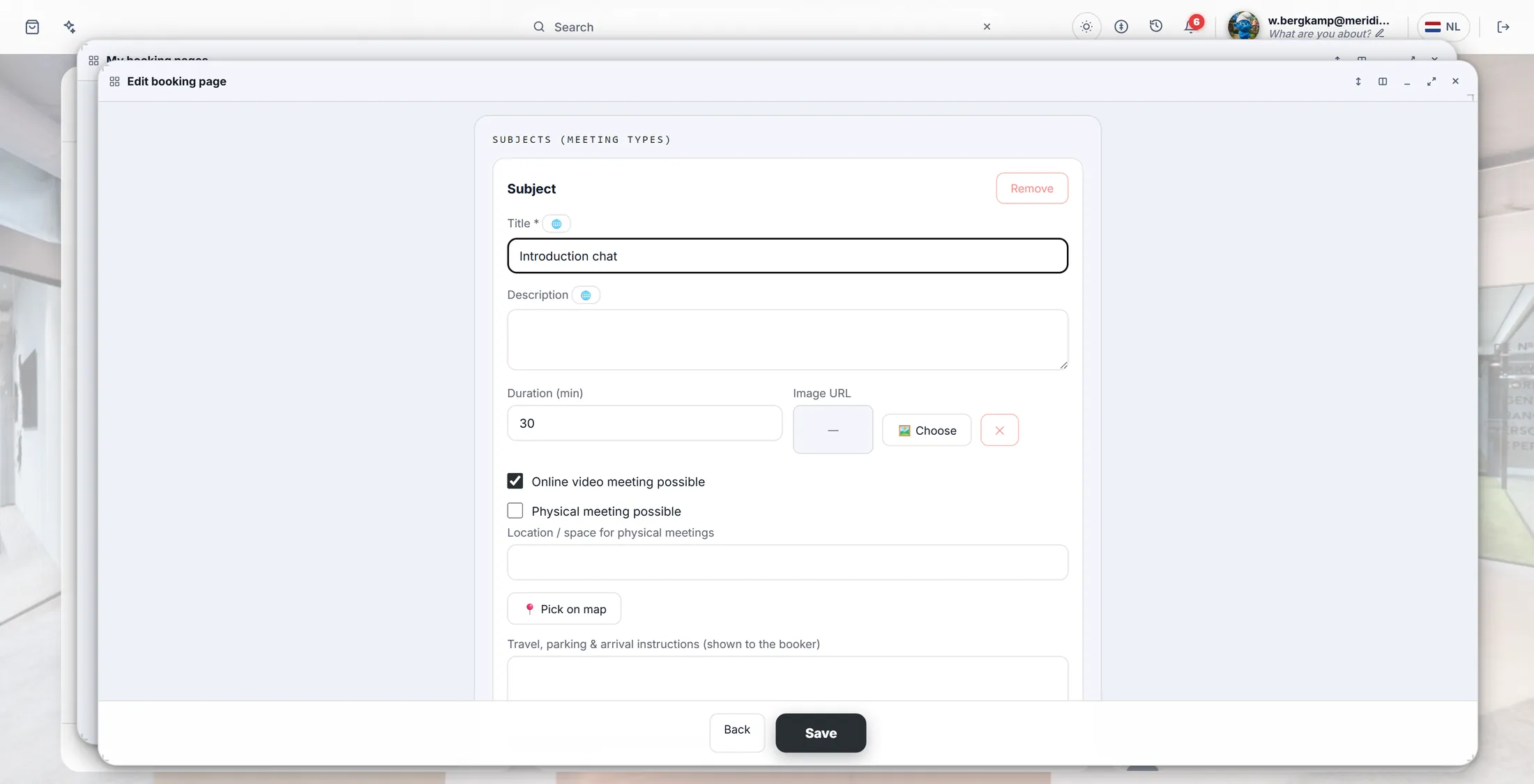
One subject: a 30-minute chat, online. See who booked
Every booking shows up in My booking pages and in your agenda.
- Open Manage booking again, then My booking pages.
- Upcoming meetings lists every booking, with Join for the video call and Details.
- Somebody booked - Timo Kraaijvanger , say? You also get a mail, and the meeting is in your agenda.
- Bookings per week counts them. After a meeting, mark who came under Recent meetings (mark attendance) .
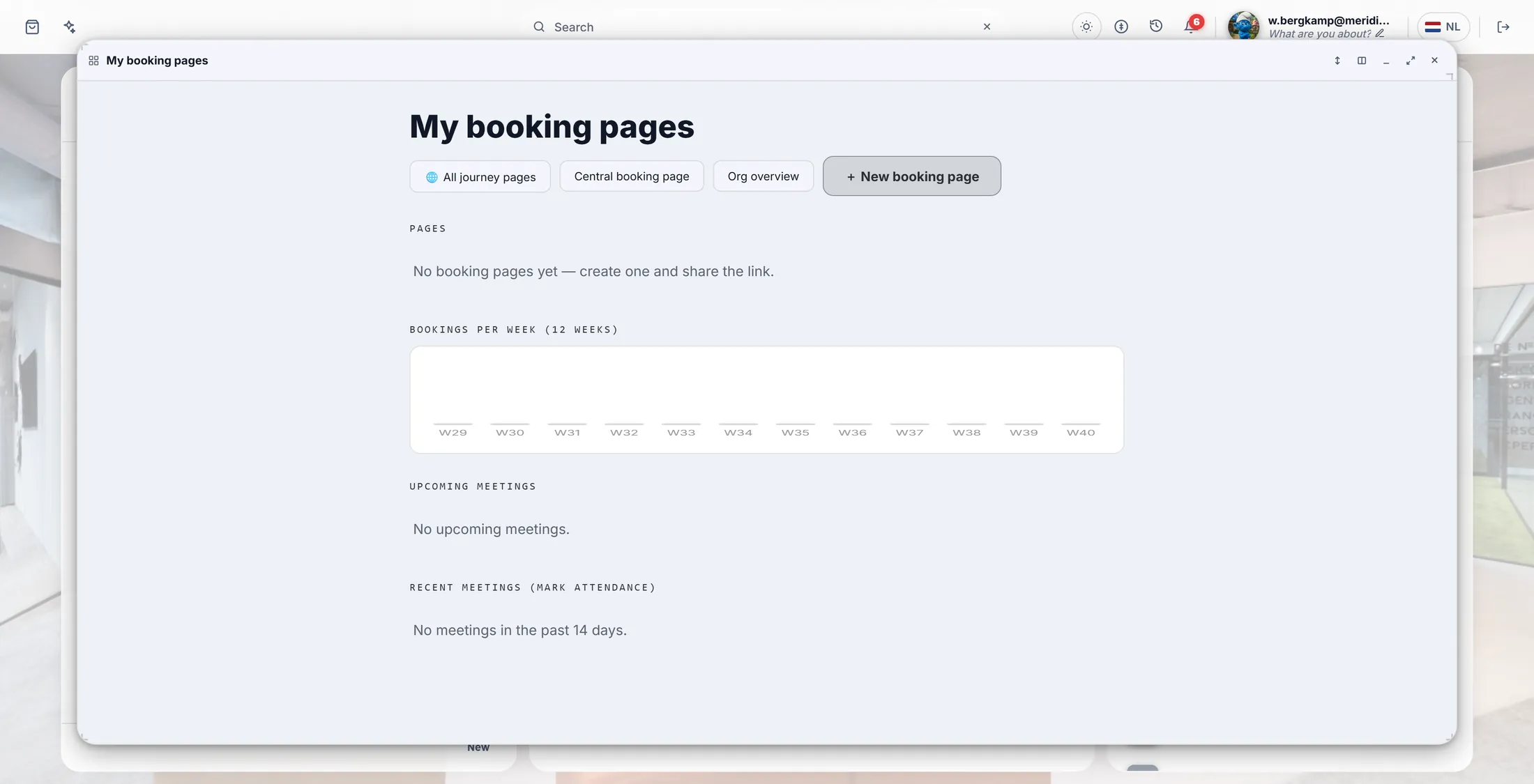
Your bookings come in here. Still empty on this screen.
If something is not right
The link says only I can see it.
Tick Published in the page and press Save.
A day shows no times at all.
That day is not ticked, or your calendar is busy then.
Can two of us be booked together?
Yes. Link a journey, then add co-hosts.
How do I stop it?
Untick Published and Save. Or delete the page.
The words, in plain language
- booking page
- A web page with your free times, where other people book a meeting with you.
- subject
- A kind of meeting on your page, with its own name and length - for example a 30-minute introduction chat.
- slot step
- Every how many minutes a meeting may start: with 30, times are 10:00, 10:30, 11:00.
Where to go next
- All explainers The other things you can learn here.