How to use a CrewMate
A CrewMate is your own personal assistant inside CoVince, with its own memory and documents, reachable from every screen. You set it up once, then ask it things in plain words. Every picture here is the real screen, and every step has a link that opens it.
CrewMates - your helper at work - 6 min. You need: your CoVince login
Nothing here can go wrong. Nothing is sent, nothing is bought, nothing changes.
What you will be able to do
- Set up your helper A name, a face, and how it should talk. Four short screens.
- Ask it anything Type your question the way you would say it.
- Let it read your papers Add files and it answers from those.
- Pick a conversation back up Everything you asked stays in the list.
Get this ready first
- Be logged in The green link opens CoVince and asks you to log in if needed.
- A file, if you have one Not needed. You can add files later, or never.
Do it together, one step at a time
Six steps. Every picture is the real screen. Tick one off when you have done it.
Open your helper
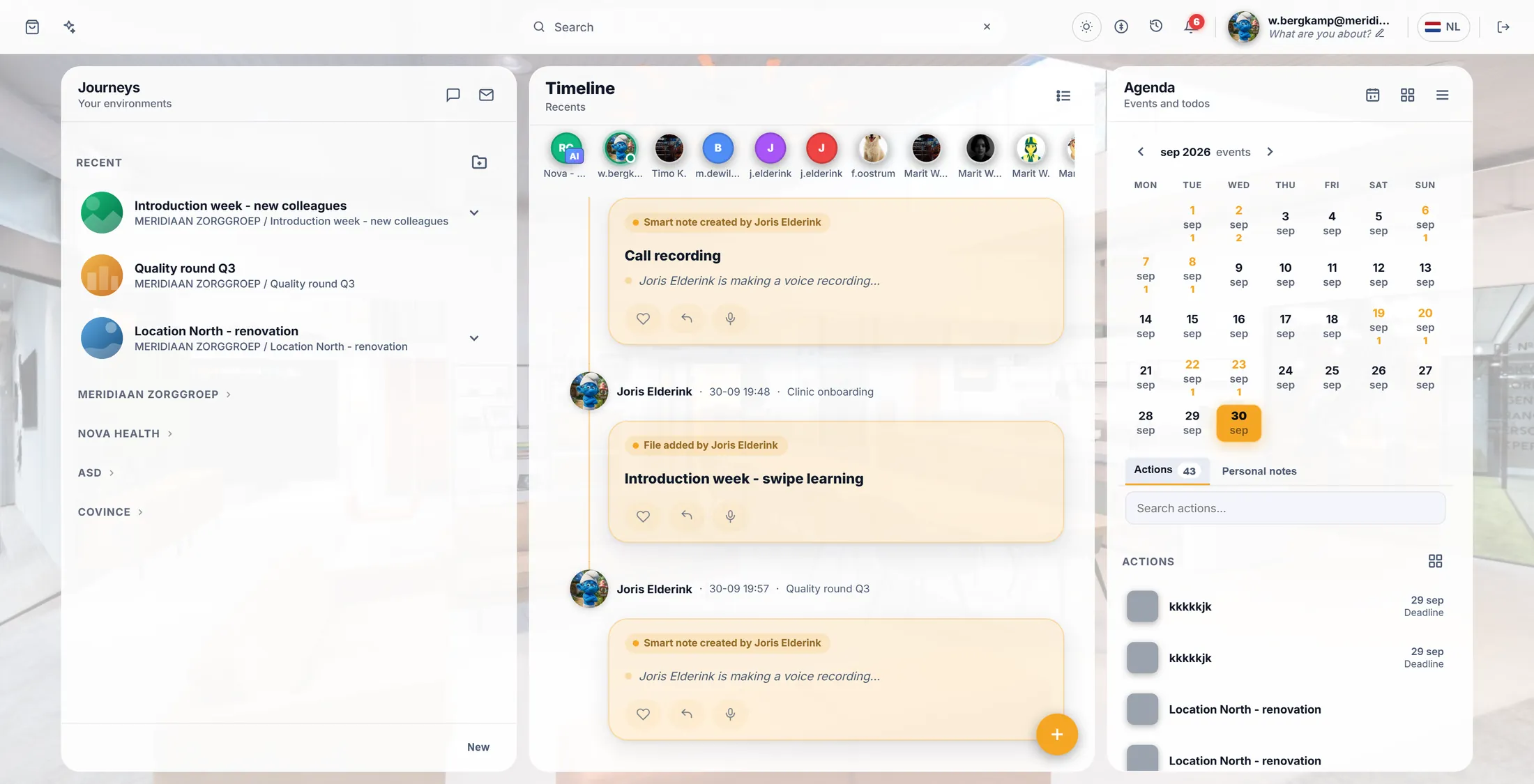
Your helper is the first face at the top of the middle column.
- Open CoVince. You land on this screen.
- Look at the middle column, Timeline. The row of faces at the top is everybody in your work.
- The first one is yours - with a small blue AI badge on it.
- Click it. A panel opens on the right.
- Or skip all of that: the link under this step opens it in one go.
The real screen. Your helper is the first face in the row. Give it a name
The first time, it asks four short things. This is the first.
- The window says Let's set up your CrewMate .
- Under it: Your CrewMate is your own personal assistant - with its own memory and documents, available everywhere. First, what should it be called?
- Type a name. A real name works best: Nova , Scout , Pieter .
- Press Next. The four dots at the bottom left show where you are.
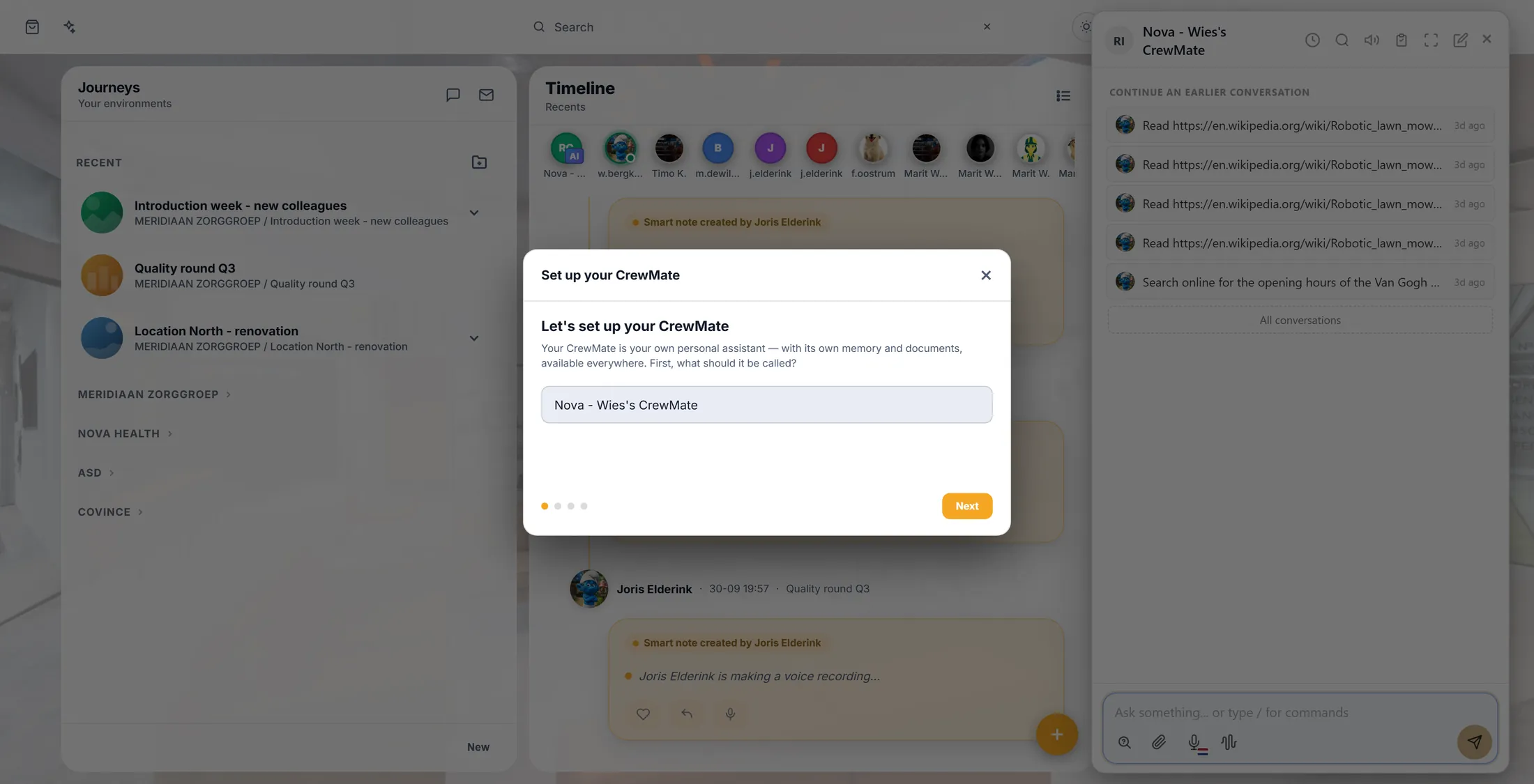
Screen 1 of 4: the name. A face, and how it talks
Two screens you may skip: a picture, and how it talks to you.
- Screen 2 says Give it a face : Add a picture so your CrewMate feels more personal. This is optional - you can skip it and add one later.
- Press the round Upload image button, or just press Next.
- Screen 3 says How should it talk?
- Pick a ready-made tone: Friendly & warm, Concise & direct, Formal & professional, Coaching, Expert & detailed.
- The box under them lets you say it in your own words - Describe how your CrewMate should communicate...
- Press Next.
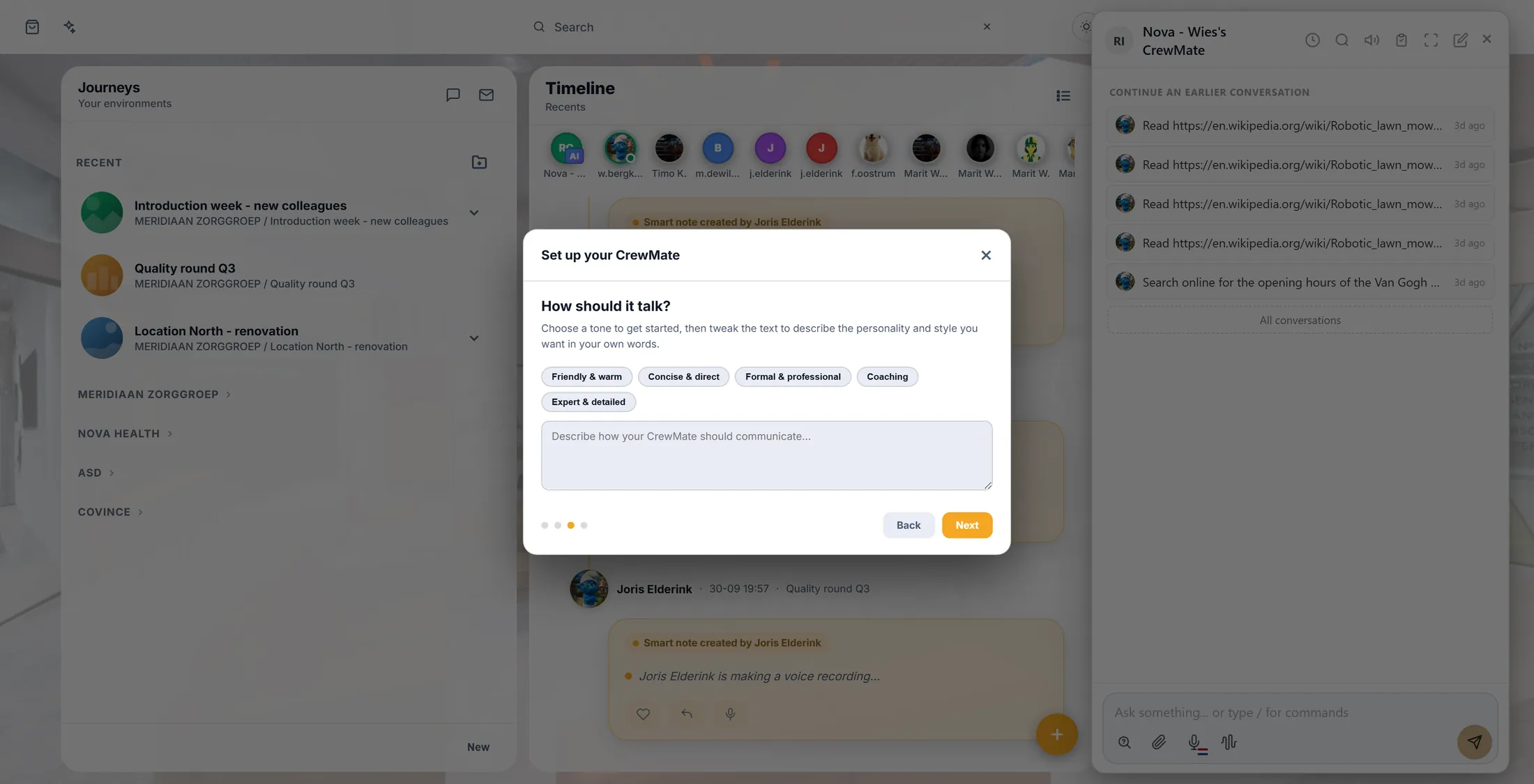
Screen 3: how it talks. One click is enough. Papers it may read (you may skip)
The last screen asks for files. You may skip it and press Finish.
- The screen says Add knowledge (optional) .
- Under it: Upload documents your CrewMate can read to answer your questions - manuals, notes, policies, anything. You can add more any time.
- Press + Add documents and pick your files, the way you attach a file to an e-mail.
- Or add nothing at all - it works without.
- Press Finish. The set-up closes and your helper is ready.
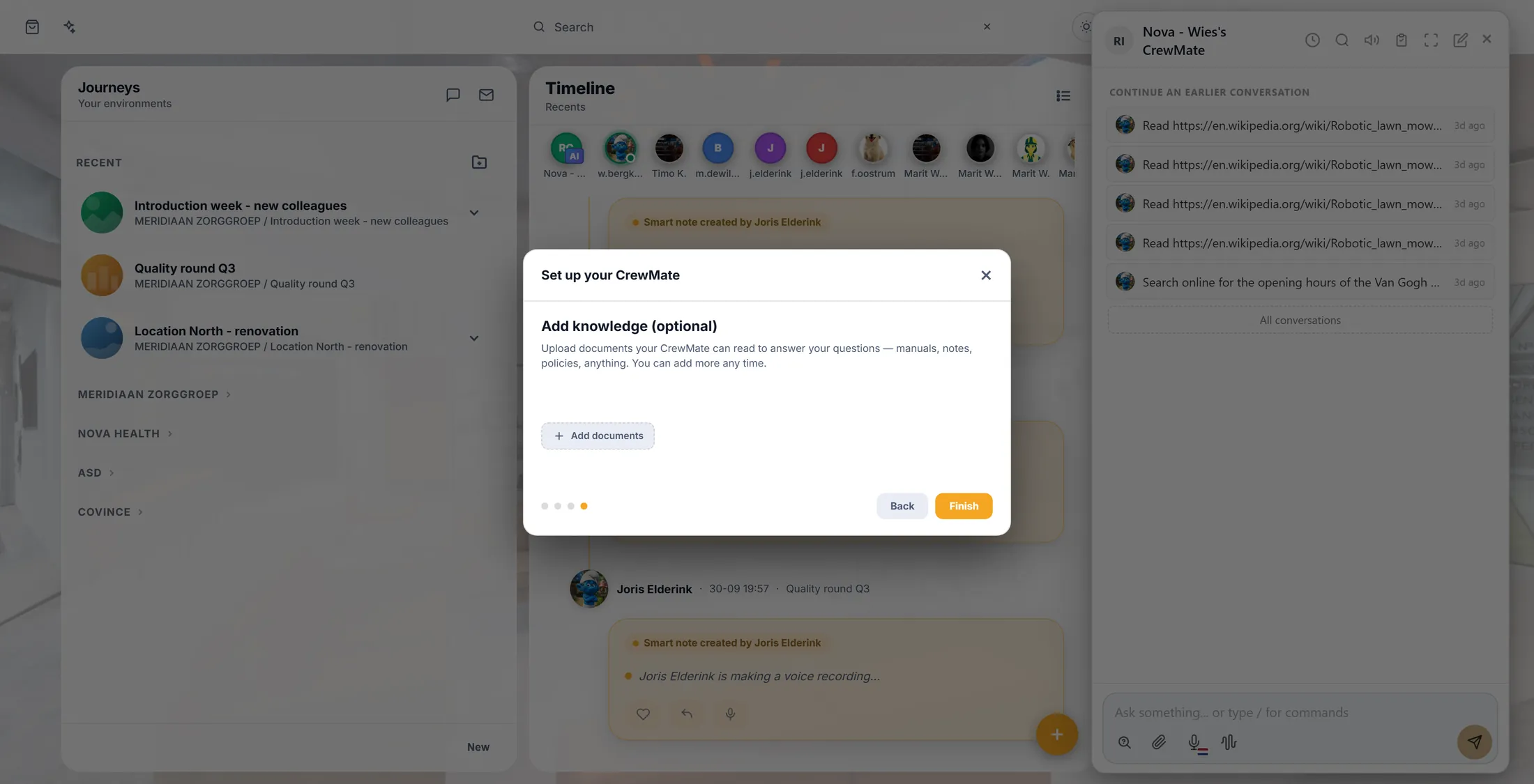
Screen 4: files. Then Finish. Ask it something
The box at the bottom of the panel. Type the way you talk.
- Click the box at the bottom: Ask something... or type / for commands .
- Type what you want. No idea? Copy this: "Explain this file to me in ten lines."
- A job from a real day: "Read the three files and write one page for my manager."
- Say what you want back - a summary, a letter, a list. That one word steers everything.
- Press the round send button on the right, or Enter.
- The paperclip adds a file to this one question; the microphone lets you say it instead of typing it.
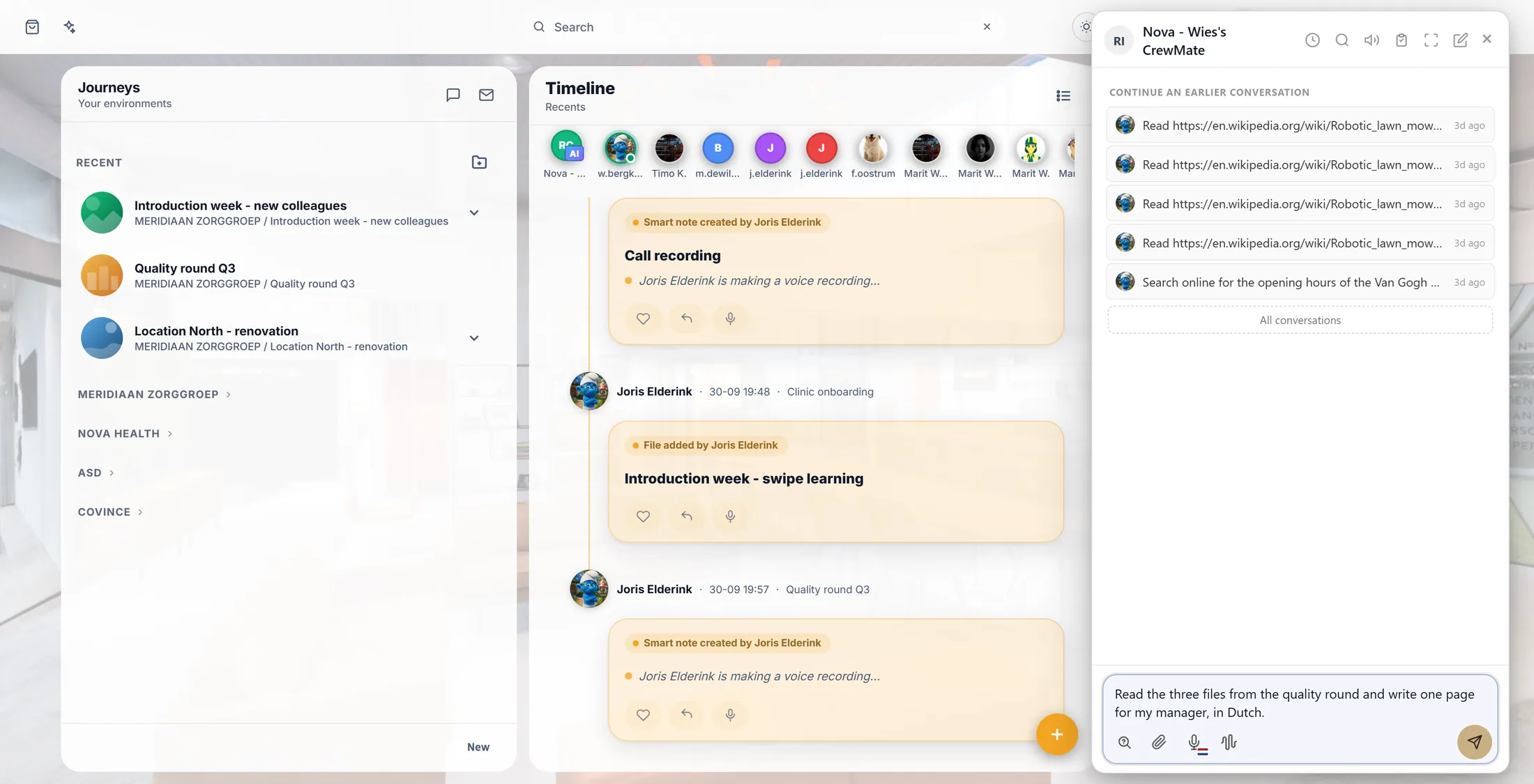
The real panel, with a job typed in. Nothing was sent for this picture. Read the answer, ask again
The answer appears in the panel. Every conversation is kept.
- Your question sits on the right, the answer under it on the left.
- Not right? Answer back in one sentence: "Shorter, and in Dutch." It keeps the conversation and redoes that part.
- Nothing is lost: the top of the panel says CONTINUE AN EARLIER CONVERSATION , with the last ones under it.
- Press All conversations for the whole list.
- The icons at the top: the clock is the history, the magnifier searches it, the speaker reads the answer out loud, the pencil starts a fresh conversation.
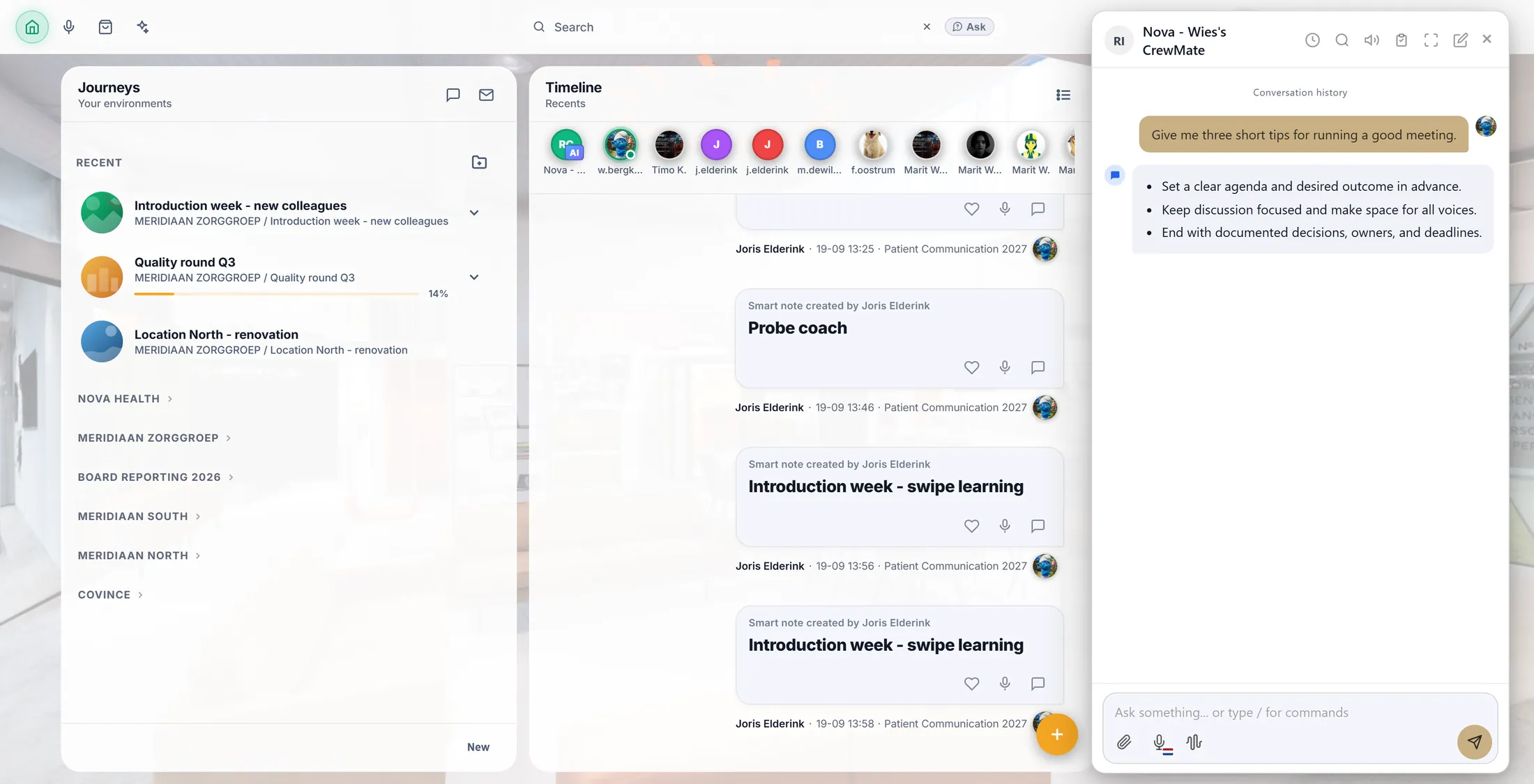
A real answer in the panel.
If something is not right
Does this cost money?
Reading this page costs nothing. Asking your helper things is part of your CoVince subscription.
I do not see a face with an AI badge.
Use the link on step 1 - it opens your own helper straight away. If that does nothing, ask the person who looks after CoVince where you work.
The set-up window does not appear.
Then your helper already exists. Name, face and tone can be changed later from the panel.
The answer is not what I meant.
Say in one sentence what should be different. It keeps the conversation and tries again.
Will it send something without asking me?
No. The answer appears in the panel and stays there until you do something with it.
Who else can see this?
Your own helper is yours. The conversations belong to your account.
The words on this page
- CrewMate
- Your helper in the computer. It has a name and a face, and you ask it things.
- deep link
- A link that opens one exact screen instead of just the front door.
- timeline
- The middle column of the dashboard, where what happened is shown.
- knowledge
- The files you give your helper to read.
- prompt
- The words you type to ask for something. Here we just say "the question".
What to do next
- Open your helper and try it One click. It opens on your own account.
- All explainers The other things you can learn here.