Make and change a media story
A media story is a short film you build shot by shot: every shot has spoken text, an image and - if you want - a moving video. The wizard can write the whole storyboard from a subject, or you start empty and add shots yourself. Everything it writes stays yours to change.
Media stories - a short film, shot by shot - 6 min. You need: your CoVince login
Nothing here can go wrong. Reading this page costs nothing, and nothing is made until you ask for it.
What you will be able to do
- Make a short film Shot by shot, with a voice that reads it out.
- Let it write the first version Say what it is about and how many shots. It writes the rest.
- Change anything it wrote Every shot, every sentence, every picture can be changed.
- Watch it before anybody else does The preview on the right plays it as your viewer sees it.
Get this ready first
- Know what the story is about One sentence is enough: "welcome new colleagues and explain our three values".
- A document, if you have one It can base the story on a file you already have.
Do it together, one step at a time
Six steps: find it, start it, name it, choose how, let it write, then change what you want.
Where to click to start
Two ways in: the green link on this page, or the box at the top of CoVince.
- Open CoVince. At the top sits the box What would you like to do?
- Click it. The window What are you about? opens.
- Under Content , press Make an AI video - "Write a paragraph; it comes back as a film, shot by shot, with a voice over it."
- Or type it in your own words - "I want to make a short film about our new letters" - and press Find it.
- The green link under this step does the same in one click.
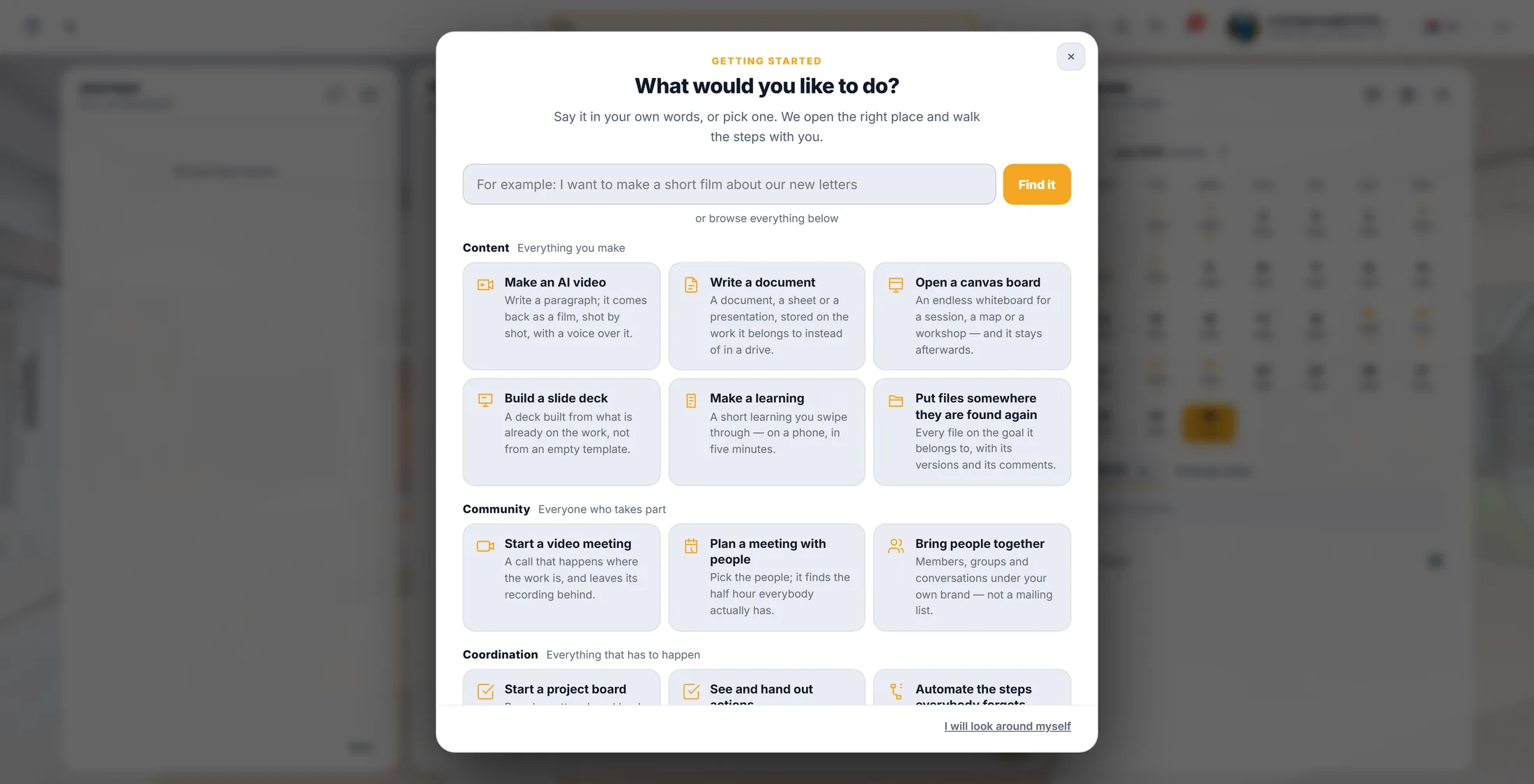
The card you need is "Make an AI video", under Content. Start a story
One link starts it and asks where it belongs.
- Press the green link under this step. CoVince opens and signs you in if needed.
- Pick the organisation , then the space the story belongs to - for example Introduction week .
- The story is stored in that space, with the rest of that work.
- Rather not use the link? In CoVince press What would you like to do? at the top and pick the media story.
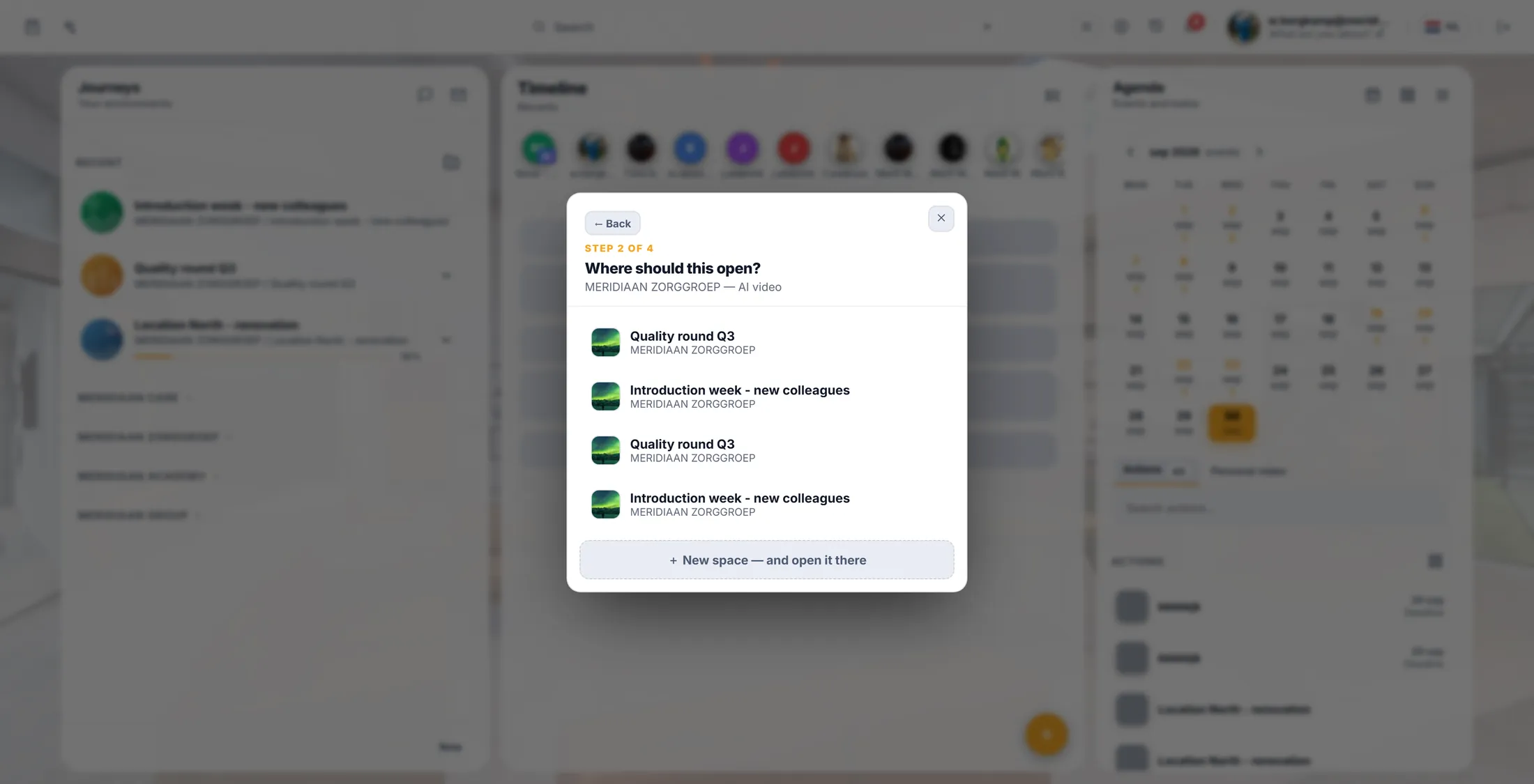
Pick where the story belongs. Give it a name
One box, one name, and the editor opens.
- The window says what a media story is: every shot has spoken text, an image and - if you want - a moving video.
- Type a name in Enter a name for your story : for example "Introduction week - short film" .
- Press OK.
- The storyboard editor opens on your new, empty story.
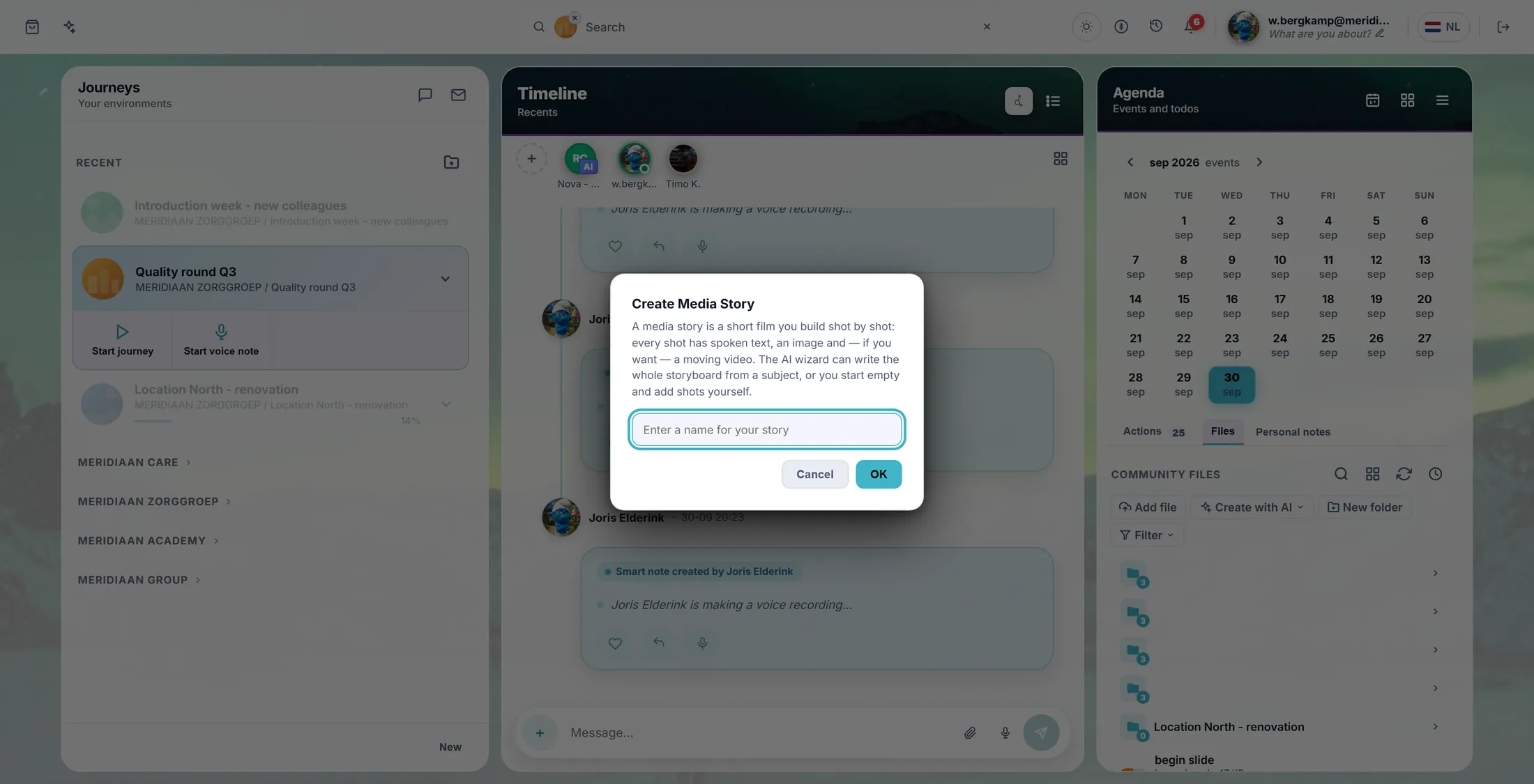
What it is, and its name. Write it yourself, or let it write
Two ways to fill the story. Both can be changed after.
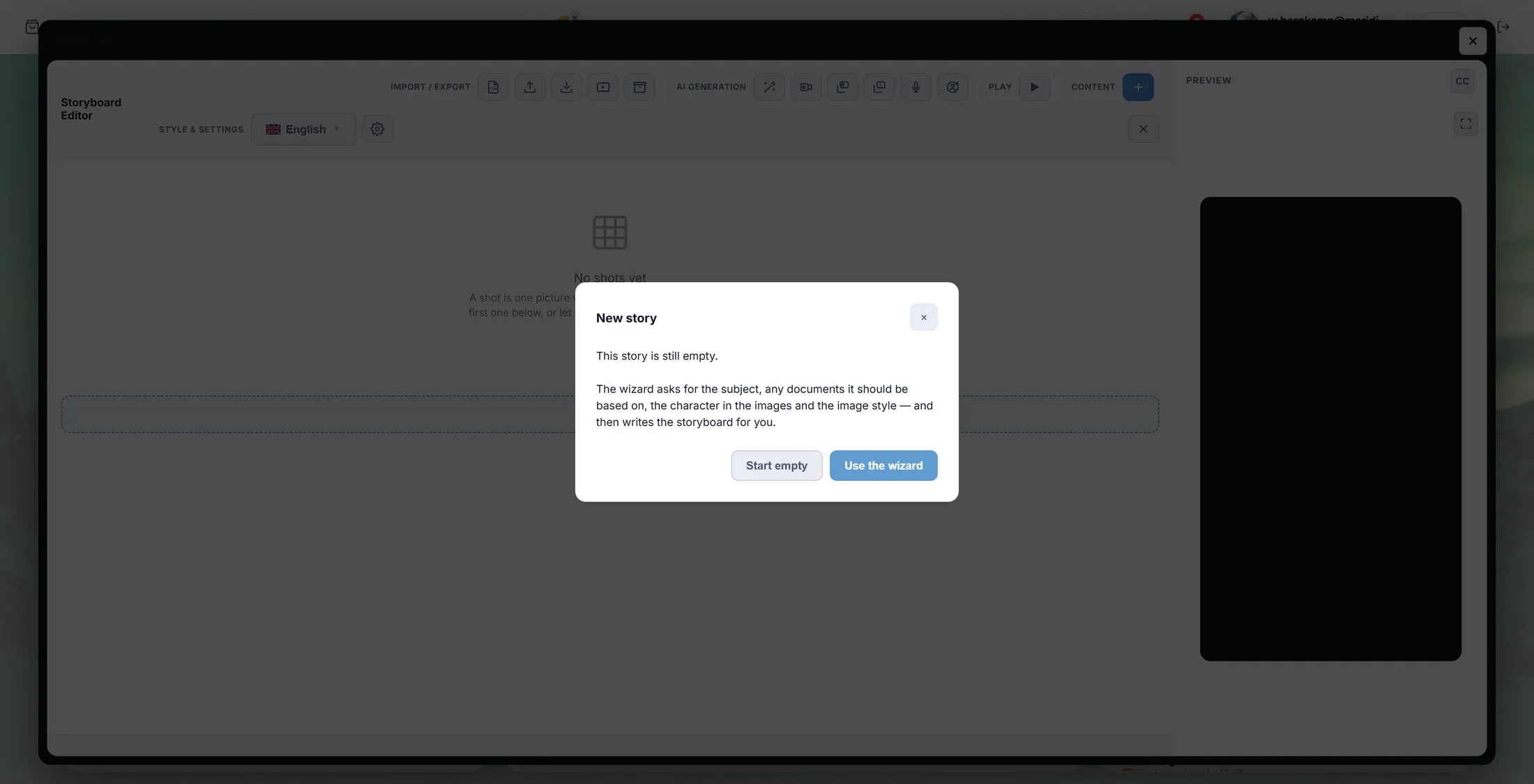
- The window says This story is still empty.
- The wizard asks for the subject, any documents it should be based on, the character in the images and the image style - and then writes the storyboard for you.
- Use the wizard - the usual way in. You still change everything afterwards.
- Start empty - you add each shot yourself, write the spoken text and choose the pictures.
Two ways to fill it. Say what it is about
One description, how many shots, which language. That is the whole question.
- The box says: Describe the story. The AI writes the voice-over and the image prompts from this.
- Write it plainly. The example in the box is a good shape: "A short onboarding story that welcomes new employees and explains our three core values."
- Pick Number of shots . Five is the default and five is usually right.
- Pick the language the story should be written in.
- Press Next. The following screens ask for documents to base it on, the character in the pictures and the image style.
- The last screen writes the storyboard. That is the step that uses credits.
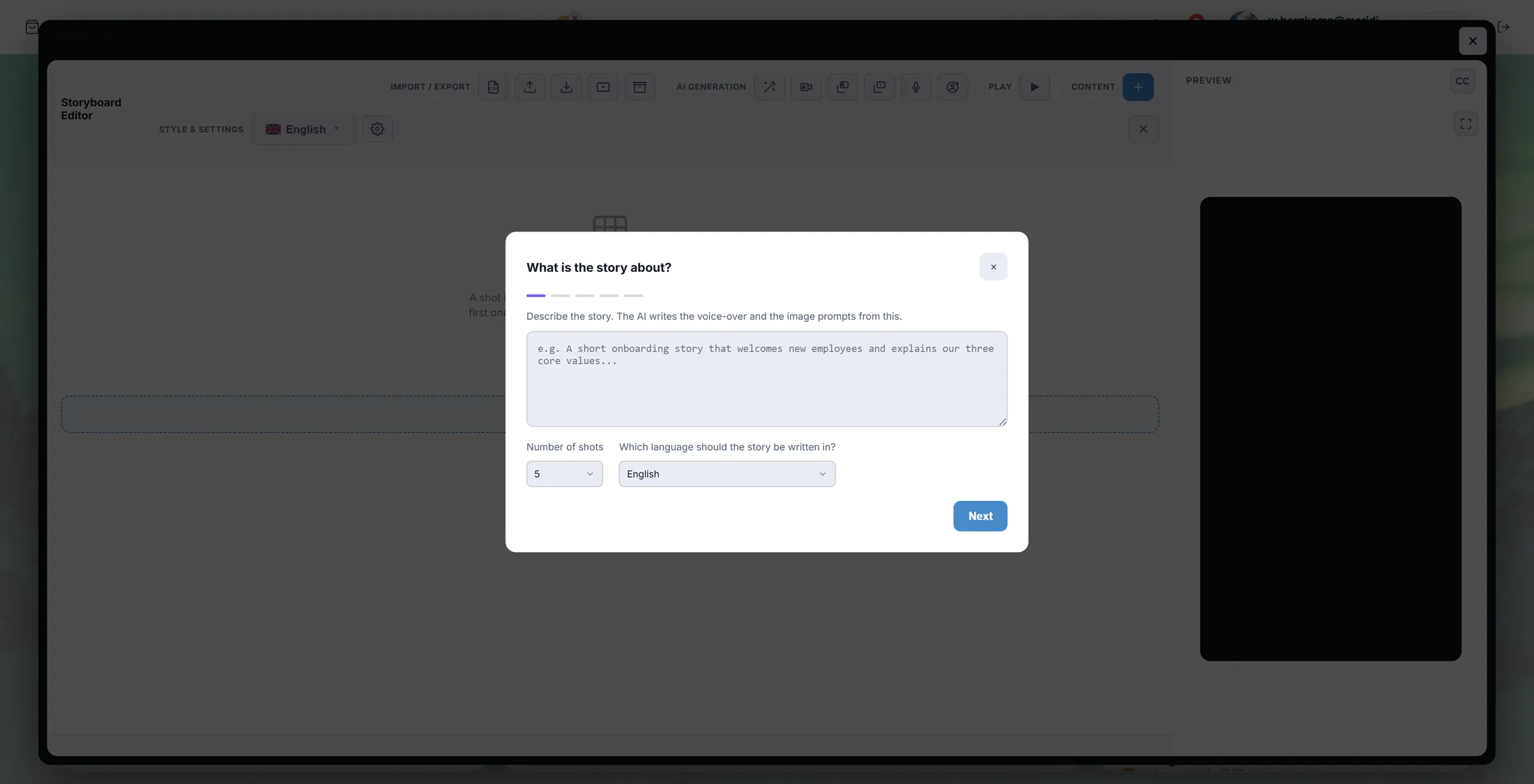
Describe it, choose how many shots, choose the language. Change what you want
Everything it wrote is yours to change - shot by shot.
- Each shot is a row: a shot is one picture with spoken text . Click a shot to edit its words.
- CONTENT + at the top right adds a shot, and each shot can be removed or moved.
- AI GENERATION holds the generating tools: a new image for one shot, a moving video, the spoken voice, a character.
- STYLE & SETTINGS sets the language and the look of the whole story.
- PLAY runs the story in the PREVIEW on the right - the shape of a phone, so you see what a viewer sees.
- IMPORT / EXPORT takes the story out as a file, or brings one in.
- Nothing has to be saved: the editor keeps up as you work.
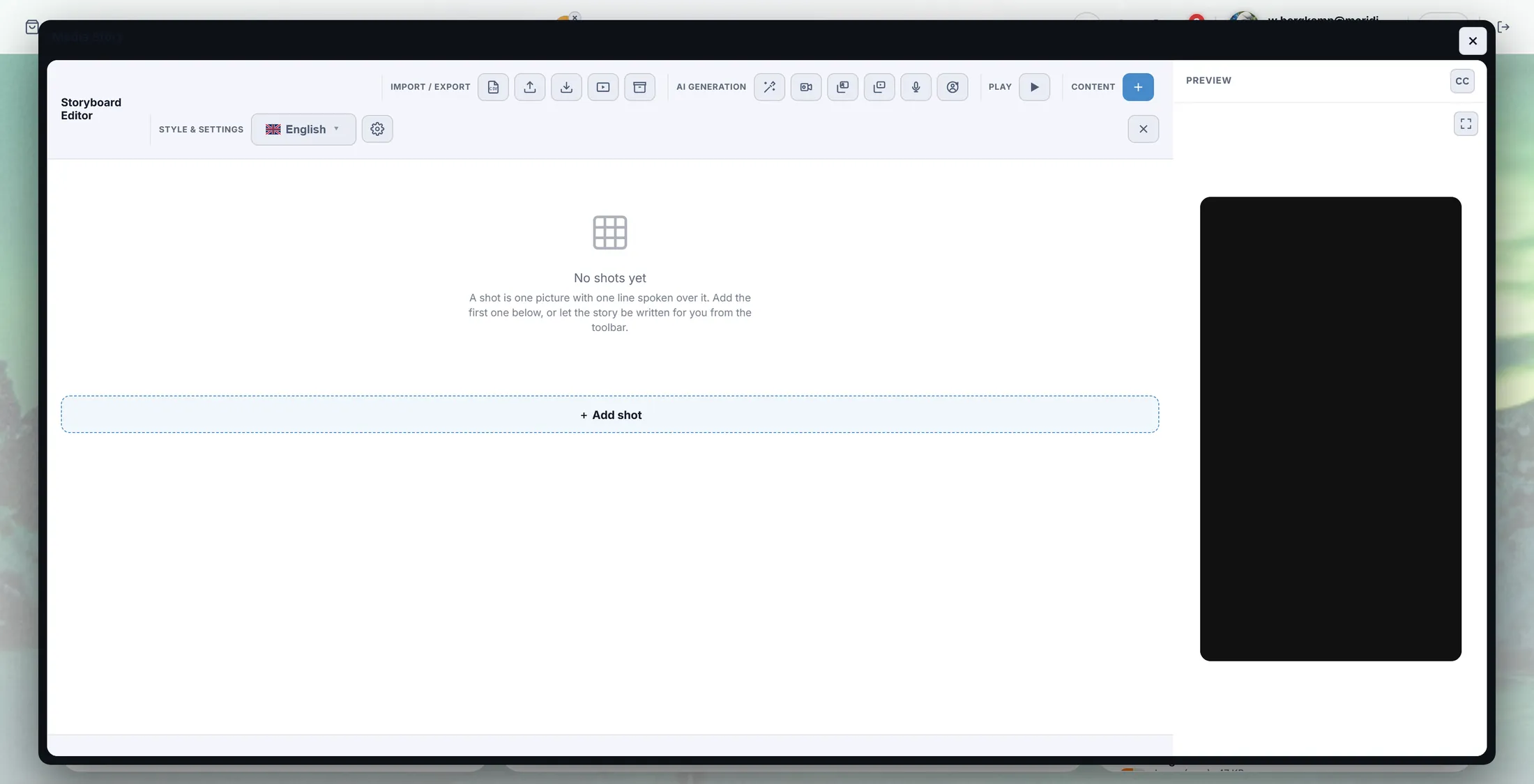
The editor, with the tools along the top and the preview on the right.
If something is not right
What does it cost?
Writing the story, making pictures, the voice and the video use credits. Typing and changing words is free.
The story is not what I meant.
Change the words yourself, shot by shot - that is free. Or run the wizard again with a clearer description.
Can I use my own document?
Yes. The wizard asks for documents it should be based on.
Can I get the film out of CoVince?
Yes. IMPORT / EXPORT at the top left takes it out as a file.
Do I have to save?
No. It saves while you work.
The words on this page
- media story
- A short film made of shots, each with a picture and a voice.
- shot
- One picture with spoken text. The building block of the story.
- storyboard
- The list of shots in order: the plan of the film.
- wizard
- The set of questions that writes the first version for you.
- credits
- What generating costs. The counter is at the top right of CoVince.
What to do next
- Make a story now One click. It opens on your own account.
- Make a learning instead A short lesson people swipe through.
- All explainers The other things you can learn here.