Make a journey
CoVince works around one goal at a time: a journey (a space in some places). Its people, documents, meetings, learnings and CrewMates all sit on it. Make one in four short screens, then open it as a circle and see where everything goes.
The middle - where everything starts - 4 min. You need: your CoVince login
Nobody gets a message when you make a journey. You can rename it later.
What you will be able to do
- Make a journey A name, a picture, done.
- See where things go Your journey in the middle, everything around it.
- Know the next step Add people, plan a meeting, ask your helper.
Get this ready first
- Think of the goal One thing you want to get done. That is the name.
- A picture, if you have one Not needed. You can pick one from the list.
Do it together, one step at a time
Six steps. Tick one off when you have done it.
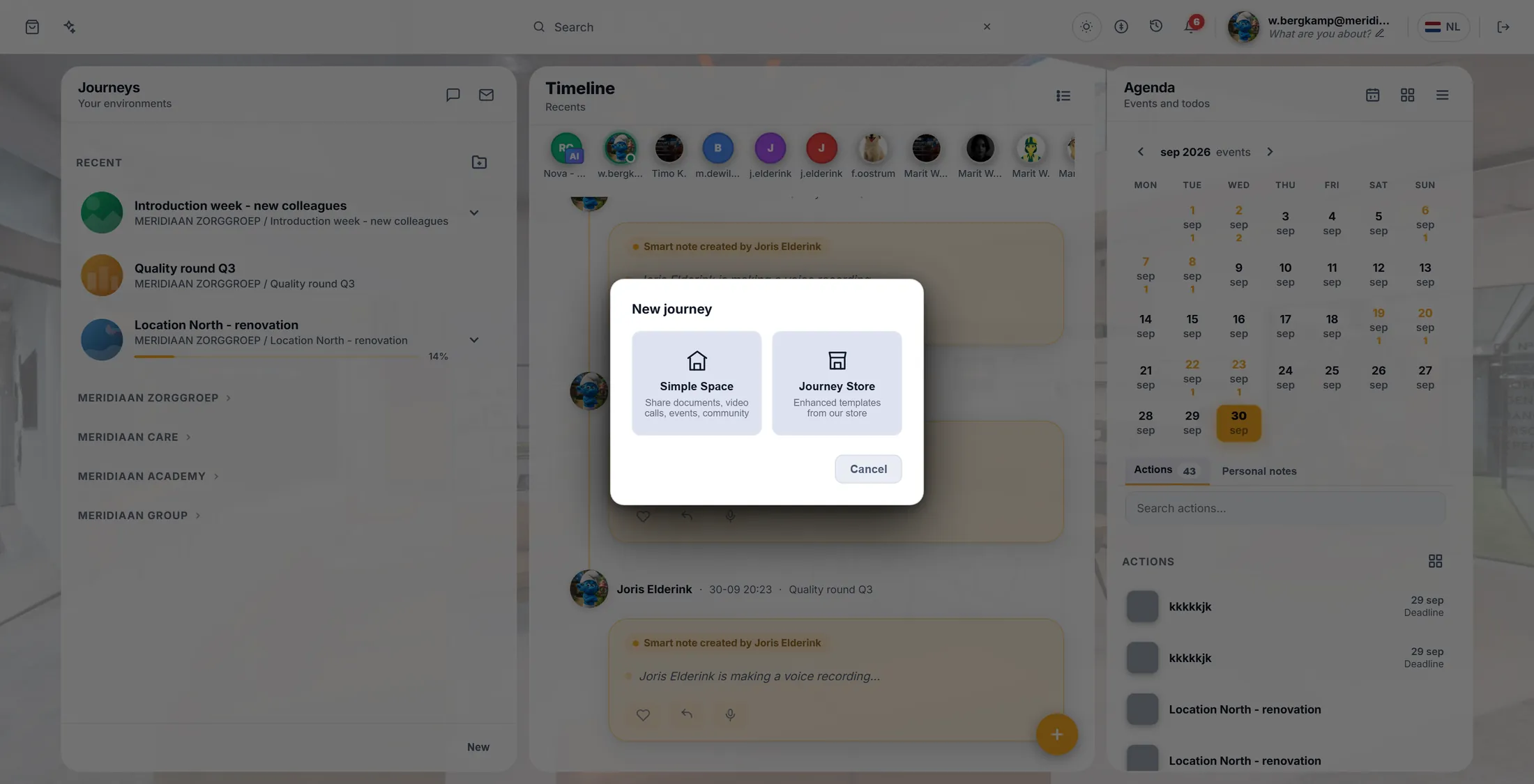
Press New
Your journeys are in the left column. At the bottom is the button New.
- Open CoVince. The left column is called Journeys: those are your journeys.
- At the very bottom of that column, press New.
- A window opens: New journey .
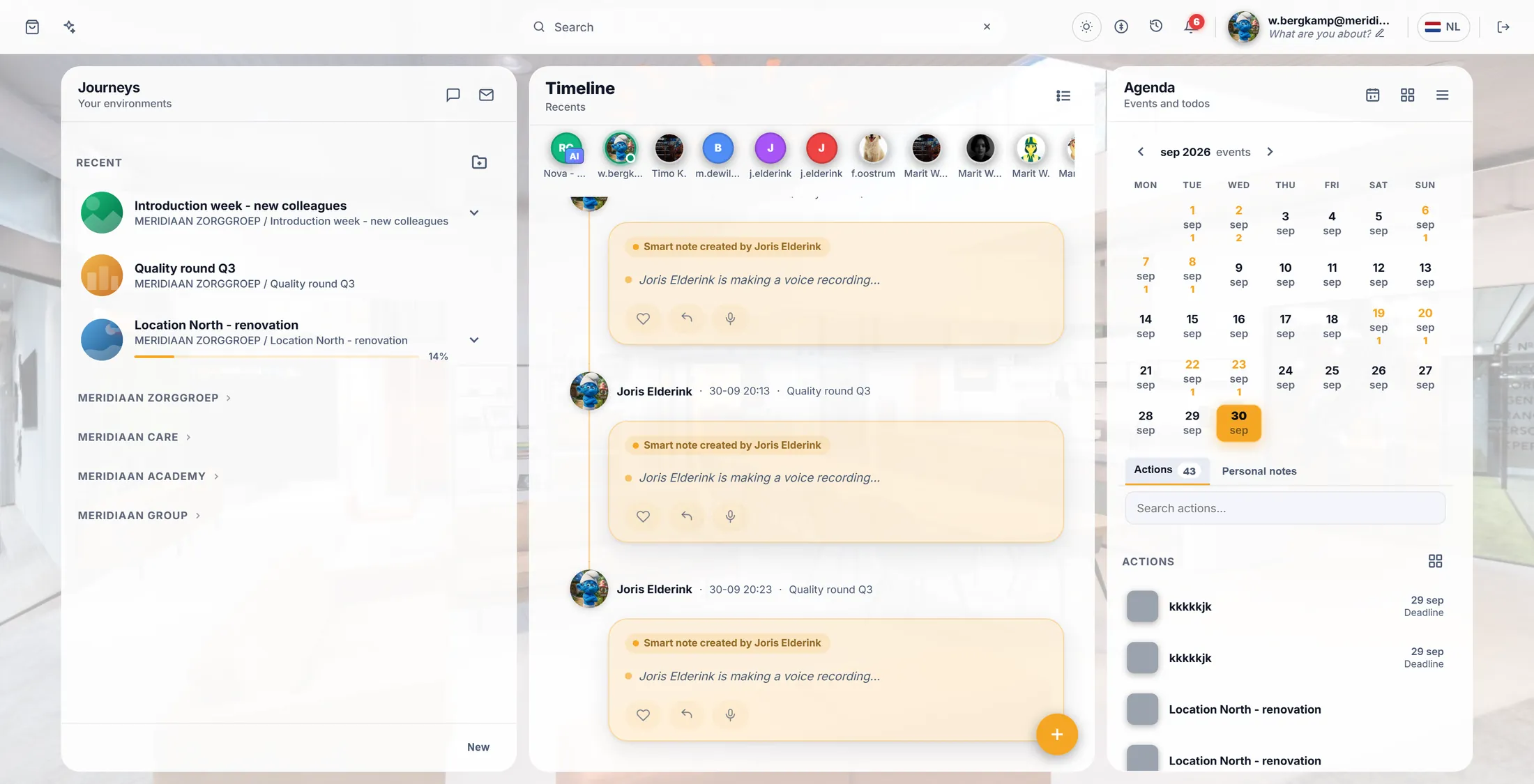
New is at the bottom of the left column. Start empty
Start with an empty journey. That is the simplest.
- Simple Space : an empty journey. Start here the first time.
- Journey Store : ready-made journeys to copy.
- Your organisation may also show its own templates as cards.
- Press Simple Space.
Simple Space is the empty one. Give it a name
The name is your goal, in a few words.
- Type the name, for example Introduction week - new colleagues .
- Short and clear: people see it in their list every day.
- Press Next.
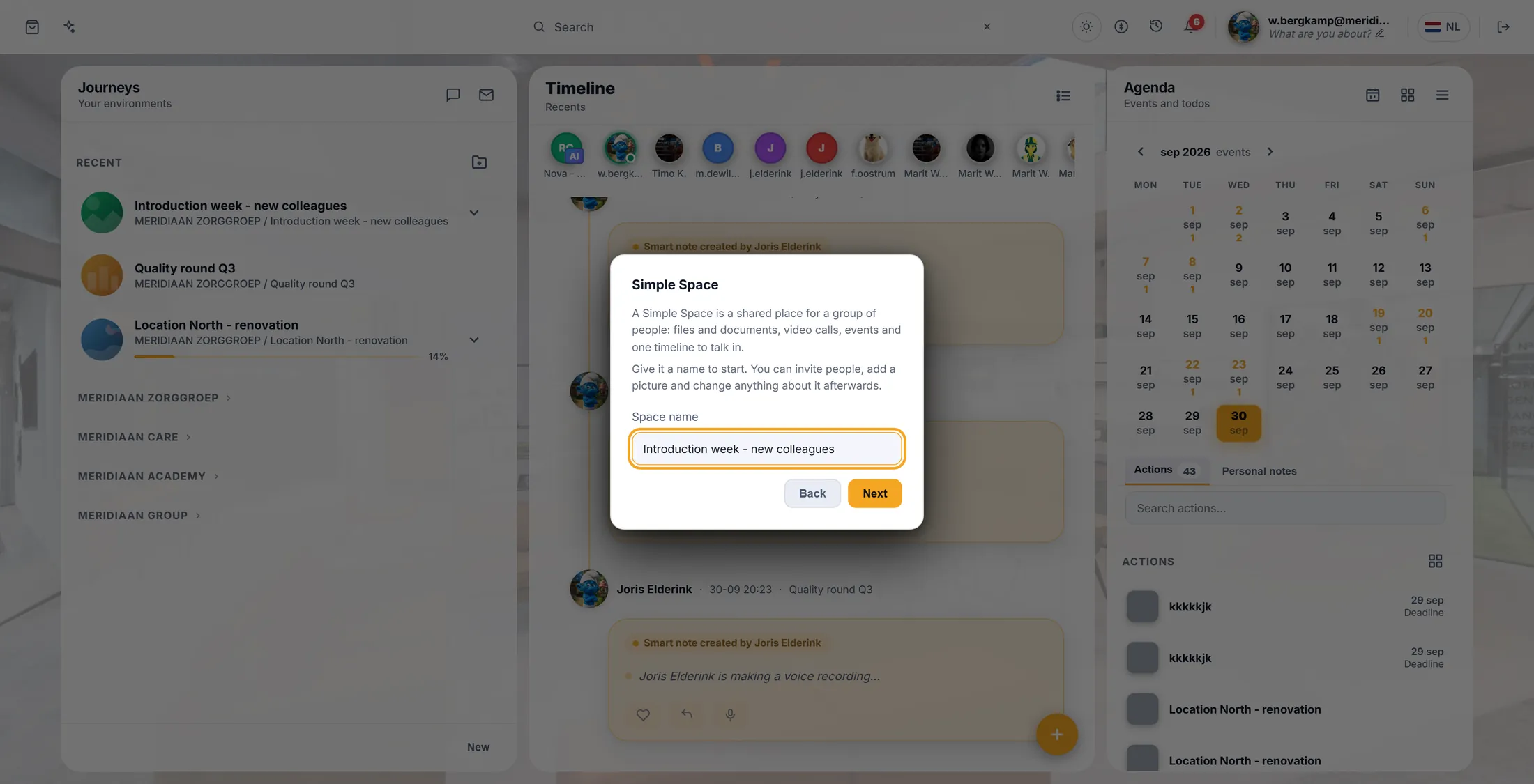
Type the goal as the name. Pick a picture
A picture makes the journey easy to find.
- Three ways, one word at the top each: Upload your own, Create with AI, or Choose from media library.
- Press Next.
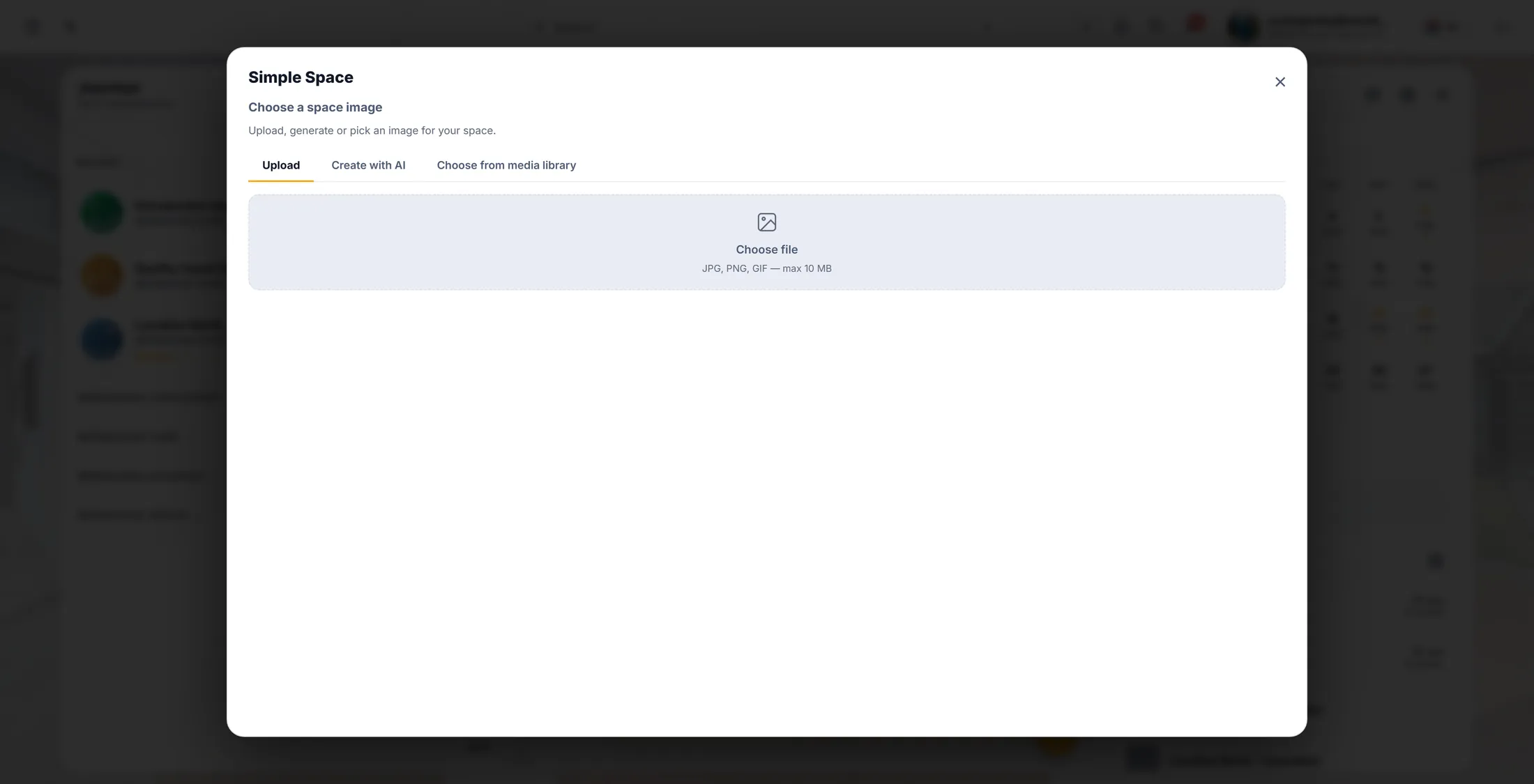
Click one you like. Pick your organisation
Only asked if you work for more than one. Then the journey is made.
- Work for more than one organisation? Pick the one this journey belongs to.
- The journey is made. It is now at the top of your left column.
- Click it: the middle column shows the journey, still empty.
See your journey as a circle
Your journey in the middle. People, files, plans and helpers around it.
- Right-click your journey in the left column.
- Press Concentric view.
- Your journey is in the middle. Around it: Files , Learnings , Events , CrewMates , Workflow , Community , Actions and Tools . On the right: the Community feed .
- Each card is a part of the journey. Empty now - the other explainers fill them: Add people , Plan a meeting , Make a learning .
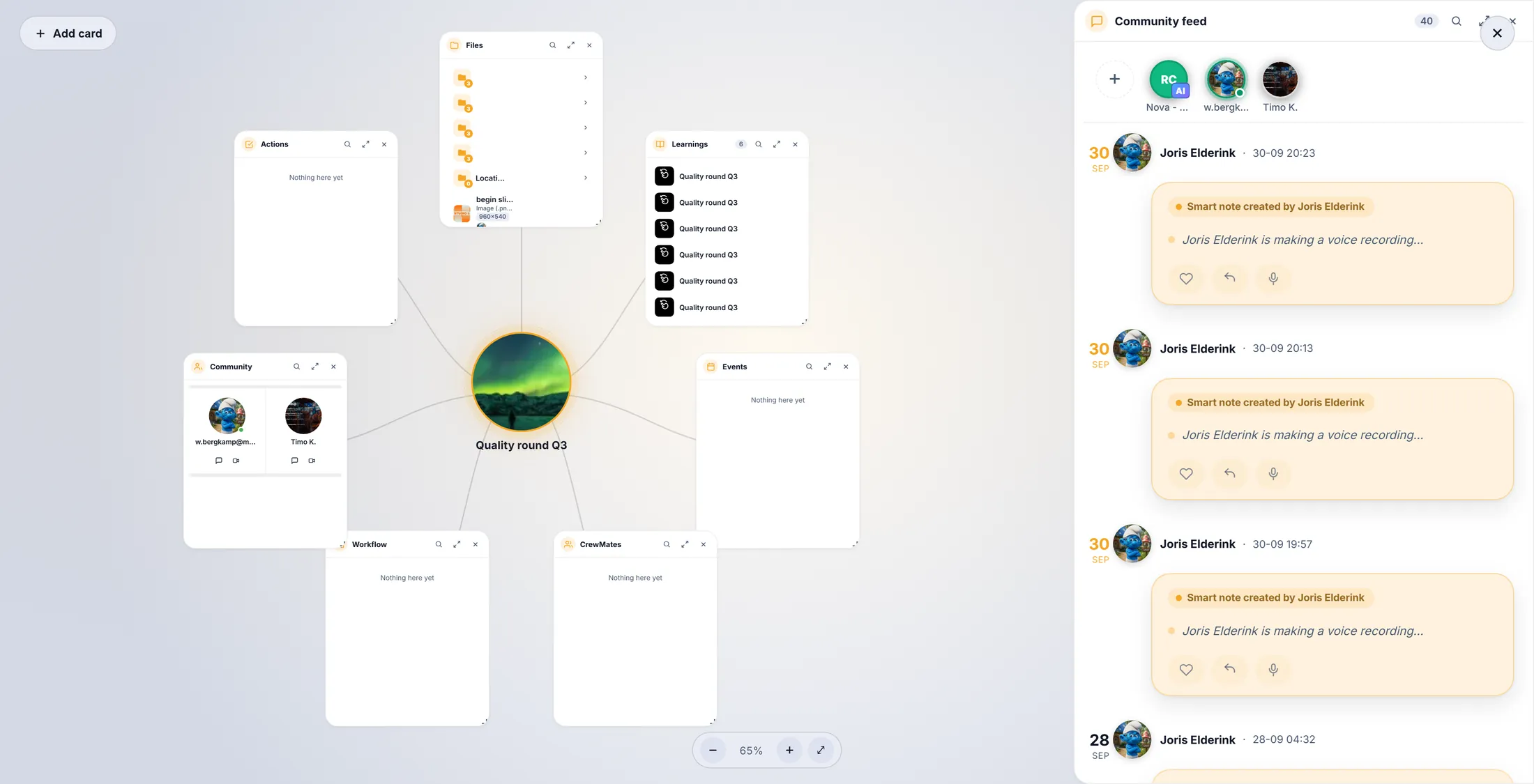
Everything sits around your goal.
If something is not right
I do not see New.
You may not make journeys in this organisation. Ask your admin.
Journey or space - what is the difference?
None. It is the same thing.
How do I change the name?
Right-click the journey and choose its settings.
The words, in plain language
- journey
- One goal, with everything that belongs to it. The app also calls it a space.
- Concentric view
- Your journey drawn as a circle: the journey in the middle, its parts around it.
- Simple Space
- An empty journey you fill yourself.
Where to go next
- All explainers The other things you can learn here.