Get a report of your work
Record a meeting or a voice note on your journey. CoVince writes the report - summary, actions, decisions - and puts it on the timeline, where you read it, hand out the actions, translate it and send it on. No data journey, no spreadsheet.
CrewMates - a report of your own work - 6 min. You need: a journey and a microphone
Reading this page changes nothing. A report is only kept when you press Save to Note.
What you will be able to do
- Record a talk Press one red button and talk.
- Get a report A summary and a to-do list, made for you.
- Tick things off Mark a task done, or give it to someone.
- Send it on As a PDF or a Word file, in another language.
Get this ready first
- A journey The report goes on the timeline of a journey.
- A microphone Your laptop has one. The browser asks if it may use it: say yes.
- Tell the others Say out loud that you are recording.
Do it together, one step at a time
Seven steps. The first four make the report, the last three use it.
Open your journey
A report always belongs to a journey. Click it first.
- Open CoVince. The left column Journeys holds your journeys.
- Click the journey, for example Location North - renovation .
- The middle column is the Timeline. A note that already has a report shows a Report button.
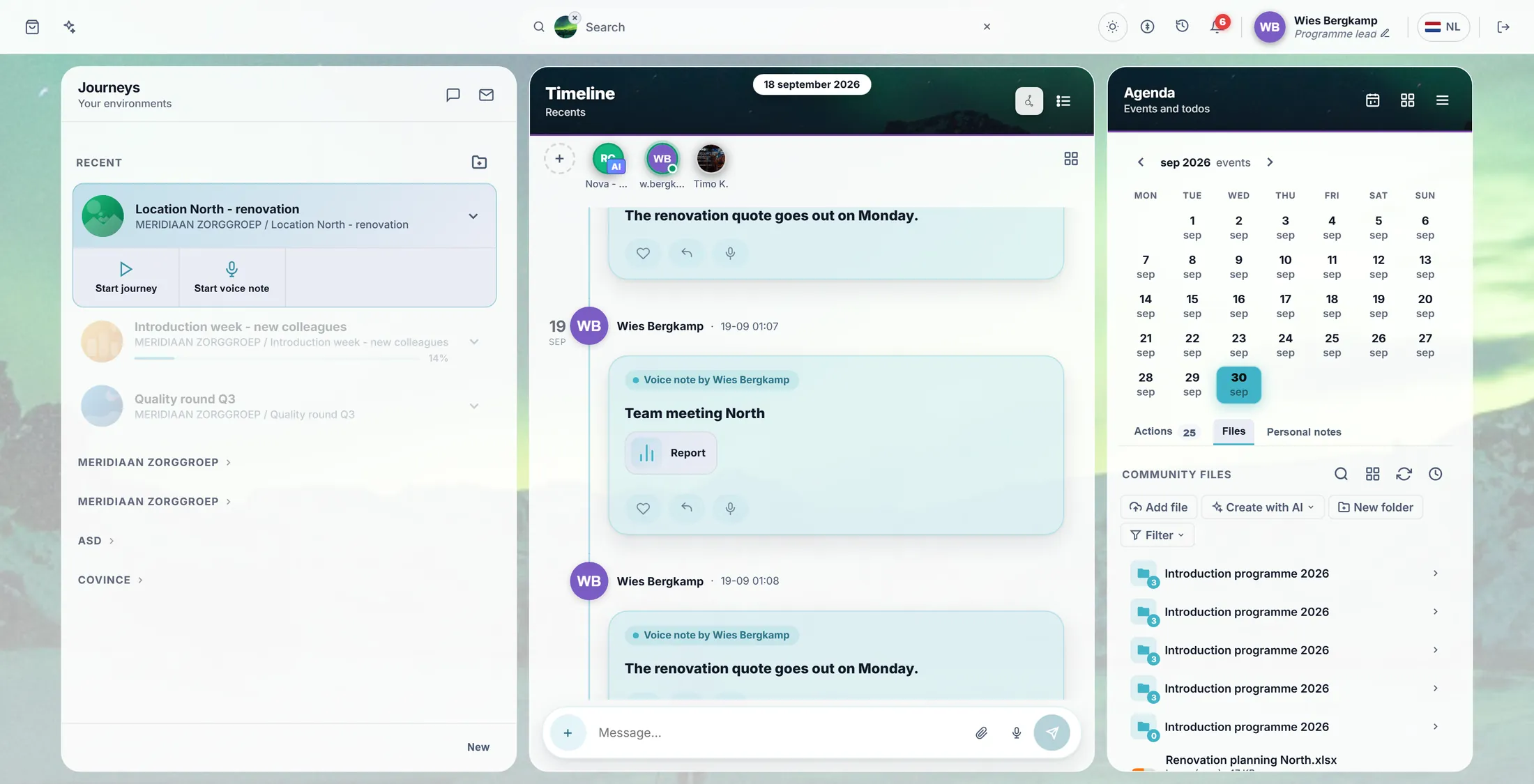
Your journey, and a note with a report. Press + and choose Voice note
Voice note means: you talk, CoVince writes the report.
- Press the round + at the bottom right of the timeline.
- A window opens: Create new .
- Press Voice note - under it stands Record and let the AI write the report .
- Is there a list of boards below? Pick the board the note goes on.
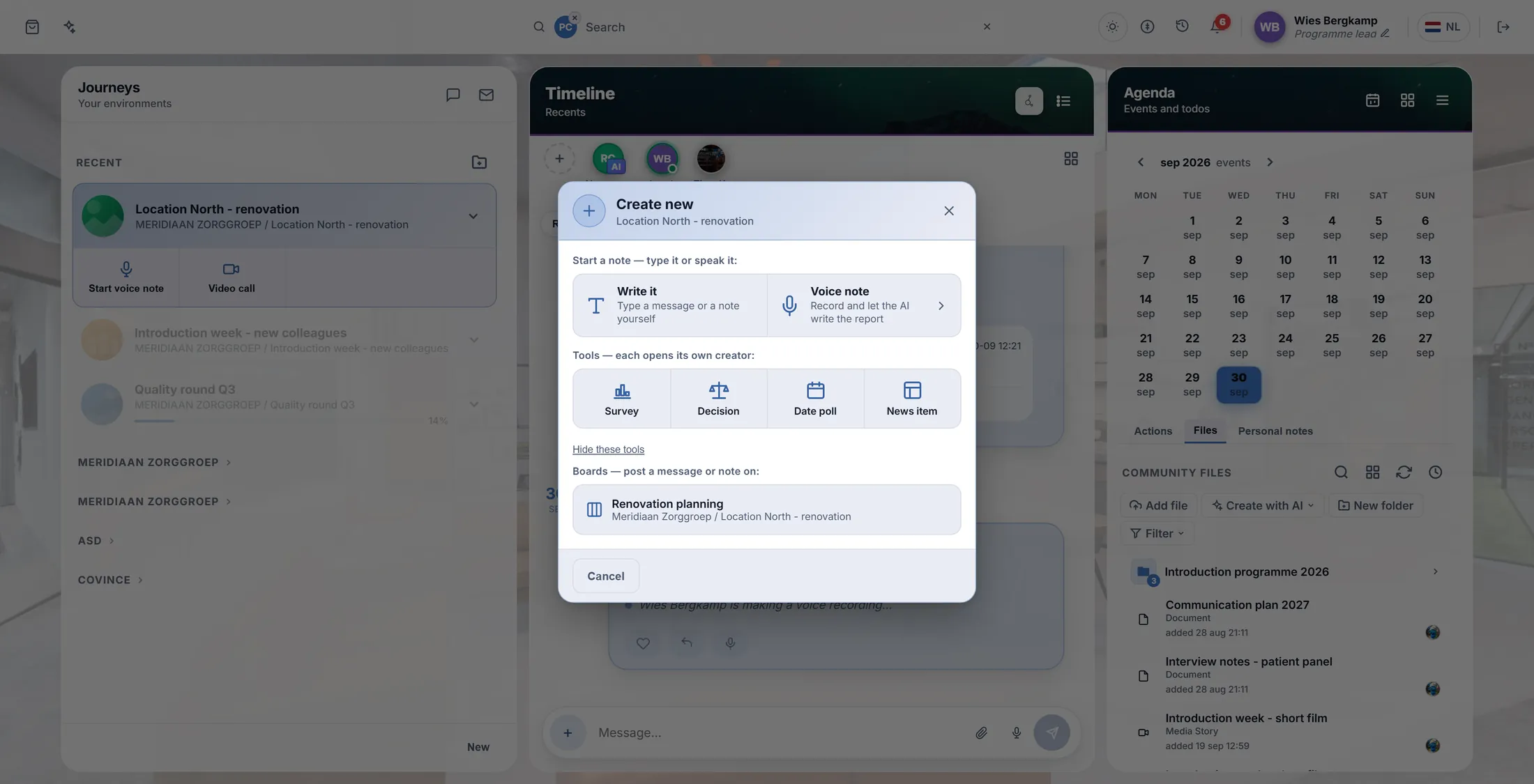
Choose Voice note. Press the red button and talk
Press the big red button. Talk. Press it again to stop.
- Check the language at the top left: that is the language you speak.
- In a Teams, Zoom or Meet call? Answer the question Is anybody talking through this computer? - Yes - record the others too or No - my microphone only.
- Press the round red button ( Start Recording ). The clock at the top starts.
- Talk. Need a break? Press Pause.
- Done? Press the round button again ( Stop Recording ).
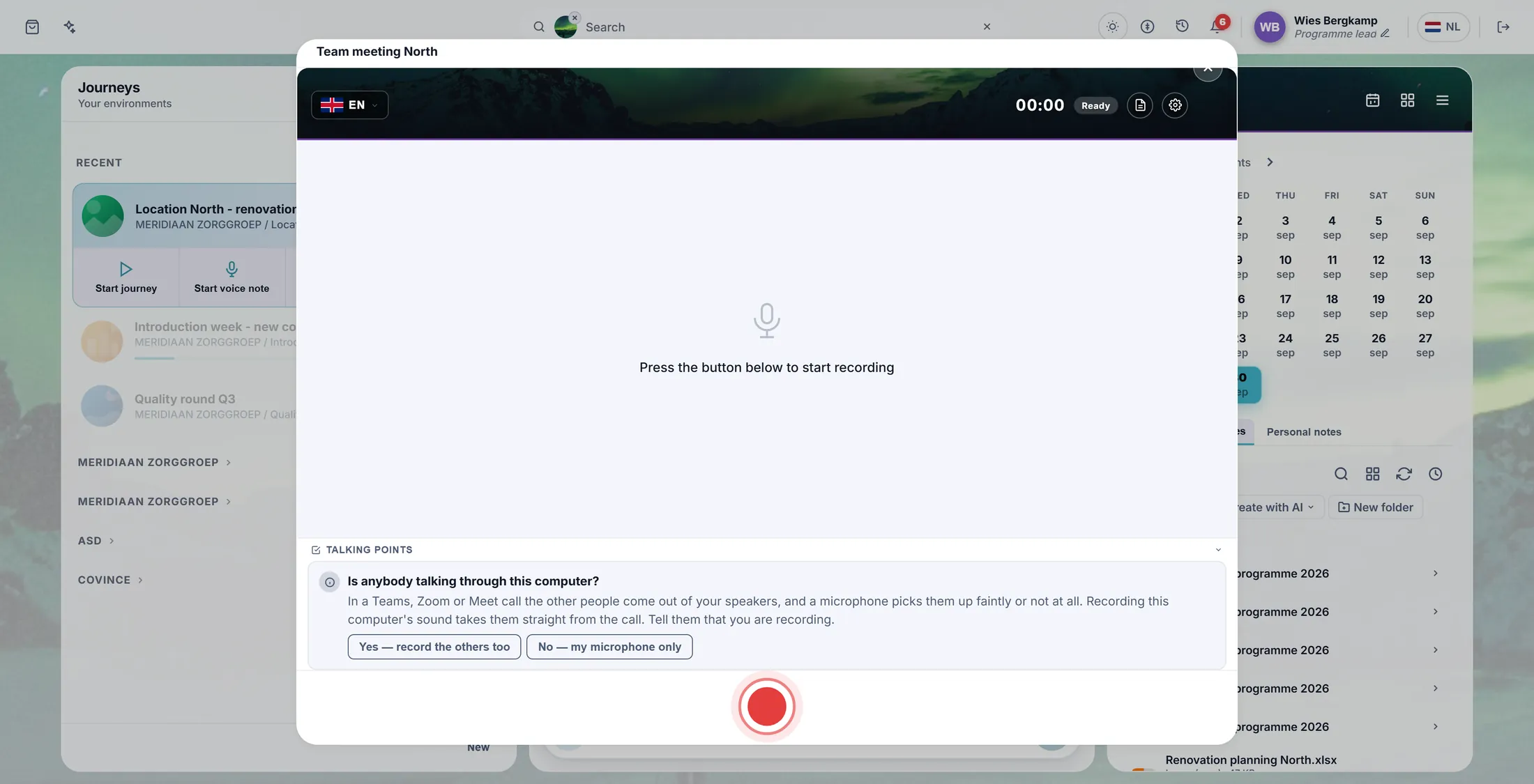
The red button starts and stops. Wait, then press Save to Note
CoVince writes the report. It counts along. Then you press Save to Note.
- After you stop, the recorder says what it is doing: Saving recording... , Finishing transcription... , Analysing... - with a count like 2 of 4 .
- Then the Analysis Report opens: a summary and the actions.
- Good? Press Save to Note. Only now is the report kept.
- Not good? Press Discard. Nothing is saved.
Press Report and read it
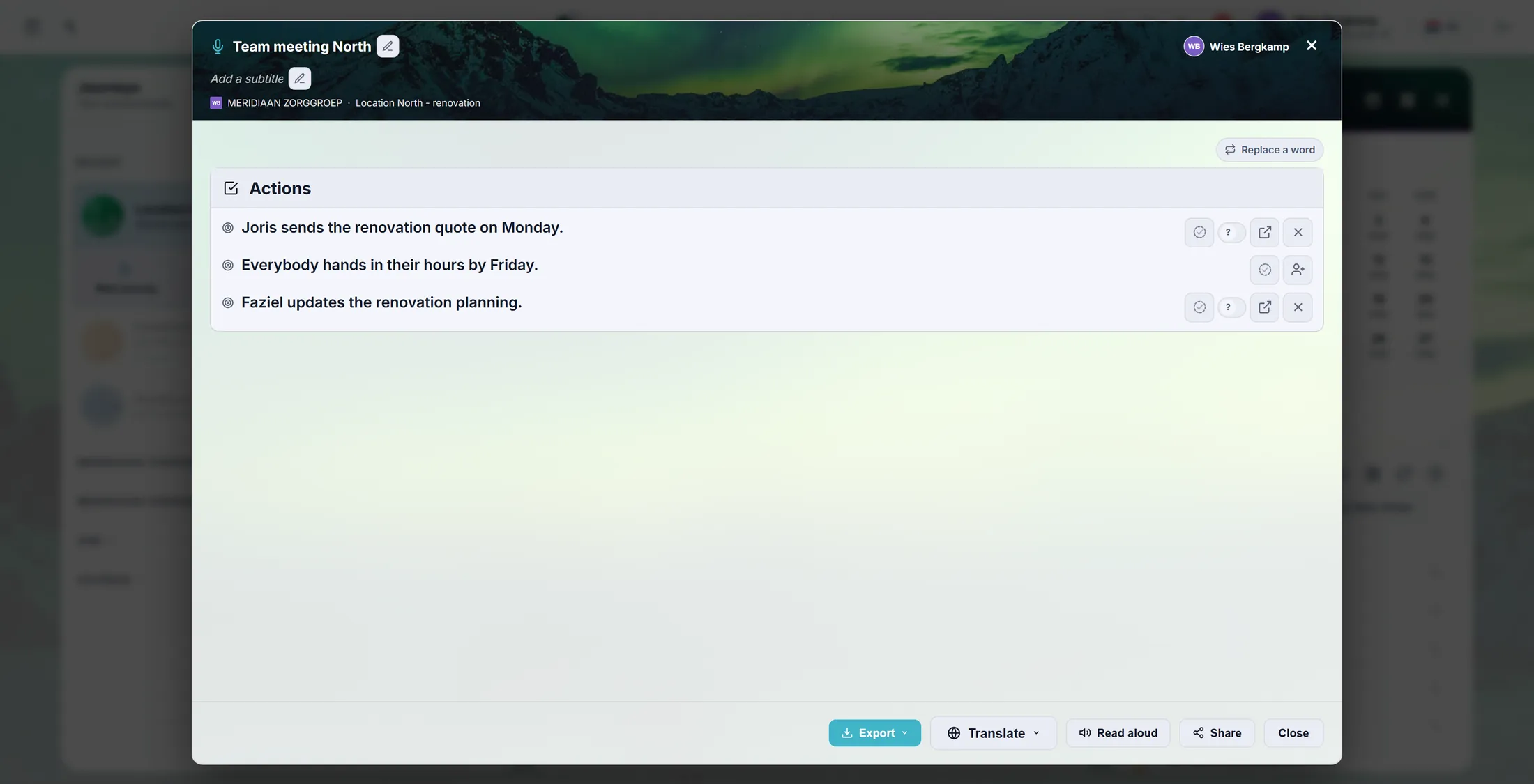
The note now has a Report button. Press it: the report opens big.
- Find the note on the timeline and press Report.
- At the top: the title. Press the pencil next to it to change it, or Add a subtitle.
- Below: the Summary and the Actions (and decisions when there were any).
- A word heard wrong - a name, say? Press Replace a word and it is changed everywhere in the report.
- Point at a line to change it (Change this line), add one or remove it.
The report, big on your screen. Ask your CrewMate about it
Open the note. You can ask the AI questions about the report.
- Click the title of the note on the timeline. The note opens with the report in it.
- Press Ask AI crewmate about this report and ask, for example: Who does what before Friday?
- Open report opens the big report window from step 5.
- On the right, under History , you see Voice report added with its own Report button.
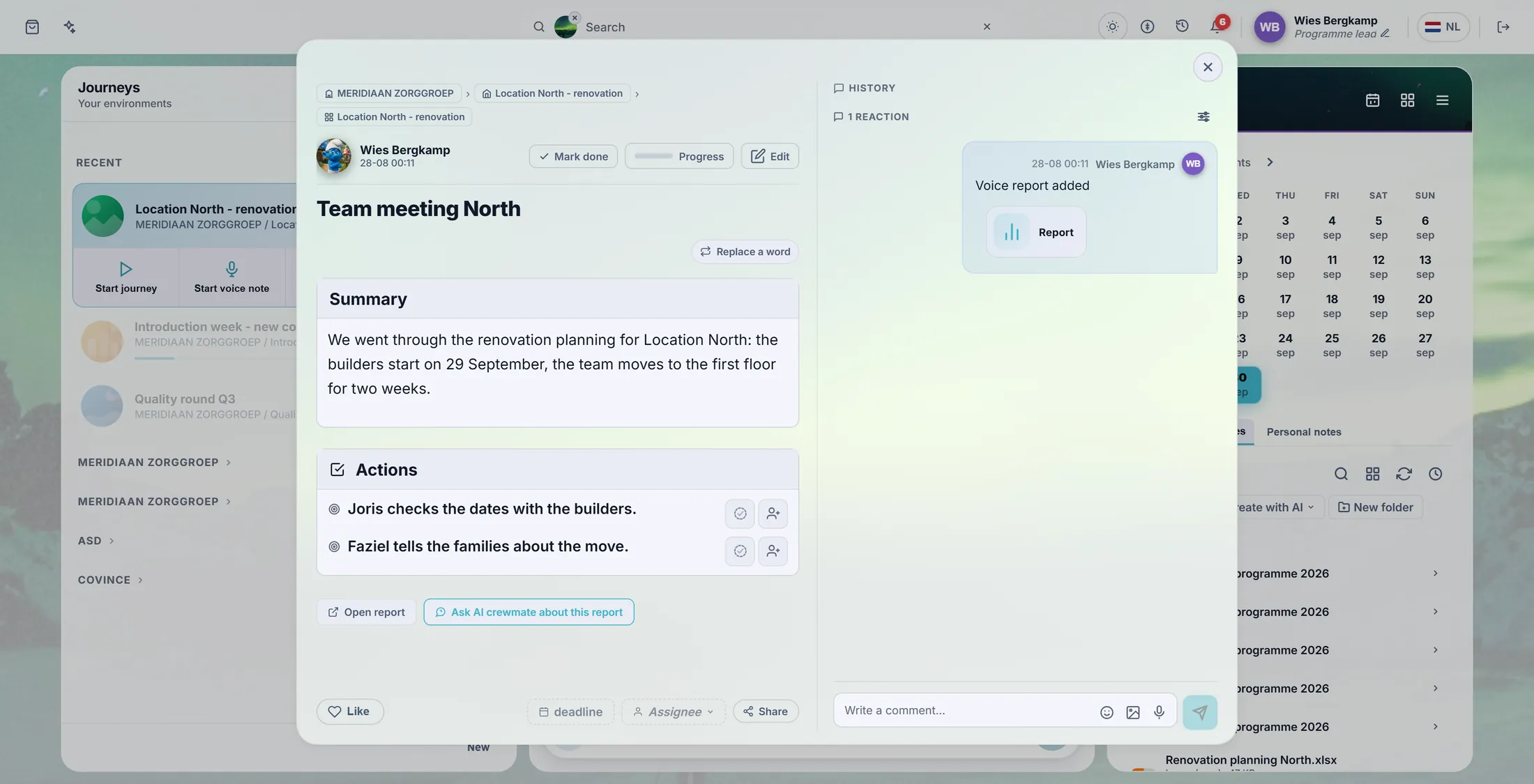
The note, with the report in it. Send it on
Make a PDF or Word file, change the language, or share a link.
- Press Export and choose Export as PDF, Export as DOCX (Word) or Export as ODT. The file downloads.
- Translate shows the report in another language.
- Read aloud reads the report out loud.
- Share opens the ways to share this report with others.
- Close closes the window. The report stays on the note.
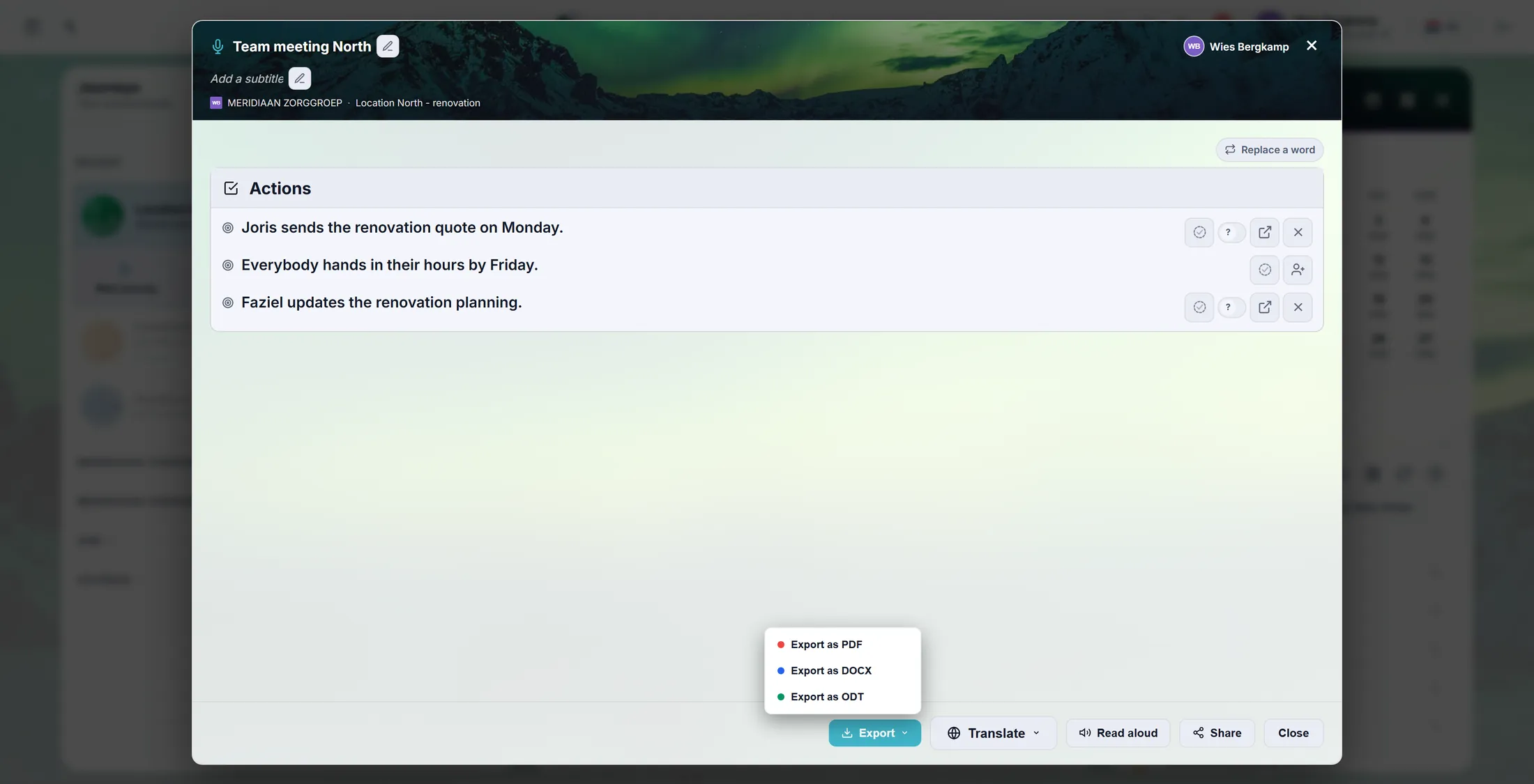
Export makes a file.
If something is not right
The report stays empty or is very short.
The microphone did not hear much. Talk closer, or use a headset, and try again.
I pressed Discard by mistake.
Then it was not kept. Record again.
Where are the numbers of a learning?
Top of the screen: What would you like to do? Then: See the numbers about your own work.
A name is spelled wrong everywhere.
Press Replace a word. Change it once, it changes everywhere.
The words, in plain language
- voice note
- A note you speak instead of type; CoVince writes the report from it.
- action
- A thing to do that came out of the talk, with a tick and a person.
- timeline
- The middle column: everything that happened in the journey, newest first.
Where to go next
- How to use a CrewMate Ask your own assistant about your work.
- All explainers The other things you can learn here.