Write a document
A text document, a spreadsheet or a presentation, made in the journey it belongs to instead of in a drive. It lands in the journey's Files, opens in CoVince's own editor, and everybody in the journey works on the same copy.
Content - write, calculate and present - 6 min. You need: a journey
Reading this page changes nothing. A document is only made when you press OK.
What you will be able to do
- Write a text Headings, lists, pictures - like a letter.
- Do sums in a sheet Rows and columns that add up by themselves.
- Make slides Start empty, or let AI write a first version.
- Find it again It is in the journey's Files, for everyone in it.
Get this ready first
- A journey A document always belongs to a journey. No journey yet? Make one first.
- A name Think of a short name, like "Introduction week - checklist".
Do it together, one step at a time
Seven steps. The first four make the document. The last three show the three kinds.
Open the journey's files
Click your journey. Then click the word Files on the right.
- In the left column (Journeys), click your journey, for example Quality round Q3 .
- In the right column, under the calendar, click the word Files.
- You see COMMUNITY FILES : the folders and files of this journey, with Add file, Create with AI and New folder above them.
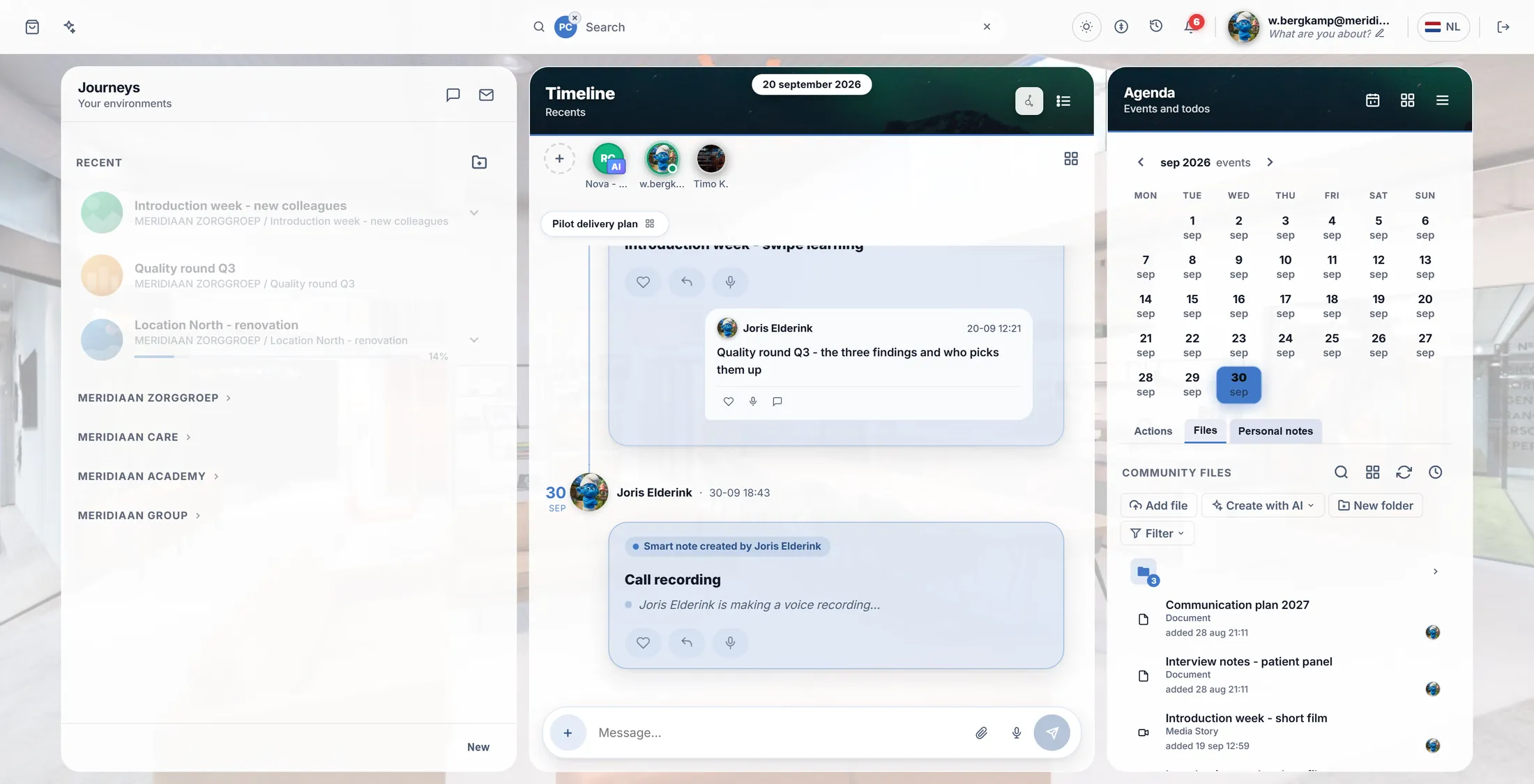
Left your journey, right its files. Press Create with AI
A list opens. The last line is Create document.
- Press Create with AI above the files.
- A list opens: images, a canvas, a journey, presentations, films, and at the bottom Create document.
- Press Create document.
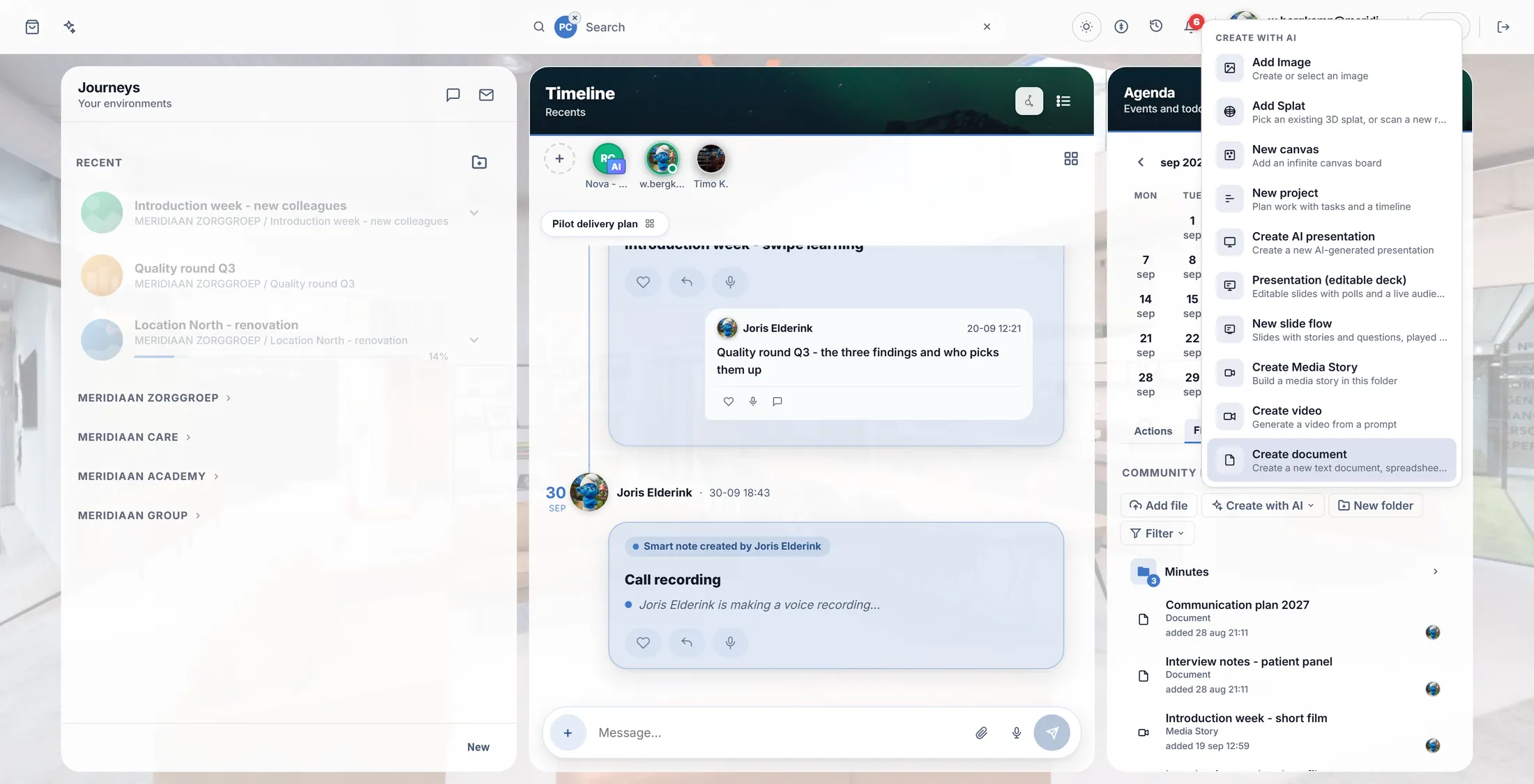
Create document is the last line. Choose: text, sheet or slides
Three buttons. Pick what you need.
- Text document: a page to write on - a letter, notes, a plan.
- Spreadsheet: rows and columns - lists, hours, money, anything with sums.
- Presentation: slides to show in a meeting.
- Press one. Changed your mind? Cancel.
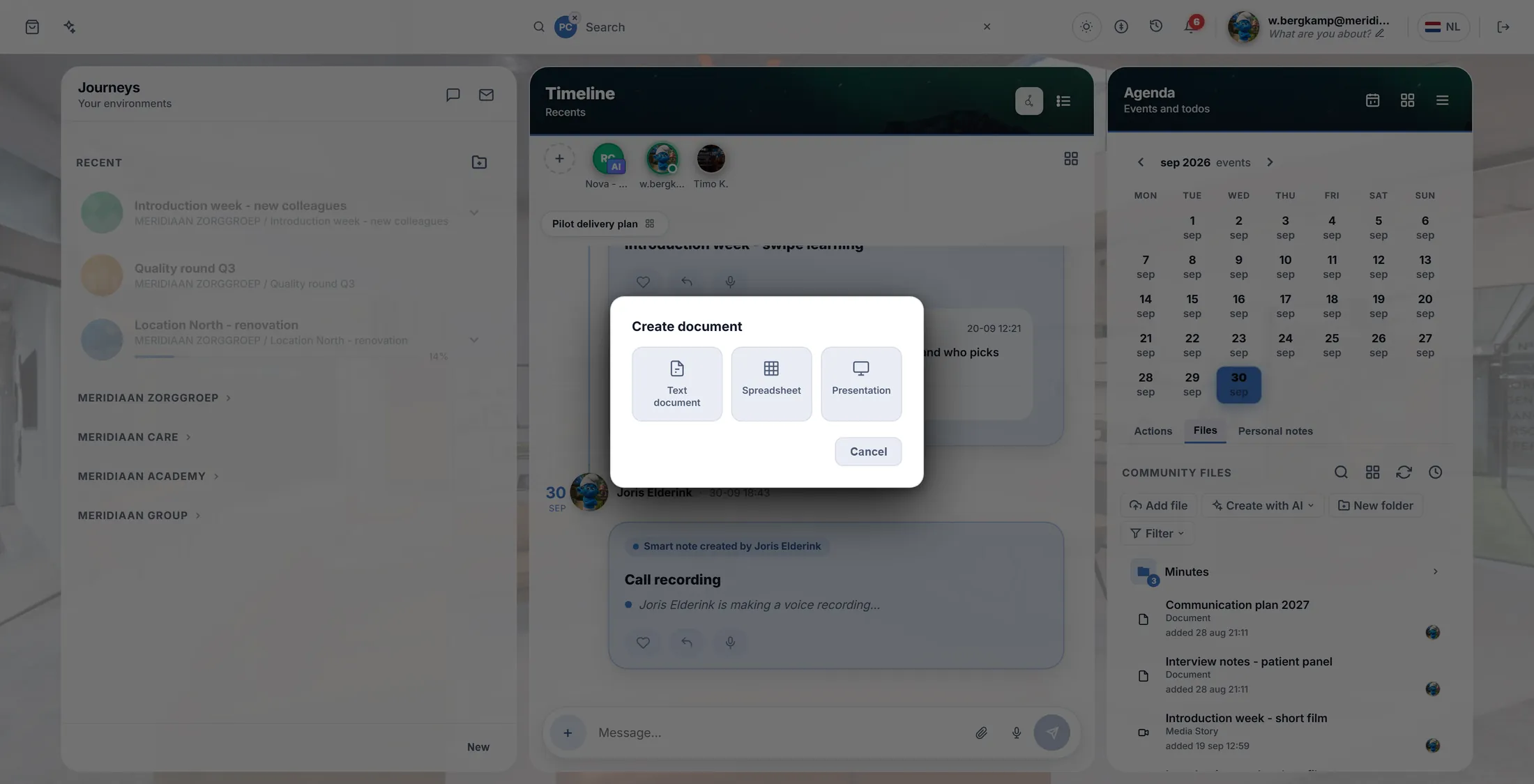
Three kinds. Press one. Give it a name
Type a name. Press OK. The document opens.
- A small window asks for the Document name . It already says "Text document" or "Spreadsheet".
- Type your own name over it, for example Introduction week - checklist .
- Press OK. The document is made in the journey's Files and opens straight away.
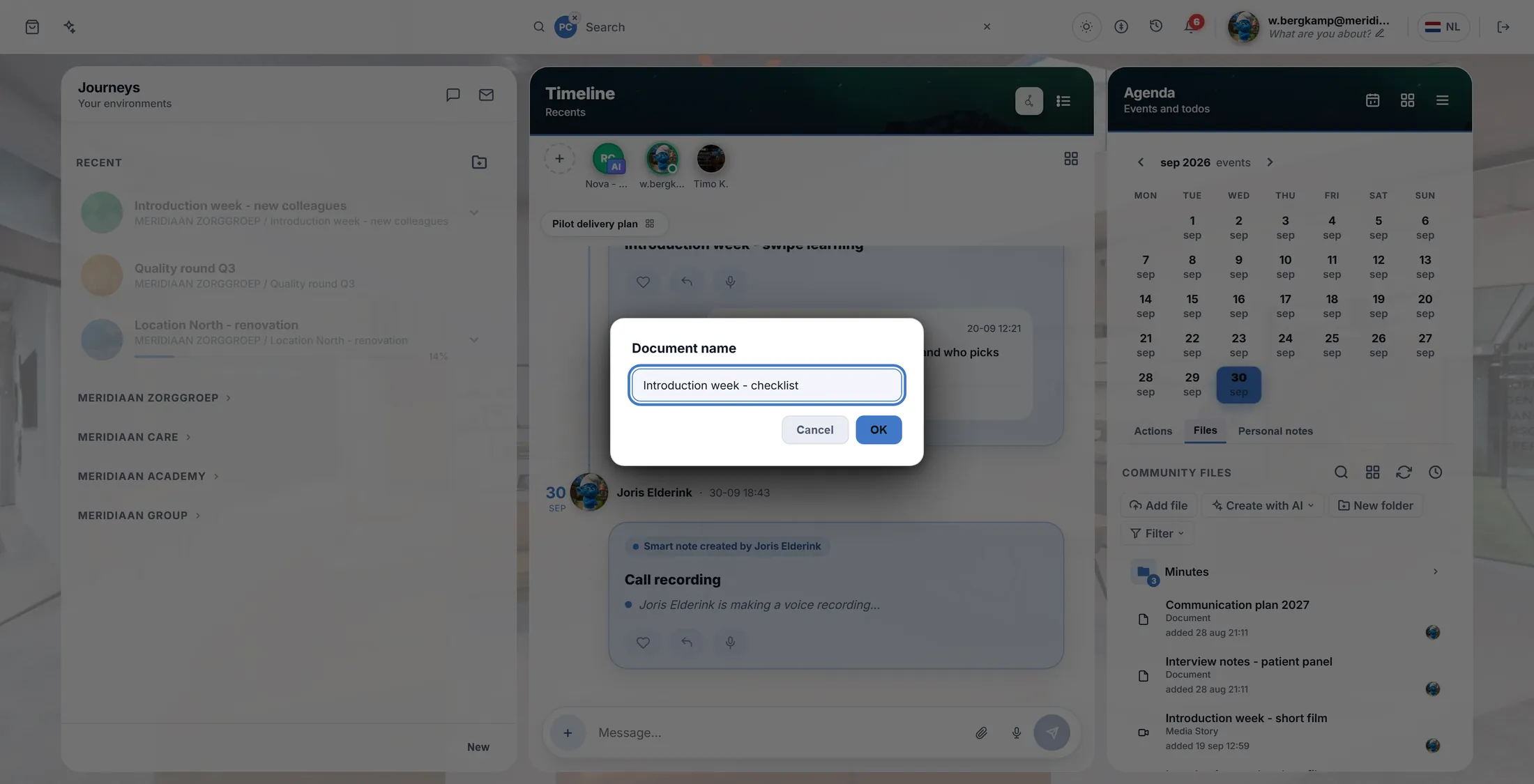
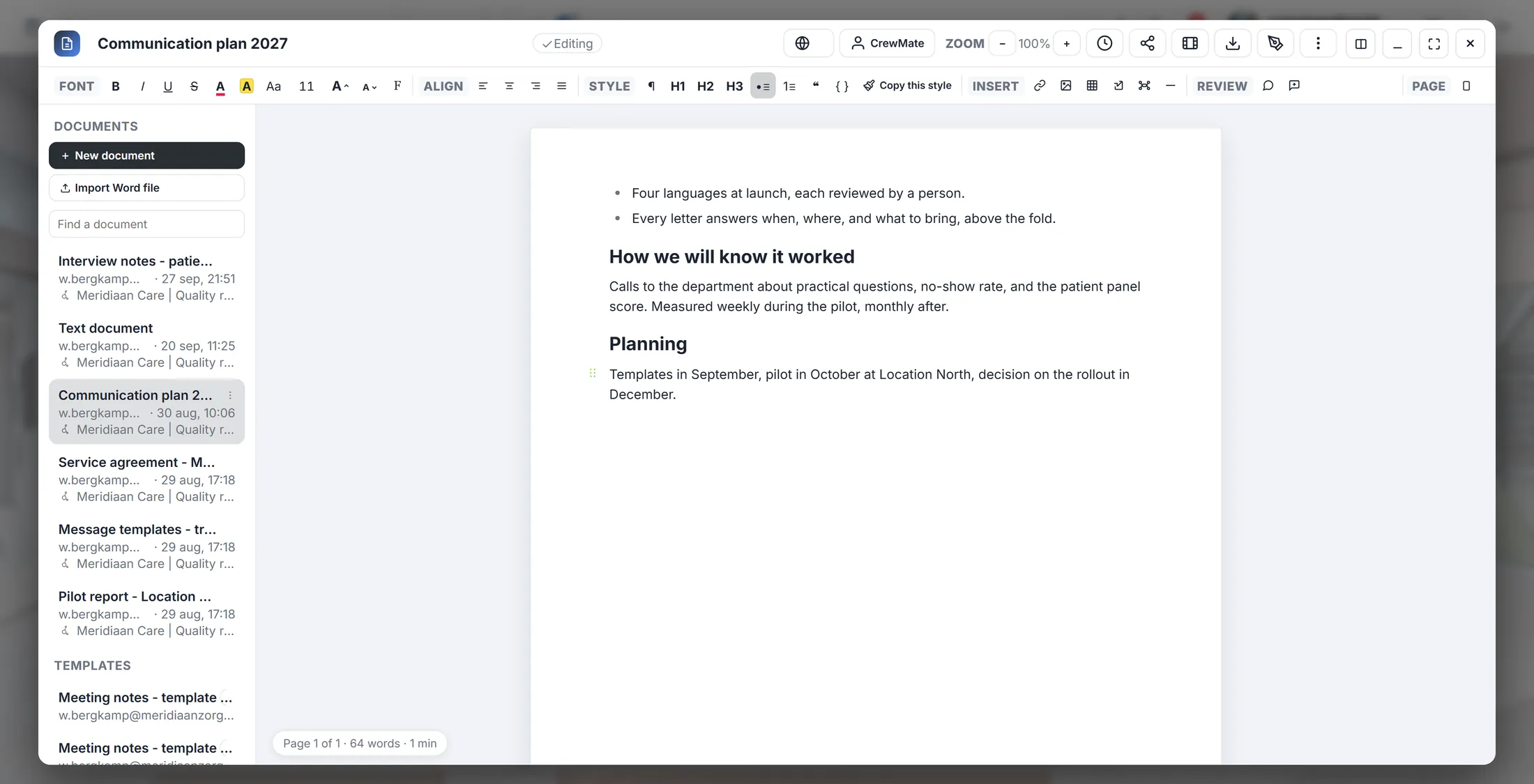
Type a name, press OK. Write
Click on the white page and type. It keeps what you type.
- Click on the white page and start typing.
- The tools are along the top: FONT (bold, colour, size), ALIGN, STYLE (H1 H2 H3 for headings, lists), INSERT (link, picture, table) and REVIEW (comments).
- There is no Save button: the document saves by itself, and a small word at the top says so.
- On the left are the other documents of the journey. New document starts another; Import Word file brings in a .docx.
- Along the top right: CrewMate to get help writing, the clock for earlier versions, share, and download. The cross closes it.
Type on the page. The tools are at the top. Do sums in a sheet
Picked Spreadsheet? You get rows and columns. Totals add up by themselves.
- Click a cell and type. Enter goes to the next row.
- A sum: type =SUM(E2:E6) in a cell. The cell shows the total; the bar at the top shows the formula.
- Select some cells: the line at the bottom shows their sum, average, lowest and highest.
- Have an Excel file? Import Excel file on the left brings it in. The download arrow at the top gives it back as a file.
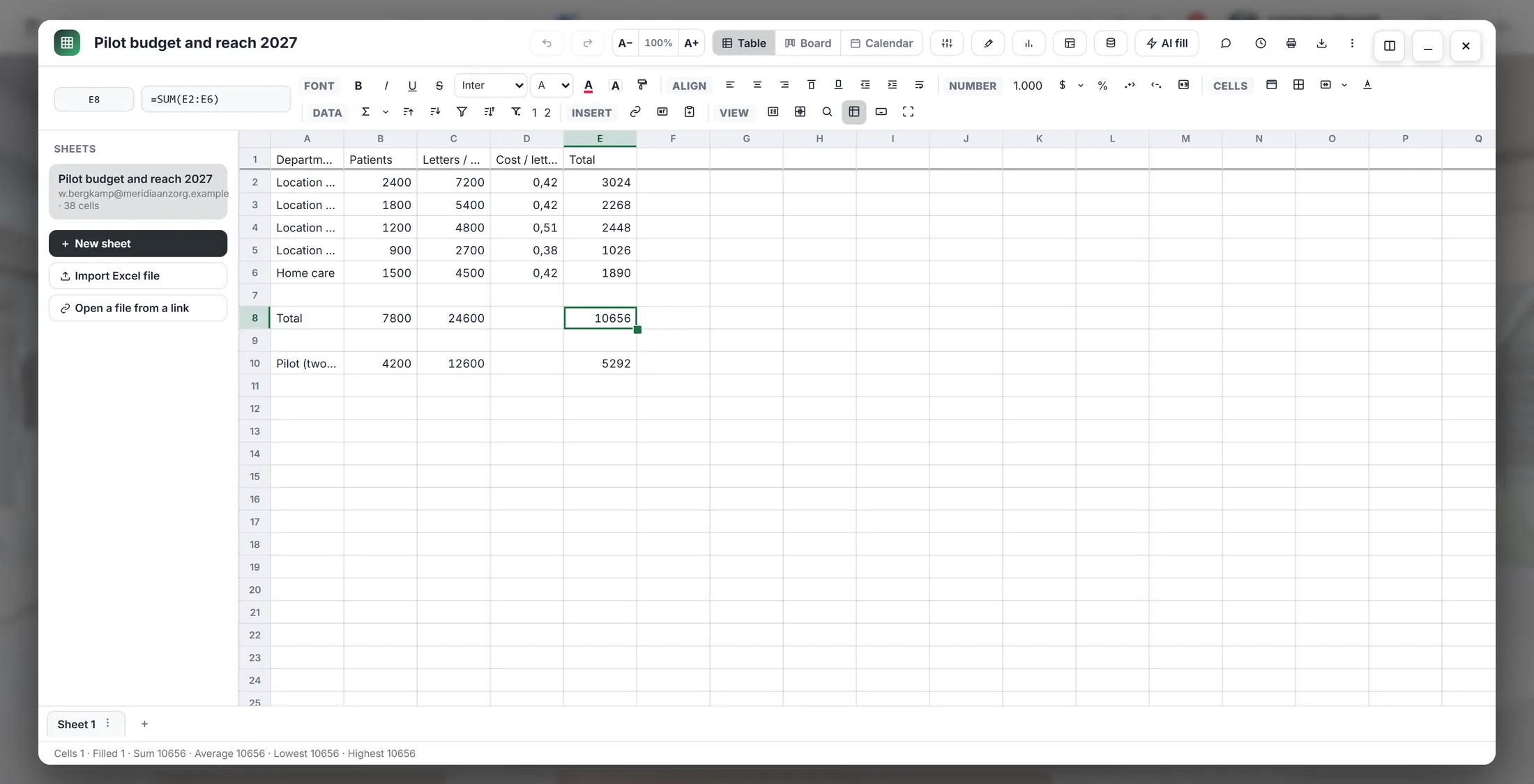
The total adds up by itself. Make slides
Picked Presentation? First say how you want to start.
- The window New presentation asks: How do you want to start?
- Start blank: one title slide, you build the rest.
- Let AI write an outline: say what it is about and get a full first draft.
- Press one, then Next, and answer the last question. The slides open in the slide editor and stay in the journey's Files.
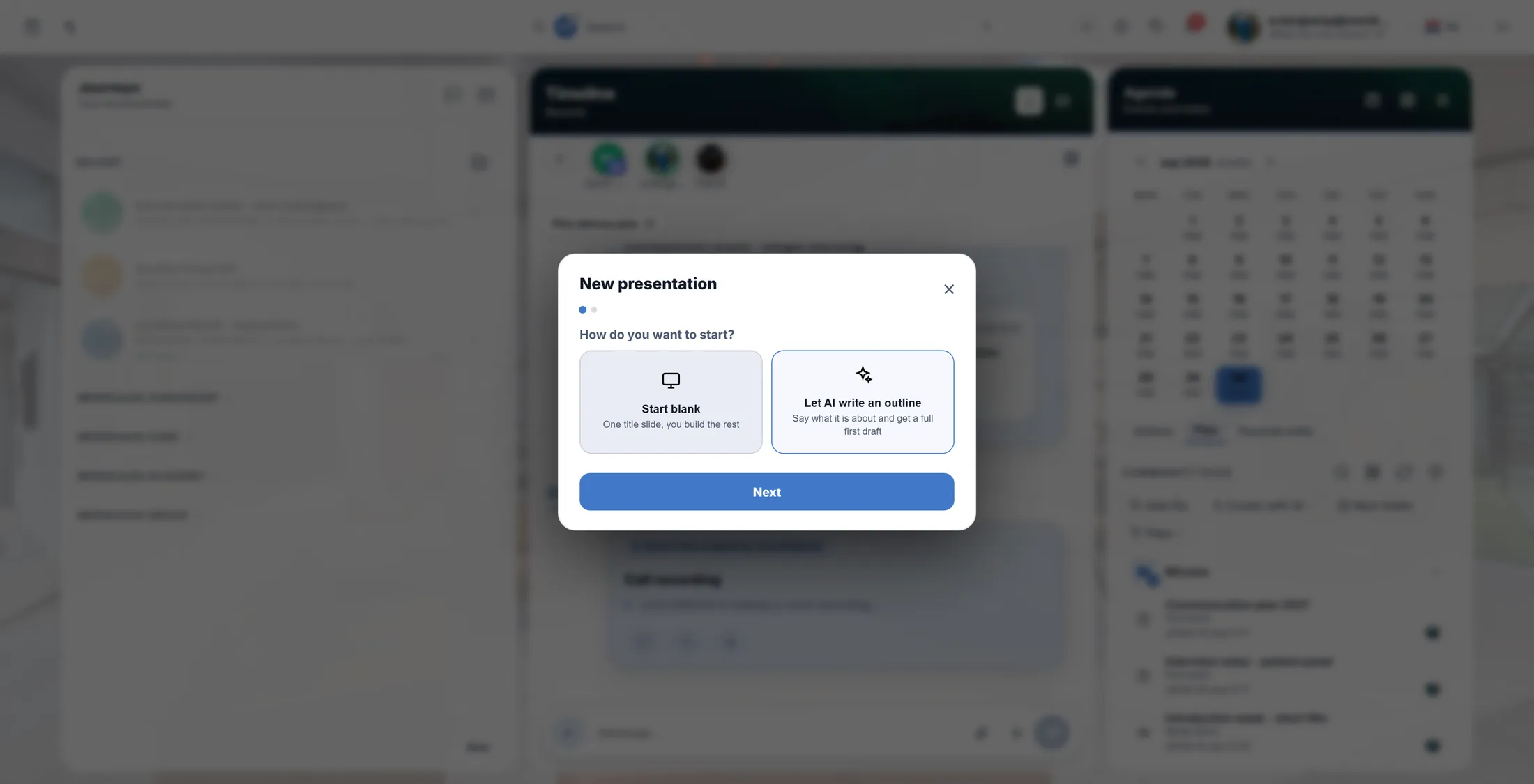
Empty, or a first version by AI.
If something is not right
It says "Select a journey first".
Click a journey in the left column first.
Where is my document now?
In the journey, under Files.
Where is the Save button?
There is none. It saves by itself.
I have a Word or Excel file.
Use Import Word file or Import Excel file.
The words, in plain language
- Community Files
- The files of one journey, in folders, for everyone in that journey.
- spreadsheet
- A page of rows and columns that can do sums for you.
- formula
- A little sum in a cell, starting with =, such as =SUM(E2:E6).
Where to go next
- All explainers The other things you can learn here.