Host a webinar
A webinar starts as an event on your journey agenda. You prepare the running order and the settings in the studio, invite guests on stage, go live, and after the show you publish the recording as a replay on the same Watch Live link.
Communication - live to your audience - 9 min. You need: a journey, a camera and a microphone
Nothing is broadcast until you press OFFLINE and it turns LIVE.
What you will be able to do
- Plan it Date, programme, guests.
- Go live Camera, screen, guests, chat.
- Run it with two A helper picks the questions.
- Share the replay Same link, watch it later.
Get this ready first
- A journey The webinar lives in a journey. Its agenda holds the event.
- Camera and microphone The ones in your laptop are fine. Headphones stop echo.
Do it together, one step at a time
First you prepare (steps 1 to 7). Then you go live (8 to 10). Then the replay (11 to 13).
Plan the webinar on the agenda
A webinar is an event on your journey agenda. Make it first.
- Open your journey and look at the Agenda on the right.
- Press the orange + and make an event with a title, a date and a time.
- Open the event. Under Program you write the running order; under Reminders you set when people get a reminder.
- People who sign up show under the participants tab.
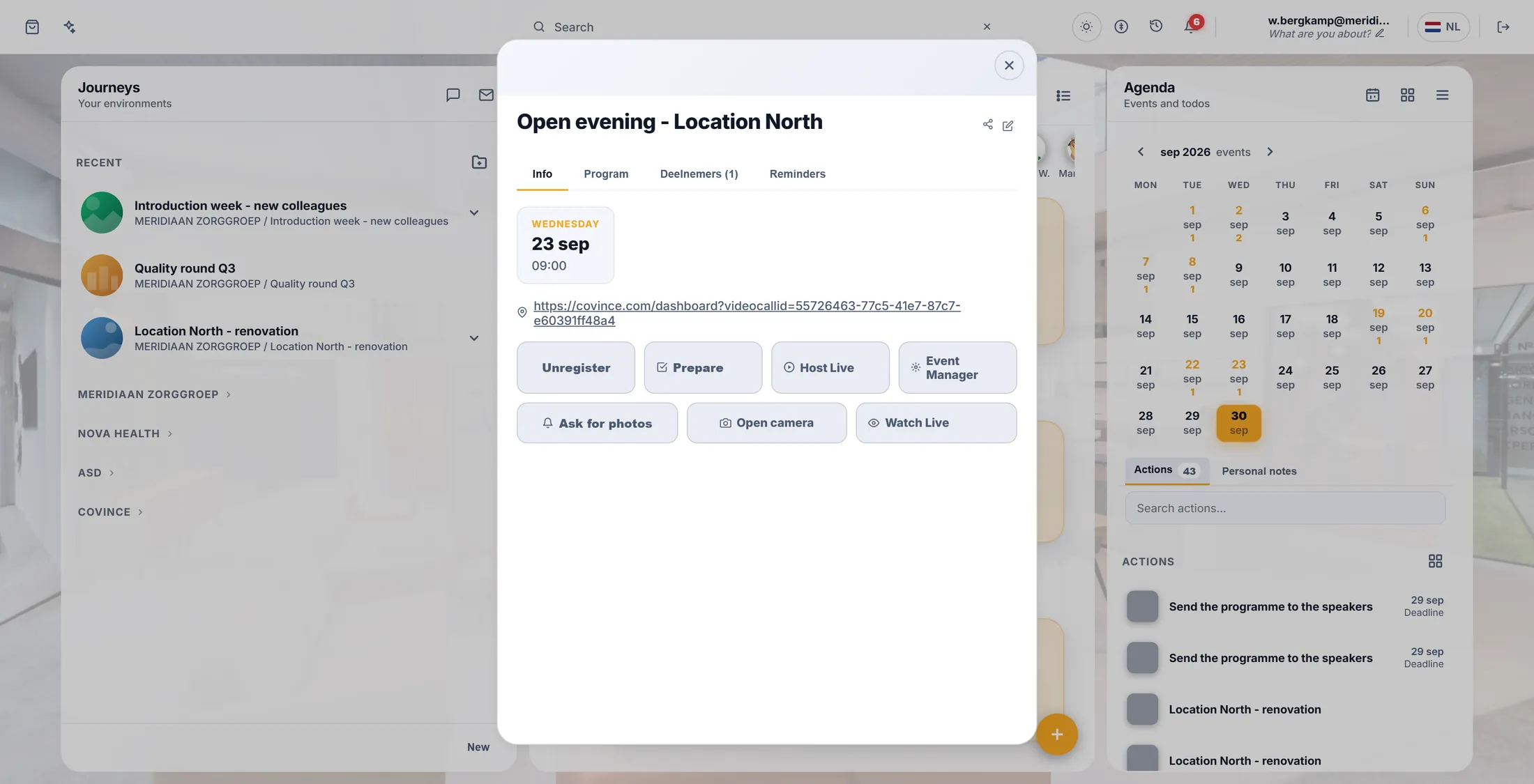
Your webinar, as an event on the agenda. Three buttons on the event
You host. A helper can run the chat. Everyone else watches.
- Host Live opens your studio. Only editors of the journey see it.
- Event Manager opens a second screen for a helper who runs the chat and the questions.
- Watch Live is what your audience opens. Everyone sees this button.
- Prepare gathers what you need for the meeting in one place.
One event, three doors. Get ready in the studio
Put your items in order. Check that you see and hear yourself.
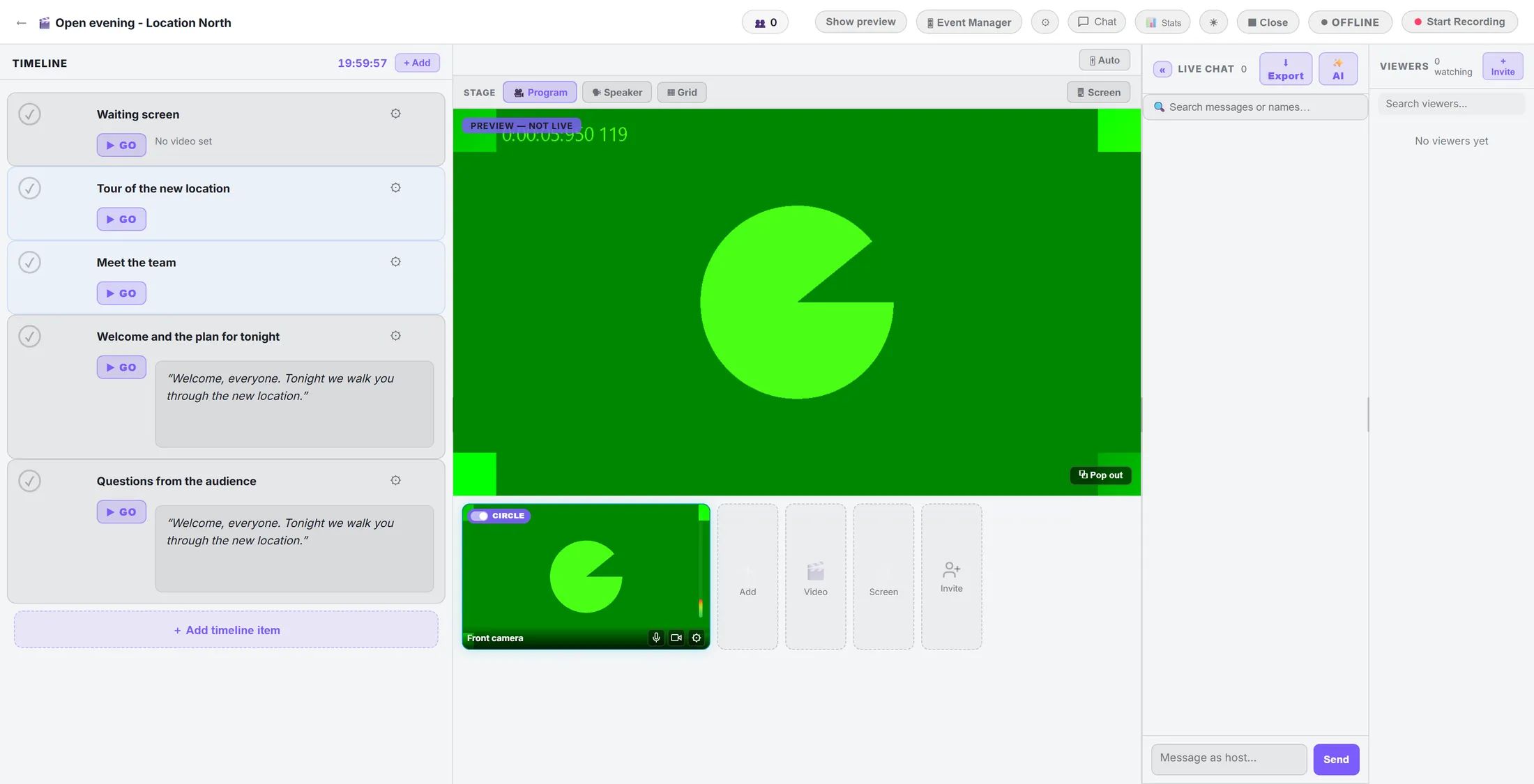
- The top left says PREVIEW — NOT LIVE : nobody sees you yet.
- TIMELINE : every item of your show. Press + Add timeline item for a slide, a video or a waiting screen. GO puts that item on air.
- STAGE : choose Program, Speaker or Grid for how the picture is laid out.
- Under the stage: your camera, and Video, Screen and Invite to add more.
- Speak: the bar next to your camera moves when the microphone hears you.
Everything you need, on one screen. Choose who may watch
Decide if people must log in. Pick the picture quality.
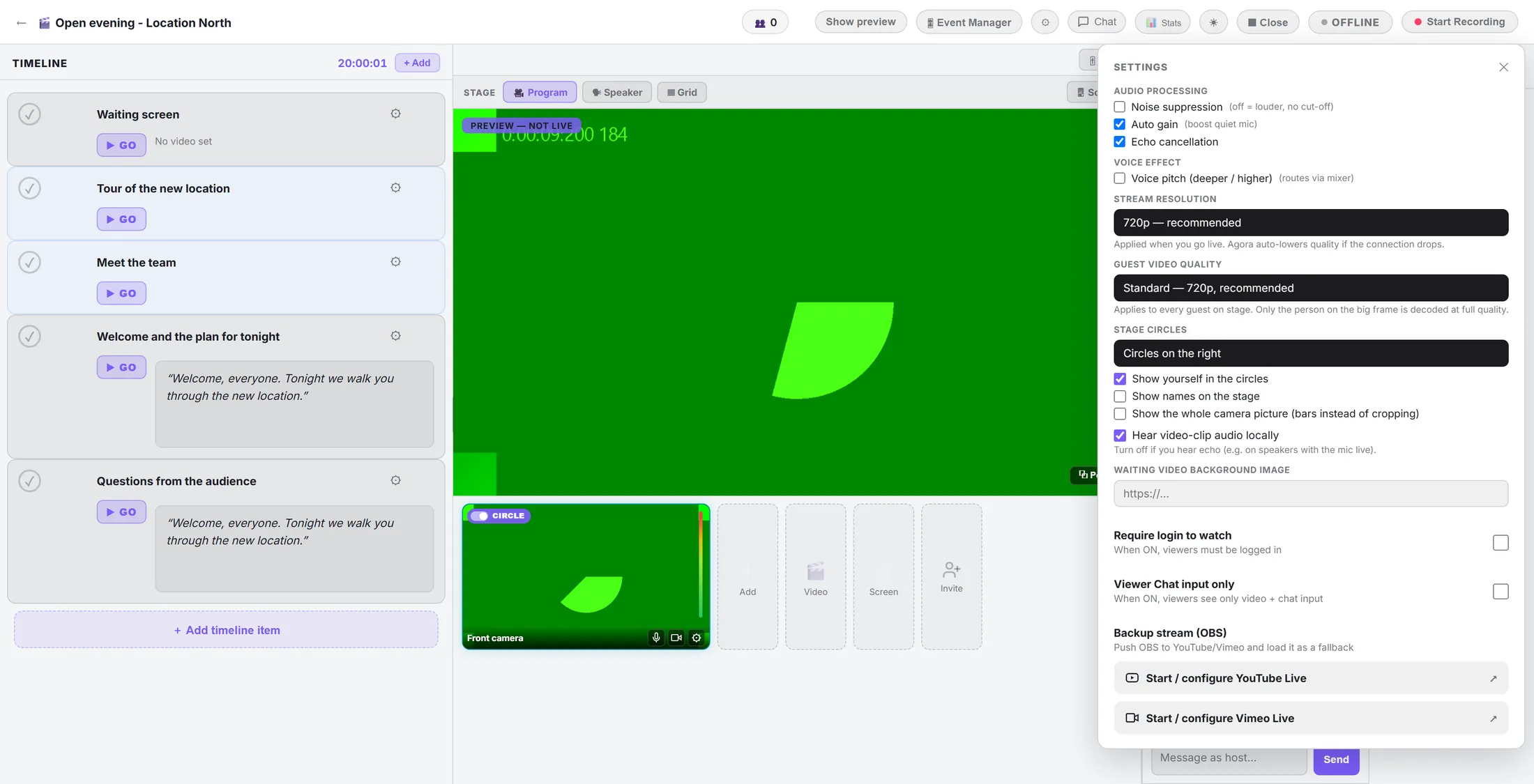
- Press the settings button (the gear) in the top bar.
- Stream resolution : 720p is right for most webinars.
- Require login to watch : tick it and only people who log in can watch. Leave it off and anyone with the link can.
- Viewer Chat input only : viewers see the video and a chat box, nothing else.
- Backup stream (OBS) : for a big show, also stream to YouTube Live or Vimeo Live as a fallback.
Who may watch, and how it looks. Invite a guest speaker
A guest gets a link and joins you on stage with their own camera.
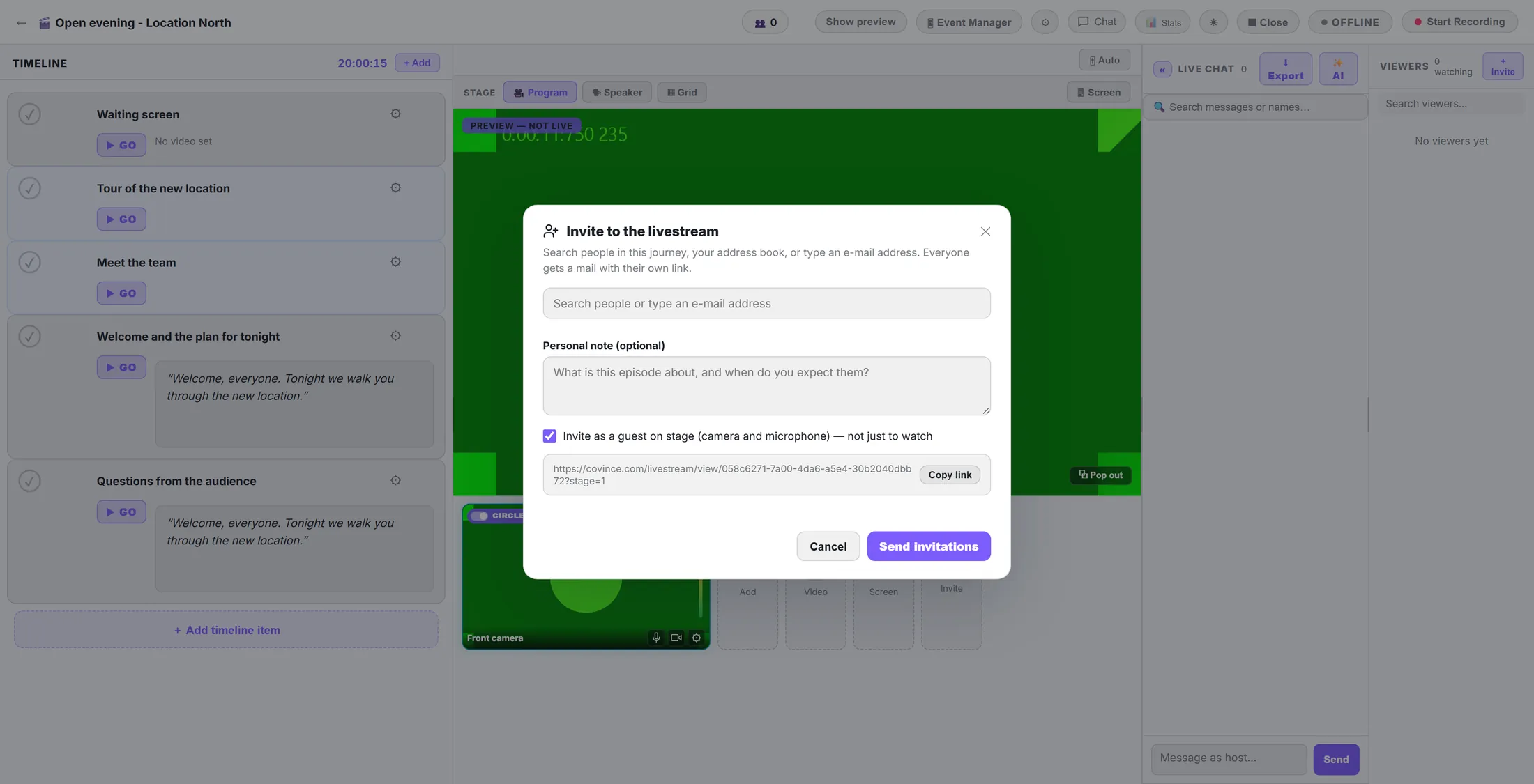
- Press + Invite next to VIEWERS , or the Invite tile under the stage.
- Search a person, or type an e-mail address.
- Tick Invite as a guest on stage for a speaker. Untick it to invite someone to watch only.
- Press Send invitations, or Copy link to send the link yourself.
- In the show, the guest appears in the viewer list as GUEST .
One link per guest. Share the watch link
Your audience opens Watch Live. Before you start, they see "Stream starting soon".
- Open the event and press Watch Live. Copy the address from your browser.
- Put the link in your mail, your newsletter or your landing page.
- Before the show, viewers see the title and Stream starting soon .
- On the page they have the programme, the chat, and reactions to send.
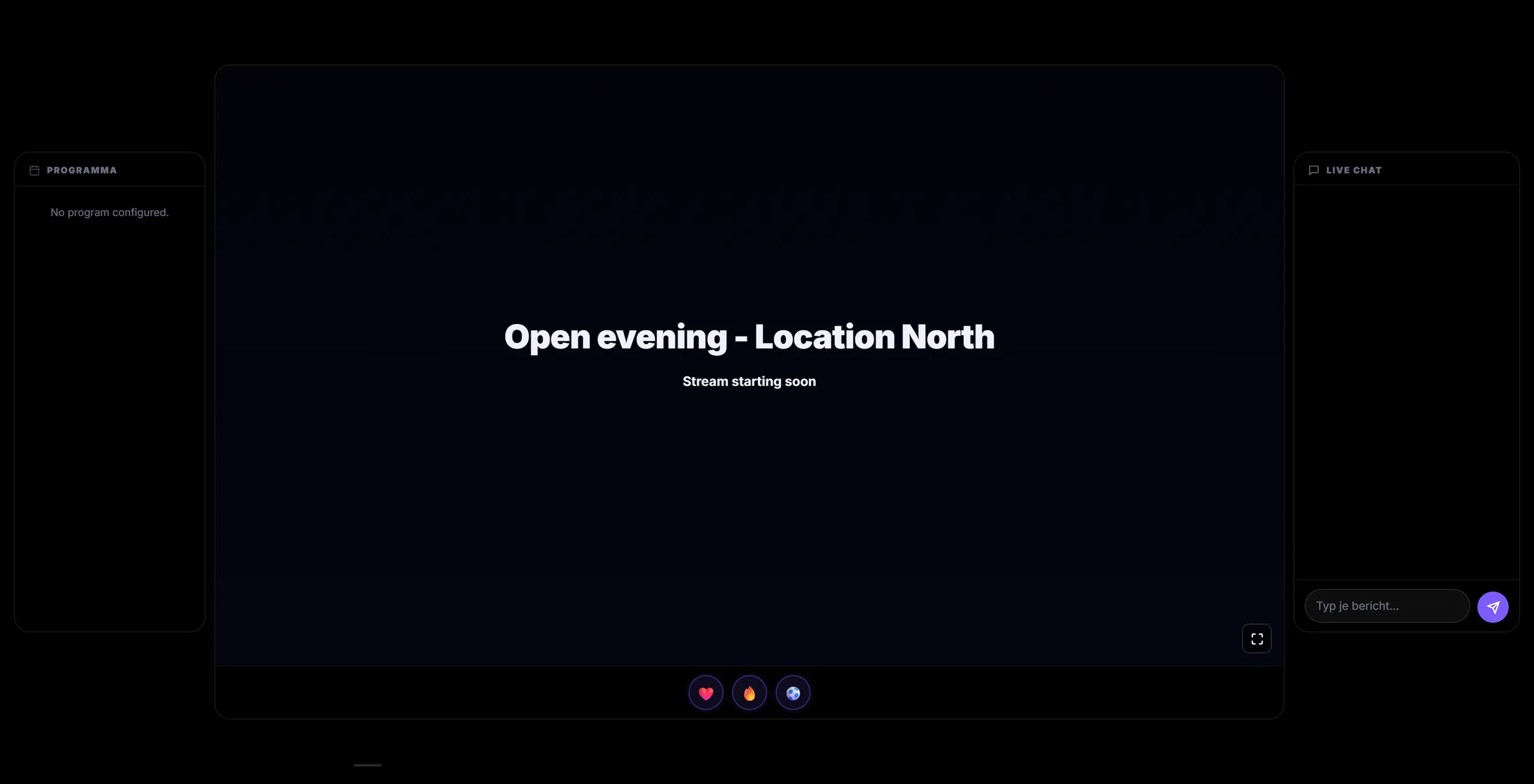
What your audience sees before you start. A helper for the questions
Someone else reads the chat and picks the questions for you.
- Your helper opens the event and presses Event Manager.
- They see the same timeline and a live preview of the stream.
- They drag good chat messages into the ON-AIR QUEUE , then drop one on the live preview to show it on the stream.
- Clear from stream takes it off again; Hide chat hides the chat on the stream.
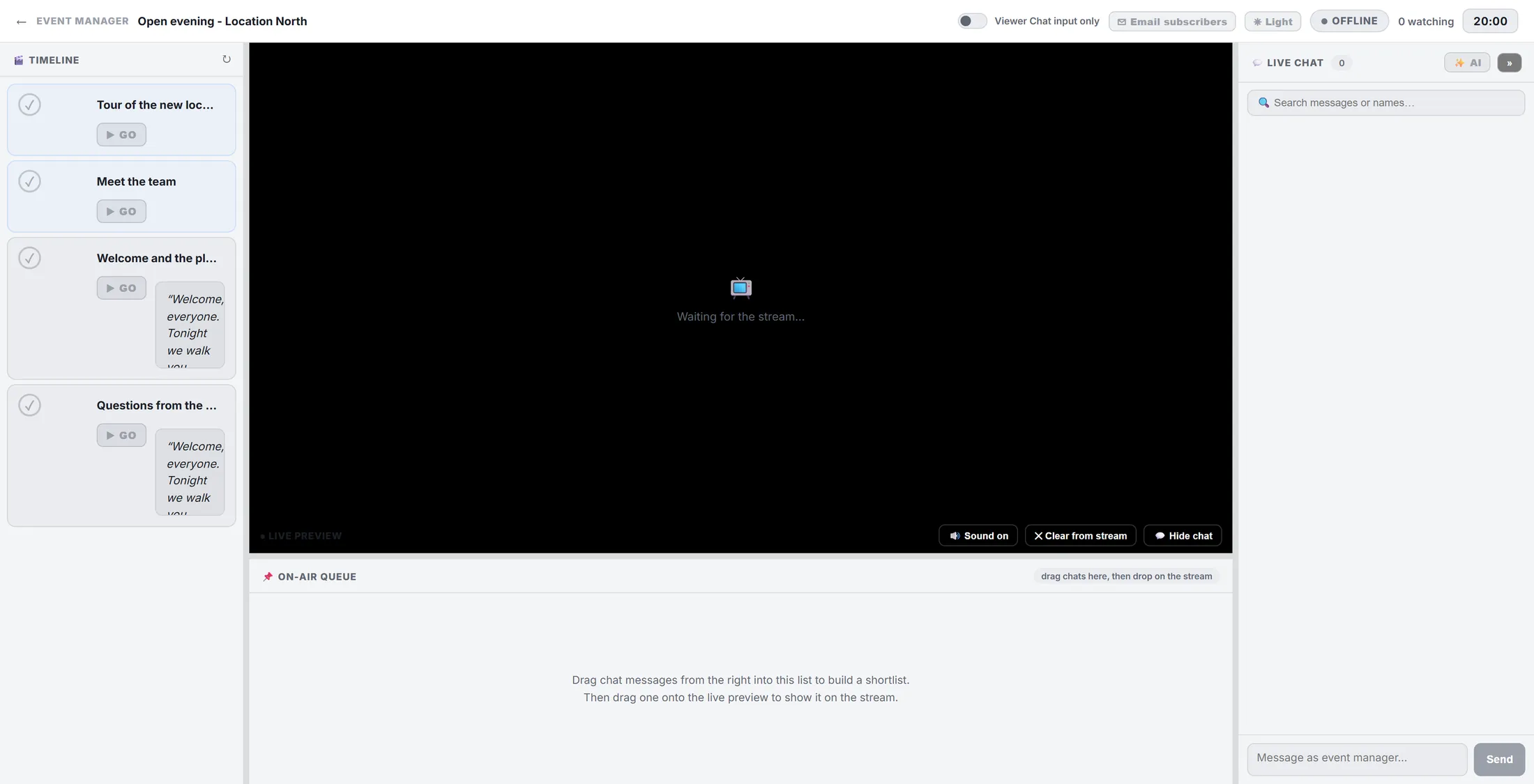
Your helper's screen. Go live
Press OFFLINE. Say yes to recording if you want a replay.
- Press the OFFLINE badge at the top right. It turns LIVE .
- The studio asks Record this stream?
- Press ⏺ Record to save the whole show as a file on your own computer. You need that file for the replay.
- Or press No thanks. You can still press Start Recording later.
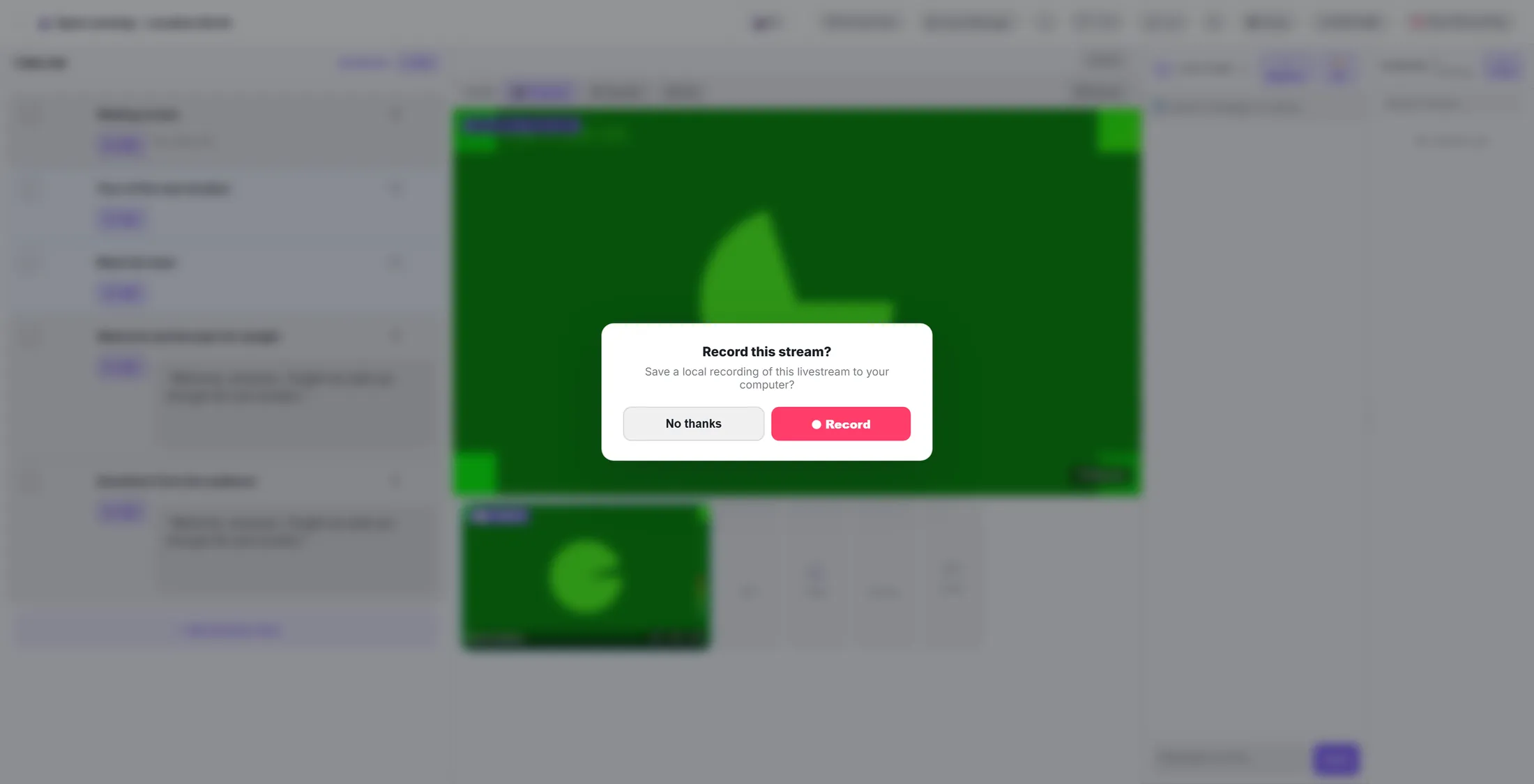
Yes = you get a replay. Run the show
Press GO for the next item. Answer the chat.
- Press GO on the next timeline item to put it on air.
- Screen shares your screen; Video plays a film.
- Guests who joined appear under the stage. Their picture goes on air with the layout you chose.
- Type in Message as host... and press Send to answer the chat.
- Export saves the chat afterwards.
GO, talk, answer. See how many watch
See how many people watched, minute by minute.
- Press Stats in the top bar.
- Per minute you see VIEWERS and USERS (people who were logged in).
- Press Export CSV to open the numbers in a spreadsheet.
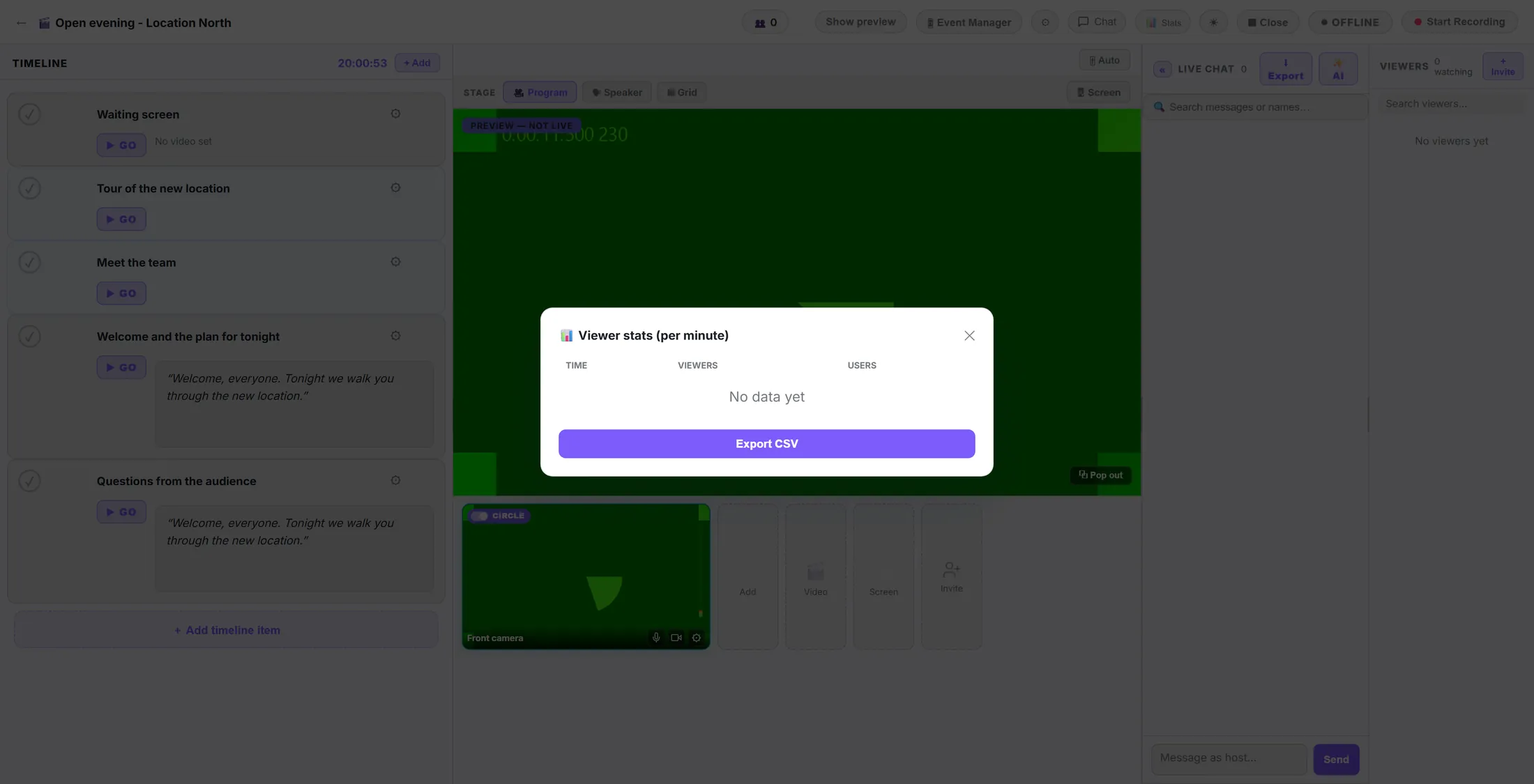
The numbers, per minute. End the webinar
Press Close. Viewers see that the livestream has ended.
- Press Close in the top bar.
- Recording for replay (optional) : press Choose File to add a recording - your own, or one made elsewhere (MP4, WebM, OGG, MOV or MKV, up to 2 GB).
- Press Close livestream.
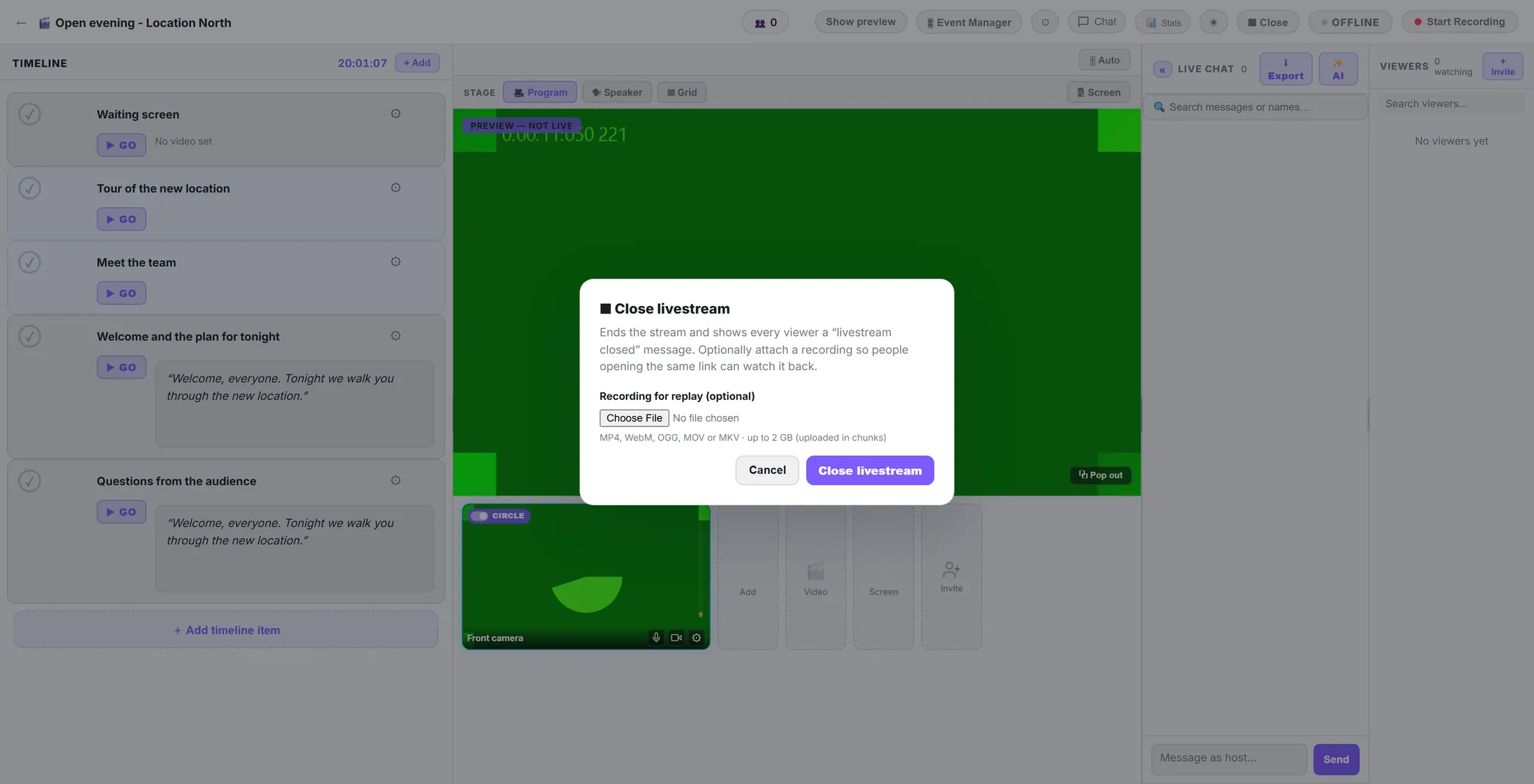
The end. Add the file for a replay. Publish the replay
Recorded with the studio? One button puts it online as the replay.
- Stop the recording, or end the show. The studio asks Publish recording as replay?
- Press Publish replay & close stream. The file is uploaded and the stream closes.
- Press Not now to keep the file only on your computer.
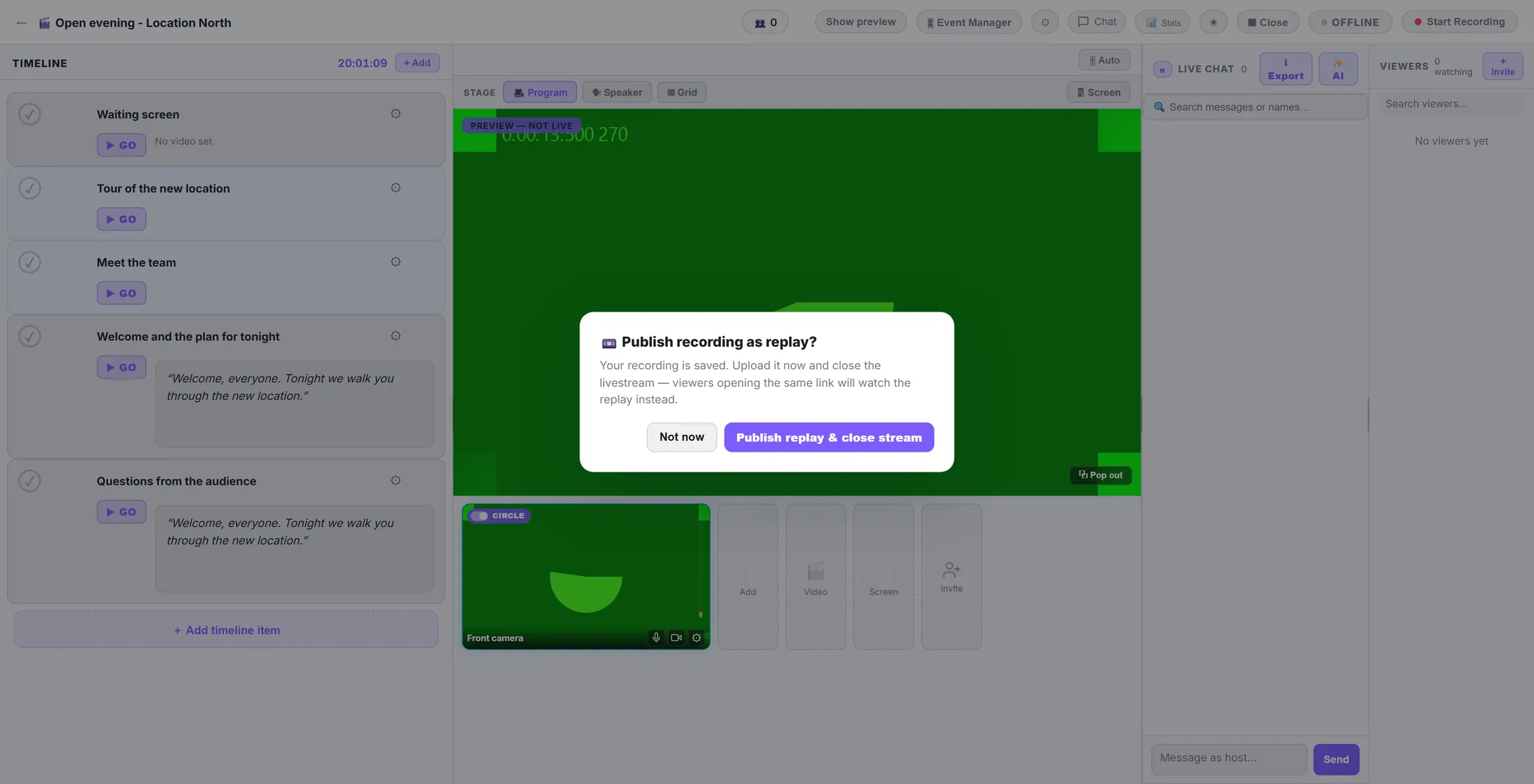
One button, and the replay is online. People watch it back
The same Watch Live link now plays the recording.
- Open Watch Live again, or the link you sent.
- It says Livestream closed and Watch the recording below.
- Viewers press play. Captions appear when the recording has been written out.
- Keep sharing the same link: in a newsletter, on a landing page, in the journey.
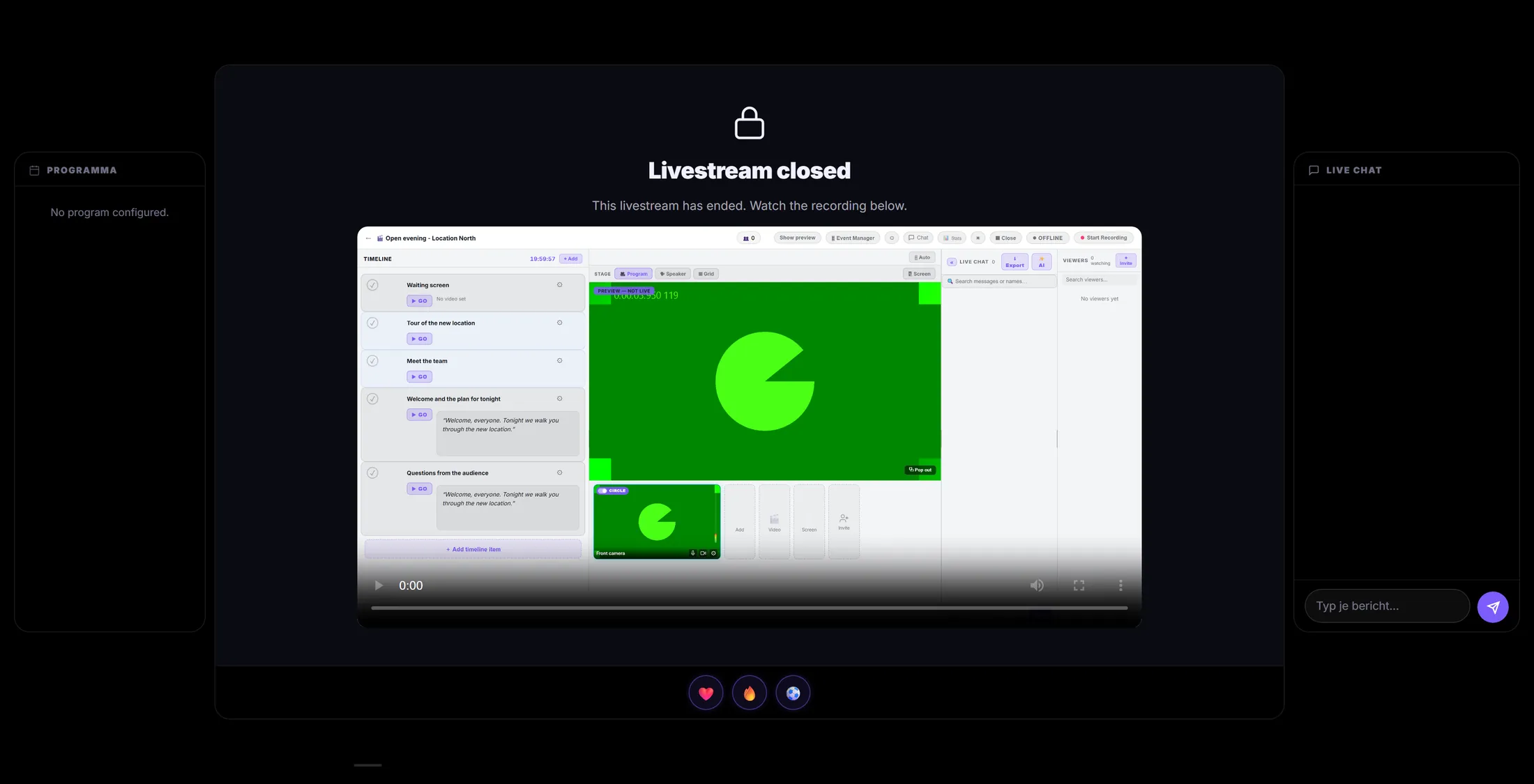
Same link, now the replay.
If something is not right
I do not see Host Live.
Only editors of the journey can host. Ask the owner to make you an editor.
Viewers see nothing.
Press OFFLINE so it turns LIVE.
People hear an echo.
Wear headphones, or turn on Echo cancellation in the settings.
There is no replay.
Add the recording file when you press Close.
The words, in plain language
- webinar
- A live online presentation that people watch in their browser and can react to.
- replay
- The recording of the webinar, to watch after it has ended.
- stage
- What is on air right now: your camera, a slide, your screen or a guest.
Where to go next
- Record a production Record without an audience, step by step.
- All explainers The other things you can learn here.