Your mailbox in CoVince
Connect Gmail, Office 365 or any IMAP mailbox once. Your inbox then opens beside your journeys: a mail can be linked to a journey, answered with a CrewMate's help, or turned into a meeting - without leaving CoVince.
Communication - your own mail - 5 min. You need: the login of your mail
Nothing is sent until you press Send. You can disconnect your mailbox at any time.
What you will be able to do
- Connect your mail Gmail, Office 365 or another mail.
- Read your mail Your inbox opens next to your journeys.
- Write a mail A new mail, or an answer. A CrewMate can help.
- Keep mail with the journey Say which journey a mail is about.
Get this ready first
- Your mail login The address and password you use for your mail.
- Maybe: permission at work At some jobs, the IT people must say yes first.
Do it together, one step at a time
Seven steps. You connect once; after that you only need steps 4 to 7.
Open the mailbox
The envelope at the top of the left column opens your mail.
- Open CoVince. The left column is called Journeys: your journeys.
- At the top right of that column are two small buttons: a speech bubble (chat) and an envelope .
- Press the envelope. The column turns into your Mailbox .
- To go back to your journeys, press the small arrow left of the word Mailbox.
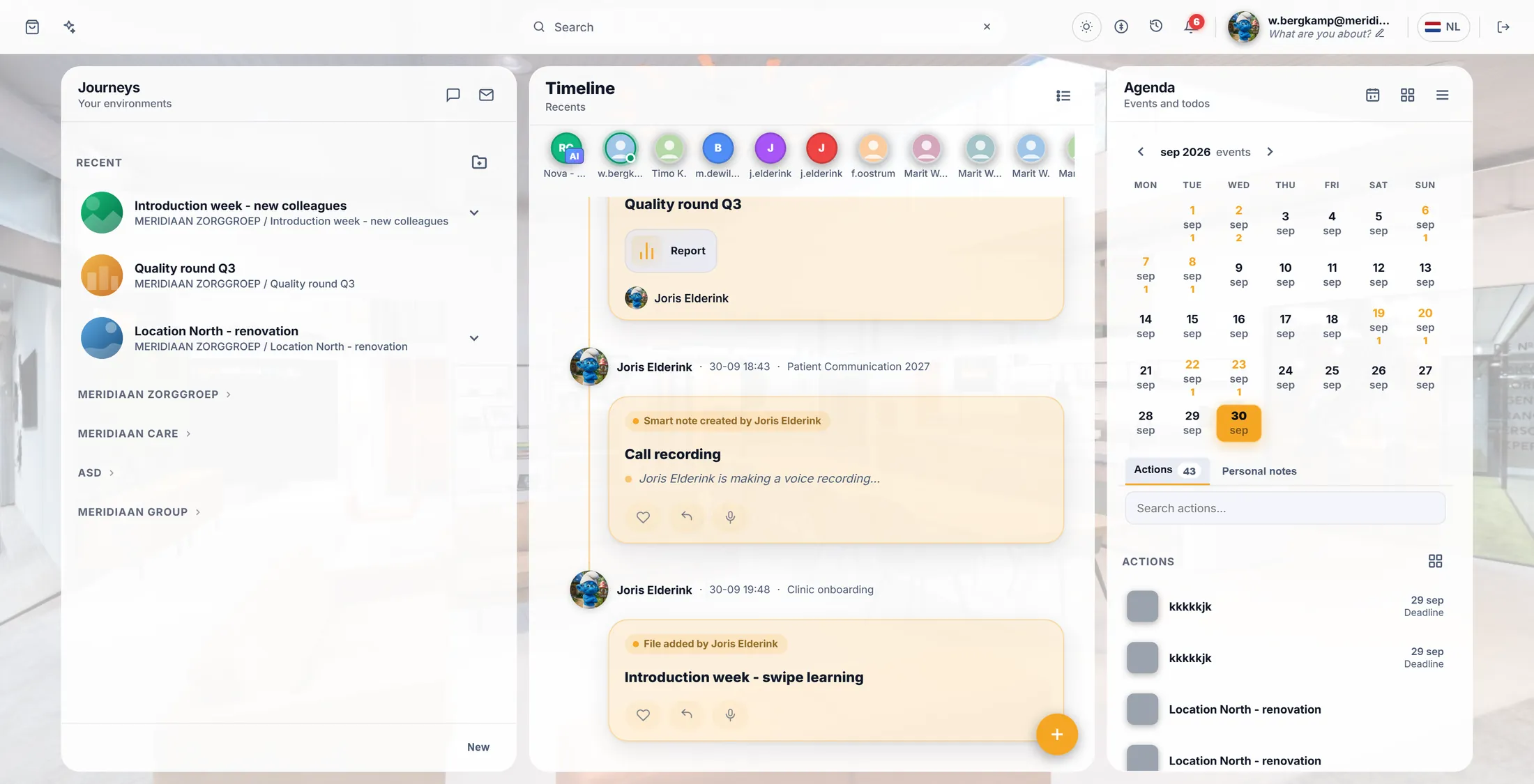
The envelope sits at the top right of the left column. Choose your kind of mail
The gear opens the settings. Press the button for your kind of mail.
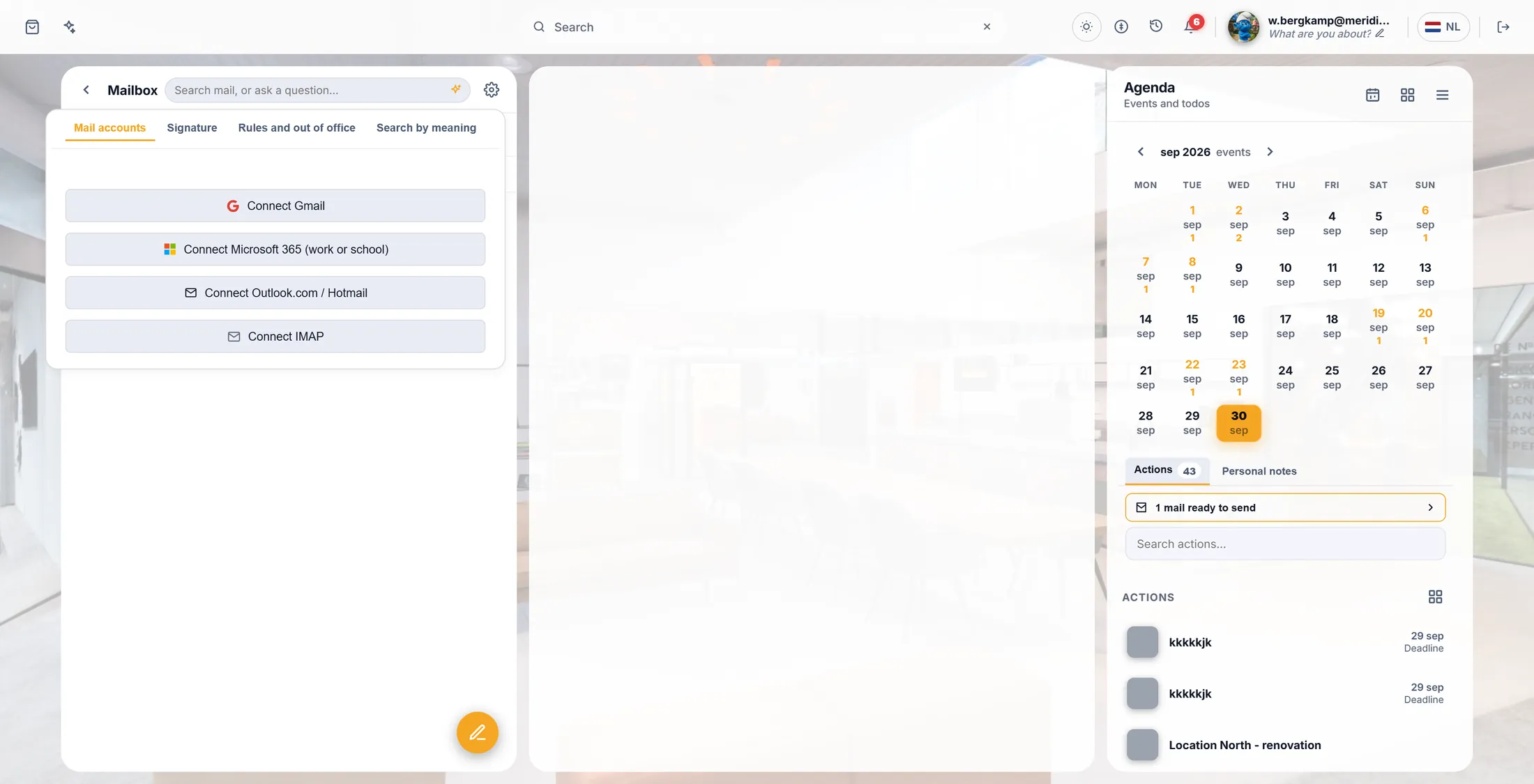
- Press the gear at the top right of the mailbox.
- A window opens on Mail accounts.
- Gmail? Press Connect Gmail. Office 365 at work? Press Connect Office 365.
- Another mail provider? Press Connect IMAP and fill in the form: your address, a display name, the IMAP and SMTP server, the user name and the password. Then Save.
Pick the button for your mail. Log in and say yes
Google or Microsoft ask if CoVince may use your mail. Say yes.
- A window from Google or Microsoft opens. Log in with your mail address and password.
- It asks if CoVince may read and send your mail. Press Allow (or Accept).
- The window closes by itself. Your address now stands under Mail accounts, and your inbox fills.
- Did it say no? CoVince shows what went wrong. Try again, or ask the people who look after IT at work.
Read your mail
Your mail is now in the list. Click a mail to read it.
- Along the top: Inbox, Sent, Drafts and To send.
- To send holds mails a CrewMate wrote for you and parked: you check them and send them.
- Type in Search mail... and the list filters while you type.
- New mail arrives by itself. Click a mail to open it.
Open a mail
Say which journey it is about. Let a CrewMate help with the answer.
- Journey: pick the journey this mail is about. Its files and CrewMates are then close by.
- CrewMate: a CrewMate writes a draft answer. Nothing is sent - you read it and change it first.
- Reply, All or Forward: answer the sender, everybody, or send it on.
- Meeting: make an appointment with the people in the mail. Popup puts the mail and your answer side by side.
Write a new mail
The round pen button opens a new mail. Fill it in.
- Press the round pen button at the bottom of the mailbox. New mail opens in the middle.
- To : type the address, for example j.elderink@meridiaanzorg.example . Cc/Bcc adds copies.
- Subject , then the text in the big box. The buttons under it make text bold, add a list, a picture, a table or a file.
- Above it: No journey selected picks the journey, and the CrewMate button lets a CrewMate help you write.
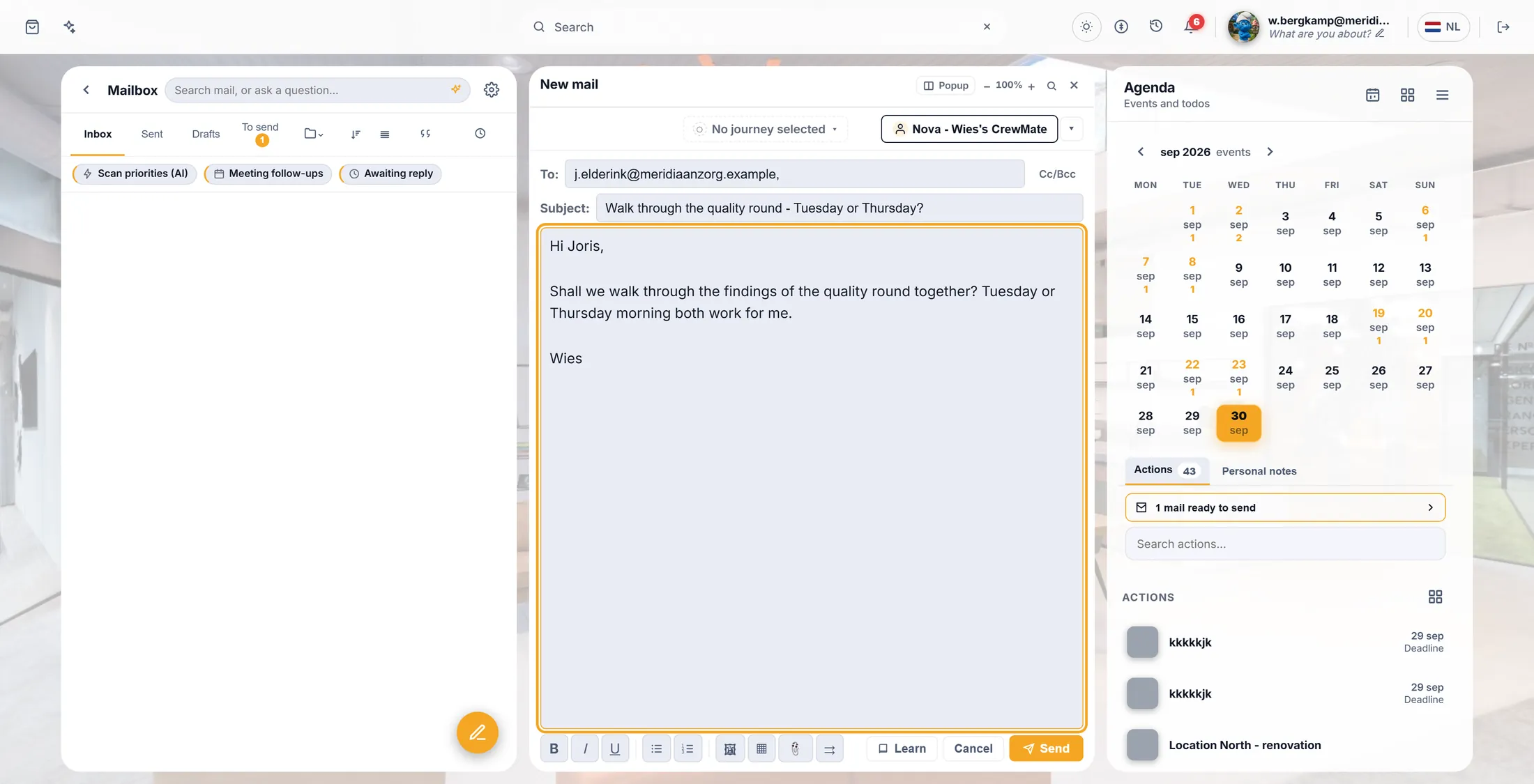
A new mail to Joris Elderink. Not sent yet. Press Send
Read it once more. Then press Send.
- Read the mail once more.
- Press Send. The mail goes out from your own address and lands in Sent.
- Changed your mind? Cancel closes it; what you typed waits in Drafts.
- Learn lets your CrewMates learn from this mail, so their next drafts sound more like you.
The orange button sends it.
If something is not right
It says "Could not load mail".
Your mail is not connected yet, or the connection stopped. Press the gear and connect it.
How do I disconnect my mail?
Gear, then Mail accounts. Your account has a button to remove it.
Can a CrewMate send mail by itself?
No. It writes a draft. You press Send.
Microsoft says I need permission.
Your work must allow it first. Ask the IT people.
The words, in plain language
- IMAP
- The common way to fetch mail from any mail provider. Your provider tells you the server names.
- journey
- What CoVince calls a journey. A mail can be linked to one.
- draft
- A mail that is written but not sent. It waits in Drafts.
Where to go next
- Send a mailing One personal mail to a whole list of people.
- All explainers The other things you can learn here.