Make your own paid podcast or video channel
Publish audio or video episodes in a journey, show them on a channel page, put that page behind a subscription, and let CoVince collect the payments, issue your invoices (self-billing) and pay out what is left after its percentage.
Communication - earn from what you publish - 12 min. You need: to be an admin of your organisation, and some audio or video
Reading this changes nothing. Nobody is charged until a listener really pays on your page.
What you will be able to do
- Be ready to sell Sign once, fill in who the invoice comes from and where the money goes.
- Sell a subscription A shop item, paid every month, that opens the channel.
- Publish episodes Add an episode, mark a few as free to try.
- Get paid See the invoice, and what you receive.
Get this ready first
- Be an admin Only admins sell. Not an admin? Ask the person who looks after CoVince where you work.
- Know who the invoice is from Company name, address, country, and your bank account number (IBAN).
- Have a few episodes Two or three is enough to start. Mark one as free so people can try.
Do it together, one step at a time
Nine steps. First you get ready to sell. Then you make the offer and the episodes. Then you see how listeners join and how you get paid.
Get set up to sell
CoVince asks a few things once, so it can write invoices and pay you.
- Open the Editor, choose your organisation and click Organisation Shop Items .
- Press Add. If you cannot sell yet, the window Get set up to sell opens. Every line says done , needed to sell or can wait .
- Under Who the invoice comes from fill in the legal name (empty means your trading name), the registration number if you have one, address, postal code, city, the two-letter country and a VAT number if you have one. Press Save and check. A VAT number is checked against the European database as you save.
- Under Where the money goes type the IBAN and the account holder, and choose when you want to be paid: At the end of the month , Weekly or Per sale . Press Save.
- Your own payment account is only needed when organisations collect for themselves. While that is off, CoVince collects and you do nothing here.
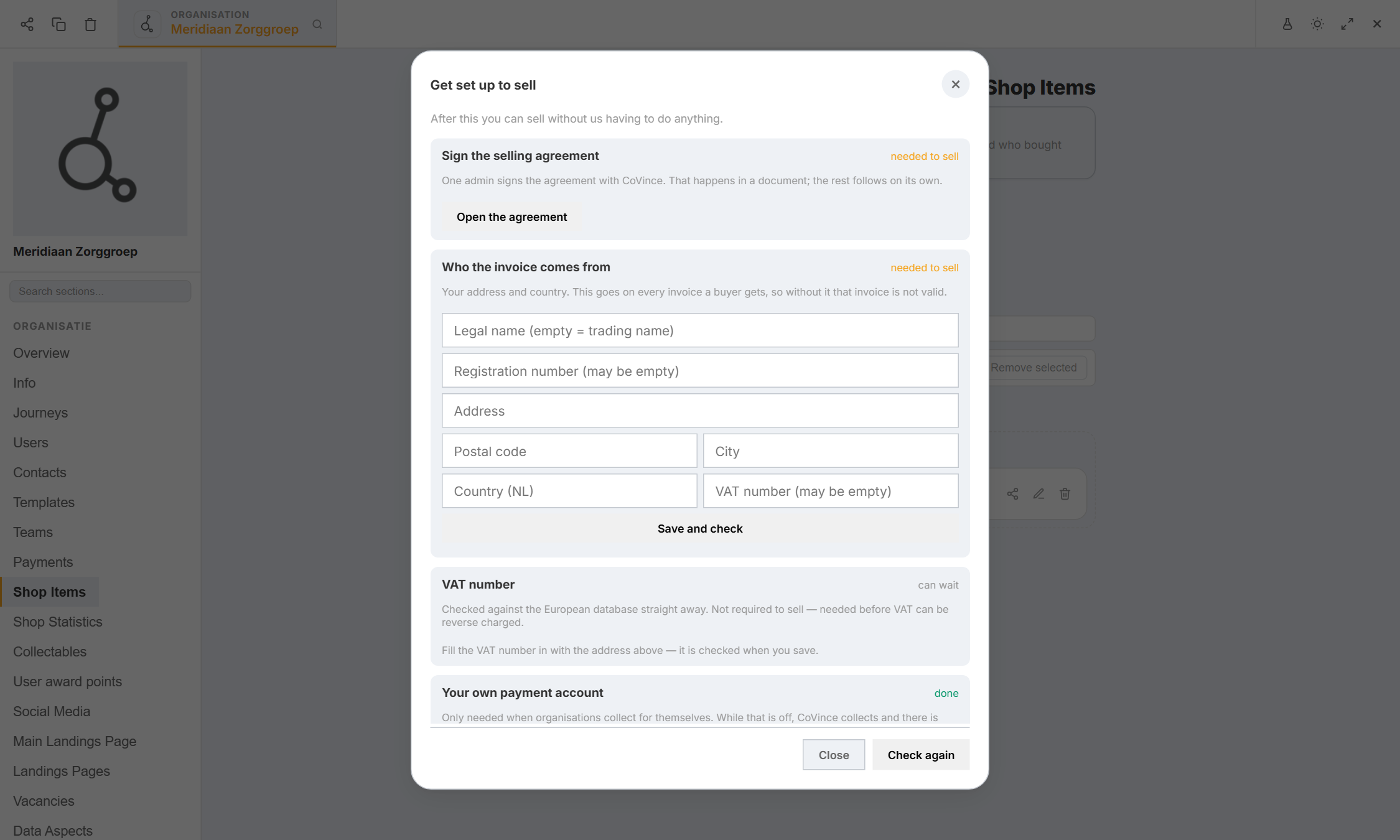
Each line says done, needed to sell or can wait. Read and sign the selling agreement
One admin signs one agreement with CoVince. Your details are already filled in.
- On the shop items page press Agreement (it says Read or sign the selling agreement ). If your invoice details are not complete yet, the window Get set up to sell opens first: fill them in, because they go into the agreement. Then press Open the agreement.
- With the invoice details complete, the agreement opens in a new tab, as a document in Docs. At the top it says This agreement can only be signed, not changed : you cannot edit the text.
- Read it. Your legal name, registration number, address, VAT number and billing e-mail are filled in from what you typed in step 1, and so is the percentage CoVince keeps (see step 9). The version and the date are filled in too.
- At the end of the last page is the signature block: Name , Role / function , Organisation , Chamber of Commerce no. and Place (the date fills in by itself when you sign). Press Sign here. Back in the shop, the line Sign the selling agreement says done .
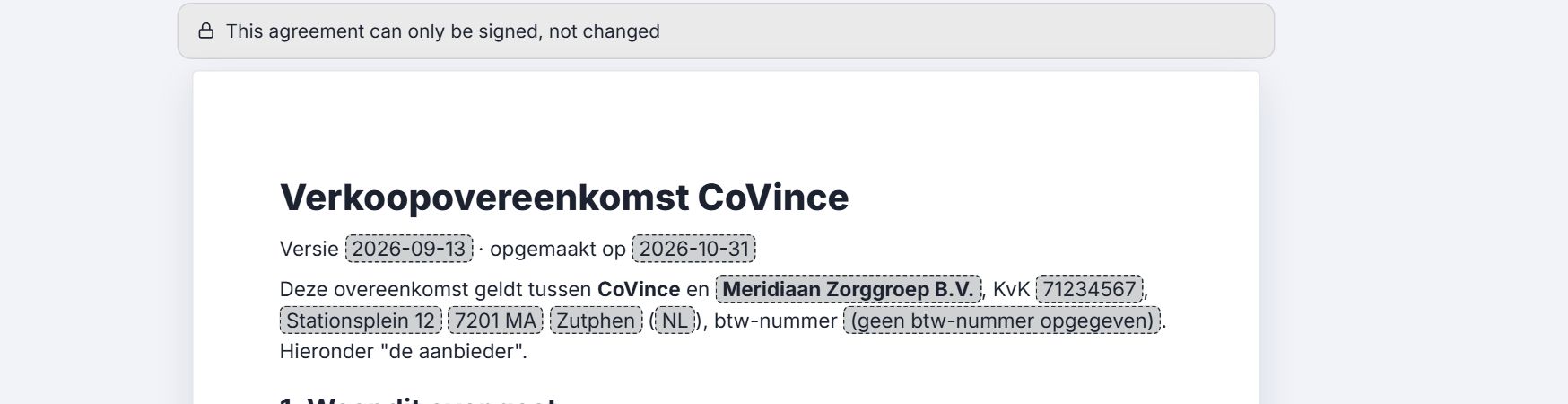
The agreement opens read-only. You can only sign it. When the agreement or the percentage changes
CoVince cannot change your terms overnight. You are told first, and you may leave.
- CoVince announces a new version with the date it starts. Every organisation that signed gets a mail.
- Until that date you keep selling under the version you signed. On that date the new version is the one in force on every server at once.
- If you do not agree with a change, you can stop selling before it starts: the change then does not apply to you.
- A change of the percentage works the same way: the new percentage applies only to payments that come in after the start date. Everything already sold keeps the percentage it was sold under.
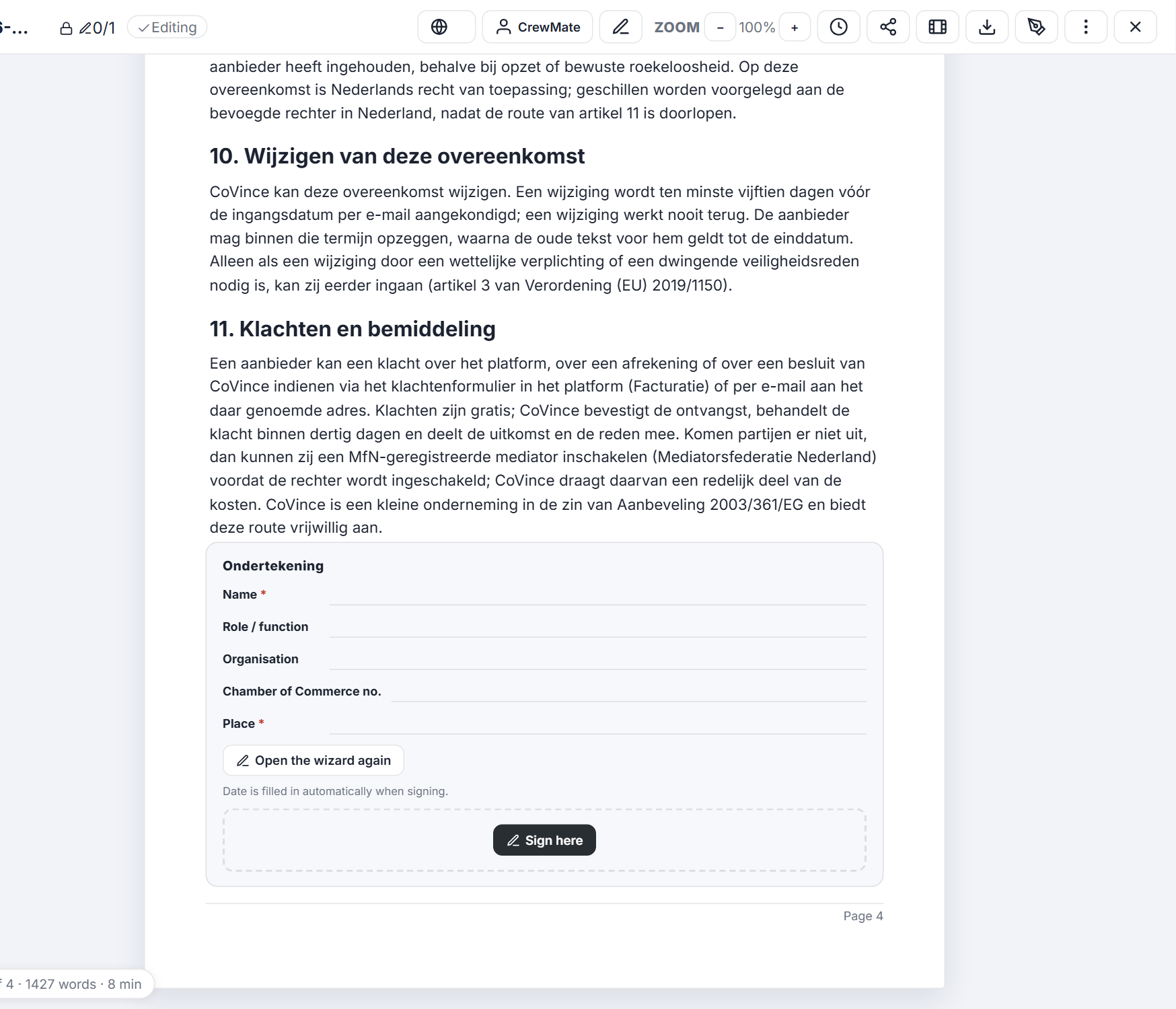
Clause 10 about changes, and the place to sign. Make the subscription
A shop item is the thing people pay for. Here it is a monthly subscription.
- Press Add on the shop items page. The window Edit shop item opens on Card : type the Name (for example Meridiaan Talks - monthly ), a short description and an image.
- Click the tab Price . At What the buyer gets choose Access to a journey .
- At Payment choose Subscription . Every x months sets the period. Type the Price and pick the Currency ; under the price you see what it is without VAT.
- Want a cheaper yearly price next to the monthly one? Press Add a price option. A different price for one country? Add a country price.
- Press Save at the bottom. If you are not ready to sell yet, this is where the go-live window of step 1 opens.
- Want the journey itself to ask for the purchase too? In the settings of the journey, at Start requires buying this shop item , choose this item. Then the Start button of the journey asks for it. The channel page (next step) does not need this: it locks the episodes by itself.
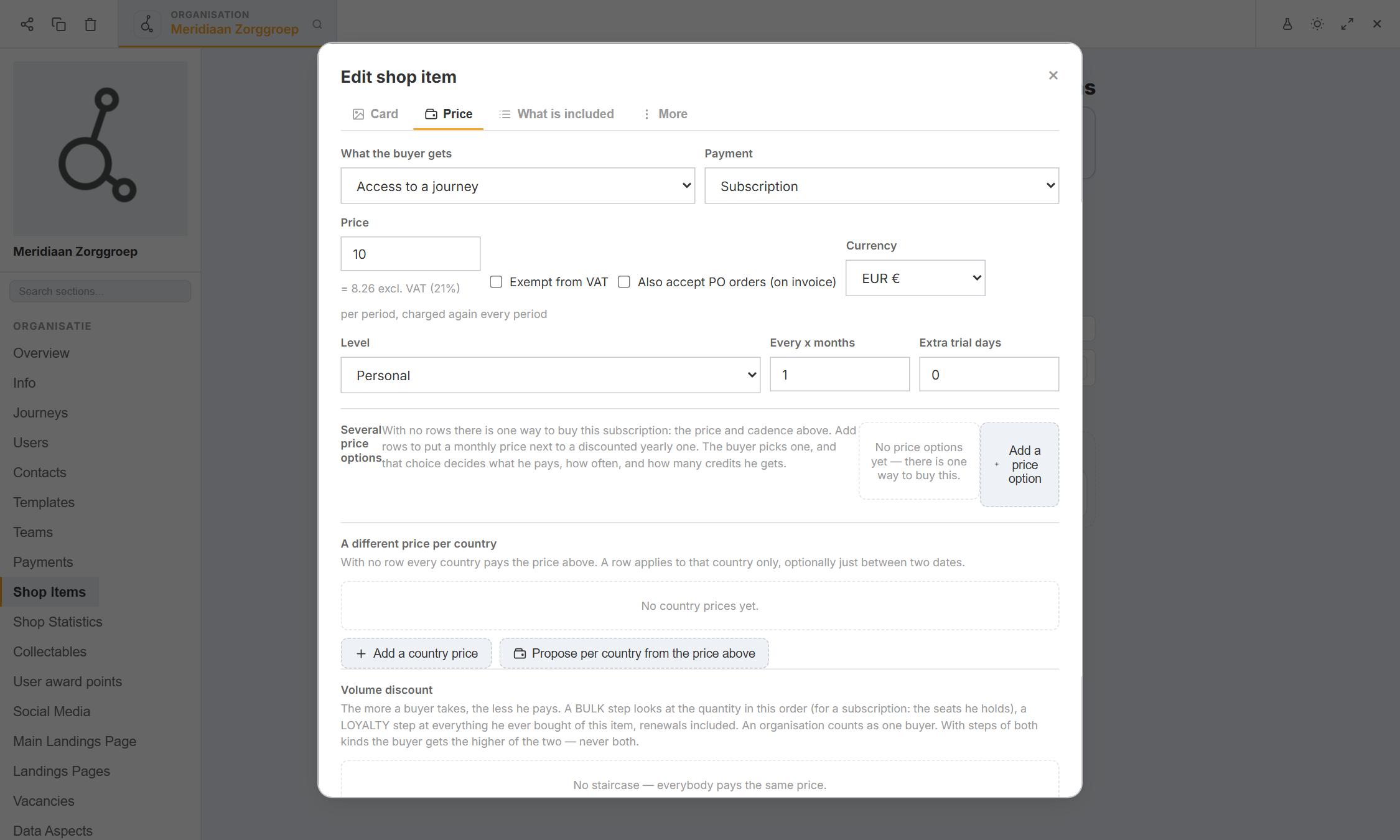
Access to a journey, paid every month. Make the channel page and put it behind the subscription
The channel page is what listeners visit. The subscription locks the paid episodes.
- In the Editor click Landings Pages and open Make product landing page with AI . This is the Landing Page Studio. Press + New landing page.
- At Page type choose Media channel ( Video and podcast episodes of a journey, like a streaming app ), type the Page name , for example Meridiaan Talks , and press Save & continue. A media channel records nothing: the page opens straight in the editor, with a Channel block on top.
- In the Channel block press the Journey picker and choose the journey that holds your episodes. Only journeys you can edit are listed. You can also add a Channel trailer so visitors see what they get: it is always free to watch.
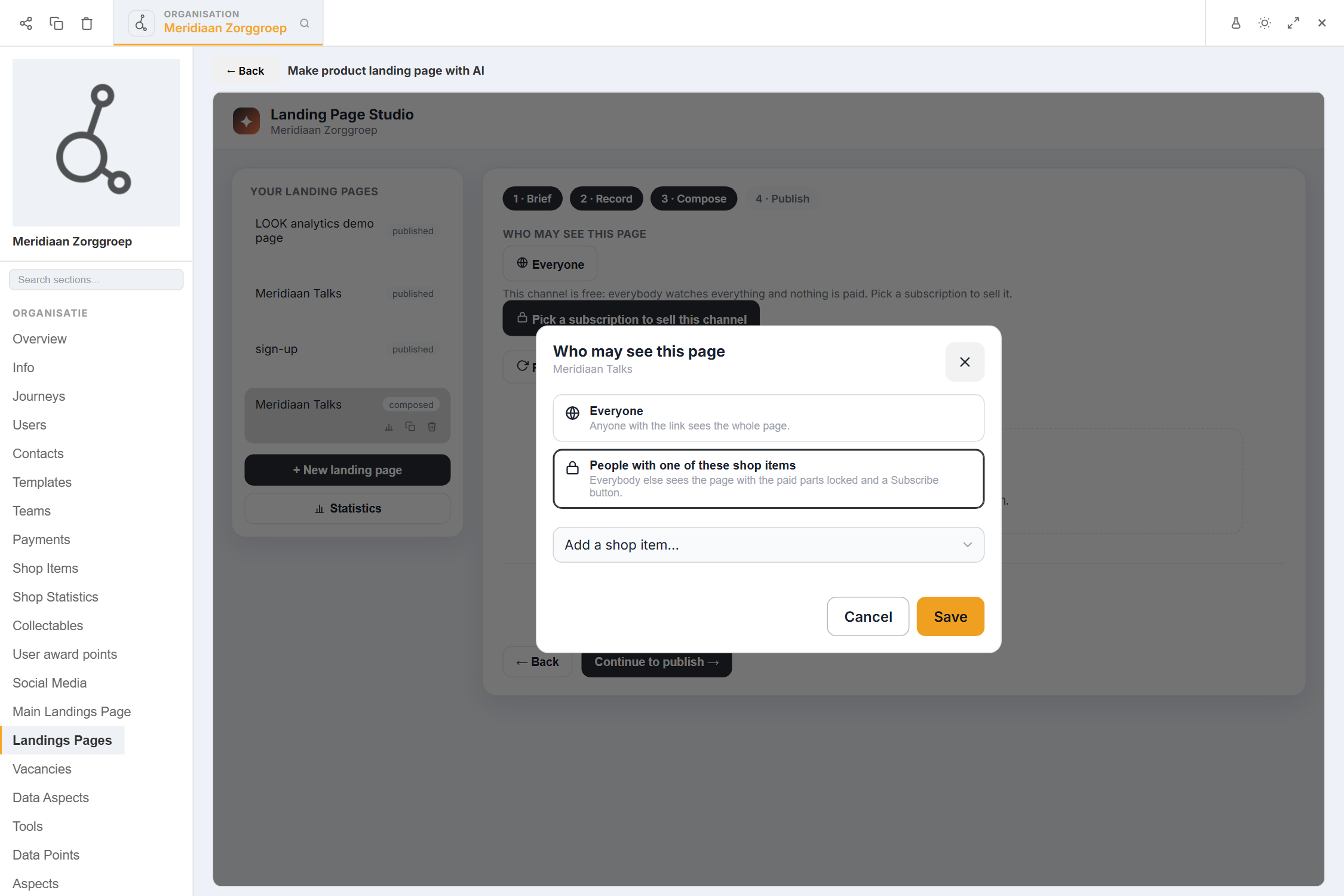
- Under Who may see this page the button says Everyone . Press Pick a subscription to sell this channel. In the window choose People with one of these shop items , add the shop item of step 4 (+ New shop item in that list makes one on the spot) and press Save.
- The button now says Subscribers . Everybody else sees the page with the paid episodes locked and a Subscribe button; free-preview episodes stay open, and so do the first and the last section of the page, as a teaser. Go on to Publish .
Pick the shop item people must hold. Add episodes
An episode is a note in the journey with a video or an audio file.
- Open the journey that is behind the channel and press +. Choose Video episode or Podcast episode .
- Type the title and a description. Press the media field: the media wizard opens, with the media library, upload and AI generation. A file already in the Community Files of this journey is one tap away. The cover picture uses the same wizard.
- Optional: choose categories, give it an episode number, mark it Featured (a candidate for the big hero on the page) and set a publish date to let it appear later.
- Mark one or two episodes as Free preview : these play for everybody, also without a subscription. Press Save.
- Back on the channel page, refresh the episodes in the Channel block. The page keeps a copy of the episode list, because that is what the lock protects. In the block's settings, switch on Tell subscribers about new episodes if you want a mail per new episode.
What a listener does
Sanne finds the page, tries a free episode, subscribes and pays.
- Sanne opens the channel page. Free preview episodes play. Paid ones show a lock and Subscribe .
- She presses Subscribe. If she is signed out she signs in or signs up first, and comes back to the page.
- A chooser opens: Choose a plan (monthly or yearly if you made both), then How do you want to pay? . She also confirms that her access starts right away and that she then loses her 14-day right to withdraw. Then the secure payment page opens.
- Back on the page the episodes open at once, also when the payment confirmation is still on its way.
- A subscription is charged again every period, automatically. Sanne can cancel under her billing overview (Cancel, then confirm): the subscription stops at the end of the period she paid for, and she can listen until then.
- If a renewal payment fails, she keeps access for seven days while billing tries again. She gets one mail that says so, and one reminder shortly before the seven days end. After that access closes. A paid renewal in between ends the problem.
Invoices: who gets what
You do not write invoices. CoVince writes them for you, and to the buyer.
- The buyer pays CoVince and gets an invoice from CoVince: CoVince is the seller towards the buyer.
- You get one invoice per payout period, written by CoVince in your name (self-billing) for what you supplied to CoVince. It has its own consecutive number series with the prefix CV, the words Self-billing and, where it applies, reverse charge . It is mailed to your billing address and can be downloaded as PDF.
- Open Payments in the Editor and click the tab Subscriptions, invoices & payouts . Under Payouts you see how much is still to be paid to you, what was sold, what CoVince kept and what you get, and one row for every statement.
- Each invoice has a link (for example Invoice CV-2026-0001 ) that opens the PDF, and two buttons: This is correct and Something is wrong. You have fourteen days to answer. If you do not, the invoice counts as accepted. A correction is a new credit invoice; an objection does not hold the payout back.
- Sales in different currencies are settled per currency. Sales refunded after a payout are netted off on the next statement, and the statement shows it.
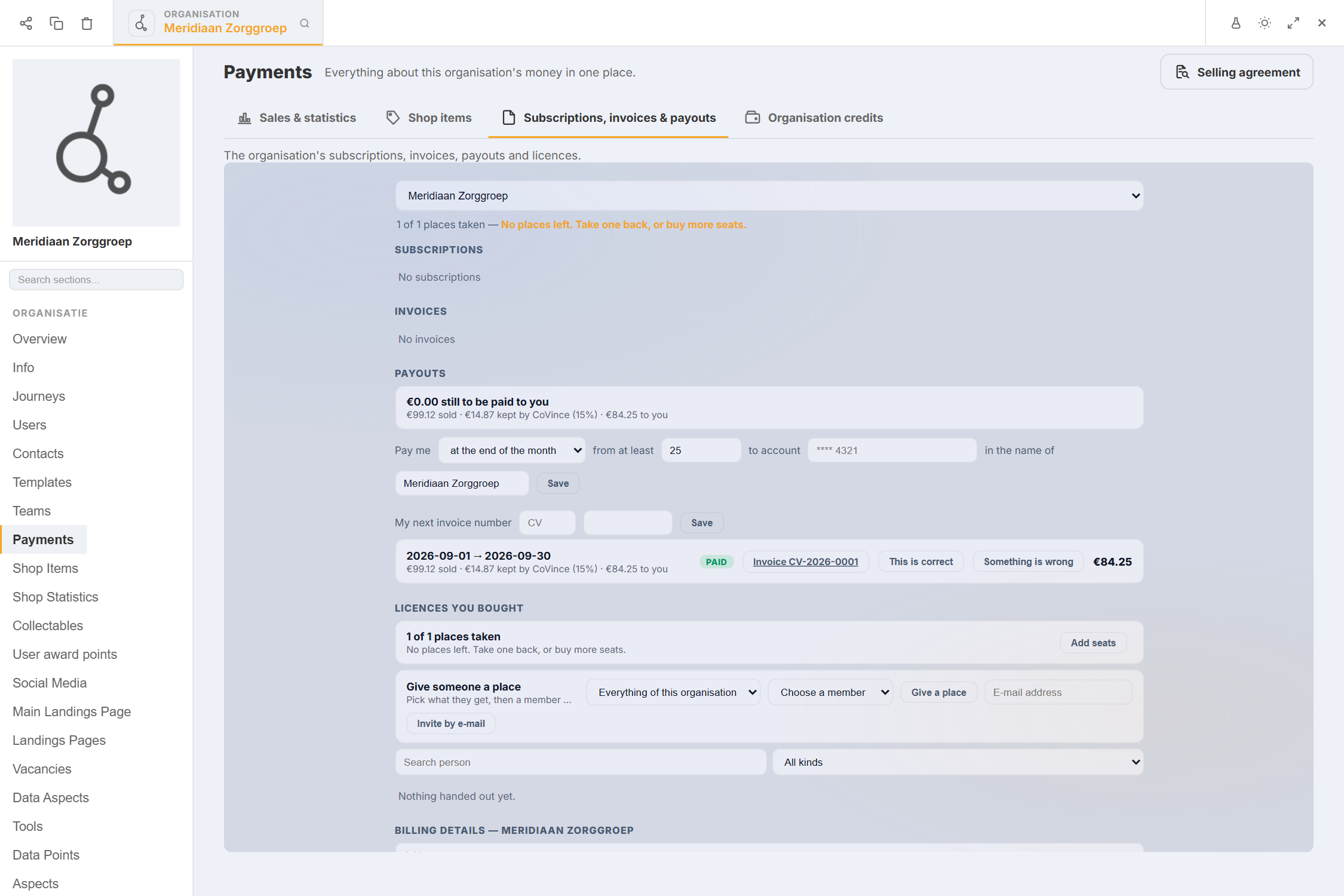
Statements and invoices in one list (example figures). What CoVince keeps, and what you get
CoVince keeps a percentage of every sale. The rest is yours.
- The platform default is 15%. An organisation can have its own percentage instead. Only CoVince sets it: you cannot change your own, and the number you are charged is in your agreement and shown read-only in your payouts. A percentage of 0 is a real choice - it is not the same as "use the default".
- The first percentage an organisation gets applies at once. A later change follows step 3: announced first, then applying only to payments received after the start date.
- Example. Sanne pays 10.00 euro for a month, including 21% VAT. The net sale amount is 10.00 / 1.21 = 8.26 euro. At 15%, CoVince keeps 1.24 euro and your statement shows 7.02 euro for you. Next month Sanne pays again: the same, per instalment.
- Costs of the payment provider can be passed on by CoVince as the provider charges them. If so, they appear on the statement. If a sale is refunded later, the percentage of the original sale is used.
- Payouts go to the IBAN of step 1 on the schedule you chose. You can change both on the same page: Pay me (at the end of the month, weekly or per sale) from at least an amount to account an IBAN in the name of the account holder. If the amount is below the minimum you set, it moves on to the next payout. Per sale means a payment waits fourteen days first, so refunds can still come in. Every payout has a statement that lists, per sale, what was sold, withheld and paid.
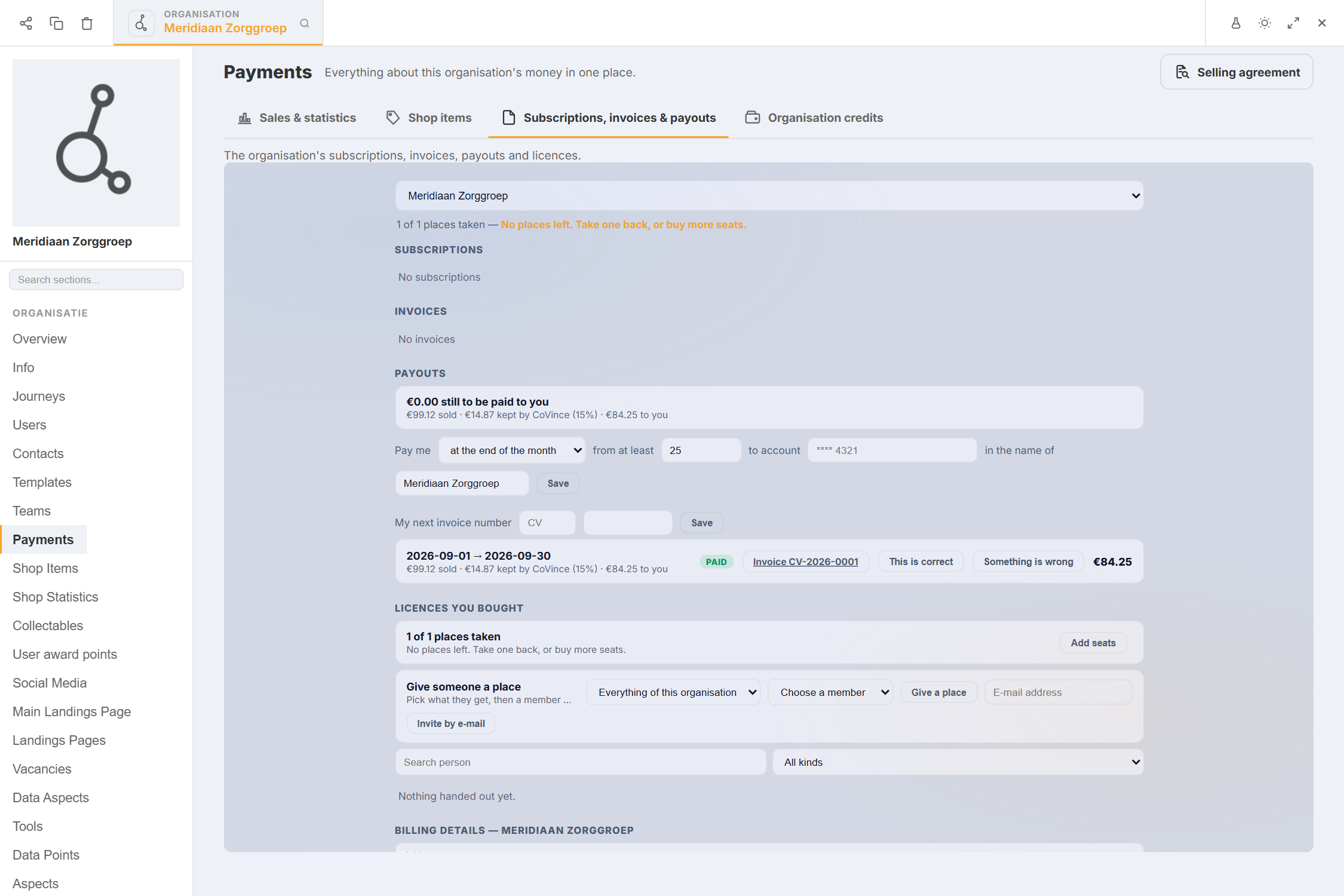
Sold, kept by CoVince, paid to you (example figures).
If something is not right
I press Add, but I cannot save an item.
The Get set up to sell window shows what is missing. Lines marked needed to sell block the shop: the signed agreement and the invoice address and country. Fill them in, press Check again, then Done - continue.
The agreement button is greyed out.
Fill in the invoice details first. They go into the agreement, so the button Open the agreement stays off until they are complete.
I want to connect my own payment account.
That cannot be done yourself yet. The window says: get in touch for this. CoVince collects the payments meanwhile.
A listener paid, but the page is still locked.
The page reads the holdings fresh when the listener comes back from the payment page. If the bank is slow, it opens as soon as the payment is confirmed. A refresh after a minute shows it.
Can I change the percentage myself?
No. Only CoVince can set it, and a change is announced to you first.
Who pays me, and when?
CoVince pays out to your IBAN on the schedule you chose in step 1. Whether the transfer is automatic or done by hand depends on a switch CoVince controls.
The words, in plain language
- channel
- A page that shows the episodes of one journey, like a streaming app.
- episode
- A video or audio file with a title, saved in a journey.
- shop item
- The thing people pay for. Here: the monthly subscription to your channel.
- self-billing
- CoVince writes the seller's invoice on the seller's behalf, because the seller has agreed to it.
- net sale amount
- What the buyer pays without VAT. The percentage is taken from this.
- grace period
- Seven days in which a listener whose payment failed can still listen.
Where to go next
- Sell your trainings Shop items in more detail: cards, codes and statistics.
- Make a landing page Build the page around your channel.
- All explainers The other things you can learn here.