Build a workflow
Draw the steps of a job as boxes and arrows, give each step something to do - a form, a mail, a document - send the flow one way or another based on an answer, set when each step is due, and watch every run to see who is where.
Coordination - make the steps once - 9 min. You need: to be an admin, and a job you do often
You can try everything. Nobody gets a mail until the workflow runs in a journey.
What you will be able to do
- Start fast Tell CoVince the job. It draws the steps.
- Give each step a job A form, a mail, a document.
- Choose the way Small things one way, big things another.
- Never forget Each step has a day. Late steps get a reminder.
- See who is where One window shows every job and its step.
Get this ready first
- Be an admin Only admins make workflows. Not an admin? Ask the person who looks after CoVince where you work.
- Write the steps down On paper is fine: what happens first, then, and at the end. Who does each step?
Do it together, one step at a time
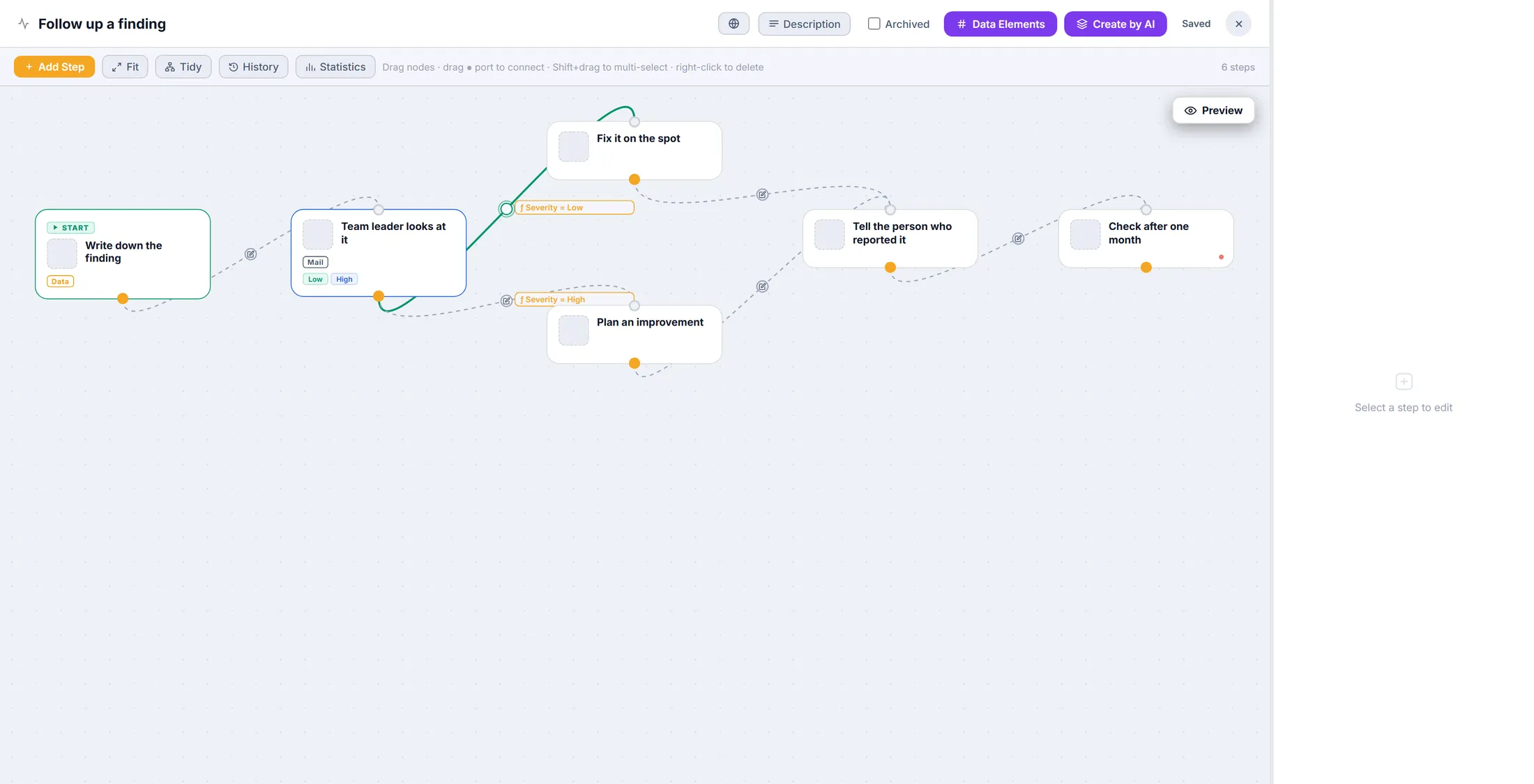
Ten steps. Our example: a finding in the quality round, from the first note to a check one month later.
Open your workflows
All workflows of your organisation are in one list.
- Open the Editor and choose your organisation.
- In the list on the left, click Organisation Workflows .
- Press New Workflow for a new one, or the pencil next to a workflow to change it.
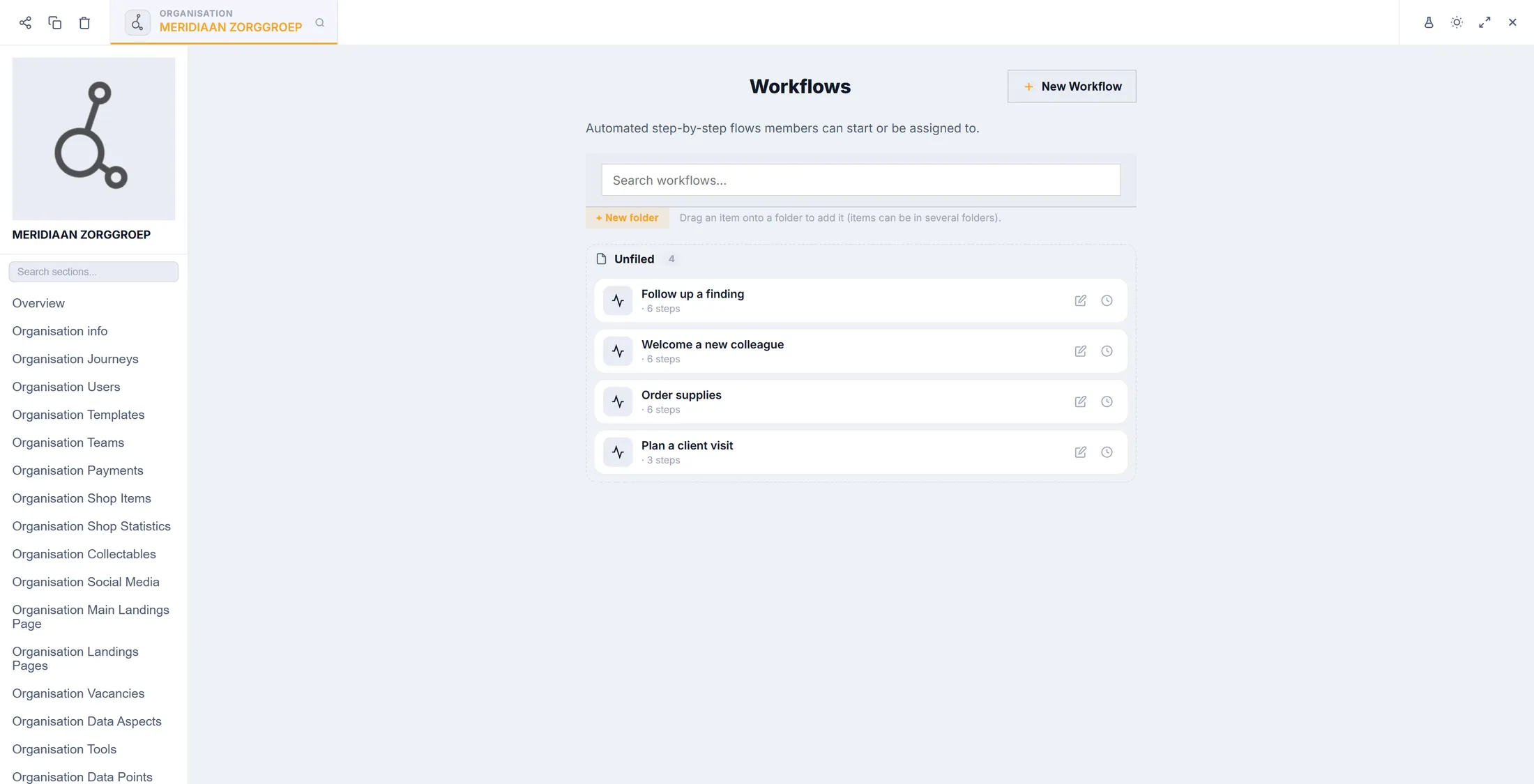
New Workflow, or the pencil to change one. Look at the editor
Every box is a step. Every arrow says what comes next.
- Press Add Step to add a box. Drag a box to move it.
- To connect two steps: drag from the dot at the bottom of one box to the other box.
- Tidy puts all boxes neatly in rows. Fit shows the whole flow.
- History shows earlier versions. Statistics shows how the workflow is used.
- Top right it says Saved : every change is kept by itself.
The whole job, as boxes and arrows. Or let CoVince draw it
Tell the job in your own words. CoVince draws the steps for you.
- Press Create by AI at the top.
- Write what happens, in order, like you explain it to a new colleague.
- Have a drawing? Press Attach image: a photo of a whiteboard or a diagram works too.
- Press Generate. The steps appear on the canvas; change them like any other step.
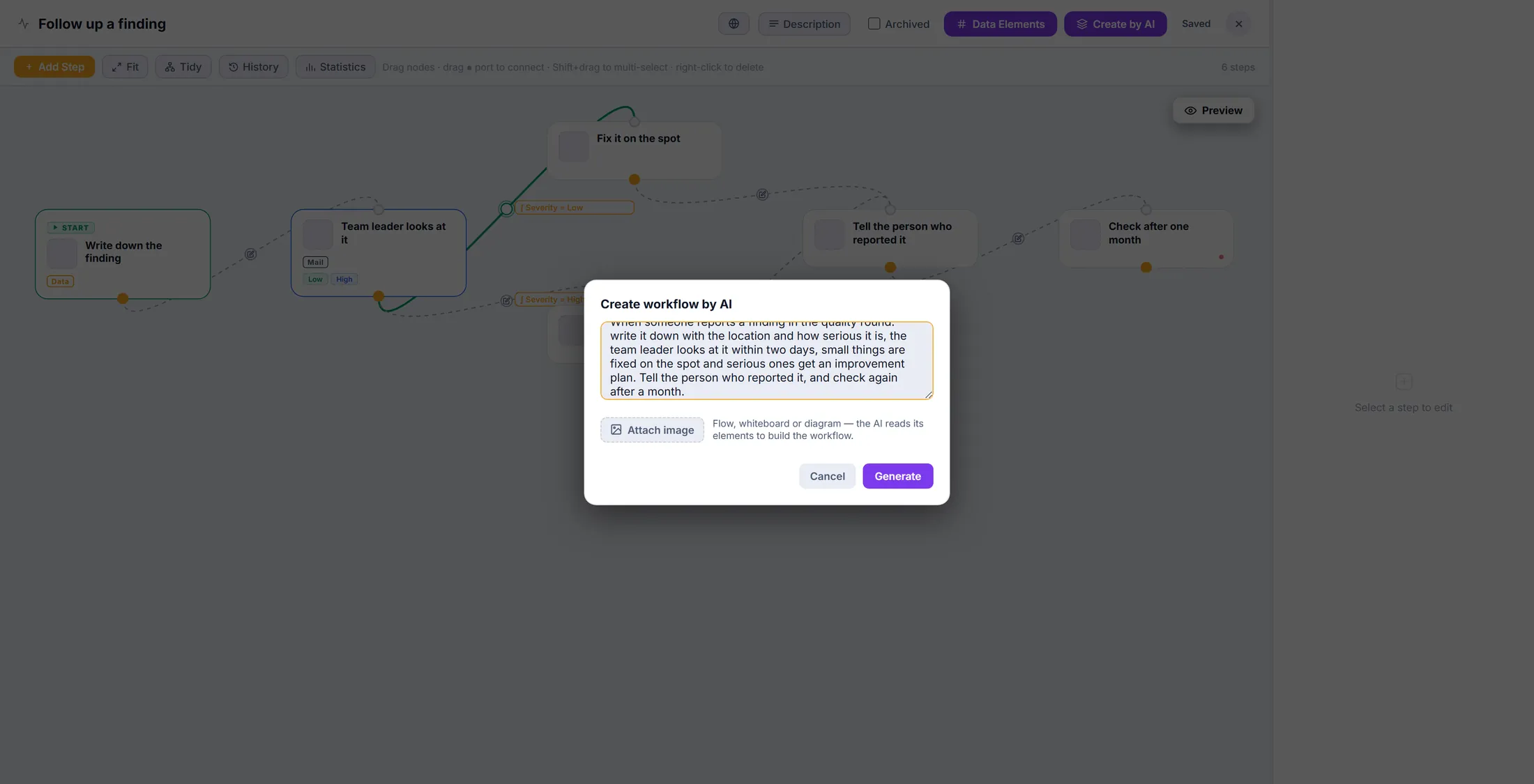
Your words become steps. Write what the step is
Click a box. Say what has to happen in it, and what the person can do.
- Click a step. Edit Step opens on the right.
- Title : the name as the person doing it reads it.
- Description : what has to happen, in a sentence or two.
- Under Actions you see what the person can do here. Each action is one button; Button text is what that button says.
- Visible for : who sees the button - everyone, or only some roles.
- The globe next to a box holds the text in other languages.
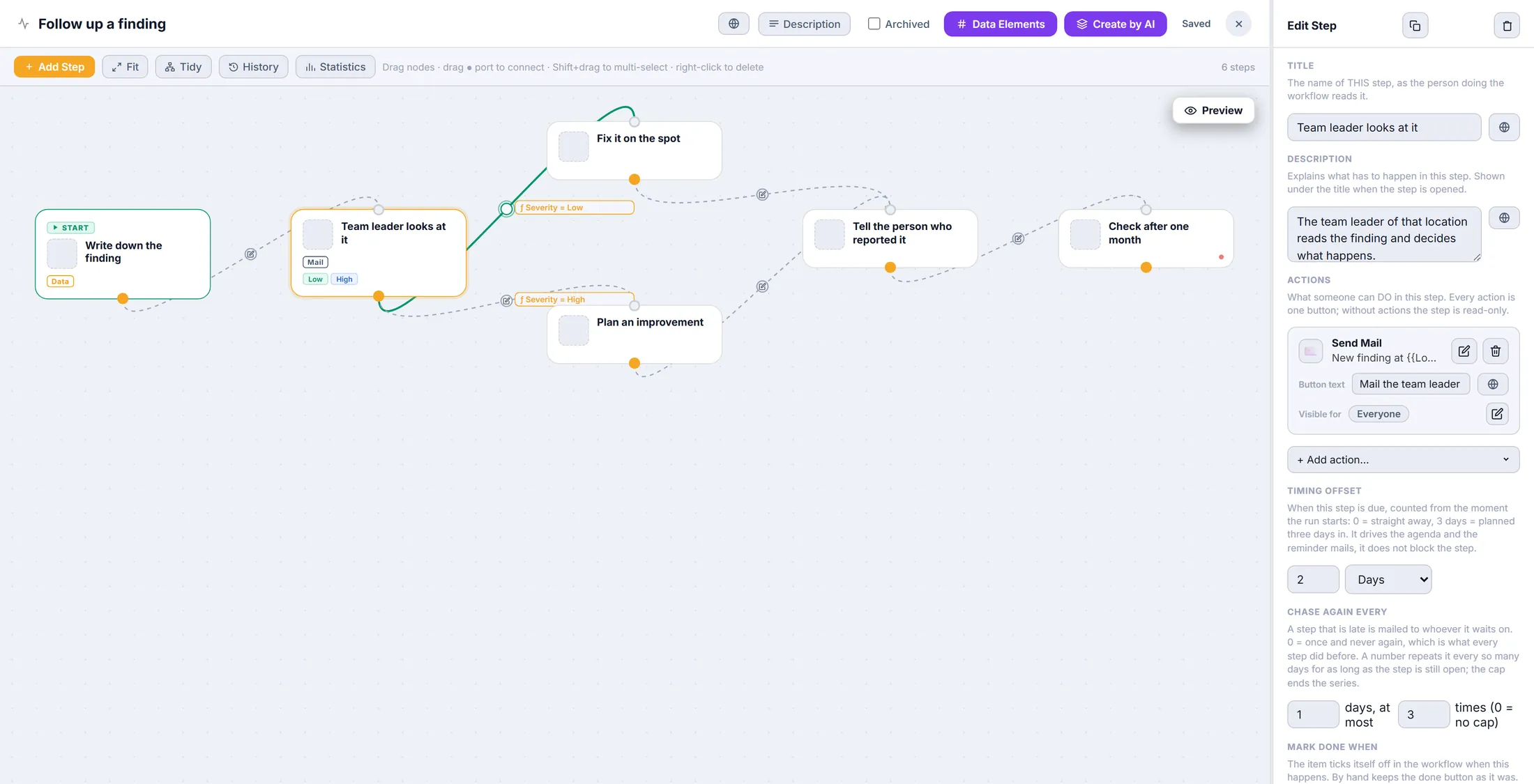
What the step is, and its button. Give the step something to do
Pick what the person does here: fill in a form, send a mail, make a document.
- Press + Add action... under Actions.
- Type in Search actions... or scroll the list: Add Note , Add to Board , AI Agent , AI Assistant , AI Report , Collect Data , Condition (server check) , CrewMate Draft Reply , Document , Send Mail and more.
- Click one. It is added to the step; the pencil next to it opens its settings.
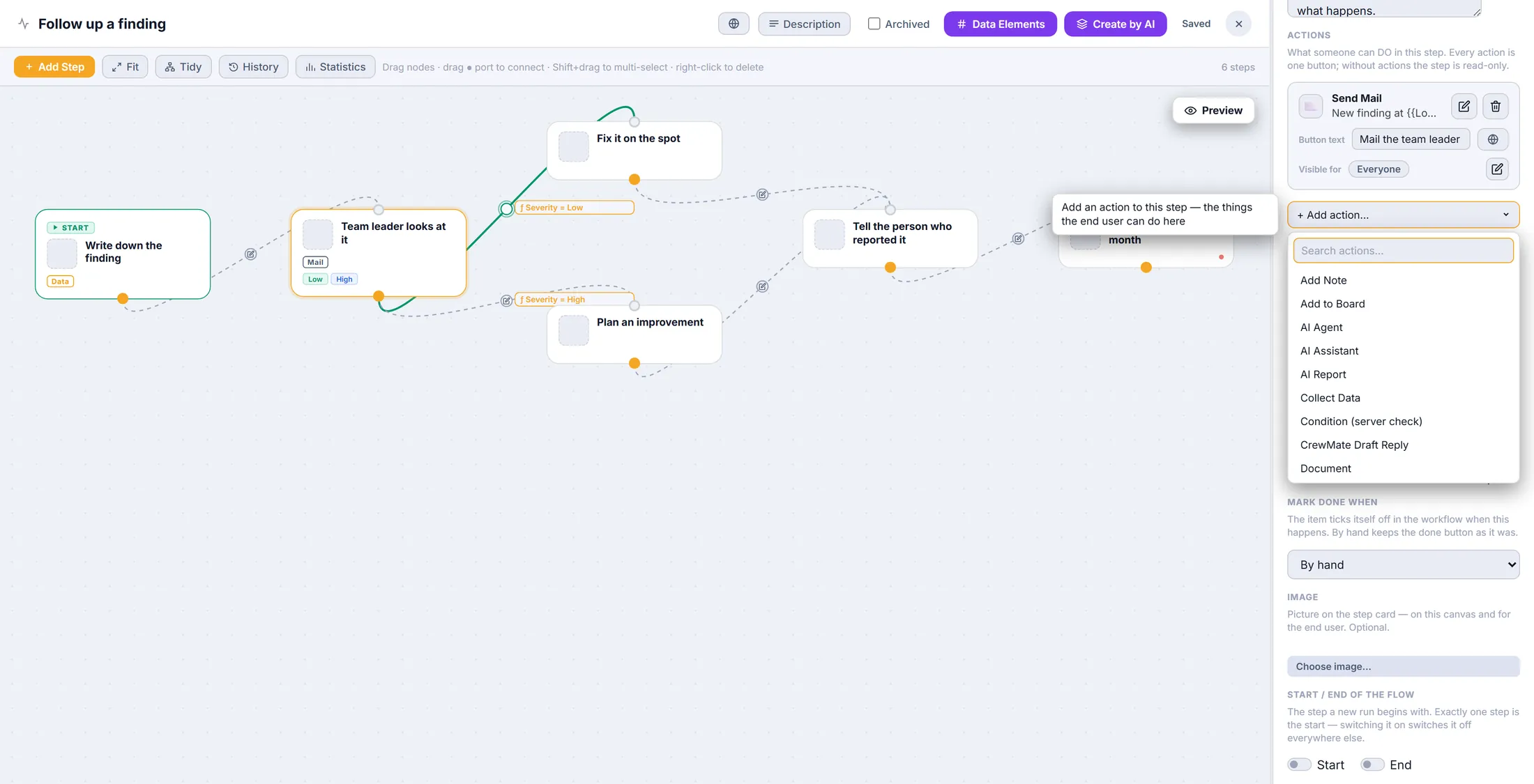
Every kind of action, in one list. Ask questions
Make a small form. The answers go with the job to the next steps.
- Press the pencil next to Collect Data .
- Each row is a question: its name and its kind - Text , Select list , Multiline , a date, a number, a signature and more.
- A Select list gets its choices underneath, with commas: Low, High .
- The star makes a question required. + Add field adds one; + From library reuses questions you made before.
- Press Done.
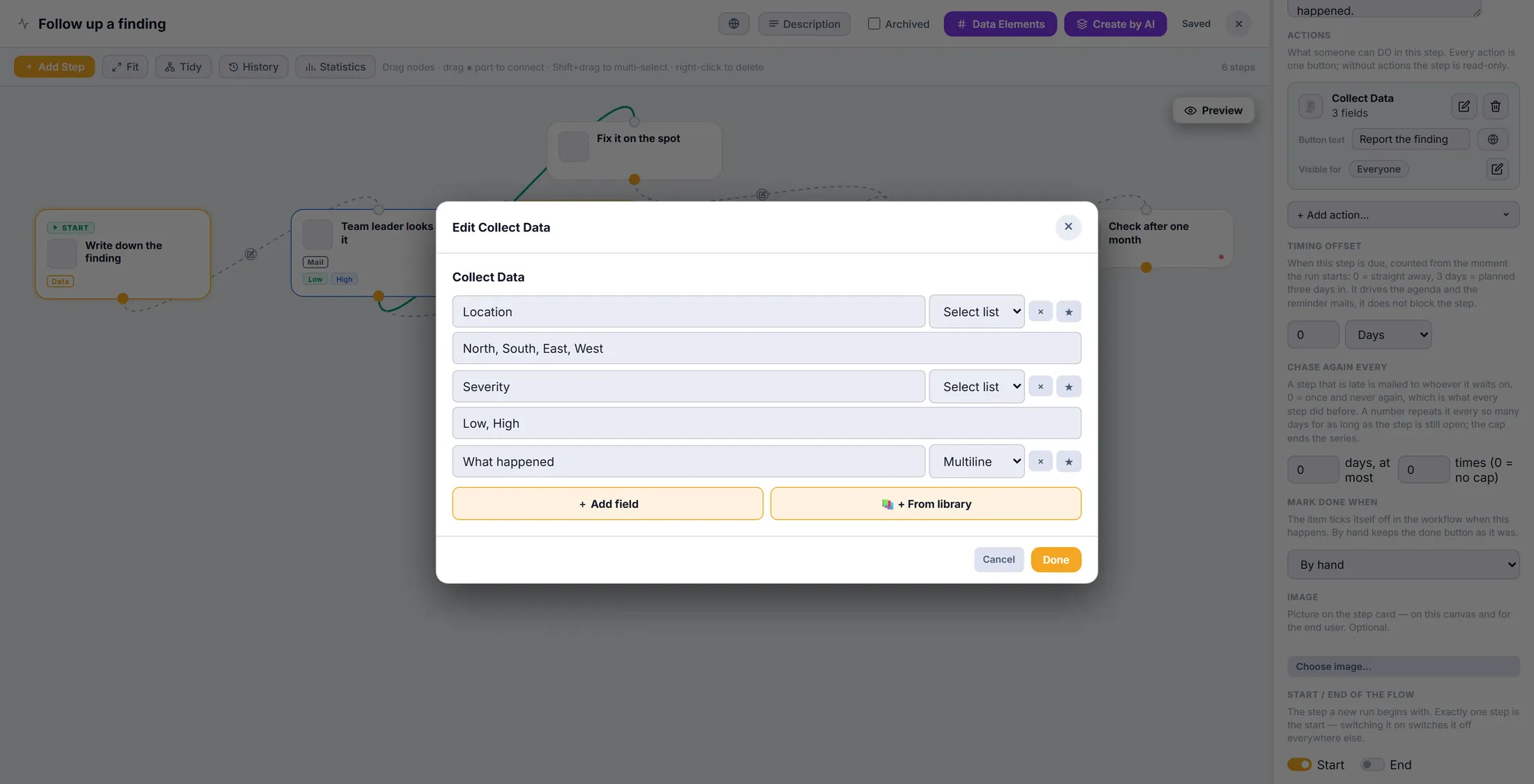
Three questions, two of them a choice. Send a mail with the answers
A mail can say what was filled in: the place, the problem.
- Add Send Mail to a step and press its pencil.
- Fill in who gets it, the subject and the Body .
- The { } button next to a box puts in an answer or a person, like Location . In the mail it becomes the real answer: North .
- Add a personal story... is optional: one story, written again for each person who gets it.
- Press Done.
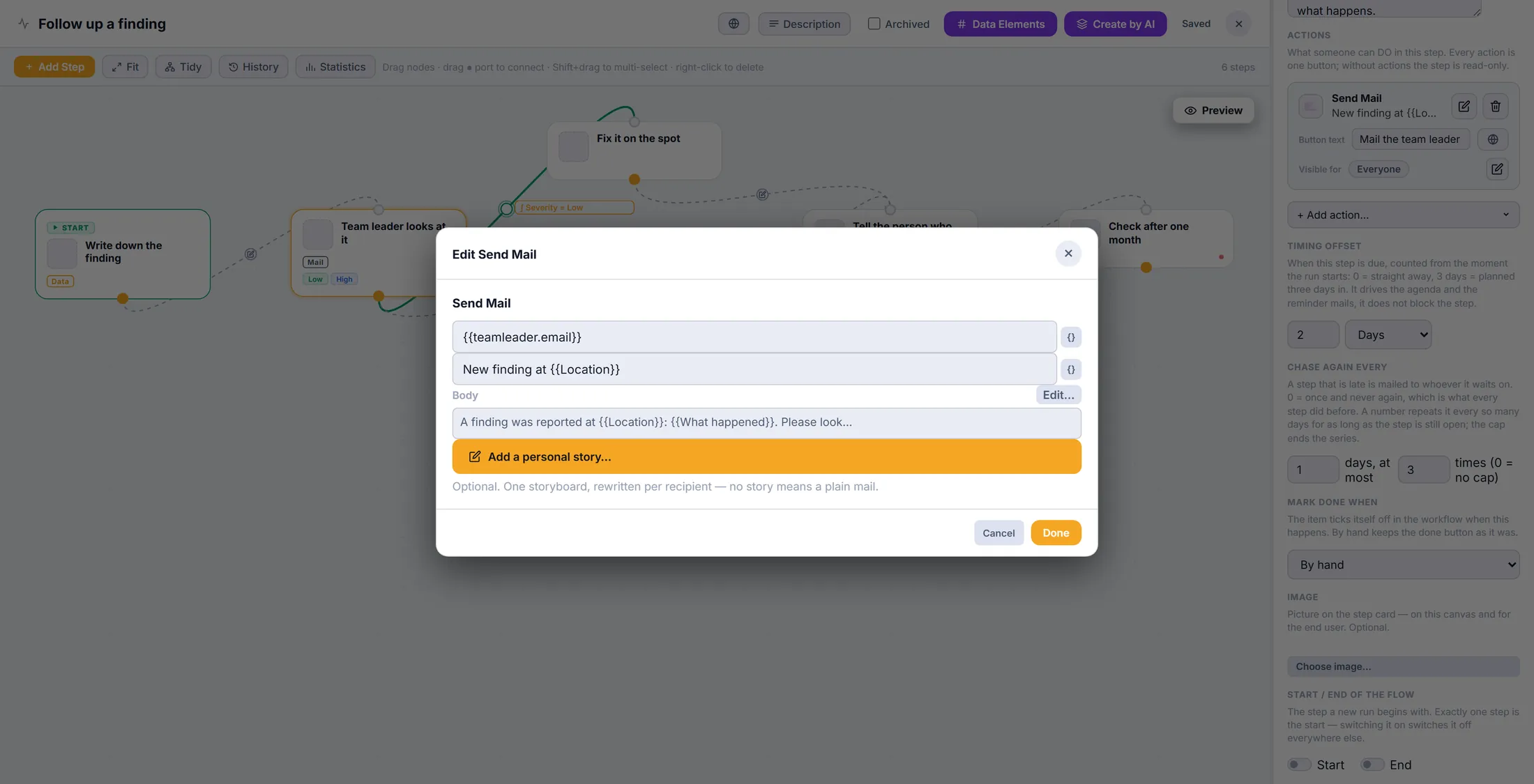
Location becomes the real place in the mail. Let an answer choose the way
Small problem? One way. Big problem? Another way. CoVince picks it from the answer.
- Draw two arrows out of one step, to two different steps.
- Click the small round dot in the middle of an arrow. Connection opens.
- Give the arrow a name, for example Low . It shows as a tag on the step.
- Under Follow automatically when... : pick the question ( Severity ), is , and the answer ( Low ).
- Tick Happy flow on the way most jobs go. Press Done.
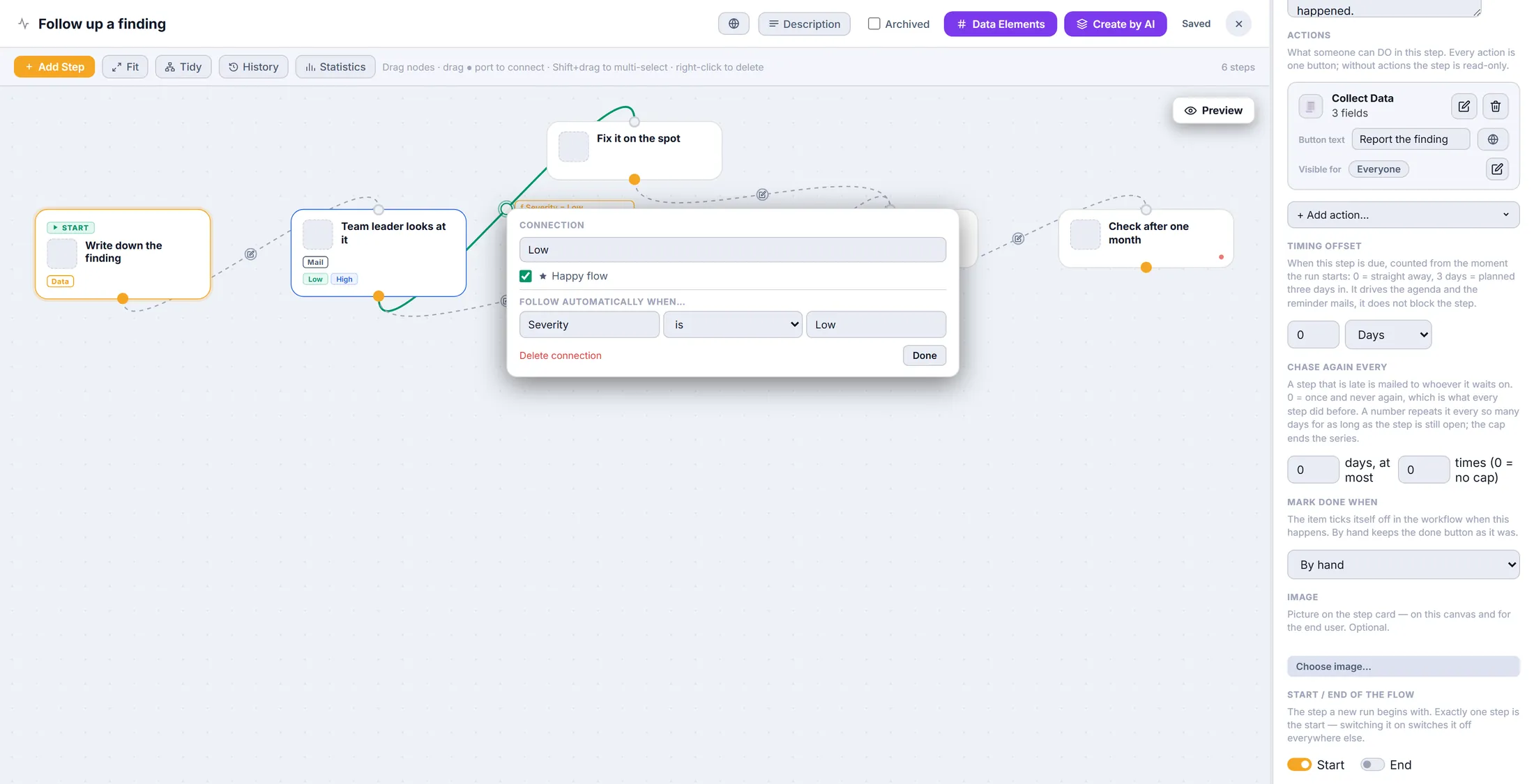
Severity is Low: this arrow is taken. Say when a step is due
Each step gets a day. When it is late, CoVince sends a reminder.
- Timing offset : how many days after the start the step is due. 0 is straight away, 2 Days is two days later.
- Chase again every : a late step is mailed to whoever it waits on. 1 days, at most 3 times reminds every day, three times. 0 reminds once.
- Mark done when : By hand keeps the done button; another choice ticks the step off by itself when that happens.
- Start / End of the flow : exactly one step is the start.
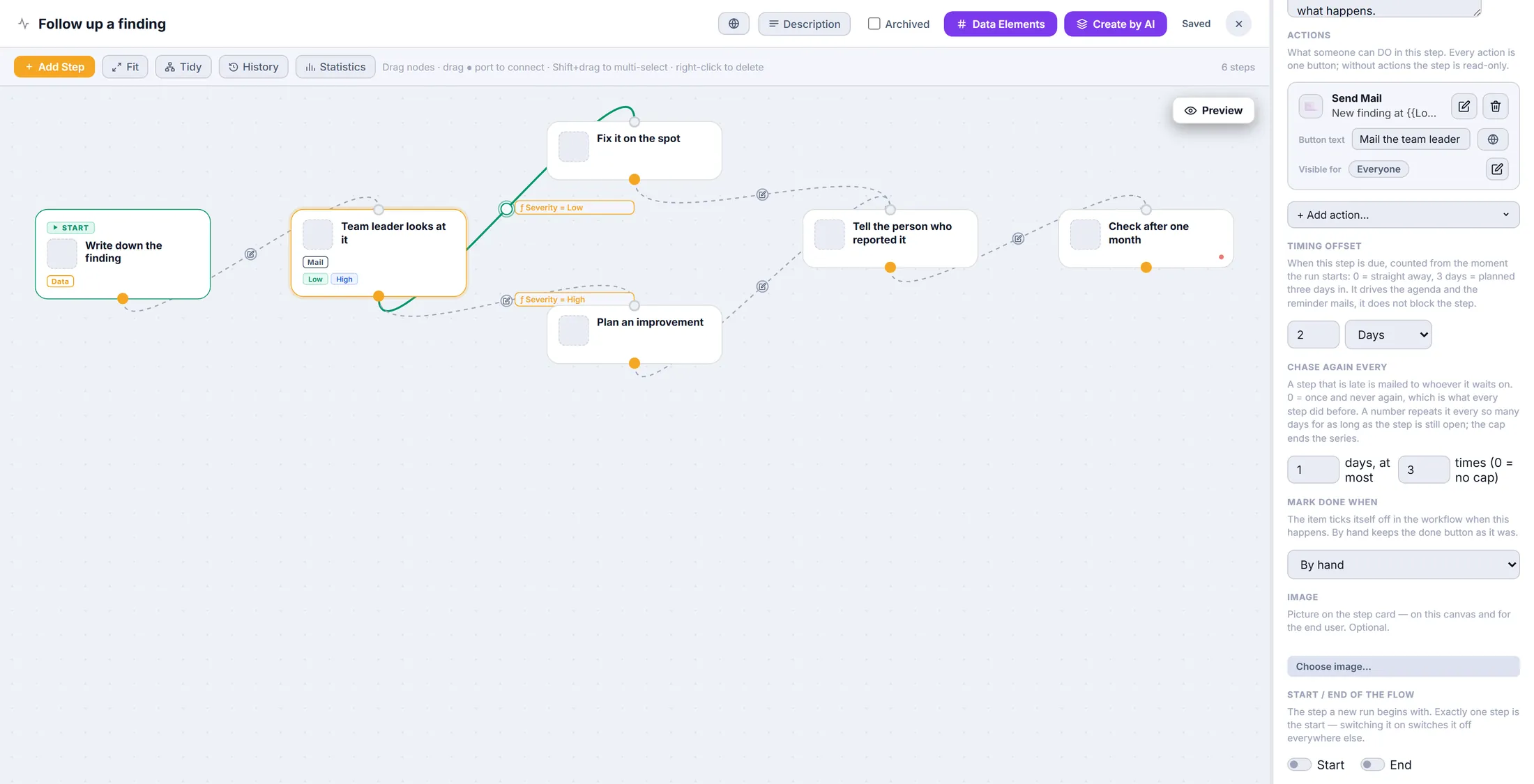
Due after 2 days, a reminder every day, 3 times. See who is where
Once people use it, one window shows every job, its step, and which ones are late.
- Open a journey where the workflow is switched on, and click Workflows .
- Press the chart button on the workflow card.
- At the top: how many runs , how many completed , how many overdue .
- Where runs are sitting shows each step: how many wait there and how long it takes.
- Under Runs : every job, its step, and on track or late .
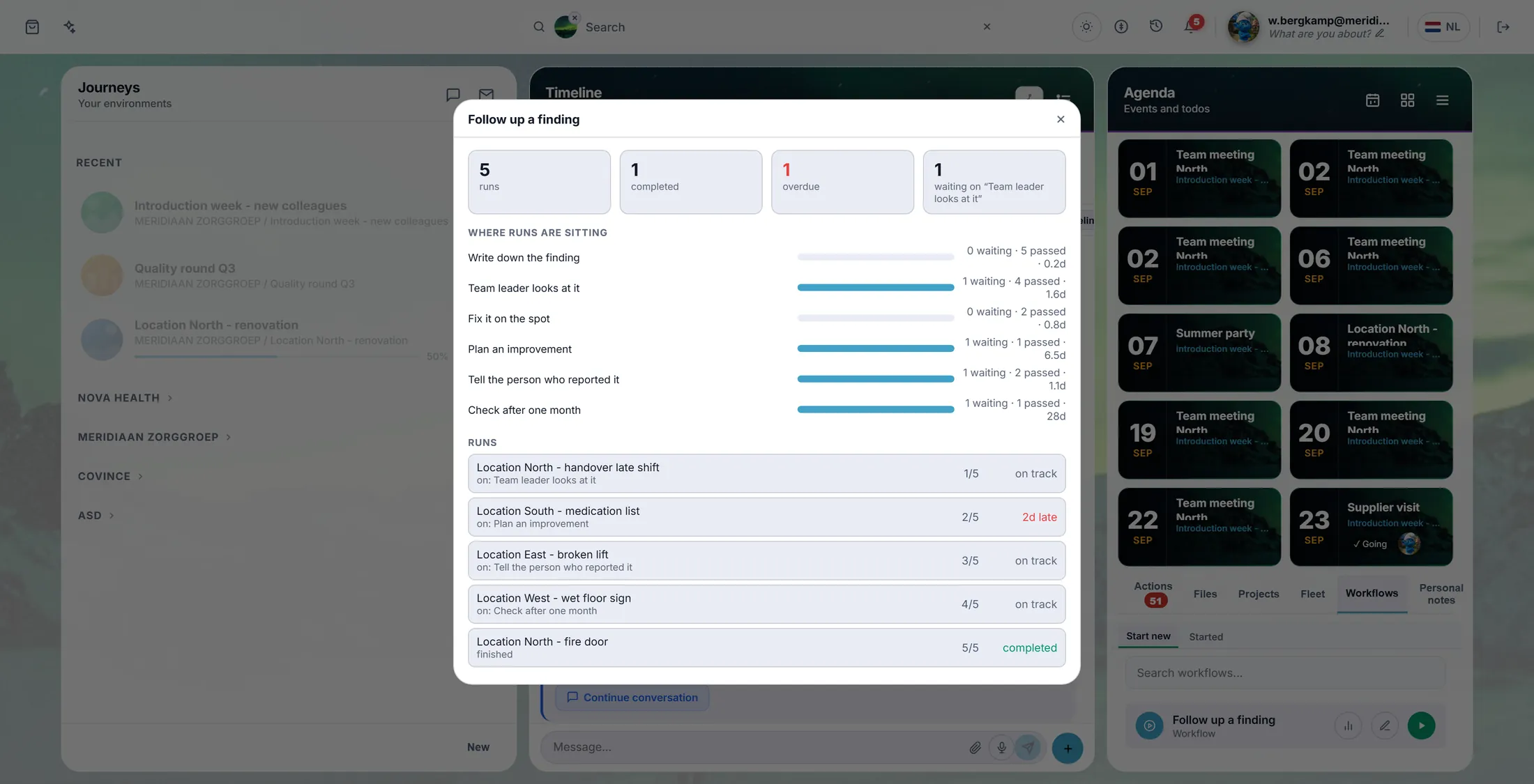
One job is 2 days late - you see it at once.
If something is not right
I do not see Organisation Workflows.
Then you are not an admin. Ask one.
A job gets stuck after a choice.
No arrow matches the answer. Add an arrow without a condition.
Nobody got the mail.
Mails go out only when a job reaches that step.
Can I go back to an older version?
Yes. Press History.
The words, in plain language
- workflow
- The steps of a job, in order, that everyone follows the same way.
- run
- One time the workflow is done, for one case - one finding, one new colleague.
- branch
- A point where the job goes one way or another, depending on an answer.
Where to go next
- Follow a workflow How people start and follow one in a journey.
- All explainers The other things you can learn here.