Follow a workflow
A workflow is a fixed list of steps for work that comes back again and again - a new colleague, a finding, someone leaving. You start one with a name, CoVince keeps track of every step, its due day and who ticked it off. Admins make the workflows and switch them on per journey.
Coordination - who does what, in which order - 6 min. You need: a journey with a workflow in it
Reading this changes nothing. A workflow only starts when you press Start.
What you will be able to do
- Start a workflow Pick it, give it a name, press Start.
- Tick off the steps See what is done and what is next.
- See how far everyone is All started ones in one list.
- Make one (admins) Write the steps once. Use them for ever.
Get this ready first
- A journey The workflow lives in a journey. No Workflows tab? Then there is none there yet.
- A name for this time For example the name of the new colleague.
Do it together, one step at a time
Seven steps. Steps 1 to 4 are for everyone. Steps 5 to 7 are for admins.
Open the Workflows tab
Click your journey. On the right is a tab called Workflows.
- In the left column Journeys, click your journey, for example Introduction week - new colleagues .
- In the right column, press the tab Workflows. It sits next to Actions and Files.
- Under Start new you see every workflow of this journey, each with a green play button.
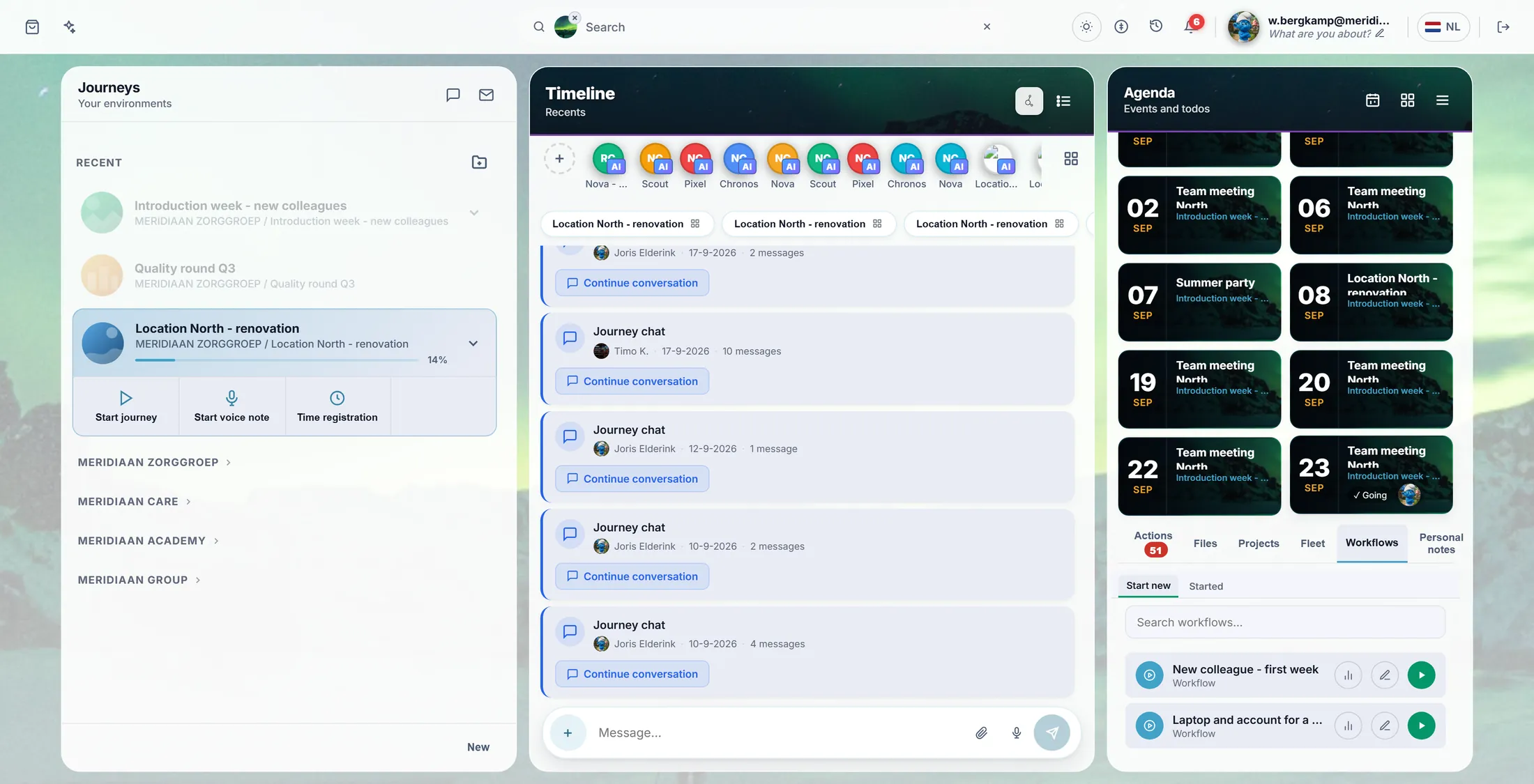
The Workflows tab, with two workflows. Give it a name and start
Press the play button. Type a name. Press Start.
- Press the green play button on the workflow New colleague - first week .
- A window opens: Start Workflow . The box Name this workflow instance already says Start new New colleague - first week .
- Type a name you will recognise, for example Timo Kraaijvanger - first week .
- Press Start (or Enter). Changed your mind? Press Cancel.
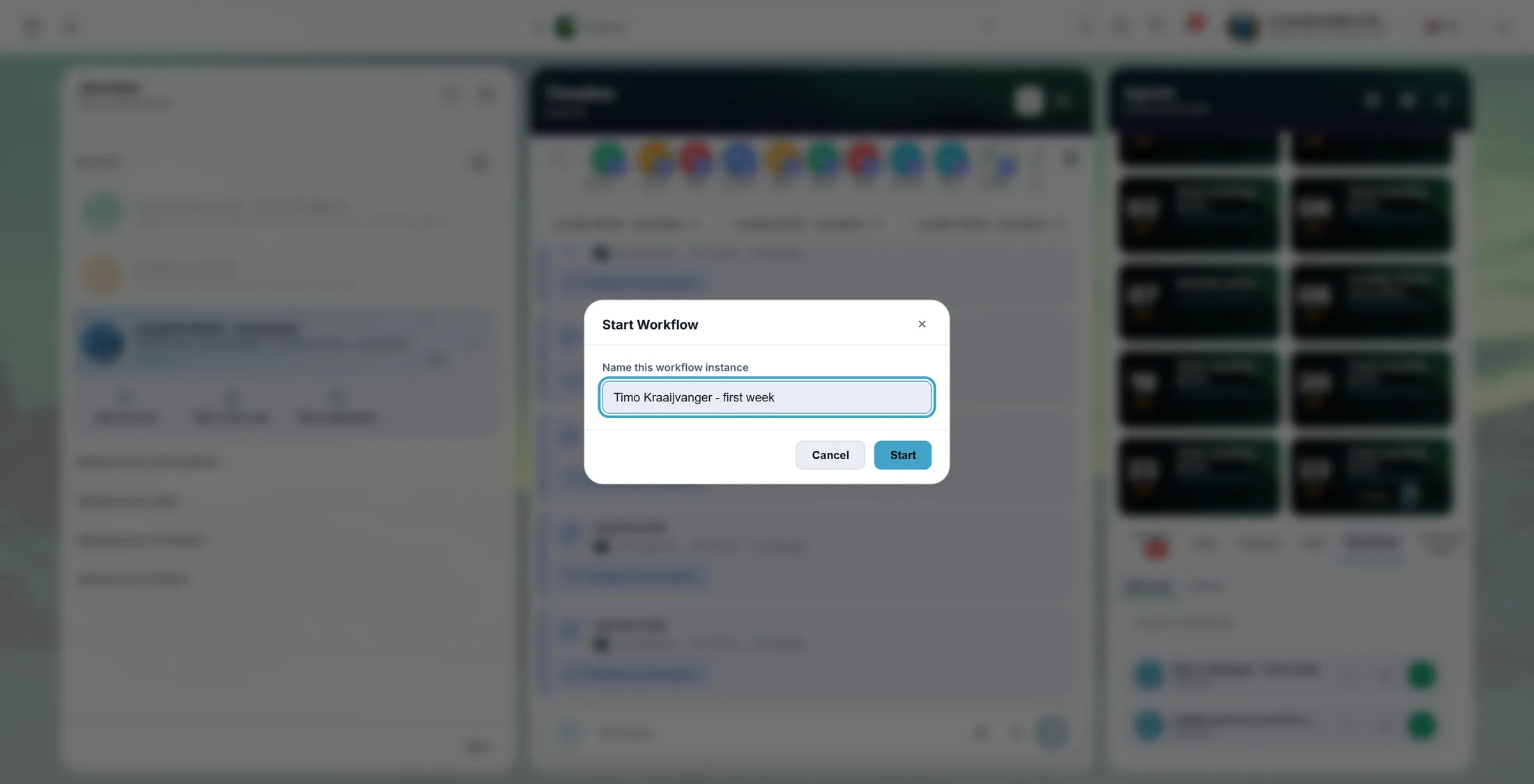
Give this time a name. Follow the steps
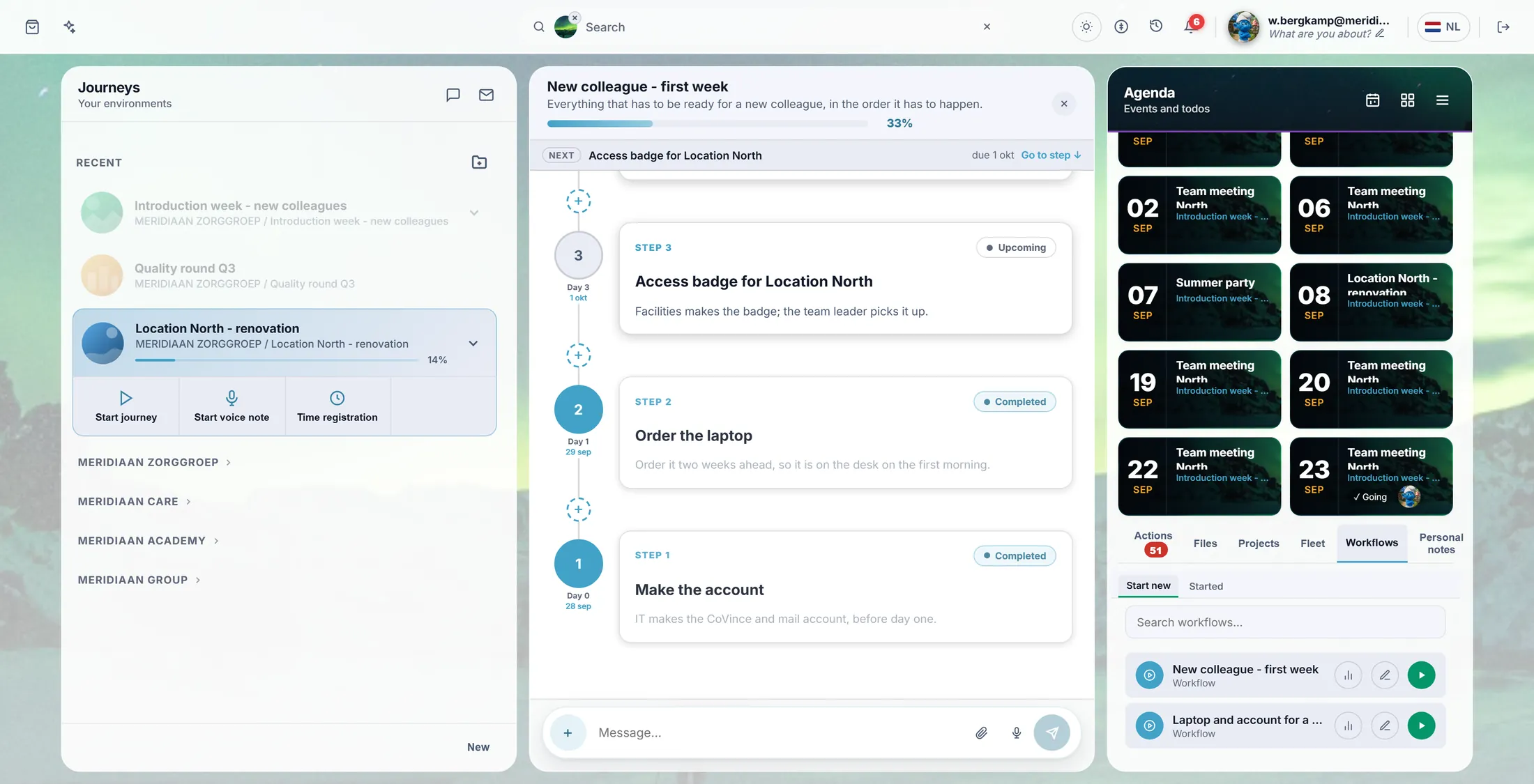
You see every step. Done ones are green. The next one is blue.
- At the top: Overall progress and how many steps are done, for example 2 / 6 done .
- The bar NEXT names the step that is next. Go to step jumps to it.
- Every step says Completed , In progress or Upcoming , and on which day it is due.
- Open a step to see what to do. When it is done, press Mark done or Complete step. A note or a file can go with it.
Two done, one busy. The bar shows how far it is. See all started ones
Under Started you see every workflow that is running, and how far it is.
- In the Workflows tab, press Started.
- Every run shows its name, when it started and how many days it runs.
- The line under it says how far it is, for example 2 / 6 steps , and which step is next.
- The round eye button opens the run. A finished one says Completed .
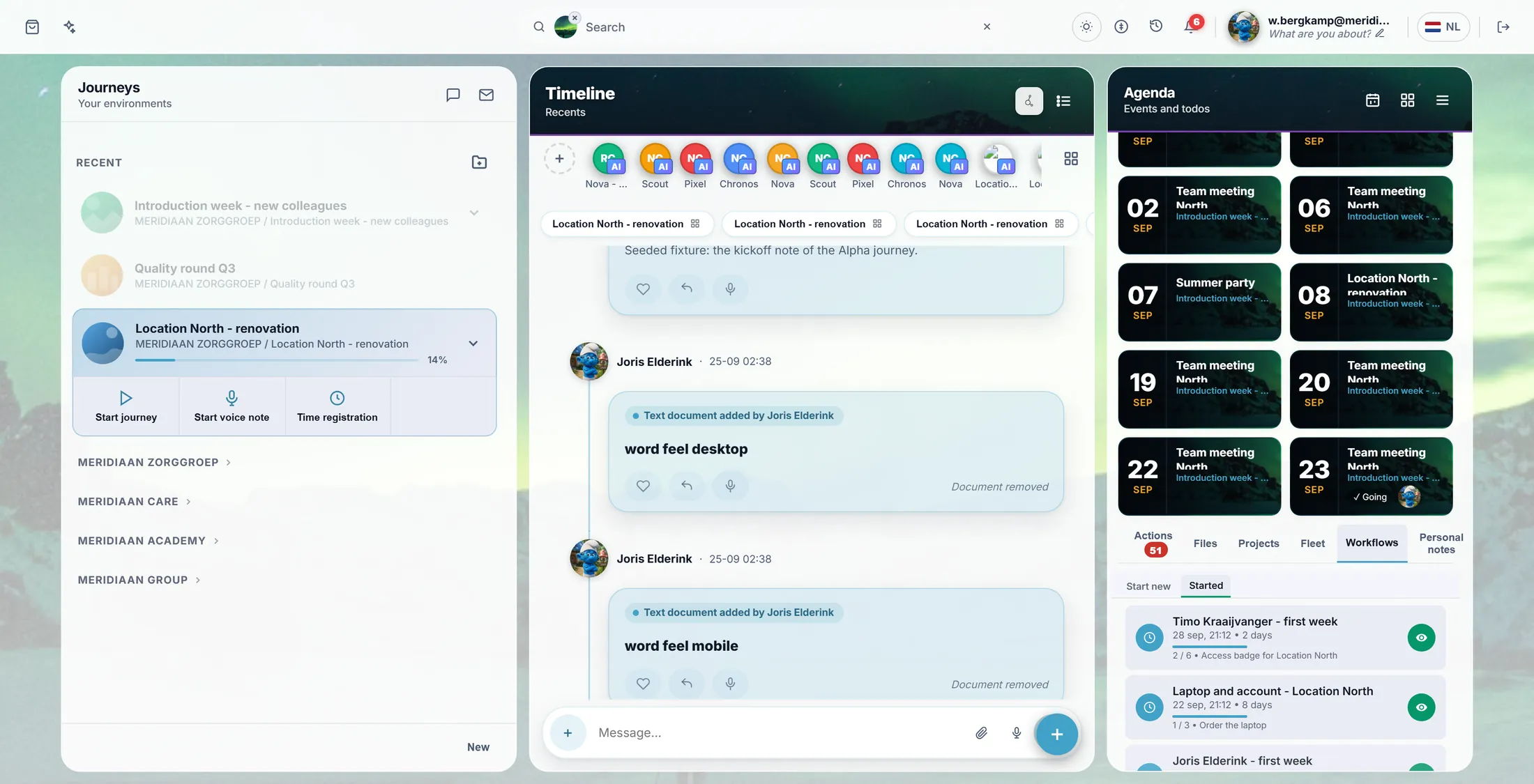
Everything that is running, in one list. Admins: make a new workflow
Admins make workflows in the Editor. First you give it a name.
- Open the Editor. It asks Select an Organisation : press yours.
- In the list on the left, choose Organisation Workflows . You see every workflow of the organisation.
- Press New Workflow. Type the title, for example Leaving the organisation , and press OK.
- A second box asks for a description. It may stay empty: press OK. The new workflow is in the list.
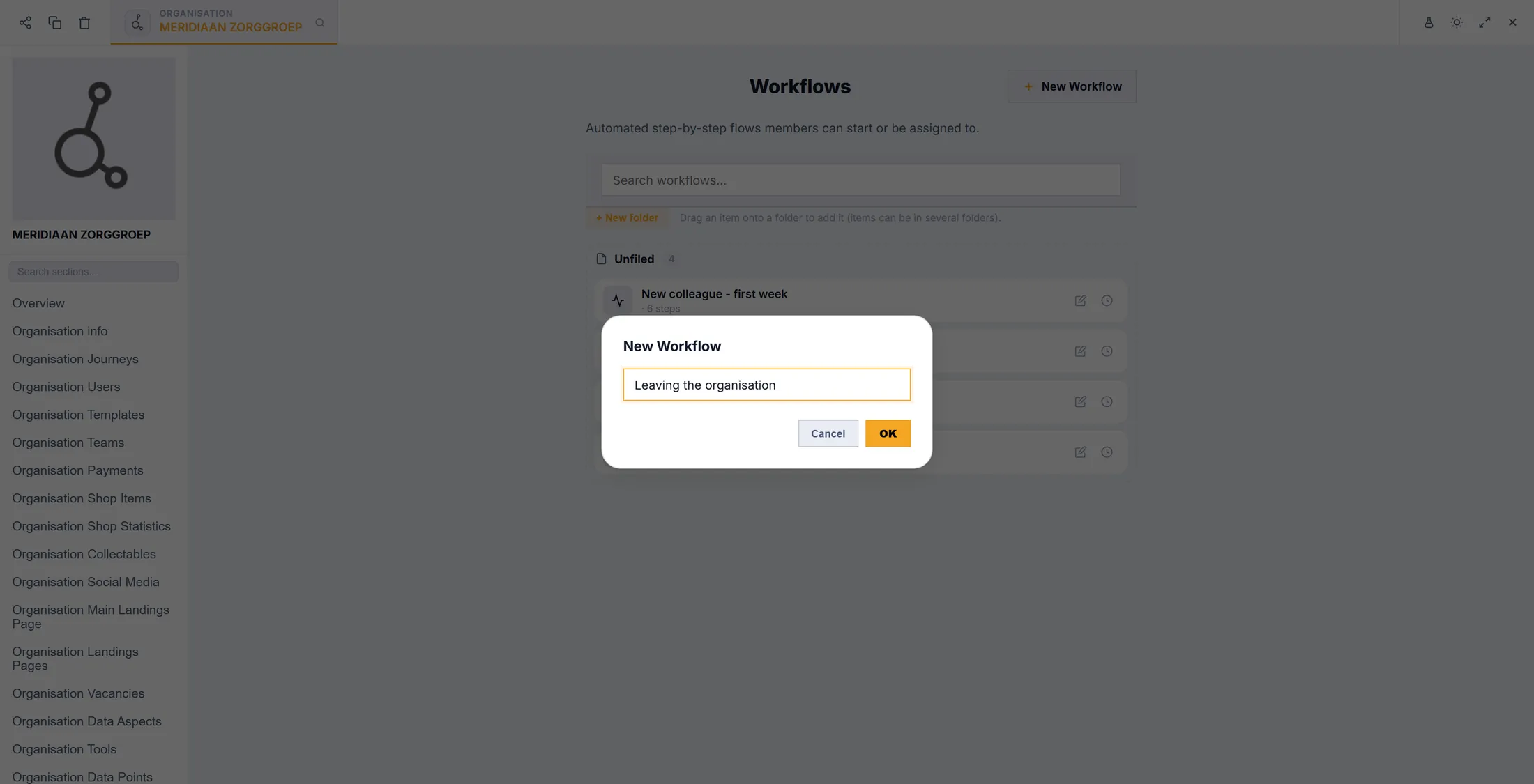
A new workflow starts with a name. Admins: write the steps
Add the steps and put them in order. It saves by itself.
- Press the pencil next to the workflow. The workflow editor opens.
- Press Add Step for every step. The first one has the label START .
- Drag from the dot under a step to the next step: that arrow is the order.
- Click a step. On the right, Edit Step : the title, what has to happen, the actions (buttons like a mail or a document), the Timing offset (the due day) and Chase again every (a reminder).
- It says Saved at the top: there is no Save button. Preview shows it as the people using it will see it.
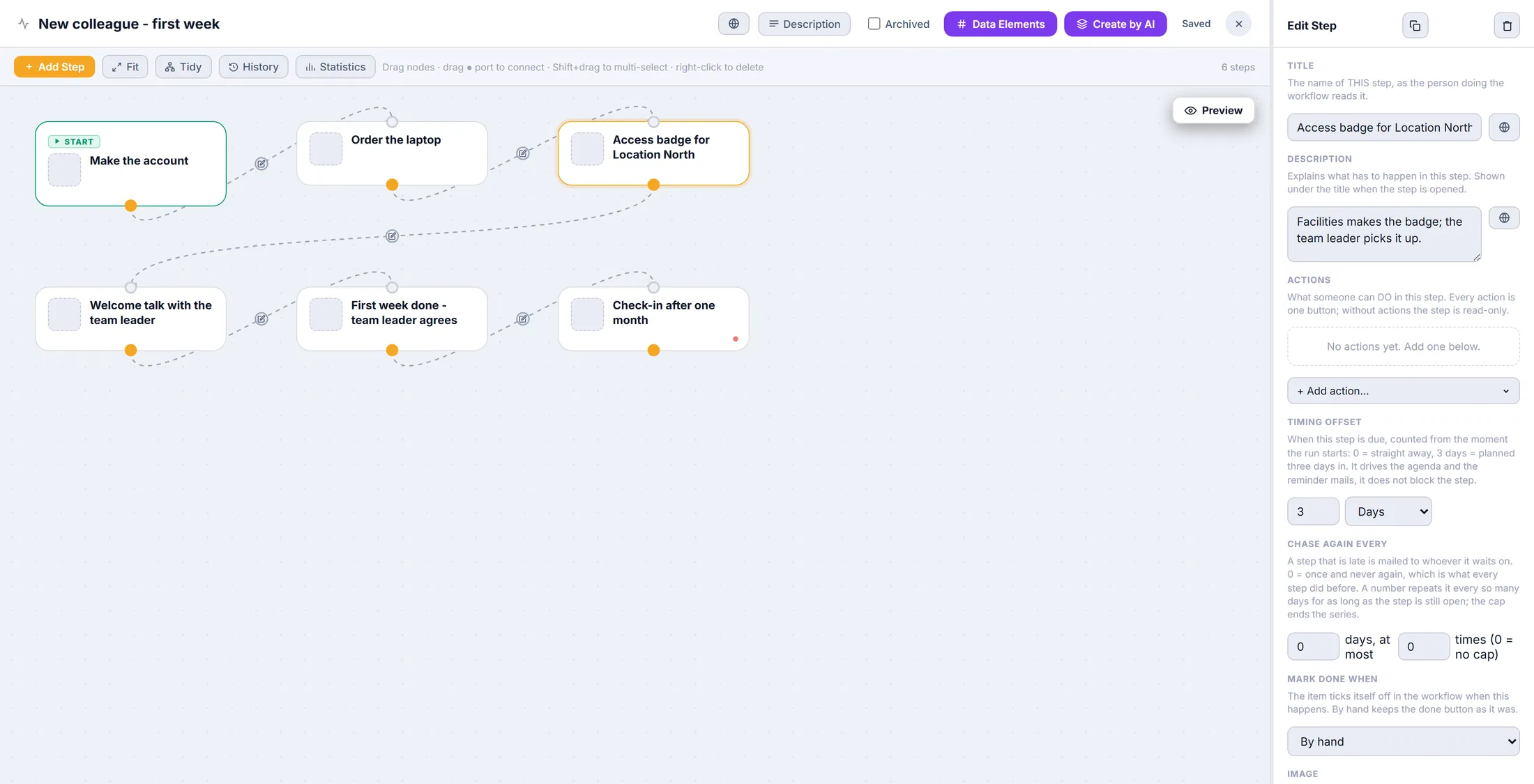
Six steps, in a row. On the right: the step you clicked. Admins: put it in the journey
A workflow shows in a journey only when you add it there.
- In the Editor, open your journey (the Editor says journey).
- In the list on the left, choose Journey Selected Workflows .
- Press + Add workflow. A list of the organisation's workflows opens: press Add next to the one you want.
- Press Save. From now on the journey has the Workflows tab from step 1.
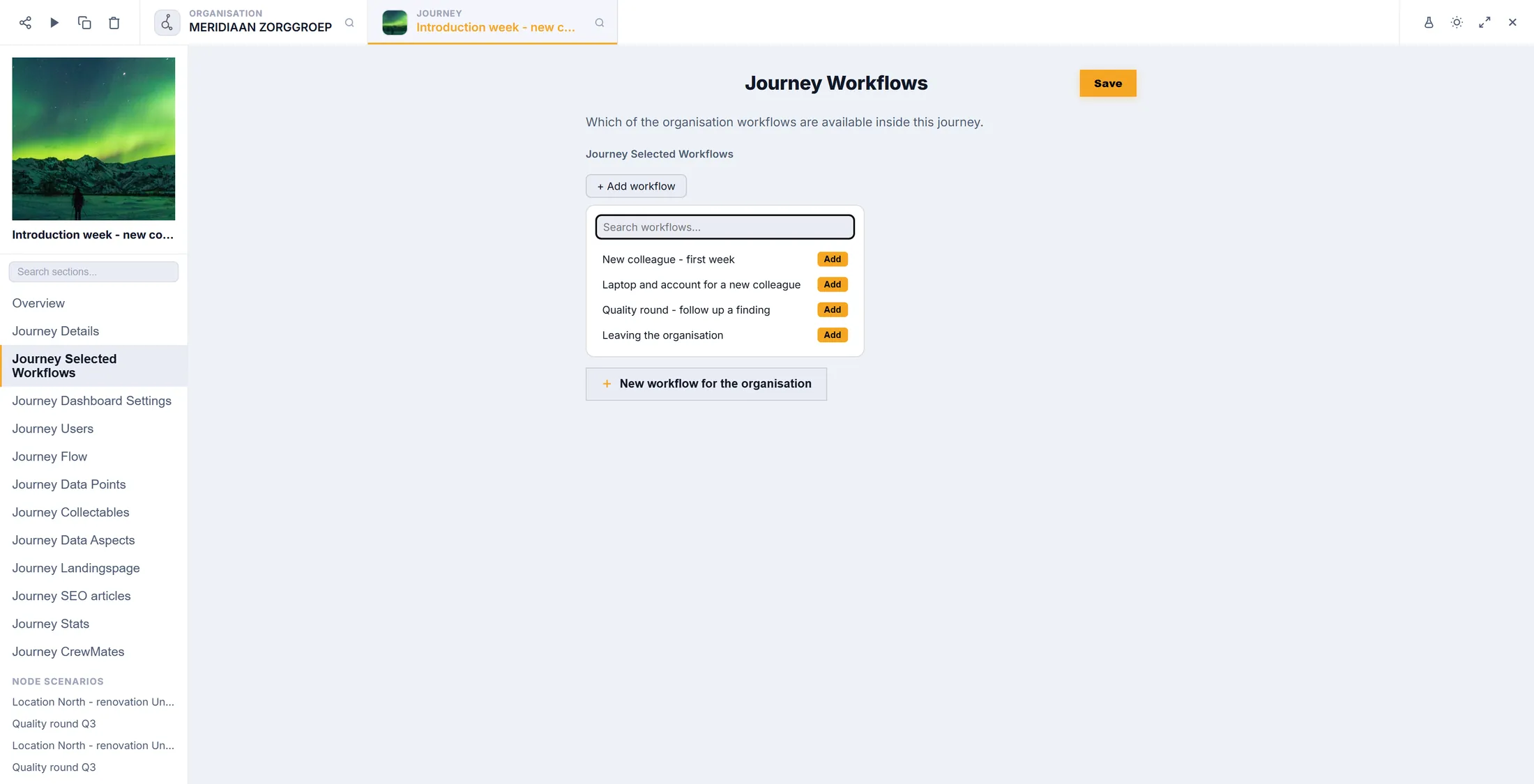
Pick which workflows this journey gets.
If something is not right
I do not see Workflows.
This journey has no workflow yet. An admin can add one.
I started it twice by mistake.
Right-click it under Started and press Delete.
Can I change a workflow while it runs?
Yes. An admin changes it with the pencil.
Who gets the reminder?
The person the step waits on.
The words, in plain language
- workflow
- A fixed list of steps for work that comes back again and again.
- run
- One time a workflow is started, with its own name and its own ticks. The app says instance.
- timing offset
- After how many days from the start a step should be done.
Where to go next
- All explainers The other things you can learn here.