Make a report template for voice notes
A report template is the list of parts CoVince writes after a recording - each with its own title, instruction and shape. You set it on the step of a workflow that records, and every recording made there follows it.
CrewMates - the report you get - 7 min. You need: to be an admin, and a workflow
Nothing is recorded or sent while you set this up.
What you will be able to do
- Choose the parts Summary, decisions, actions, dates.
- Say what to write One short instruction per part.
- Keep to the subjects A list to tick off while you talk.
- Same report every time Every recording follows it.
Get this ready first
- Be an admin Only admins can change workflows. Not an admin? Ask the person who looks after CoVince where you work.
- Think of your report Write down 3 to 5 parts you always want. For example: summary, decisions, who does what.
Do it together, one step at a time
Nine steps. You set the template once. After that, every recording uses it.
Open your workflows
The template belongs to a workflow: the steps a meeting always goes through.
- Open the Editor and choose your organisation.
- In the list on the left, click Organisation Workflows .
- Click the pencil next to the workflow for your meeting, for example Weekly team meeting .
- No workflow yet? Press New Workflow. The explainer "Build a workflow" shows every part of it.
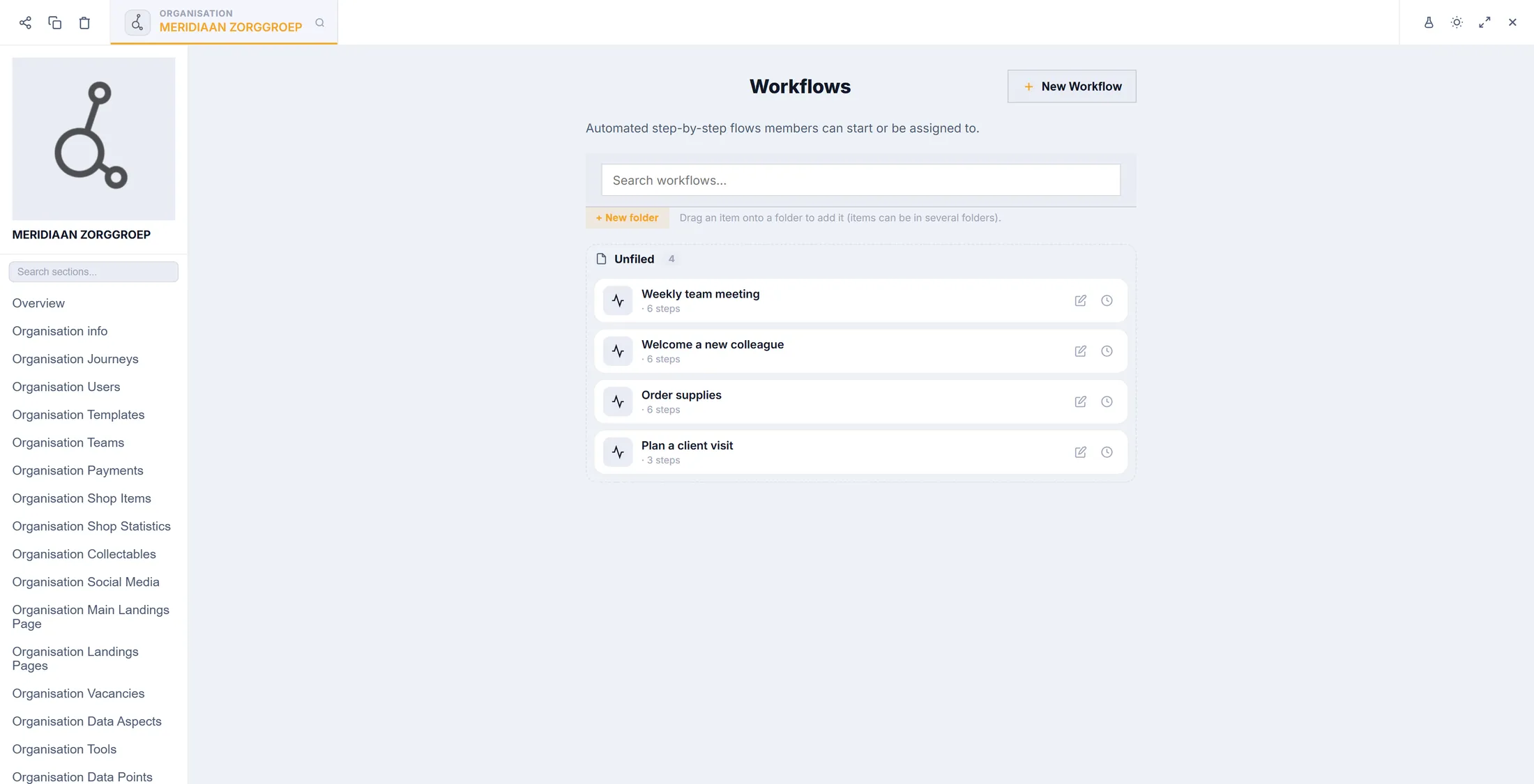
Your workflows. The pencil opens one. Click the step that records
Click the step where the meeting is recorded. Its settings open on the right.
- Click the step, for example Hold the meeting . It has a small red Mic tag.
- On the right, Edit Step opens. Under Actions you see Voice Recording .
- Button text is what people press to start: for example Record the meeting .
- Click the pencil next to Voice Recording to open the template.
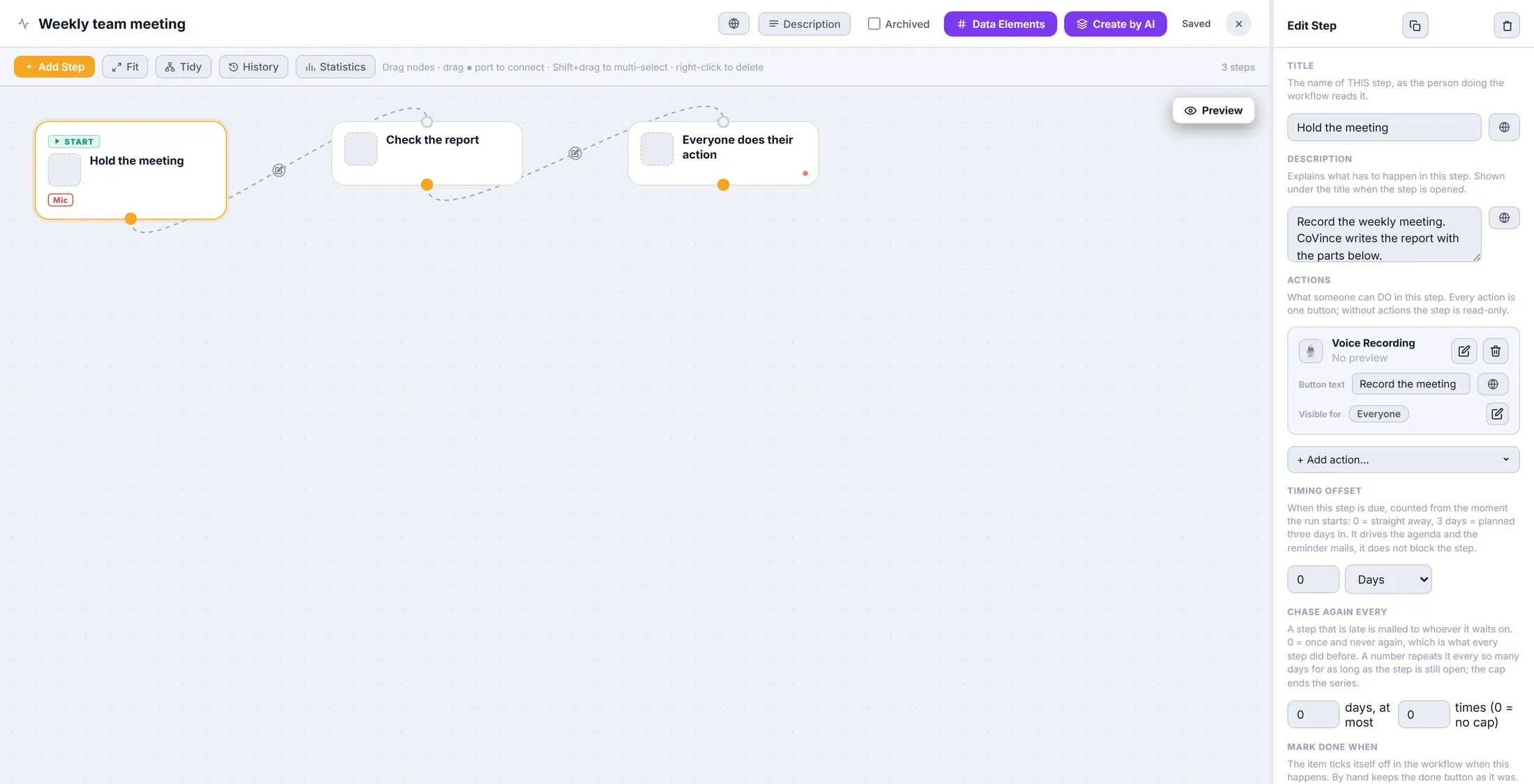
The step that records has a Mic tag. No recording on the step yet?
Add one. Then the step gets a button that records.
- Press + Add action... under the actions.
- Type voice in the search box.
- Click Voice Recording . It is added to the step.
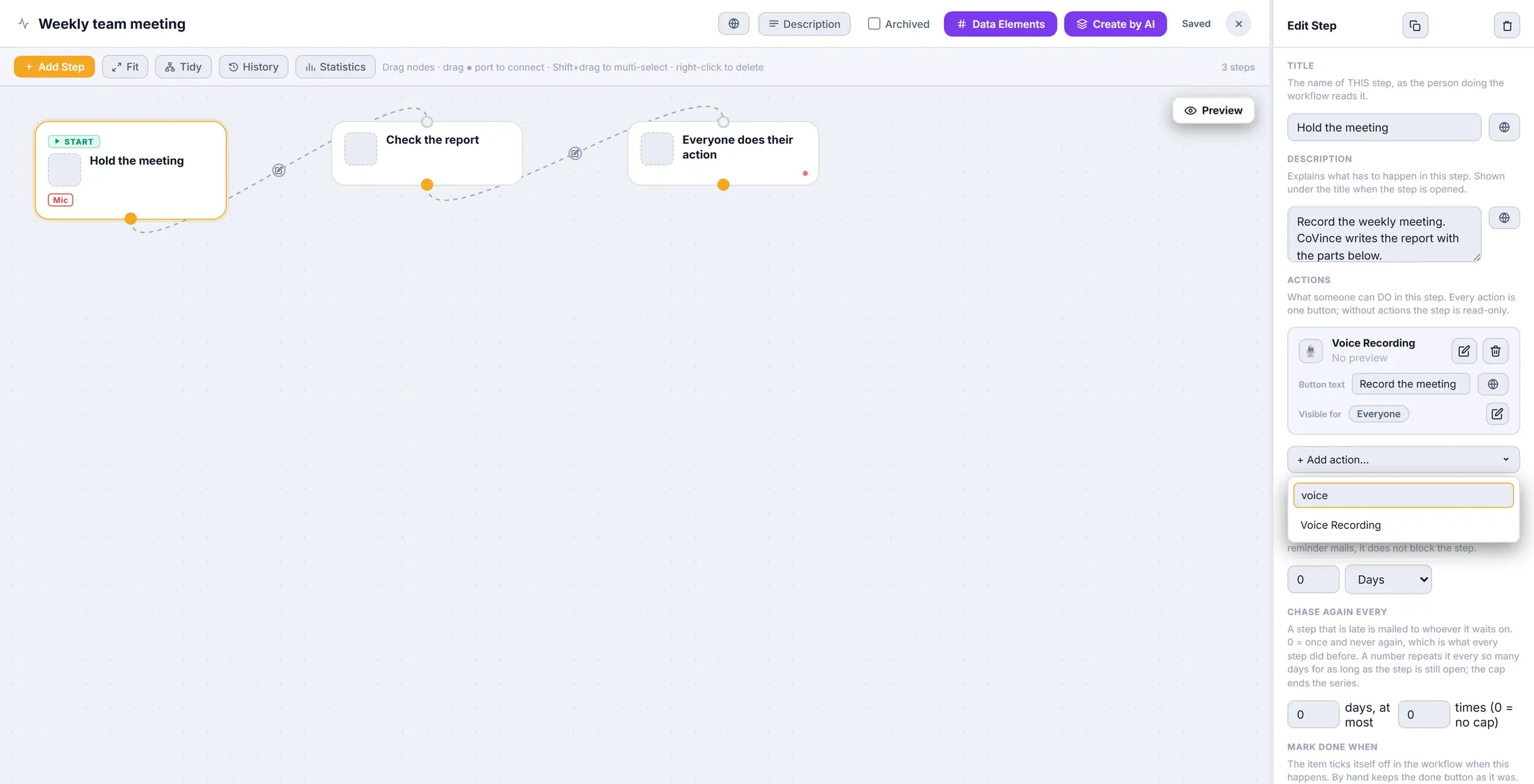
Type voice, click Voice Recording. Say what is recorded
Sound only, or also film. And whether the meeting subjects must all be covered.
- Tick Record audio for a normal meeting. Tick Record video as well if the picture matters.
- Tick No time limit for a long meeting.
- Meeting subjects: all must be covered before stopping makes the recorder ask when a subject was skipped.
- Leave the TOMO and speaker options as they are, unless you know you need them.
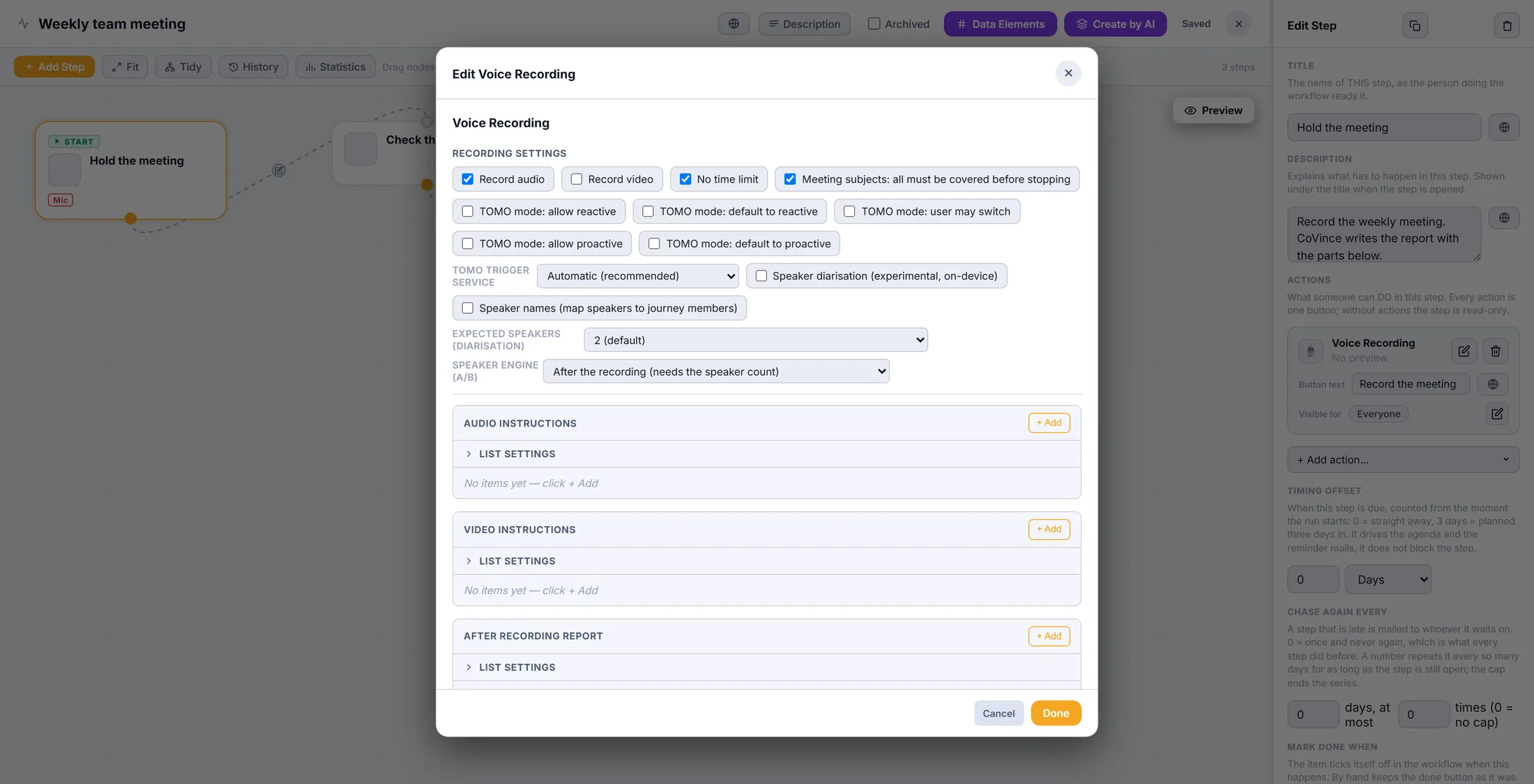
The top: what is recorded. Make the parts of the report
Each item is one part of the report: a title, and what CoVince must write there.
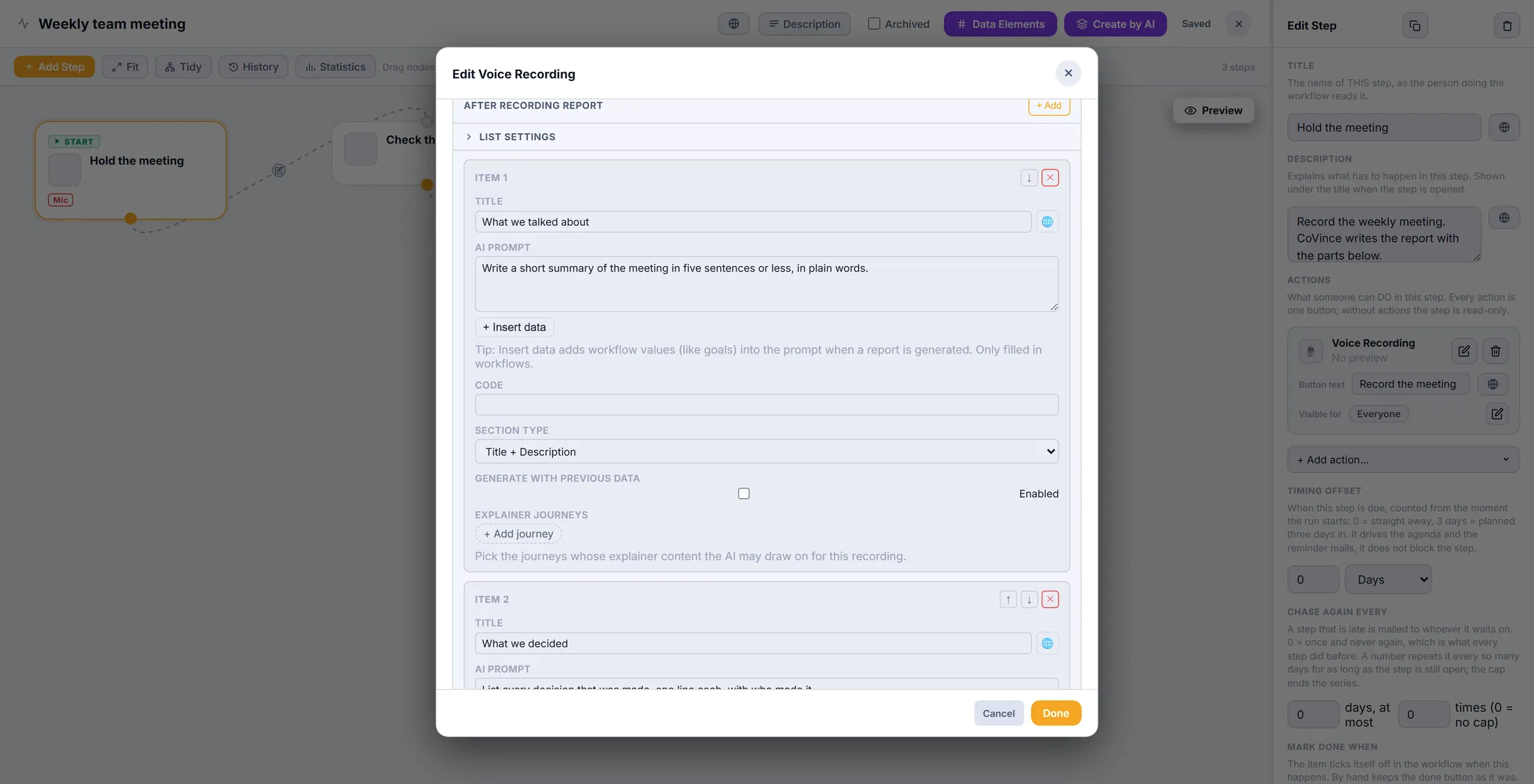
- At After recording report , press + Add. A new item appears.
- Title : the heading in the report, for example What we talked about . The globe adds other languages.
- AI Prompt : say in plain words what to write. For example: Write a short summary in five sentences or less.
- + Insert data puts a value of the workflow into the instruction, such as its goal.
- Add the next part the same way. The arrows move an item up or down; the red cross removes it.
One item = one part of the report. Choose how each part looks
A part can be text, a list, a checklist of actions, a line of dates, or a picture.
- Open Section type in the item.
- Title + Description : a piece of text, like a summary.
- Mindmap (bullet list) : short points. Actions (checklist) : tasks people can tick off.
- Deadlines (actions on an axis of days) : the actions with a date, on a line of days.
- Conversation timeline : who spoke, the subjects and the moments that mattered.
- Image and Infographic (AI image) make a picture. Editable text (waits for confirm) lets a person type it themselves.
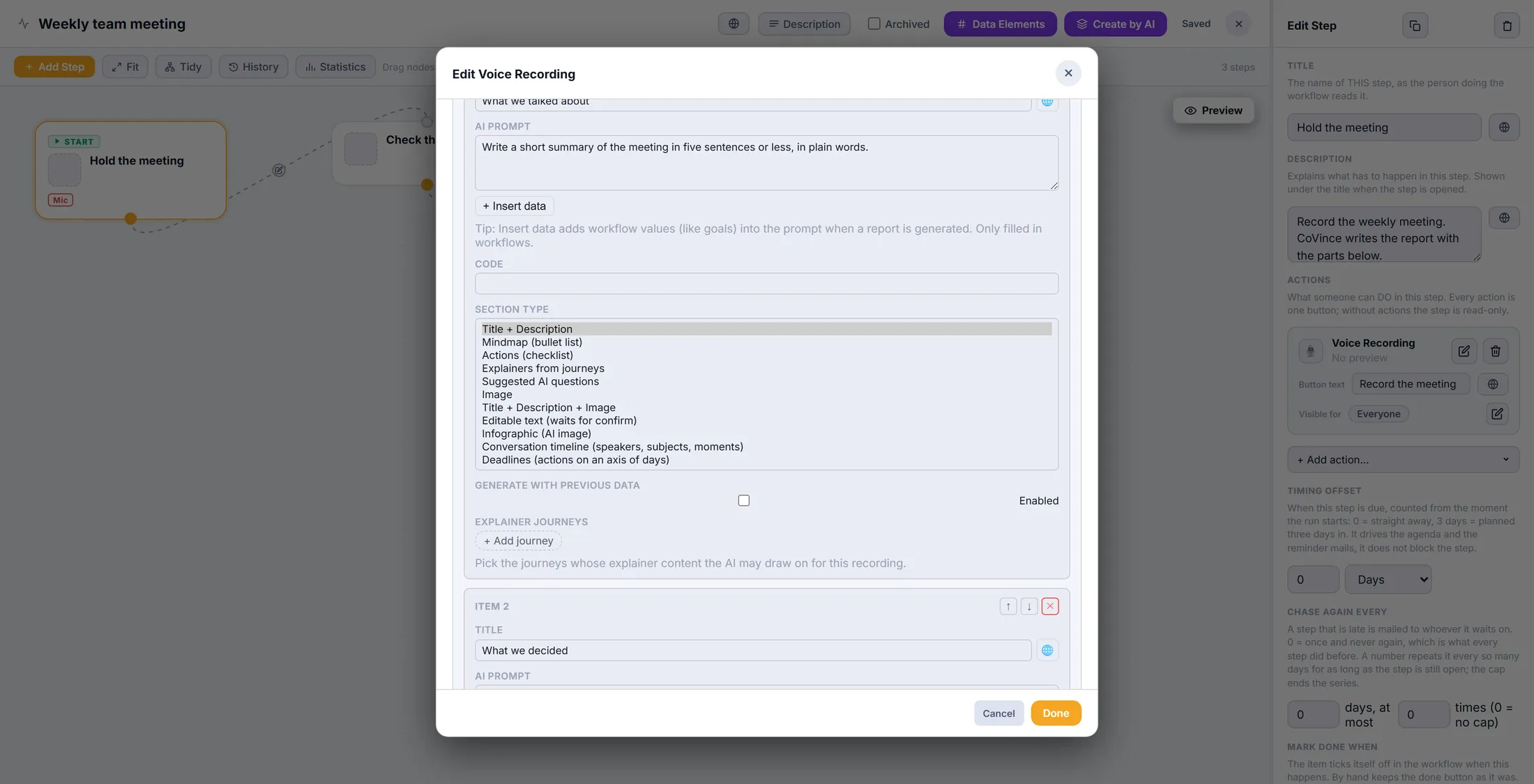
Every shape a part can have. Let a part use the parts before it
Tick it, and CoVince reads the earlier parts before writing this one.
- Scroll to a later item, for example Who does what .
- Tick Generate with previous data . It now says Enabled .
- Leave it off for the first part: there is nothing before it yet.
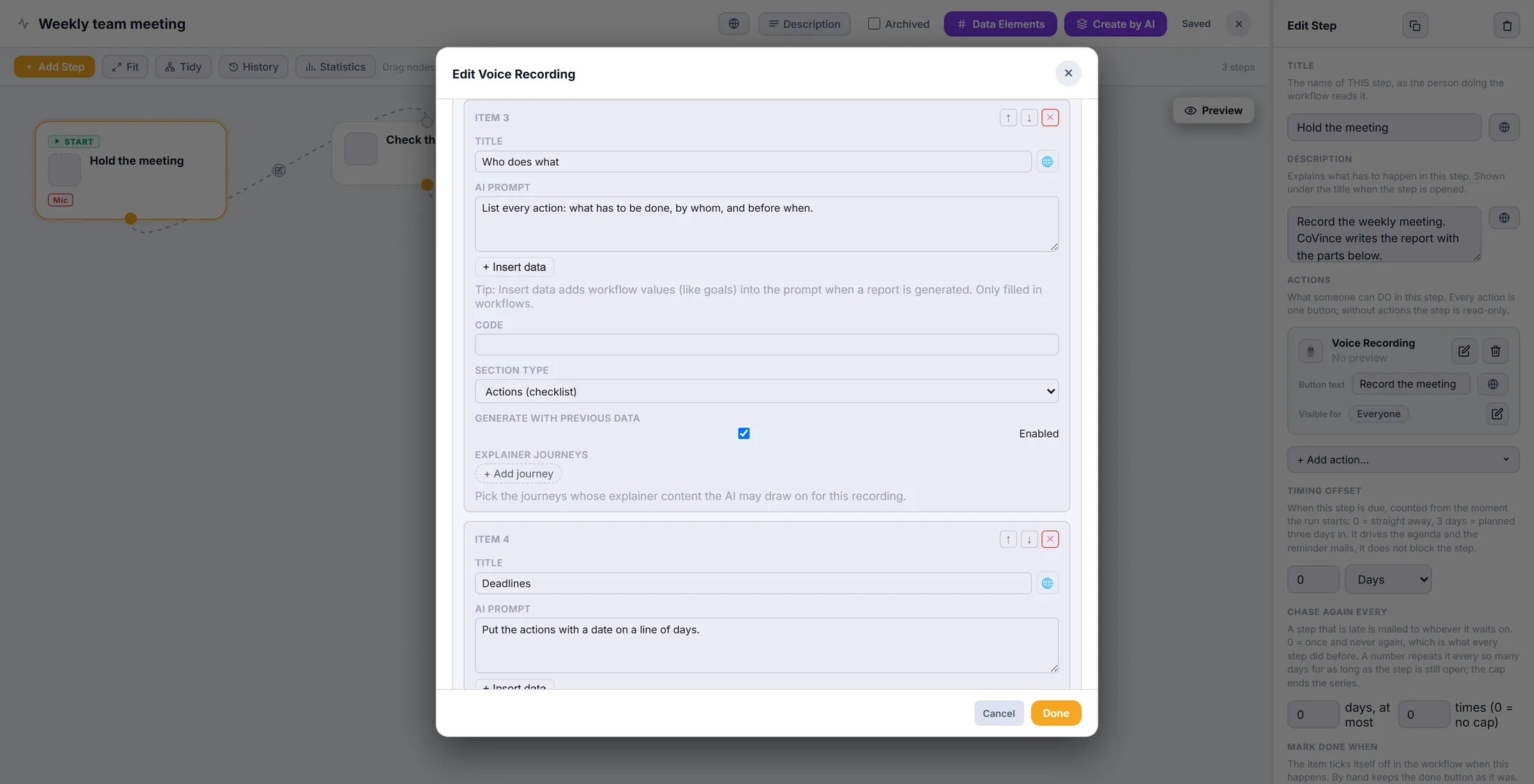
Who does what reads the parts before it. Add the meeting subjects and hints
The subjects are ticked off while you talk. A hint reminds the group of something.
- At Meeting subjects (to cover during the recording) , press + Add and type a subject, for example Planning for next week .
- Add every subject the meeting must cover.
- At Between recording hints , press + Add: a Title and a short AI Prompt , for example: remind the team to say who does it .
- Press Done at the bottom. The workflow saves itself: at the top it says Saved .
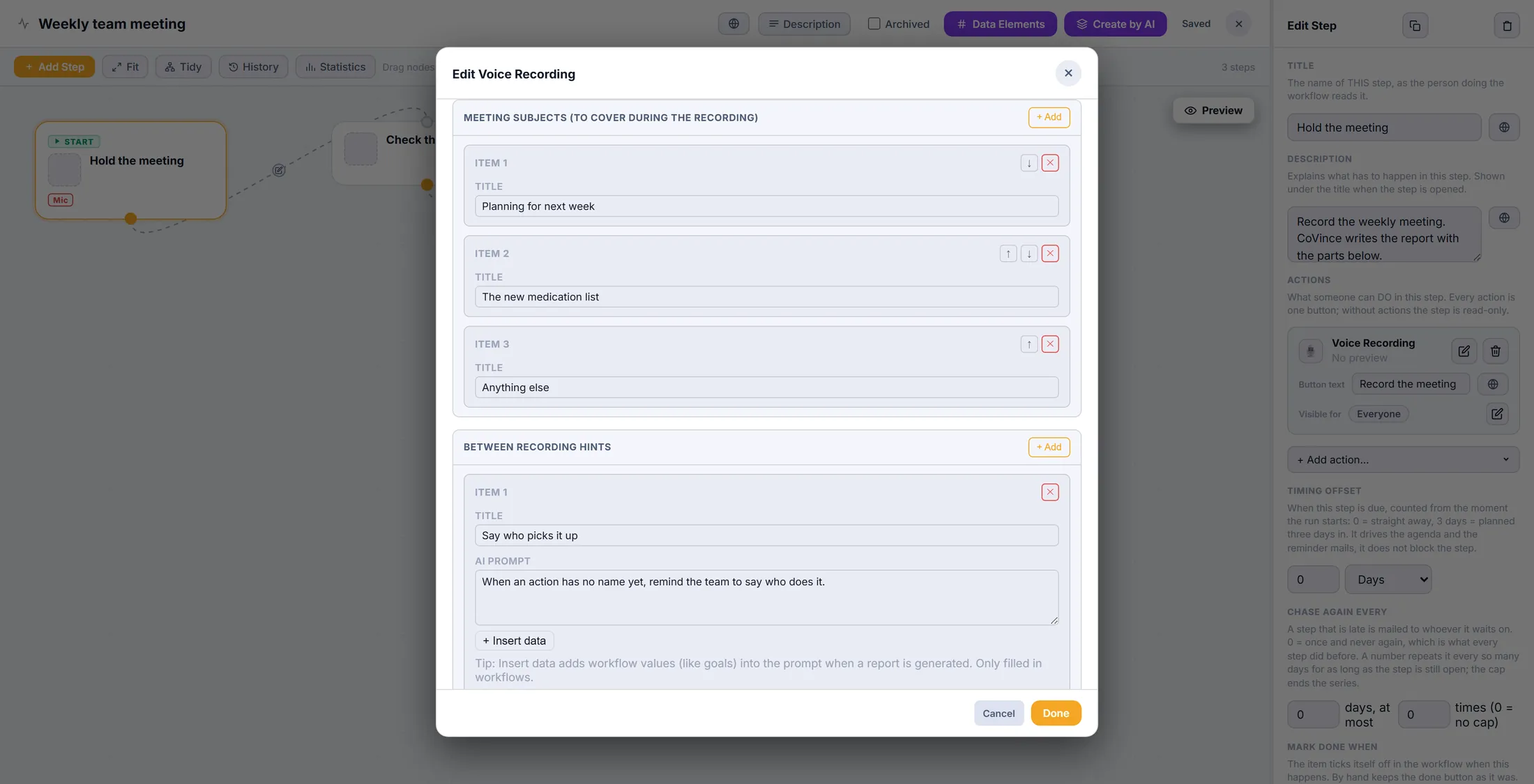
The subjects to tick off, and a hint. Record, and get your report
Start the workflow in a journey. Press the record button. The report comes out with your parts.
- Open the journey. In the right column, click Workflows , then Start new .
- Press the green play button next to Weekly team meeting .
- At the step Hold the meeting , press Record the meeting. The subjects are there to tick off.
- After you stop, the report is written with What we talked about , What we decided , Who does what and the rest.
- Change the template later, and the next recording follows the new version.
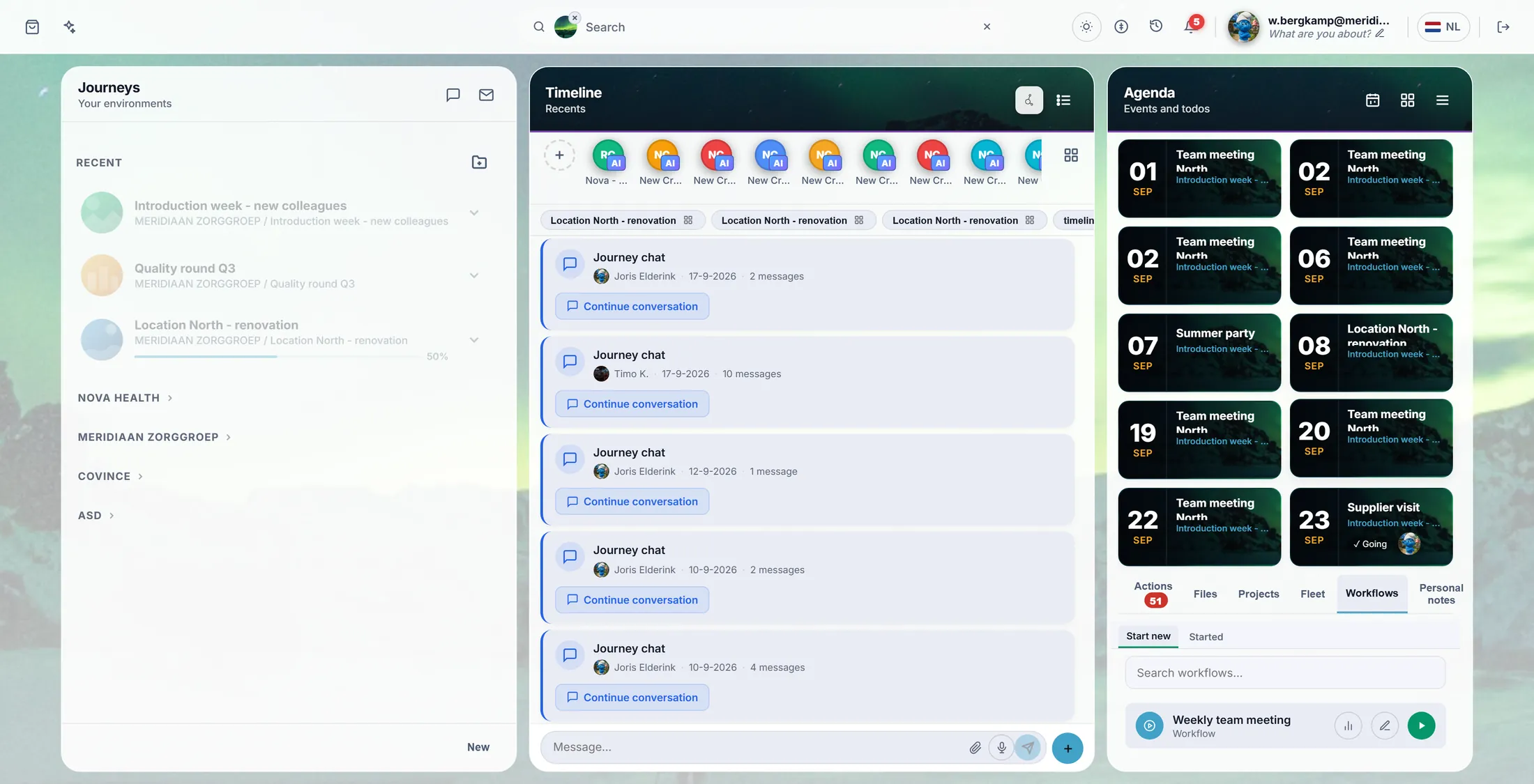
The play button starts it in the journey.
If something is not right
I do not see Organisation Workflows.
Then you are not an admin. Ask the person who looks after CoVince where you work.
The report still has the old parts.
Did you press Done? Reports made before the change keep their parts.
Can I use this on a journey board instead of a workflow?
Yes. A journey's recording board has the same lists, under Recording & report in the Editor.
A part came out empty.
Make its instruction clearer. Or tick Generate with previous data.
The words, in plain language
- report template
- The list of parts CoVince writes after a recording, set once and used every time.
- section
- One part of the report, with its own title, instruction and shape.
- prompt
- The instruction you give the AI: what to write, and how.
Where to go next
- Get a report of your work Record a voice note and read its report.
- All explainers The other things you can learn here.