
Control room software: a live command center wall, no custom build
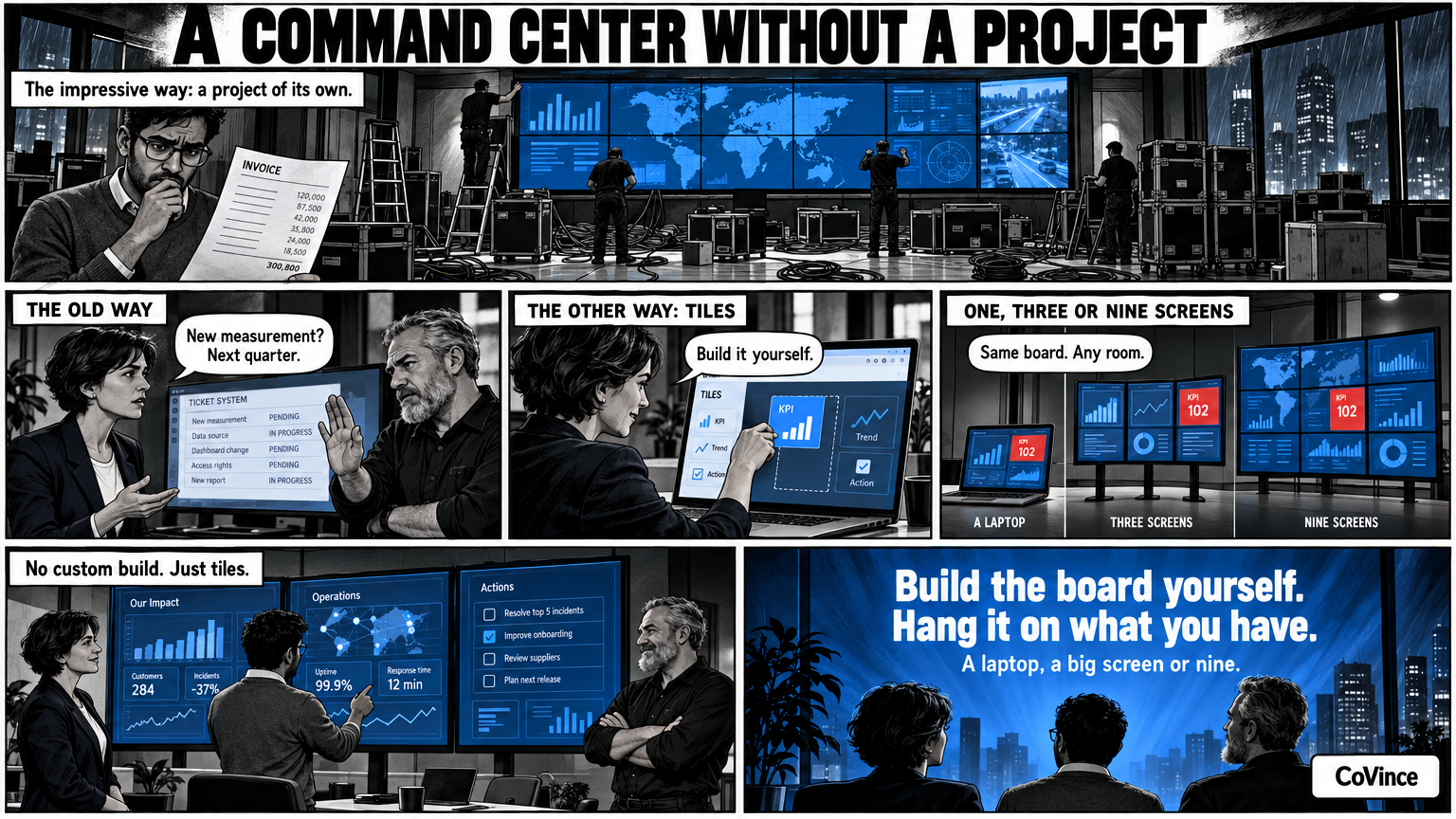
Control room software does not have to be a custom project. The CoVince Control Room is a live command center: a board of tiles that spreads over one, three or nine screens, from the browser. Each screen gets a name and the board shows what needs attention.
What do we mean by without custom build?
A command center or control room often becomes a project in itself: a supplier for the video wall, a separate dashboard builder, a connection per source, and then an administrator who keeps everything running. The result is impressive and hard to change. If you want a different measurement tomorrow, you have to go back to the builder.
The Control Room in CoVince starts from the other direction. You build the board yourself from tiles, in the browser, and you hang it on whatever you have: a laptop, a big screen or several screens side by side.
A board of tiles
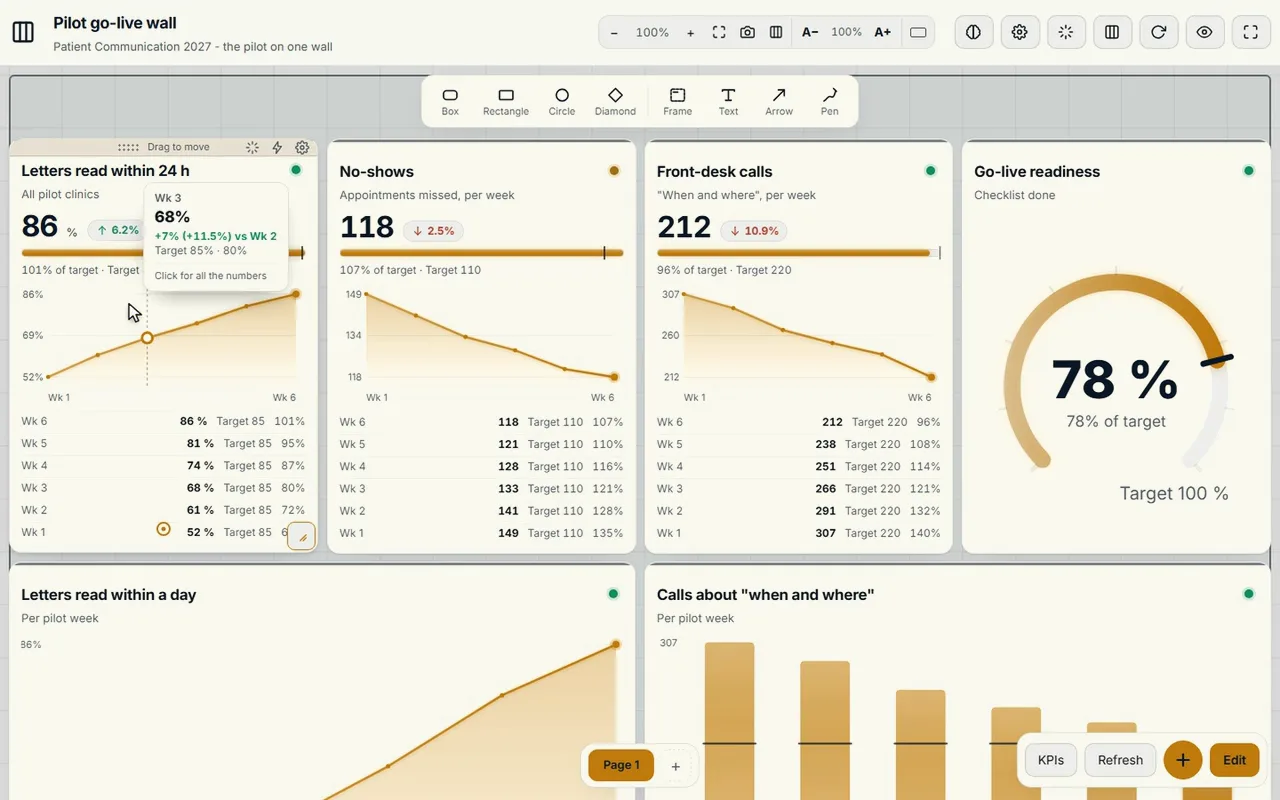
A tile is a part of the board. The Control Room has dozens of kinds, including KPIs, meters, trends, actions, decisions, roadmap, scrum, tables, map, news, video and a CrewMate tile. You mix them on a page as the subject requires.
One, three or nine screens
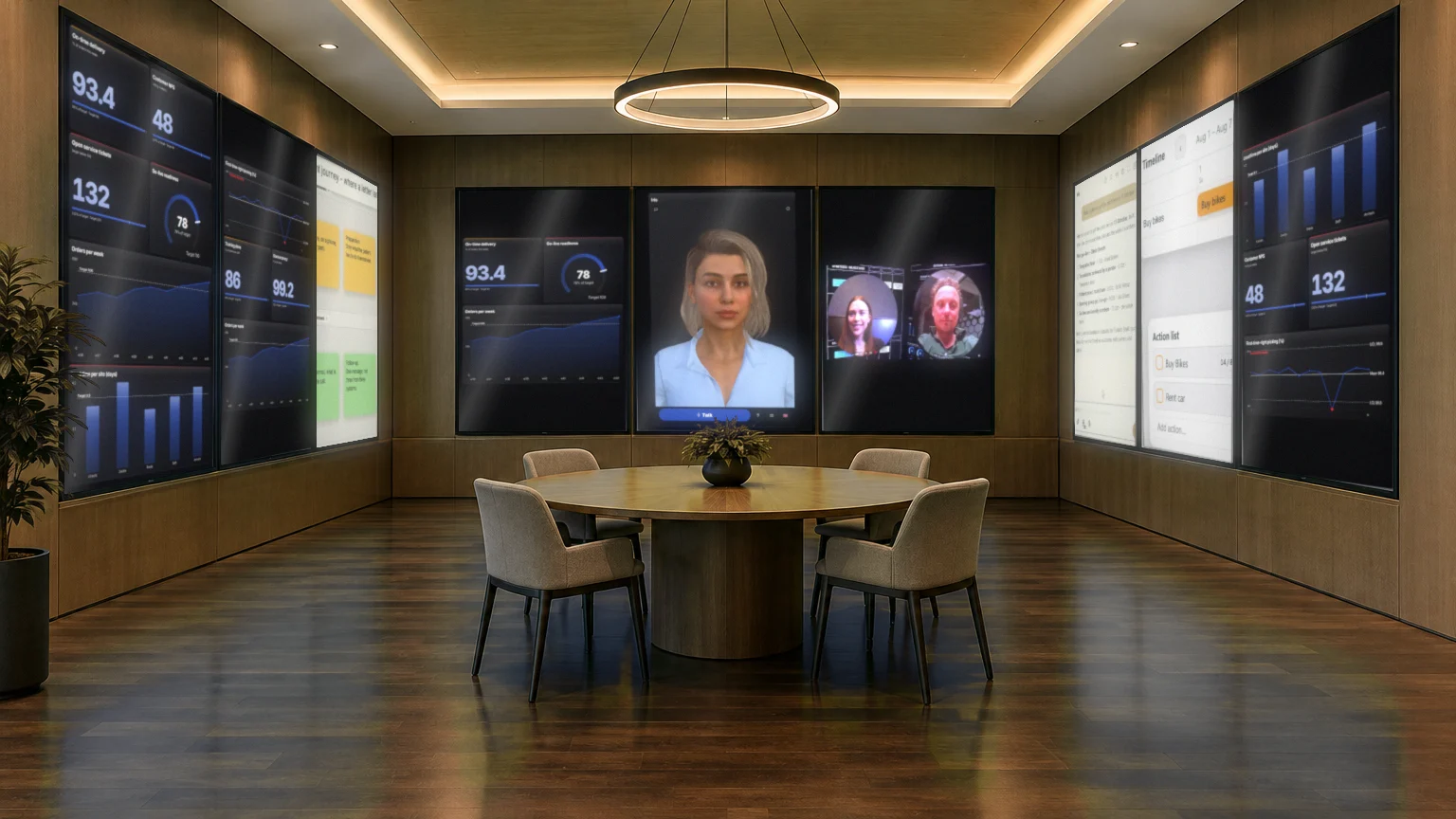
The same board fits every room, it spreads itself over the screens you have:
- One screen: the laptop or a big screen in a meeting room. Enough to start.
- Three standing screens: a team wall for the daily huddle.
- Nine standing screens: three walls of three, like the 86-inch screens in the Syner Suite.
Each screen gets a name, such as Goals, Progress, Actions or Risks, and shows what on that screen needs attention. On three or nine screens Play opens on the overview of the whole wall; you zoom in on a screen yourself. You can also present the board, draw on it during the conversation and share it in a video call.
The board says what needs attention
At the top the board counts for you: how many numbers are behind, how many are at risk, how many actions are overdue and how many are on track. Tap a counter and you see only those tiles. That is how a wall full of tiles becomes readable anyway: you do not have to read everything, only what is coloured. Every measurement gets a target and turns green, orange or red. Tapping a tile shows the trend per week, and tapping a chart shows the action with it.
More than a dashboard
- CrewMate. An AI colleague that knows the board. Ask it what is behind, out loud too; it answers out loud.
- Video calling. Remote colleagues are on the wall, the board stays in the middle.
- Canvas, actions and docs. What comes out of the conversation you work out in the same journey.
When is this not enough?
Be realistic. A Control Room in the browser is no replacement for specialised systems that process millions of measurements per second or that run on a safety certification. It is there for the steering conversation of a team or programme: numbers, plan, problems, actions and the people who talk about them. For that role it is quick to set up and simple to change. The question of which sources you can use is best answered in a demo.
For the choice of screens read LED wall or separate screens?. The statuses and counters are covered in Obeya dashboard. The whole method is in the complete guide.
An example layout with nine screens
How do you divide a board over nine screens? A commonly used layout is one theme per wall. On the first wall are the goals and numbers: KPIs, trends and meters. On the second wall the plan and the actions, with the phases, the milestones and who picks up what. On the third wall the problems and the remote people: risks, decisions and the video of those who are not there.
That way you can view the whole board by taking three steps, and everyone in the room sees which part of the wall the conversation is in. Thanks to the names per screen, the CrewMate and whoever is remote also know which topic is meant.
Your first command center in an afternoon
- Choose the subject and write down in a few sentences what you want to follow.
- Let ‘Make with AI’ make a proposal with pages, measurements and their source, and build it once you are satisfied.
- Add the sources you have and type in the rest.
- Hang the board up and hold the first stand-up.
Frequently asked questions
What is command center or control room software?
Software that shows a live picture of the state of affairs on one or more screens: numbers, plan, problems and actions. In CoVince that is the Control Room, a board of tiles.
Do I need special hardware?
No. The Control Room works in the browser. You can hang it on a laptop, a big screen or on three or nine screens.
How many screens can the Control Room handle?
The board spreads over one, three or nine screens, each screen with its own name.
Where do the numbers come from?
From CoVince itself, from a CSV, from connected sources, or you type them in. Which sources suit you, we show in the demo.
Can I share the board with remote people?
Yes. You present the board in a video call, so everyone sees the same updates. Guests join without an account.