Play SCORM packages in a journey
Upload the .zip of a course made in another tool, check it, and let the Start button of a journey open it. CoVince saves each person’s progress and score, shows them per package, and can send them on to another learning system with xAPI.
Learning - courses from other tools - 10 min. You need: to be an admin of your organisation, and a SCORM .zip file
Trying a package changes nothing for anybody else. Nothing is sent to another system until you add a connection.
What you will be able to do
- Add a course Drop a .zip in the box.
- Play it Start opens the lesson.
- See the results Who finished, with what score.
- Send them on To another learning system.
Get this ready first
- Be an admin Only admins can upload and delete. Not an admin? Ask the person who looks after CoVince where you work.
- Have the .zip ready Export your course from your course tool as SCORM. Do not unpack the .zip.
Do it together, one step at a time
Ten steps. First you bring the course in. Then a journey opens it. Last, you follow the results.
Open the SCORM packages page
Every organisation has its own list of SCORM packages.
- Sign in as an admin of your organisation.
- Open the Editor and choose your organisation. In the list on the left, click Organisation SCORM Packages .
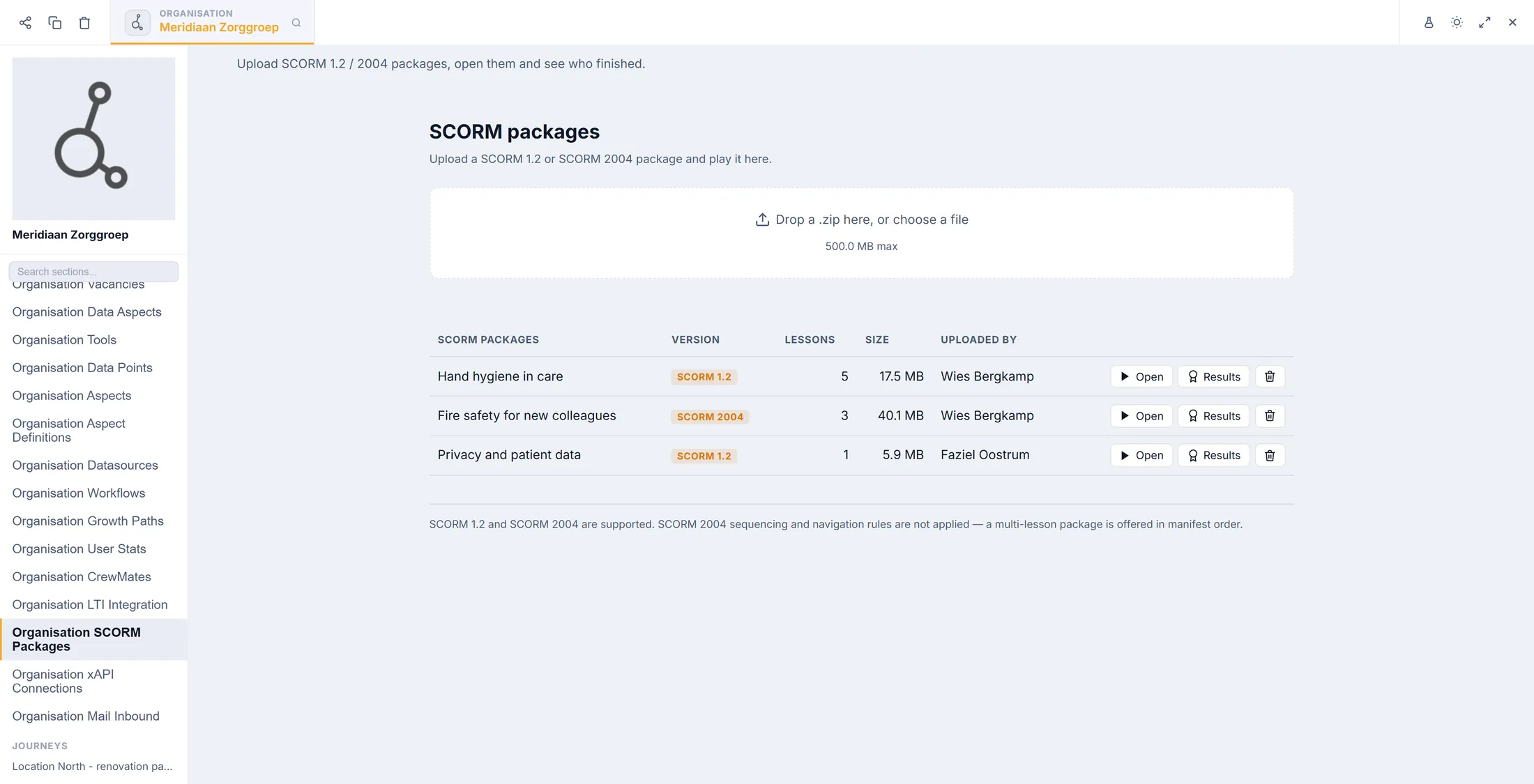
- You see the page SCORM packages : a box to drop a file in, and the list of packages below it.
The box on top adds a package. The list shows what is there. Add a package
Give CoVince the .zip file of your lesson.
- Drag the .zip file onto the box, or click the box and choose the file.
- The box says Uploading… and the name of the file. Wait: a big package can take a minute.
- When it is ready, the package appears in the list with its SCORM 1.2 or SCORM 2004 label.
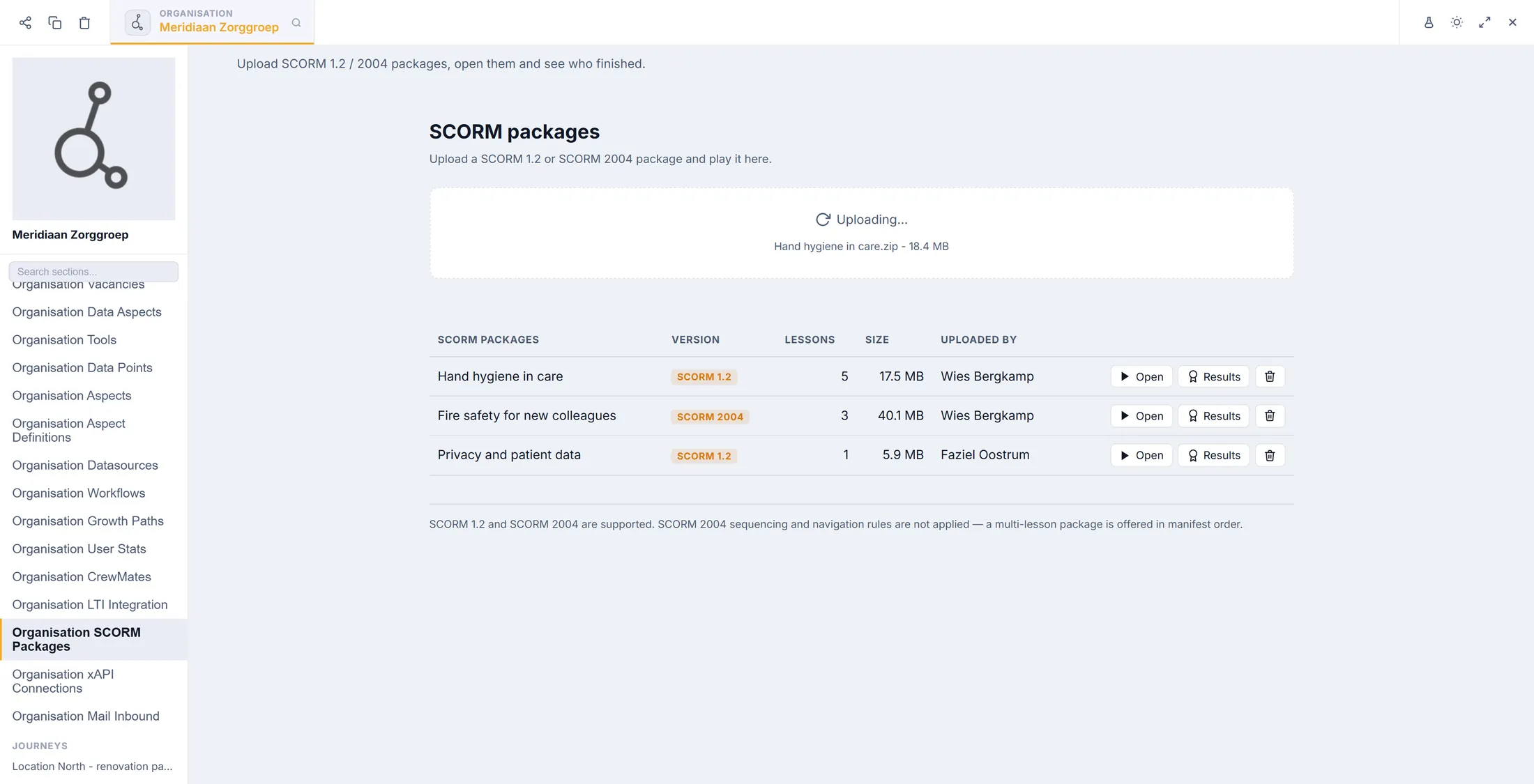
While it uploads, the box says Uploading… If it says no
A red line tells you what is wrong.
- Read the red line. It is written in plain words.
- No imsmanifest.xml inside, so this is not a SCORM package. The manifest is missing. Open your .zip: the file imsmanifest.xml must be at the top, not inside a folder.
- Other lines say the file is not a .zip, is larger than the limit, or names no lesson that can be opened. Fix the file in your course tool, export it again, and drop it in again.
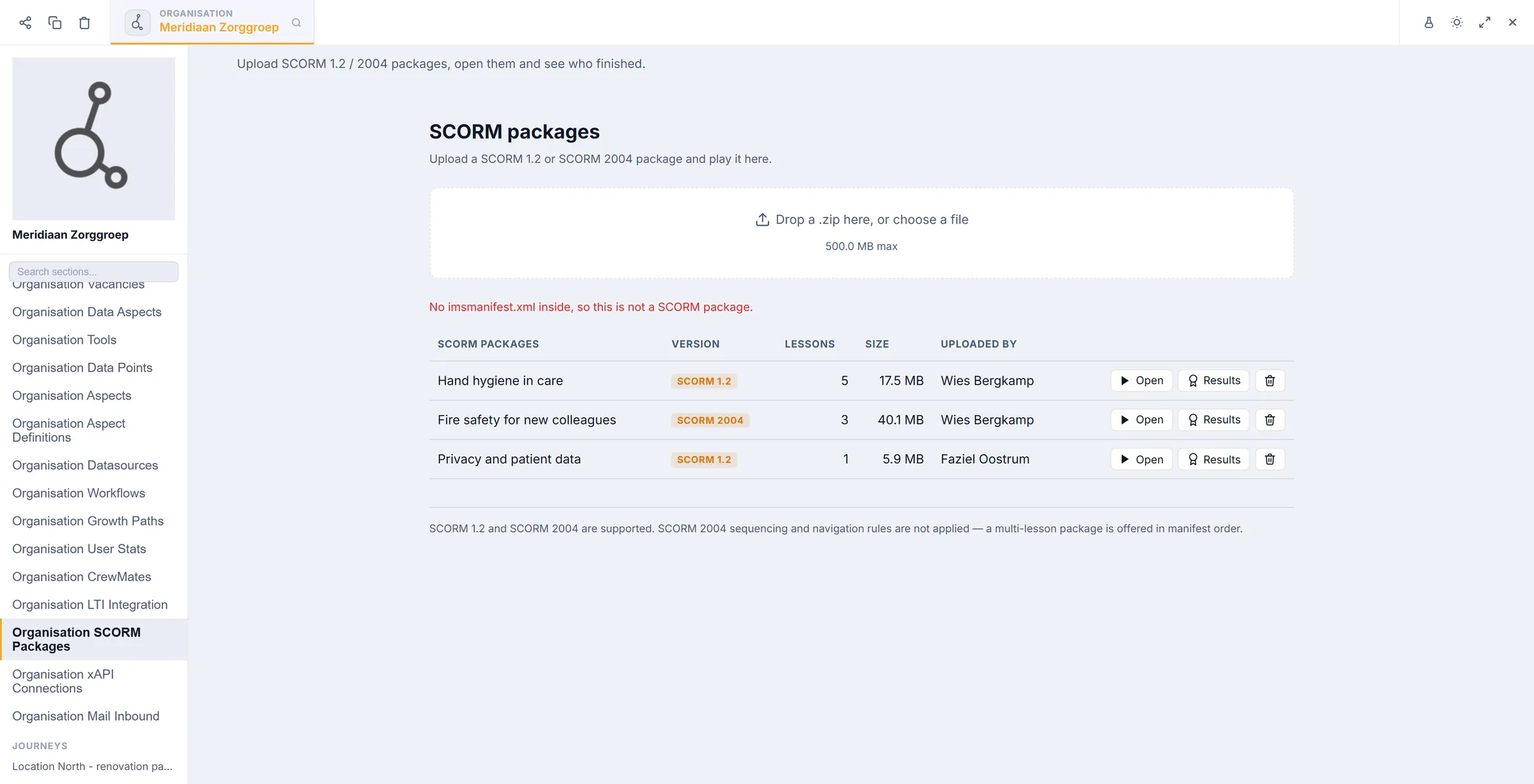
The red line says what is wrong. Try the lesson yourself
Always look at it before others do.
- Press Open at the end of the row of your package. The lesson opens in a new tab.
- At the top you see the title, the label SCORM 1.2 and the name of the lesson. A package with several lessons shows a row of buttons; pick one.
- Go through the lesson. Progress saved shows at the top right each time CoVince stores your progress.
- Press Close when you are done. What was saved is kept.
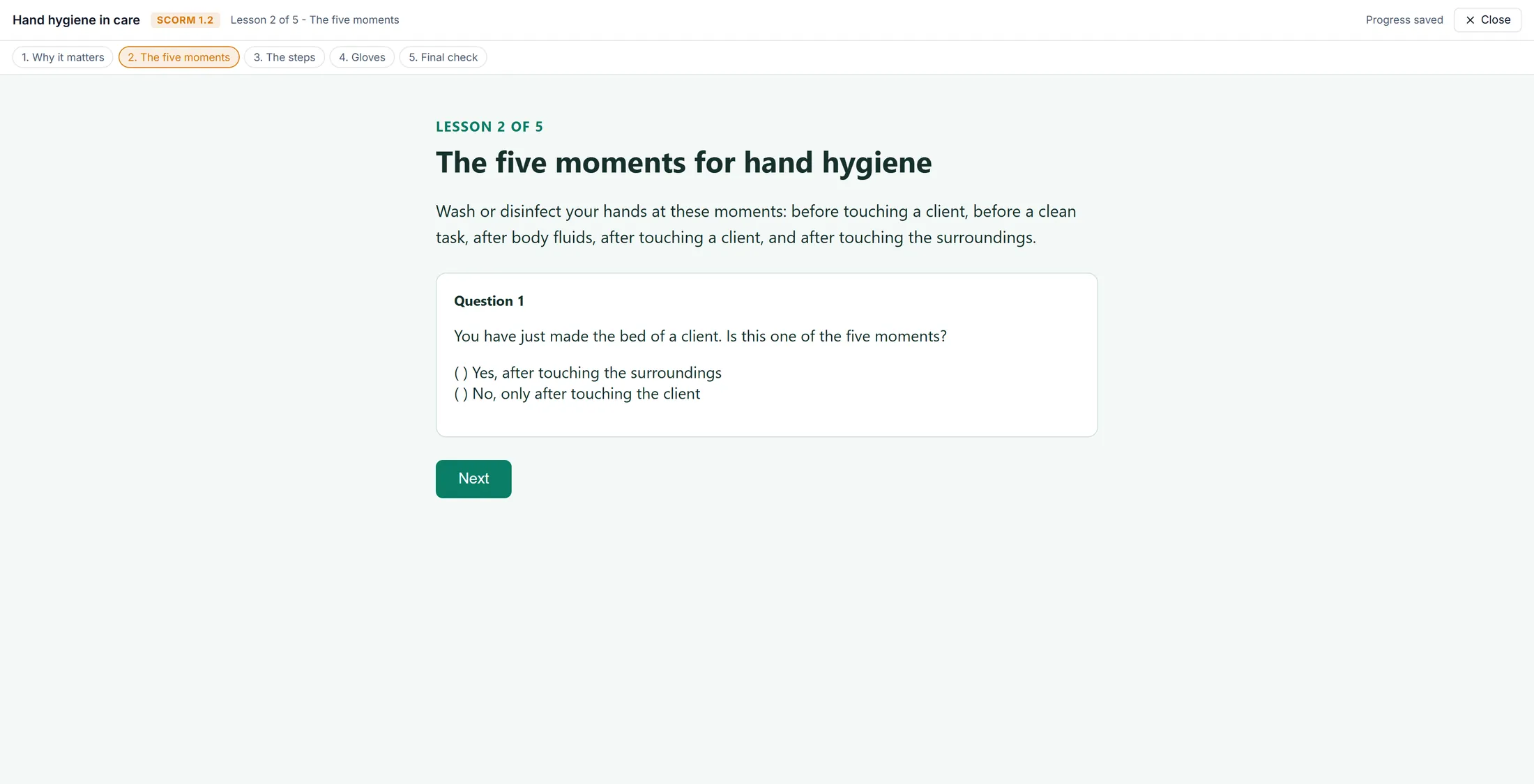
The lesson plays inside CoVince. The bar on top stays. Put it behind a journey’s Start button
People press Start on the journey and the lesson opens.
- Open the Editor and choose the journey that holds your lesson. Make a new one if you need it.
- In the list on the left, click Journey Details . Scroll down to the heading START .
- Open Pressing Start opens . The list has four choices: The journey itself , An external link , An LTI tool and A SCORM package .
- Choose A SCORM package .
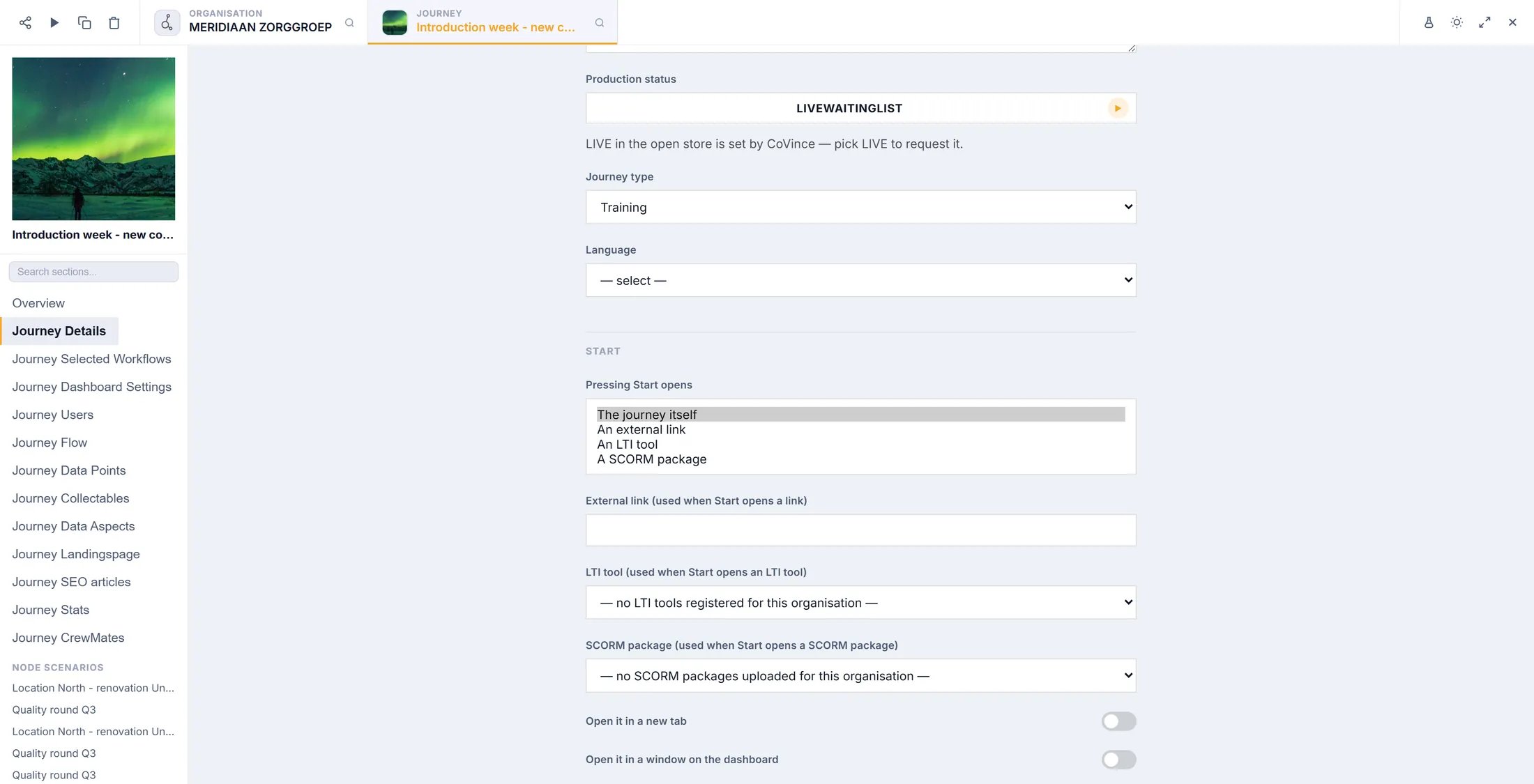
Start can open the journey, a link, an LTI tool or a SCORM package. Pick the package and save
Say which package it is. Then choose how it opens.
- Open the box SCORM package (used when Start opens a SCORM package) and click your package.
- Empty list? It says no SCORM packages uploaded for this organisation . Upload one first (step 2).
- Want it to open beside the dashboard? Switch on Open it in a window on the dashboard . Switch on Open it in a new tab for a tab of its own.
- Save the journey.
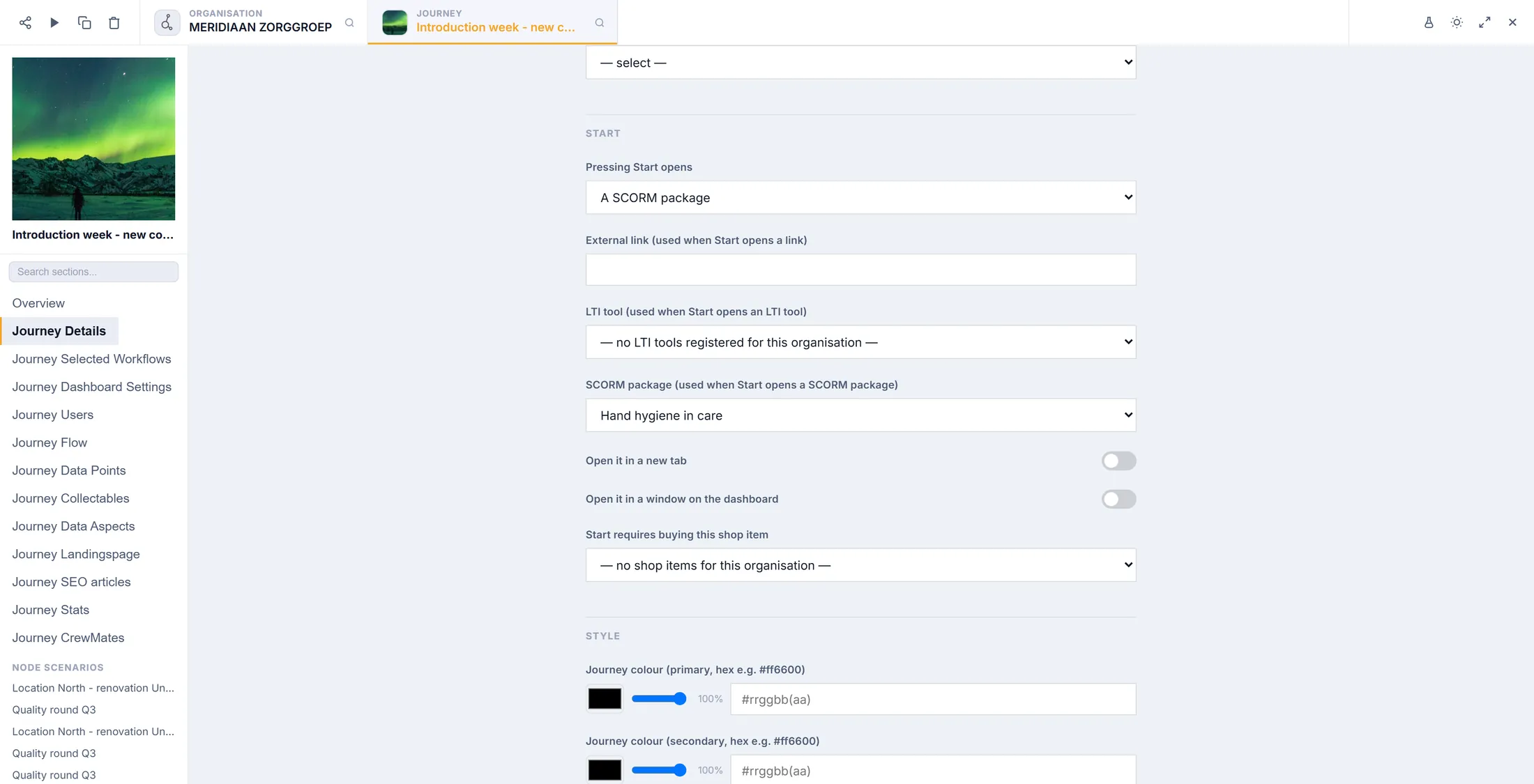
Start now opens the package “Hand hygiene in care”. See who did the lesson
One press shows each person’s progress and score.
- On the SCORM packages page, press Results at the end of a row.
- A table opens in the row: Person , Status , Score , Time and Last activity .
- completed / passed means the person finished and passed. incomplete means they stopped half way. completed / failed means they finished below the pass mark.
- Press Results again to fold the table away.
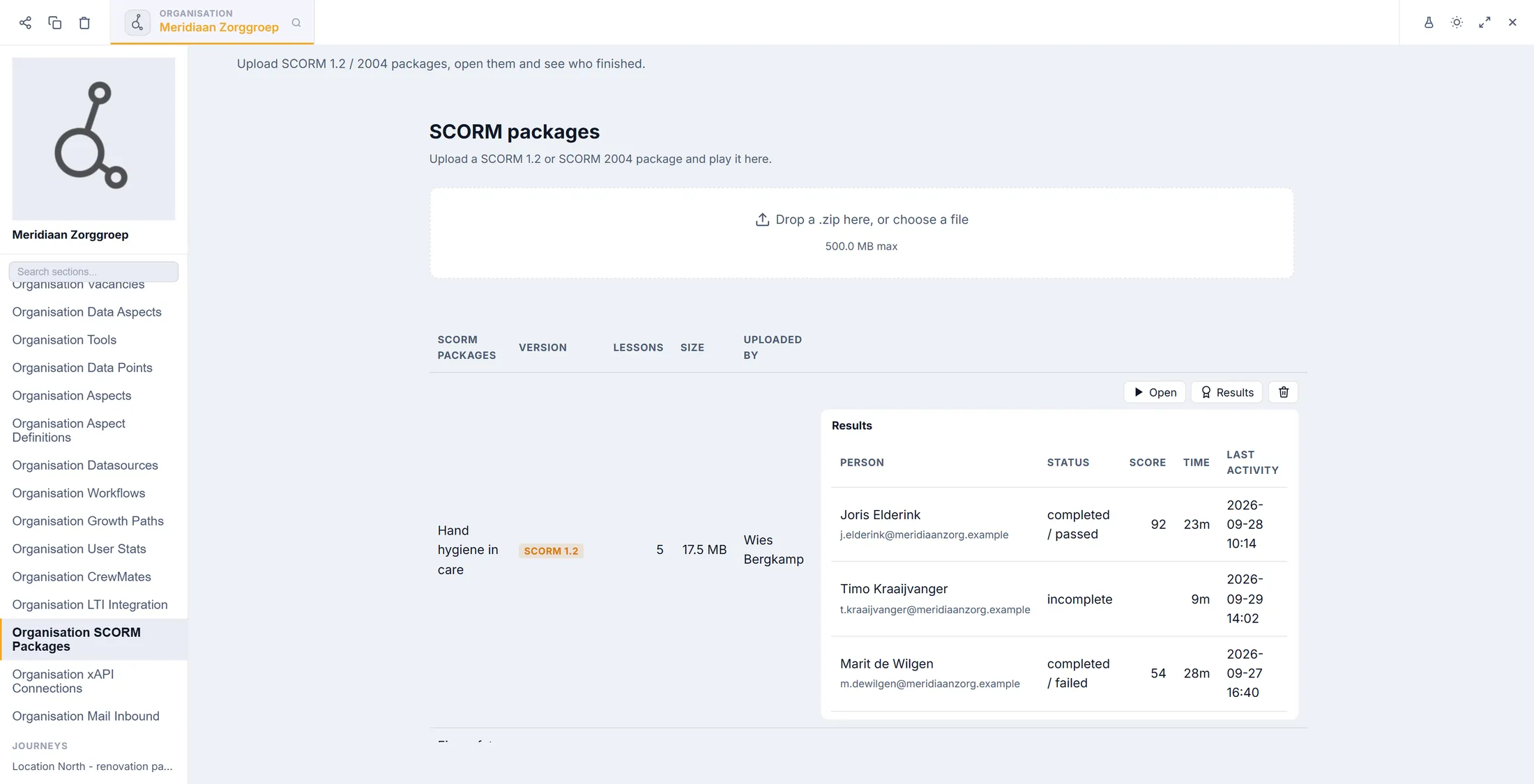
Three people, three different results. The names in the picture are invented. Send results to another system
Your other learning system can get the results too.
- Open the Editor and choose your organisation. In the list on the left, click Organisation xAPI Connections . You see xAPI connections .
- Type a Name for the connection. Leave the second box on We send to their LRS .
- Fill in LRS endpoint , Key and Secret . The other system gives you these three.
- Press Add connection. It appears in the list. Press Test connection: Last result says if the other system accepted a test statement.
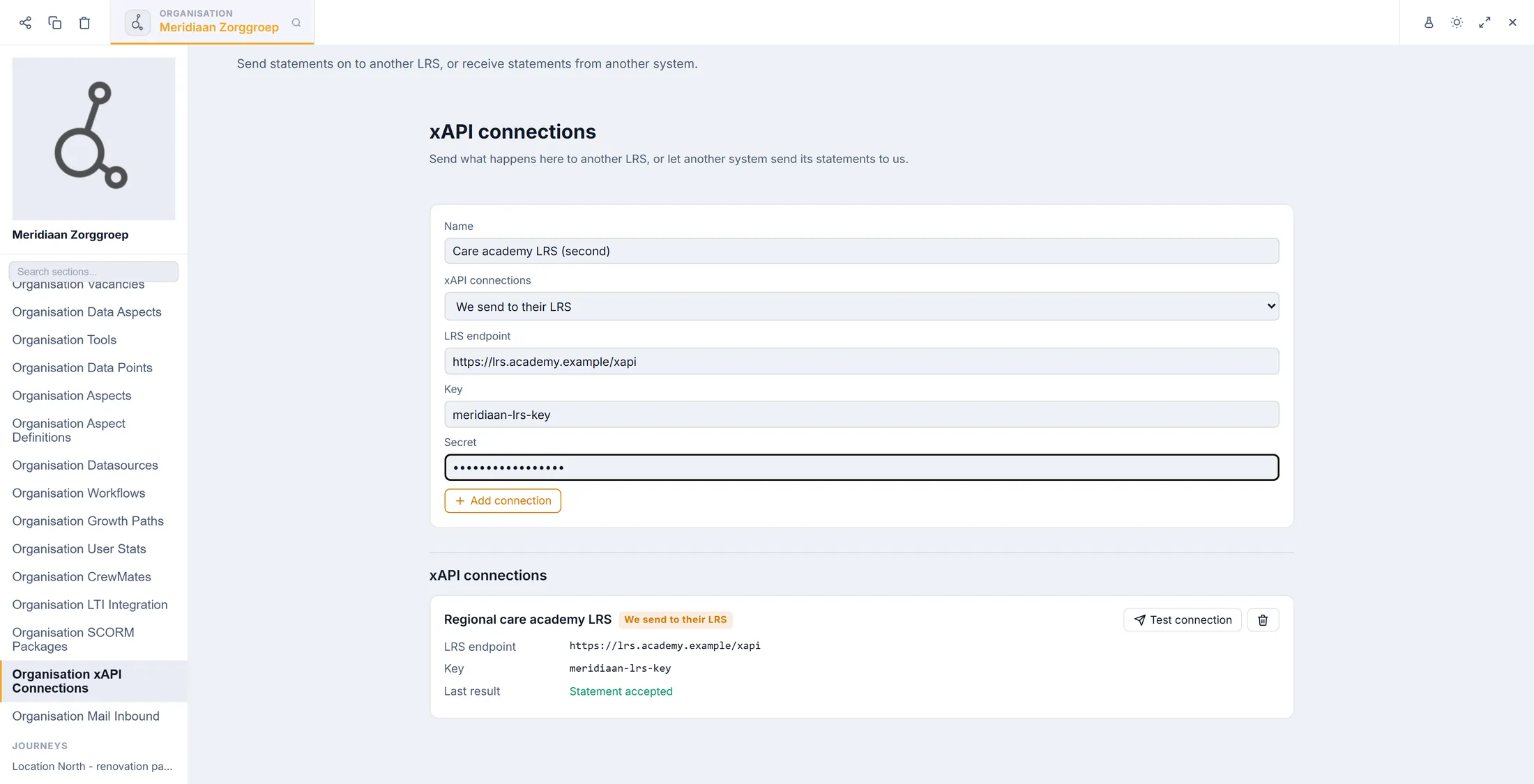
Fill in the form, press Add connection, then test it. Let another system send to CoVince
CoVince can also be the place where results land.
- On xAPI connections , type a Name , for example the name of the other system.
- Choose They send to us in the second box. The address and password boxes go away: CoVince makes them itself.
- Press Add connection. A card shows LRS endpoint , Key and Secret .
- Press Copy and give the three to the other system. The secret is only shown here, now: copy it before you leave.
- What the other system sends shows under Received statements : who, what they did, which activity, the score and when.
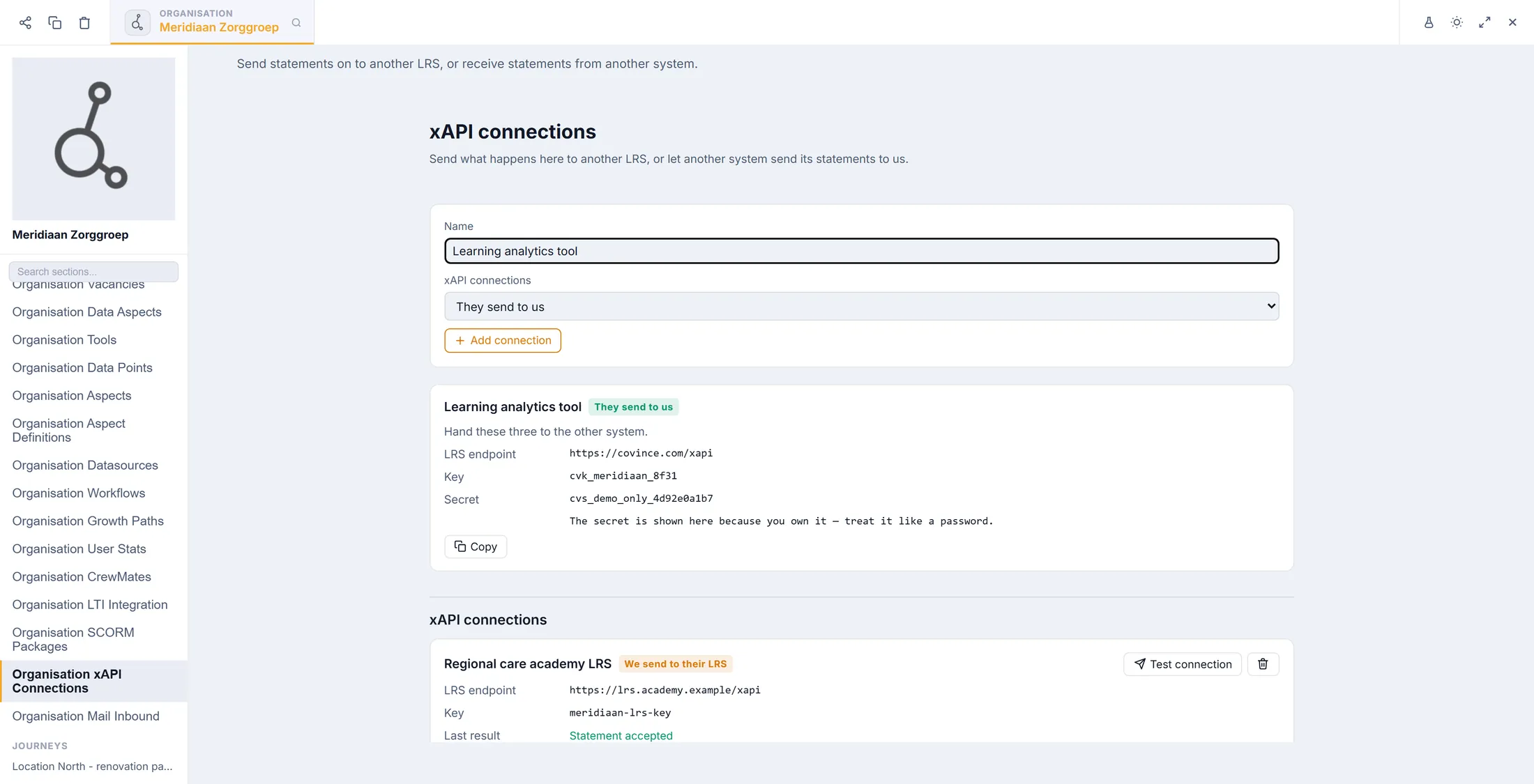
The three things the other system needs. The values in the picture are made up. Know the limits, and clean up
Good to know before you build a whole course on it.
- Read the grey line at the bottom: SCORM 1.2 and SCORM 2004 work. The extra rules of SCORM 2004 for the order of lessons are not applied, so a package with several lessons offers them in the order of its manifest.
- To remove a package, press the bin button at the end of its row. It changes to Delete? : press it once more to be sure.
- Deleting removes the files and every stored result . Journeys that pointed at it can no longer open a lesson.
The bin button removes a package. The grey line names the limits.
If something is not right
I get “Unauthorized” or a blank page when I open SCORM packages.
You are not an admin of an organisation. Ask an admin to make you one.
The lesson plays but nothing is saved.
Watch for Progress saved at the top right. Some lessons only report when they reach their last page, so go to the end once.
My package is refused.
Read the red line under the box (step 3). The most common reason: imsmanifest.xml is inside a folder in the .zip.
Can I turn a CoVince journey into a SCORM package for my LMS?
No. CoVince plays SCORM packages; it does not make them. To open CoVince from your LMS, use LTI: see “Connect your LMS with LTI”.
The words, in plain language
- SCORM
- A standard way to pack an online course, so it can be played in many systems. Two kinds exist: SCORM 1.2 and SCORM 2004.
- package
- One .zip file with a whole course inside: the pages, the pictures and a list of the lessons.
- manifest
- The small file imsmanifest.xml inside the package. It names the course and its lessons. Without it, CoVince does not accept the package.
- LMS
- A learning management system: the website where a school or company keeps its courses, for example Moodle.
- xAPI
- A standard way to report what somebody learned, as short messages called statements, such as “Joris completed Hand hygiene”.
- LRS
- A learning record store: the place that collects xAPI statements.
Where to go next
- Connect your LMS with LTI When the lesson stays in your LMS.
- Make a learning Build a lesson inside CoVince instead.
- All explainers The other things you can learn here.